

Use For … Next to repeat code a set number of times. The counter goes up by 1 on each pass:
Sub NumberRows()
    Dim i As Long
    For i = 1 To 10
        Cells(i, 1).Value = i
    Next i
End Sub
Add Step to change the increment. For i = 1 To 10 Step 2 runs for 1, 3, 5, 7 and 9, and For i = 10 To 1 Step -1 counts down.
To work through every item in a collection, use For Each, which needs no counter: For Each ws In ThisWorkbook.Worksheets for every sheet, or For Each c In Range("A2:A100") for every cell. Close it with Next ws or Next c.
Leave a loop early with Exit For, for example If Cells(i, 1).Value = "" Then Exit For. The start and end values are read once when the loop begins, so changing them inside the loop does not change how many times it runs. After a full run, the counter is one step past the end value, so i is 11 after For i = 1 To 10.
When the loop deletes rows, count down with Step -1. Counting up skips the row that moves into the deleted one’s place. Declare row counters As Long, because Integer stops at 32,767 with an “Overflow” error.
Key Points
- VBA For Loops are fixed types of loops.
- It is not possible to create any of these loops while recording a macro; you need to write them in the Visual Basic Editor.
For Next Loop
VBA FOR NEXT is a fixed loop that uses a counter to run iterations. In simple words, you need to specify the number of times you want to run the loop, and once the loop reaches that count, it will stop automatically. That’s why it is a fixed loop and most popular among VBA developers.
Syntax
Following is the syntax for the VBA For Next Loop:
For counter = Start To End [Step stepsize]
[statements]
Next [counter]

- Counter: It’s a variable that stores the count of the repetition and increases its value with each repetition. For example, if the loop starts at 1 and is in its fifth repetition, the value of the counter will be five, and once the loop executes the statement for the fifth iteration, the value of the counter changes to six.
- Start: It is a numeric value (or a variable) that sets the starting value for the counter.
- End: It is a numeric value (or a variable) that sets the ending value for the counter. VBA reads it only once, when the loop starts.
- Step Size: This value specifies how much the counter increases or decreases with each repetition. By default, the step size is one, but you can also use any positive or negative value.
- Statement: It’s a set of code that you want to execute in each iteration of the For Next loop.
- Next: It’s the end statement for one iteration of the loop and uses the counter value to tell VBA to repeat the loop and once the counter reaches the end value it ends the loop.
Example to Understand For Next Loop
To understand how to use the For Next loop, let’s write a simple code to add serial numbers in a column.
Let me elaborate a little more: We need to write a code that can go from the selected cell to the next 10 cells one by one and add serial numbers just like in the below snapshot.

To use For Next Loop, you can use the following steps:
- First, you need to declare a variable that you can use to store the counter value.

- Next, we need to assign the counter value to the variable.

- Now it’s time to write code for the loop, so in the first line, you need to use the counter variable and define the starting and the ending value. Here in this code, you have the variable “i” (which is 10 at this point) as the ending value.
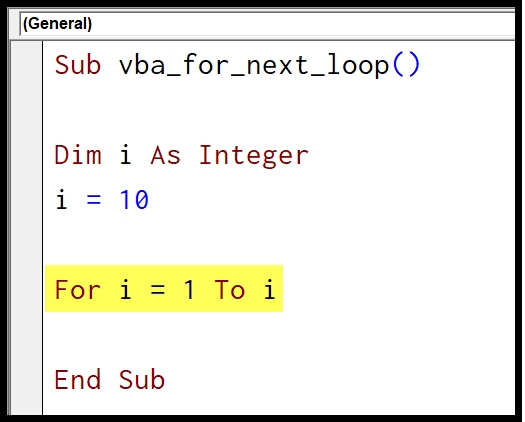
- From here, you need to write code that can add the serial numbers into the active cell and then move to the next cell. As the counter value increases in each iteration, you can use it to enter the serial number into the active cell and after that, you can use the offset to move the selection to the next cell downwards.

- In the end, use the keyword Next and the counter variable to end the code for the loop.
Sub AddSerialNumbers()
Dim i As Integer
i = 10

    For i = 1 To i

        ActiveCell.Value = i
        ActiveCell.Offset(1, 0).Activate

    Next i

End Sub
You can see in the below snapshot that when I run this code, it starts from the selected cell by entering a serial number and then moves to the next cell with each iteration.

As you know, For Next is a fixed loop, and in this code, when you assign a numeric value, it tells VBA to run the loop that number of times. Using the same variable as the counter and the end value works, as VBA reads the end value once before the loop starts, but a separate variable (like For i = 1 To n) is easier to read.
And you can see the below snapshot that I have taken in the second iteration of the loop where the value of the “i” counter variable is two.

The point I’m trying to make is the counting variable changes its value in each iteration and enters that value in the active cell and then Offset activates the next cell downward, which completes one iteration.
In the end, the “Next” keyword tells VBA to go back to the first line of the loop and repeat it. As you have seen in the syntax of For Next, you can also use a step value in the loop to make the counter work according to that.
So if you use two as a step value, the code would be something like the below.
Sub AddSerialNumbers()

Dim i As Integer
i = 10

    For i = 1 To i Step 2

        ActiveCell.Value = i
        ActiveCell.Offset(1, 0).Activate

    Next i

End Sub
And when you run this code, it will do something like the below snapshot.

When you use a step value (like Step 2, which you have used in the above code), the counter goes up by 2 each time, so the loop runs only five times, and as you can see, you have got five numbers (1, 3, 5, 7 and 9) with a difference of two between each number.
Note: In the above example, you have used “i” as the counter variable, but you can use a different name as well according to your convenience.
For Each Next Loop
VBA FOR EACH NEXT is a fixed loop that can loop through all the objects in a collection. In the For Each Next, you don’t need to specify the count of iterations. Instead, you can specify a collection of objects, and it will be able to loop through all those objects one by one.
For Example: Let’s say you want to loop through all the cells in a range. In this case, the range is the collection, and cells are the objects that you have.
Syntax
Following is the syntax for the VBA For Each Next Loop:
For Each Object In Collection
[statements]
Next [object]
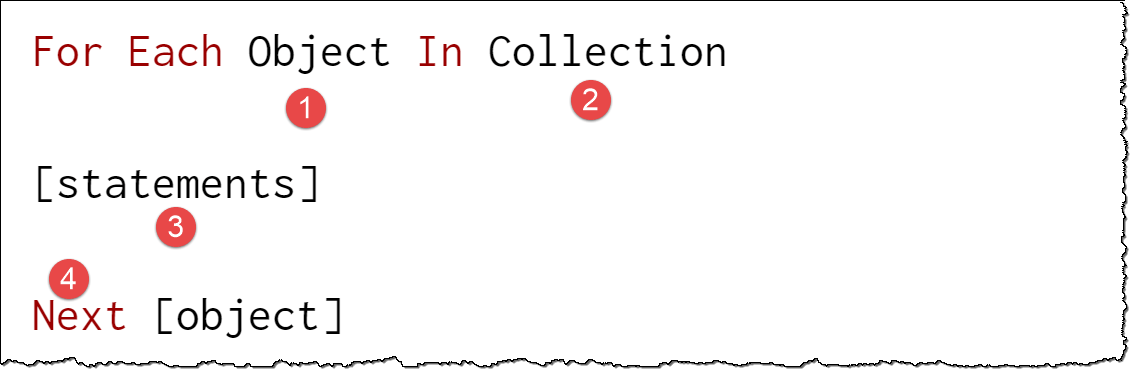
- Object: It represents the one object in the collection of objects in which you are looping. With each iteration, it moves from one object to the next.
- Collection: It’s a collection of objects in which you want to loop.
- Statement: Line(s) of code that you want to execute in each loop through all the objects in the collection.
- Next: It’s the end statement for one iteration of the loop and tells VBA to move to the next object in the collection.
Example to Understand the For Each Next Loop
To understand For Each Next loop, let’s write a code to hide all the sheets other than the active worksheet. This code will check each worksheet’s name and match it with the active worksheet’s name and hide it if it doesn’t match.
To use For Each Next loop, you can use the following steps:
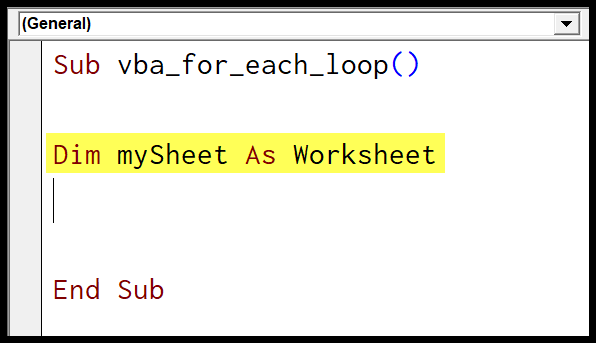
- First, you need to declare a variable to use as a worksheet.
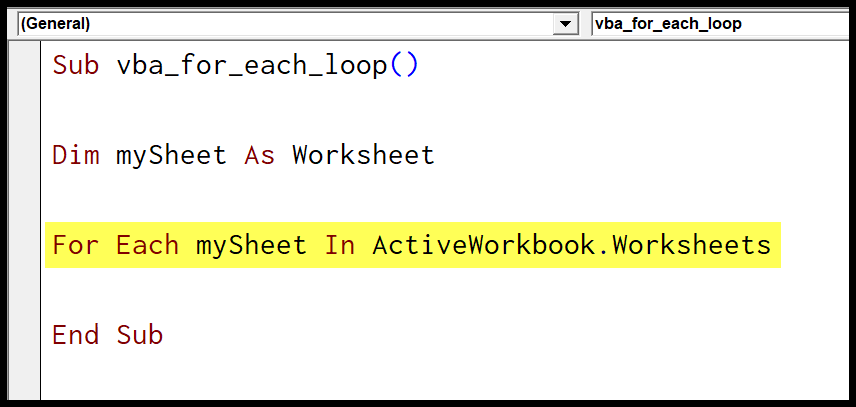
- After that, use the “For Each” keyword, and then the “mySheet” variable for the sheet, and use “ActiveWorkbook.Worksheets” for the collection of worksheets from the active workbook.
- Next, you need to use VBA IF Statement to test if the name of the sheet that is currently in that loop iteration is NOT EQUAL to the active worksheet, and if this condition is true, then hide the sheet that is now in the loop iteration.
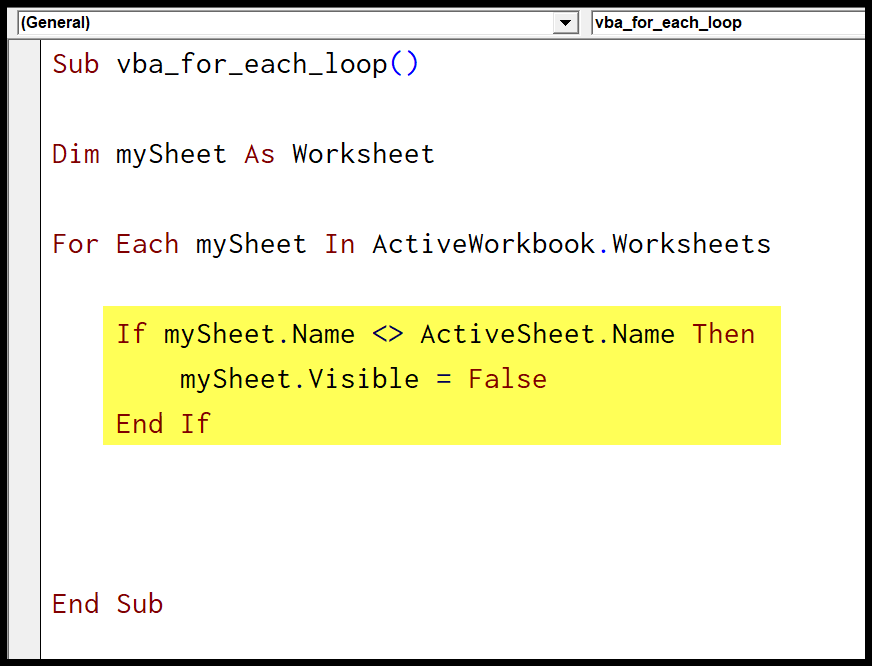
- In the end, you have the NEXT keyword and the “mySheet” variable to end the code for the loop.

Final Code:
Sub Hide_Other_Sheets()

Dim mySheet As Worksheet

For Each mySheet In ActiveWorkbook.Worksheets

    If mySheet.Name <> ActiveSheet.Name Then

        mySheet.Visible = False

    End If

Next mySheet

End Sub
When you run this code, it will loop through each worksheet in the active workbook and match its name with the active worksheet, and if the worksheet’s name is not matched with the active worksheet’s name, it will hide it.
In this way, all the worksheets except the active one will be hidden.
Loop Backwards with a Negative Step
With a negative step, the counter goes down. This is the right way to delete rows in a loop: if you go from top to bottom, every deleted row moves the next row up, and the loop skips it. The following code deletes the empty rows from 1 to 100, starting from the bottom:
Sub delete_empty_rows()
    Dim i As Long
    For i = 100 To 1 Step -1
        If WorksheetFunction.CountA(Rows(i)) = 0 Then
            Rows(i).Delete
        End If
    Next i
End Sub
Exit a For Loop Early
Use Exit For to stop the loop as soon as you find what you’re looking for. The following code looks for the first empty cell in column A and stops there:
Sub find_first_empty_cell()
    Dim i As Long
    For i = 1 To 1000
        If IsEmpty(Cells(i, 1).Value) Then
            MsgBox "The first empty cell is A" & i
            Exit For
        End If
    Next i
End Sub
Nested For Loops
You can put one loop inside another. The outer loop goes through the rows and the inner loop through the columns, so the following code fills A1:C5 with the row number times the column number:
Sub nested_loops()
    Dim r As Long, c As Long
    For r = 1 To 5
        For c = 1 To 3
            Cells(r, c).Value = r * c
        Next c
    Next r
End Sub
Each loop needs its own counter variable and its own Next. If one Next is missing, VBA shows the “For without Next” compile error.
Frequently Asked Questions
What is the difference between For Next and For Each Next?
For Next runs a set number of times with a counter. For Each Next runs once for each object in a collection, like each cell in a range or each sheet in a workbook, without a counter.
Should the counter be Integer or Long?
Use Long. An Integer can only go up to 32,767, so a loop through the rows of a large sheet stops with an Overflow error (Error 6).
How do I stop a loop that runs forever?
Press Esc or Ctrl + Break while the code runs, and then click End. A For loop stops on its own, but changing the counter inside the loop can keep it running.

Written by
Puneet Gogia
Microsoft MVP — Excel · Founder, Excel Champs
Twelve years of teaching Excel, and a decade before that using it as a data analyst. Every tutorial here is written from a file I actually built.