

Name the object once after With, then start each line inside the block with a dot:
With Range("A1").Font
    .Name = "Calibri"
    .Size = 14
    .Bold = True
End With
The most useful object to put after With is a sheet. Inside With Worksheets("Data") you can write .Range("A1").Value = Date and .Cells(.Rows.Count, 1).End(xlUp).Row without repeating the sheet name. In a loop through sheets, use the loop variable, as in With ws.Cells, so each pass works on that sheet.
Blocks can be nested. With With .Range("A1:D1") inside With Worksheets("Data"), each dot refers to the inner range until its End With, then to the sheet again.
A missing dot is the error to watch for. Inside With Worksheets("Data"), Range("A1") without the dot means the active sheet, so the code runs without an error and changes the wrong sheet.
Key Points
- Use the VBA With Statement to minimize the code.
- You can use a single object at a time while using the With Statement.
What is VBA With Statement
VBA With is a statement to specify an object once and then run multiple statements for it. In simple words, you use the “WITH” statement to specify an object, and after that, you can access all its properties and methods in one go. It starts with the “With” and ends with “End With”.
Syntax of VBA With Statement
Following is the syntax that you need to use for the With statement in VBA:
With [OBJECT]
      [Statement]
End With
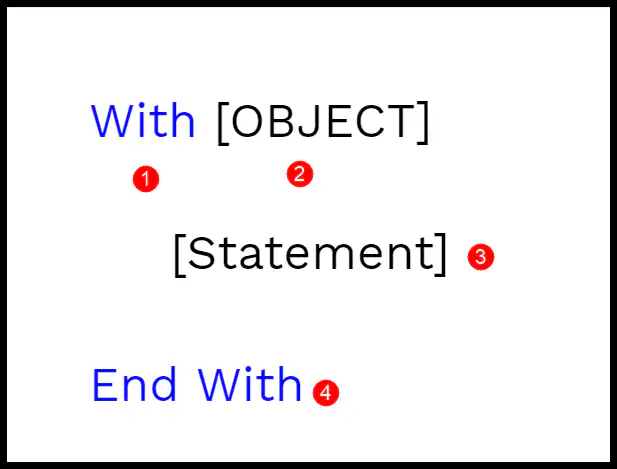
- With: It’s the starting keyword for the statement that tells VBA that you are specifying the object mentioned.
- Object: Here, you need to specify the object that you want to use.
- Statement: A statement(s) that you want to run with the specified object.
- End With: It’s the ending keyword for the statement.
Example to Understand the VBA With Statement
Let’s take an example to understand the With statement in depth. Let’s say you want to change the font color, size, and font name of cell A1. For doing all three things, you need to access three different properties of VBA font and the code would be:
Range("A1").Font.Color = RGB(0, 0, 255)
Range("A1").Font.Size = 16
Range("A1").Font.Name = "Consolas"
But here we are going to use the With Statement instead of the above code. To use the VBA With Statement, you can use the following steps:
- First, type the keyword “With”.
- After that, use the VBA Range to specify cell A1, along with the Font object.
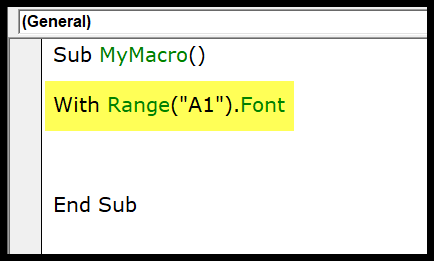
- Next, you need to enter the code for all three properties and the values that you want to apply.
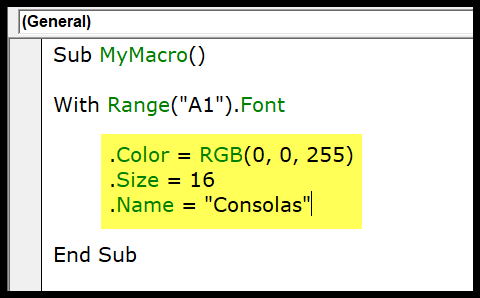
- In the end, use the keyword “End With” to end the statement.
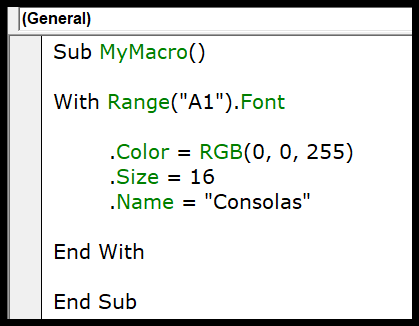
Here’s the code that you have just written.
Sub MyMacro()

With Range("A1").Font
        .Color = RGB(0, 0, 255)
        .Size = 16
        .Name = "Consolas"
End With

End Sub
Now let’s have a look at both codes and try to understand the difference that we have got by using the “With” statement.
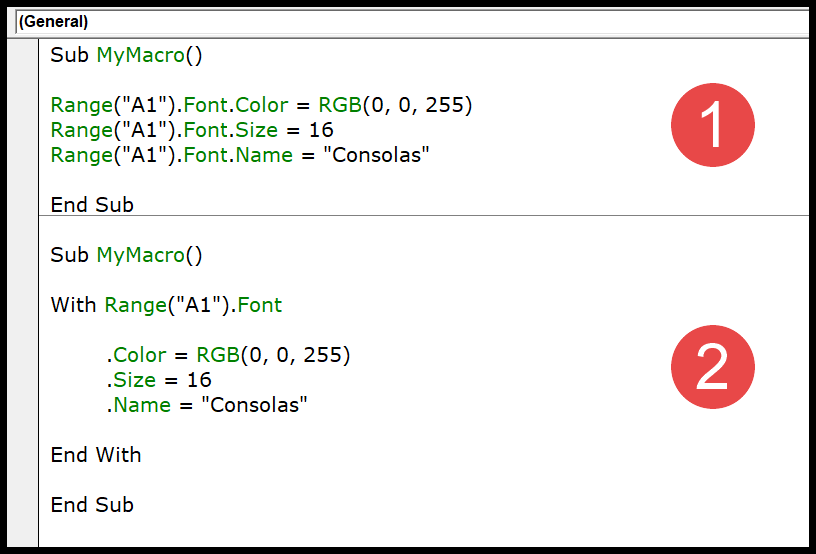
In the first code, you have used the font object three times and then the property that you want to access and change.
But in the second code, you have used the With statement and specified the font object at once. And then you have three lines of code within the “With” statement to access all three properties.
When you use the “With” statement and specify an object, it tells VBA that all the statements that you have written need to run with the object mentioned. It not only gives you structured code but can also make a macro run a little faster, as VBA works out the object only once.
With Statement in a Loop (Multiple Objects)
I told you at the start that you can only specify a single object in a With statement. But there is a way to use more than one or even multiple objects with it. That’s by using VBA LOOPS, and we are going to use a FOR EACH LOOP to loop through multiple objects and use “With” for each one.
Let me give you an example: you need to loop through all the worksheets and apply the following settings to all the cells in each worksheet.
- Font Size: 16
- Font: Verdana
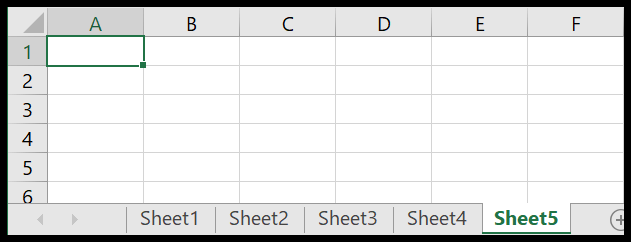
And in the workbook, you have five worksheets, as I have in the following example:
Use the following steps to write a nested “With” statement.
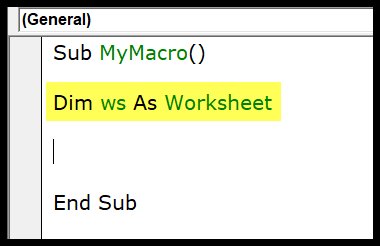
- First, you need to declare a variable to use a worksheet object.
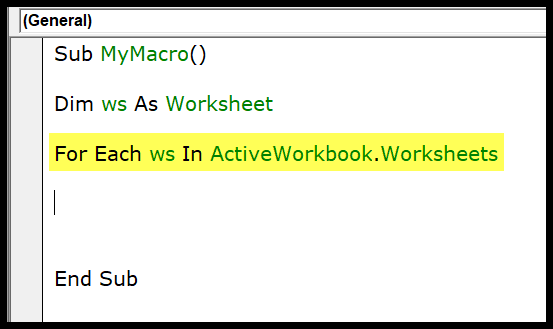
- After that, as I said, you need to use For Each Loop. So, you need to write a code with the loop that can loop through all the worksheets.
- Now, enter the With statement, which can apply font setting that we have discussed above. For referrring to all the cells in the worksheet you can use “ws.Cells” while specifying the object.
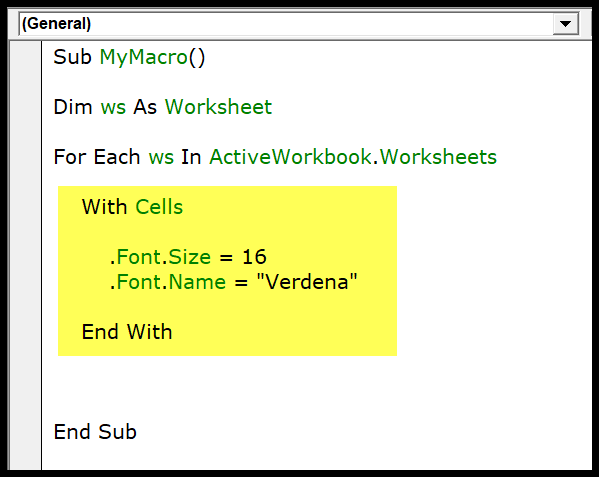
Here’s the full code that you have just written.
Sub MyMacro()

Dim ws As Worksheet

For Each ws In ActiveWorkbook.Worksheets
    With ws.Cells
        .Font.Size = 16
        .Font.Name = "Verdana"
    End With
Next ws

End Sub
Note that the code uses ws.Cells, not just Cells. Without ws, Cells always refers to the active sheet, so the loop would change only the active sheet five times.
Nested With Statements
You can also put one With block inside another. The inner With can use the object of the outer one, which saves you from repeating the sheet name. In the following code, the outer With refers to Sheet1 and the inner one to the font of A1 on that sheet:
Sub nested_with()
    With Worksheets("Sheet1")
        .Range("A1").Value = "Sales Report"
        With .Range("A1").Font
            .Bold = True
            .Size = 14
        End With
        .Columns("A").AutoFit
    End With
End Sub
Inside the inner block, a dot refers only to the inner object (the font). Once the inner End With runs, the dot refers to the sheet again.
Common Mistakes with the With Statement
- Missing dot: inside With Worksheets(“Sheet1”), Range(“A1”) without the dot refers to the active sheet, not Sheet1. Always start with a dot, like .Range(“A1”).
- Missing End With: every With needs its own End With, or VBA shows the “Expected End With” error when you run the code.
- Jumping in or out: Microsoft advises not to jump into or out of a With block with GoTo; use Exit Sub or let the block finish.
Frequently Asked Questions
Can I use With with a variable?
Yes. Any object variable works, like With ws or With rng. You can also call methods inside the block, like .ClearContents or .Copy.
Can I change the object inside a With block?
No. The object is set when the With starts and stays the same until End With. To work with another object, close the block and start a new one, or nest a second With inside it.
Does With work with cells on another sheet?
Yes, and you don’t need to activate that sheet. Refer to it in the With line, like With Worksheets(“Sheet2”).Range(“B2:B10”), and the statements inside change those cells directly.

Written by
Puneet Gogia
Microsoft MVP — Excel · Founder, Excel Champs
Twelve years of teaching Excel, and a decade before that using it as a data analyst. Every tutorial here is written from a file I actually built.