

This is a complete guide to learning and understanding how to use XLOOKUP in Excel.
XLOOKUP needs only three arguments…
Here is a simple example to help you understand XLOOKUP. We need to get the quantity for May.
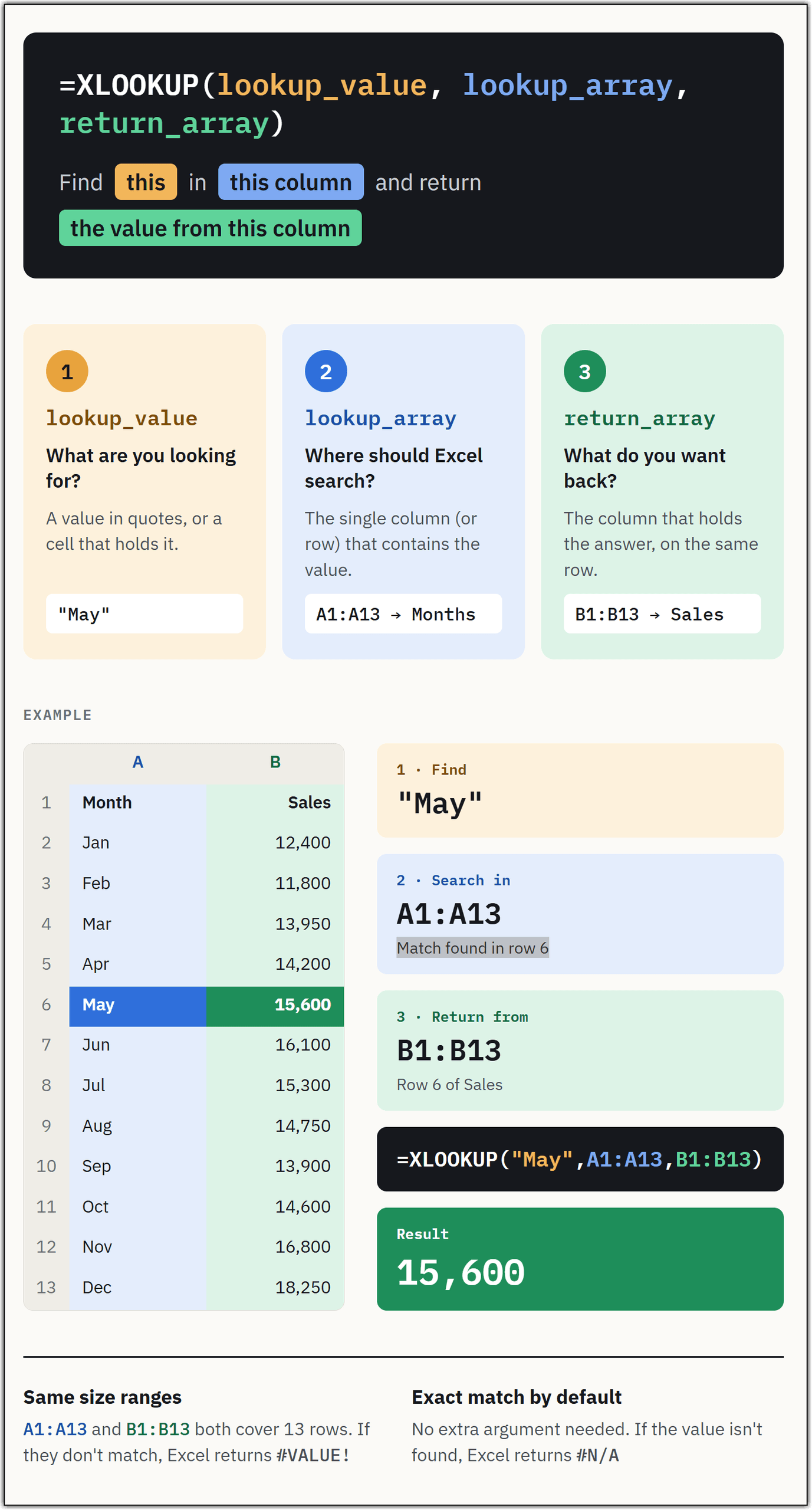
=XLOOKUP(D3,A1:A13,B1:B13)
In plain words: look at whatever month is in D3, find that month in column A, and bring back the matching number from column B. D3 holds “May”. Excel finds May in column A (row 6), then returns the value in the same row of column B (1292) into D4.
The three parts
- D3: the lookup value. What you’re searching for. Here it’s a cell reference instead of typed text, so you can change D3 to “Sep” and D4 instantly becomes 1350. That’s what makes it feel like a mini search box.
- A1:A13: the lookup array. The single column Excel searches in. It only looks here, nowhere else.
- B1:B13: the return array. The single column Excel pulls the answer from.
The lookup array and the return array must be the same height and start on the same row. A1:A13 is 13 cells, and B1:B13 is 13 cells, so position 6 in one lines up with position 6 in the other. If you wrote B2:B14 by mistake, Excel would still calculate; it would just return the wrong month number silently.
Try this to make it click
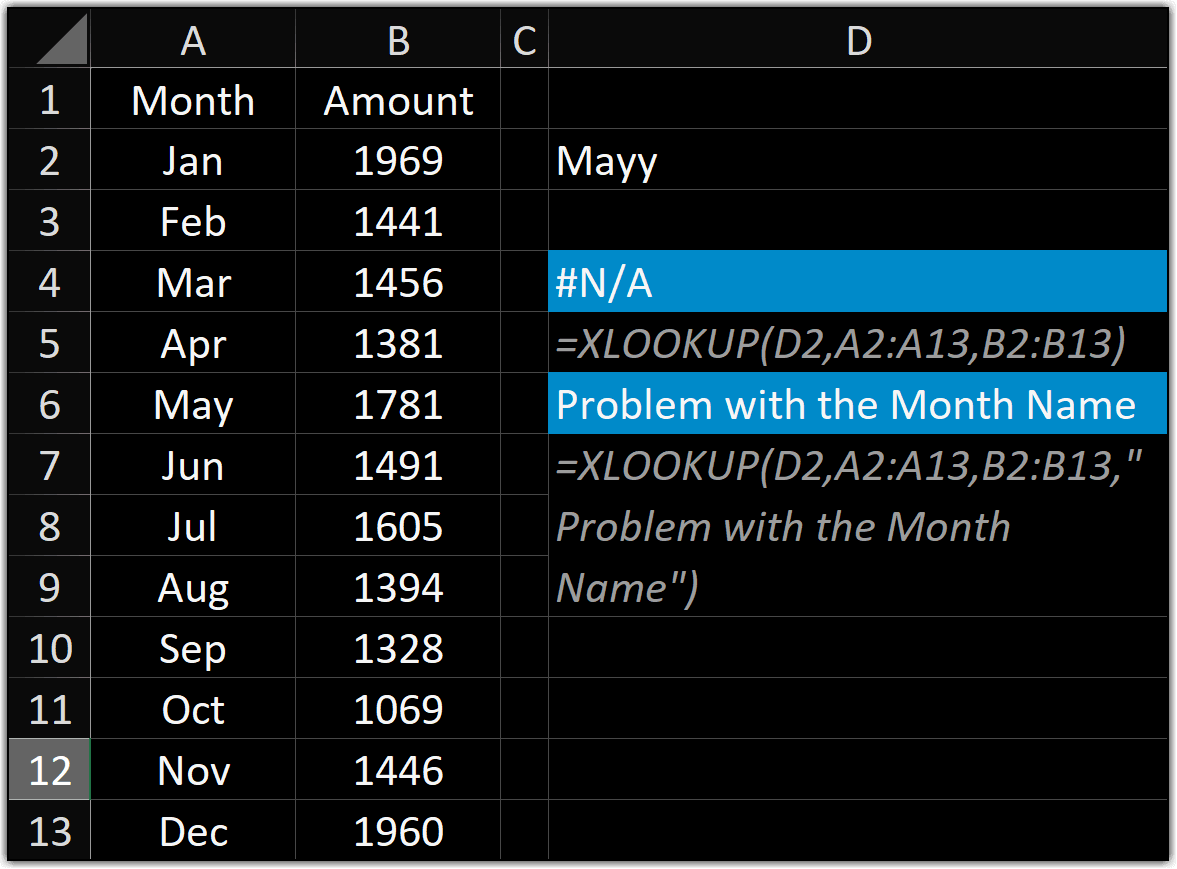
Type “Dec” into D3. D4 should change to 1222 on its own. Then type “Mayy” — you’ll get #N/A, which is Excel telling you it searched and found nothing. That error is the default behavior, and a fourth argument can replace it with your own message later on.
=XLOOKUP(D2,A2:A13,B2:B13,"Problem with the Month Name")
LOOKUP to Left with XLOOKUP
This is a simple example to understand how to use XLOOKUP for a LEFT-LOOKUP. In this data, we need to look up the month name using the Amount.
Look at where the columns sit: Amount is in A, Month is in B. The value you search for now lives to the right of the value you want back.
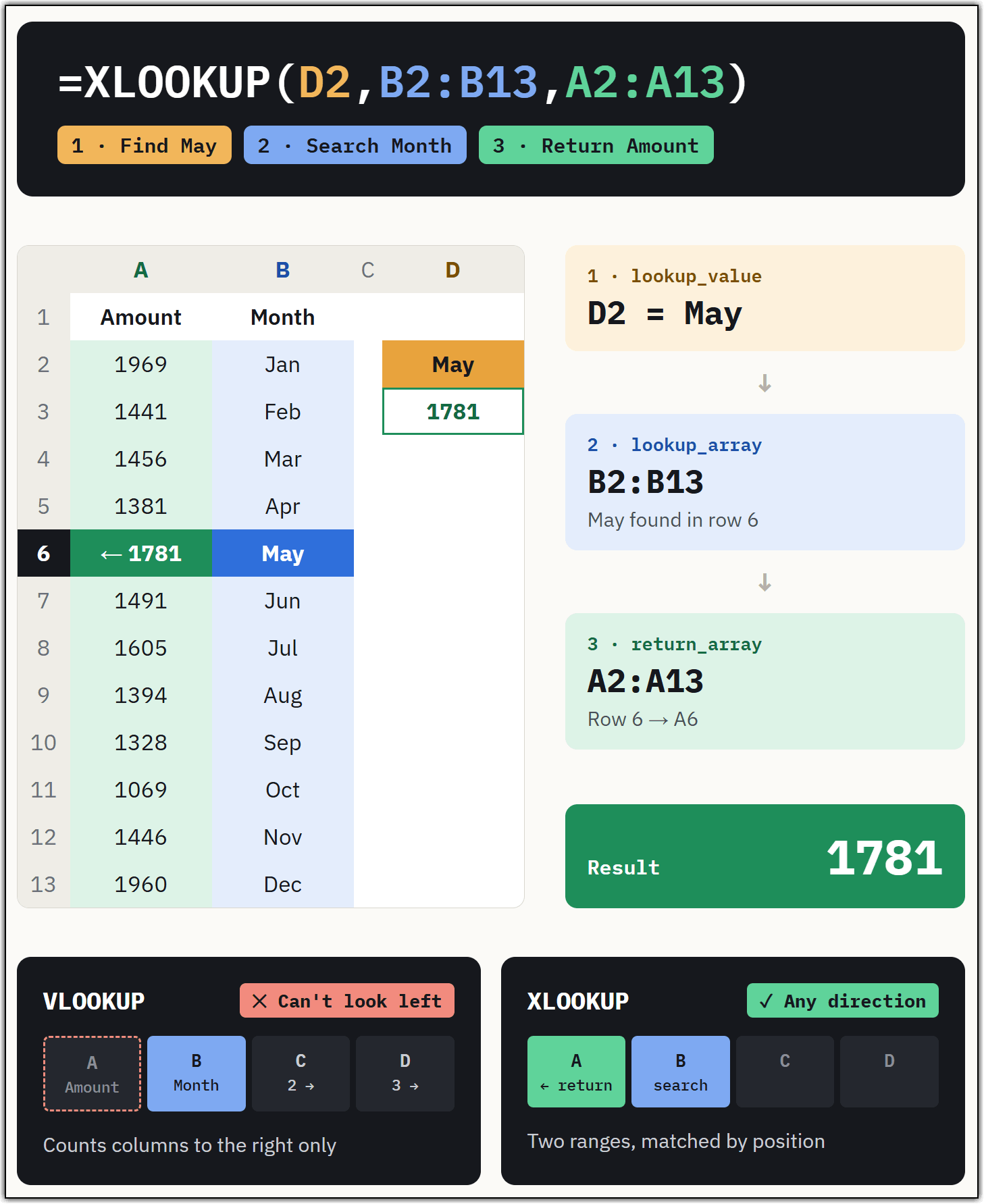
D2 holds “May”. Excel searches column B, finds May in row 6, then returns what’s in A6, 1781.
The rule is the same as before: whatever you’re matching goes in argument 2, whatever you want back goes in argument 3.
Why this example matters…
This is a left lookup; the answer sits to the left of the search column. VLOOKUP simply cannot do this.
It always counts columns rightward from the lookup column, so with this layout you’d have to move column A to the right or wrap it in INDEX/MATCH.
XLOOKUP doesn’t care about direction at all. It never counts columns; you hand it two separate ranges, and it matches them by position. Left, right, or columns on opposite ends of the sheet, same formula.