

Range("A1:D10").Select selects a block of cells. Use Range("A1").Select or Cells(1, 1).Select for one cell, Range("A1:A10,C1:C10").Select for separate areas, Columns("B").Select or Rows(5).Select for a whole column or row, and Cells.Select for the entire sheet.
When the data changes size, select it from its first cell. Range("A1").CurrentRegion.Select takes the block around A1 up to the first empty row and column, and Range("A1", Cells(Rows.Count, "A").End(xlUp)).Select runs from A1 to the last filled cell in column A.
For a Table, use its name: Range("Data[Amount]").Select selects one column’s data, and ActiveSheet.ListObjects("Data").Range.Select selects the whole table with its headers.
Select works only on the active sheet. Worksheets("Data").Range("A1").Select fails with error 1004 when another sheet is active, so activate the sheet first or use Application.Goto Worksheets("Data").Range("A1"), which switches to it for you.
Most macros don’t need to select anything. Format or fill the range directly, as in Range("A1:D10").Font.Bold = True; it runs faster and doesn’t depend on what the user has selected.
Key Notes
- You can use the Range property as well as Cells property to use the Select property to select a range.
Select a Single Cell
To select a single cell, you need to define the cell address using the range, and then you need to use the select property. Let’s say if you want to select cell A1, the code would be:
Range("A1").Select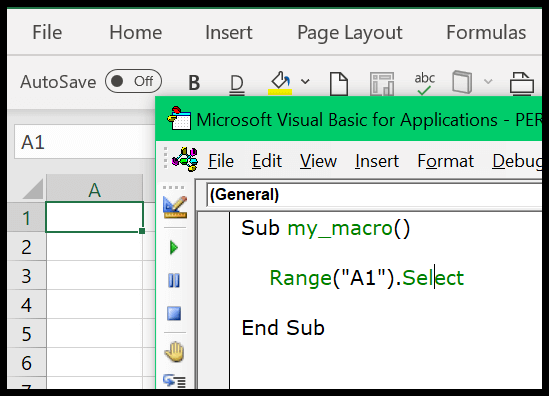
And if you want to use the CELLS, in that case, the code would be:
Cells(1,1).Select
Select a Range of Cells
To select an entire range, you need to define the address of the range and then use the select property. For example, if you want to select the range A1 to A10, the code would be:
Range("A1:A10").Select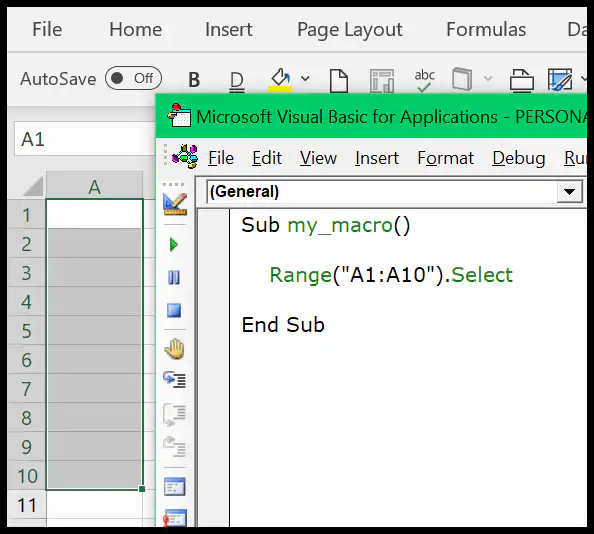
Select Non-Continues Range
To select a non-continuous range, you need to use a comma within the cell or range addresses, and then use the select the property. Let’s say if you want to select the range A1 to A10 and C5 to C10, the code would be:
Range("A1:A10, C5:C10").Select
And if you want to select single cells that are non-continuous, the code would be:
Range("A1, A5, A9").Select
Select a Column
To select a column, let’s say column A, you need to write code like the following:
Range("A:A").Select
And if you want to select multiple columns, in that case, the code would be like the following:
Range("A:C").Select
Range("A:A, C:C").Select
Select a Row
In the same way, if you want to select a row, let’s say row five, the code would be like the following.
Range("5:5").Select
And for multiple rows, the code would be:
Range("1:5").Select
Range("1:1, 3:3").Select
Select All the Cells of a Worksheet
Let’s say you want to select all the cells in the worksheet, just like you use the keyboard shortcut Control +A. You need to use the following code.
ActiveSheet.Cells.Select
Cells.Select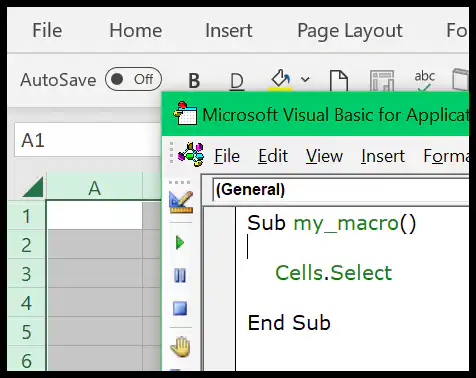
“Cells” refer to all the cells in the worksheet, and then select property selects them.
Select Cells with Data Only
Here “Cells with Data” only mean a section in the worksheet where cells have data and you can use the following code.
ActiveSheet.UsedRange.SelectSelect a Named Range
If you have a named range, you can select it by using its name.
Range("my_range").Select
In the above code, you have the “my_range” named range and then the select property, and when you run this macro, it selects the specified range.
Select an Excel Table
If you work with Excel tables, you can also select them using the select property. Let’s say you have a table with the name “Data”, then the code to select that table would be:

If you want to select a column instead of the entire table, then the code would be, like the following:
Range("Data[Amount]").Select
And if you want to select the entire column including the header, then the code you can use:
Range("Data[[#All],[Amount]]").Select
Using OFFSET to Select a Range
You can also use the OFFSET property to select a cell or a range by navigating from a cell or a range. Let’s suppose you want to select a cell that is four columns right and five rows down from the A1; you can use the following code.
Range("A1").Offset(5, 4).Select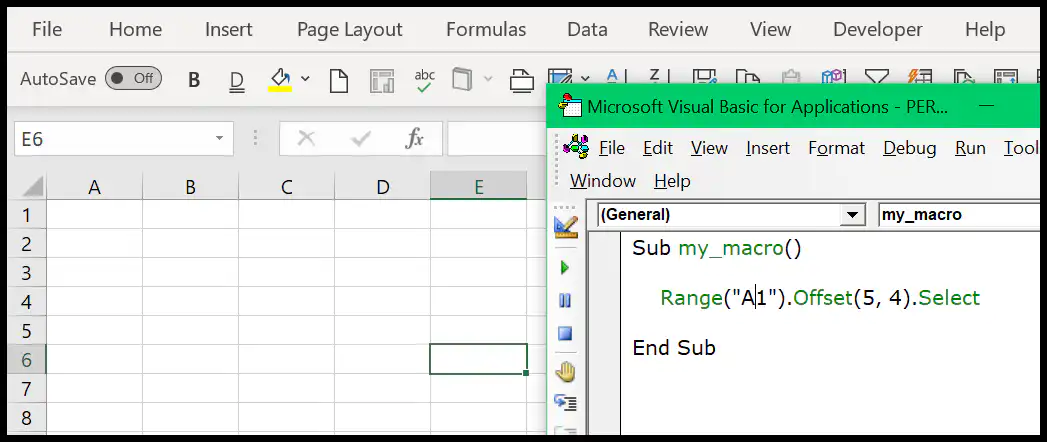
Related Tutorials
- Count Rows using VBA in Excel
- Excel VBA Font (Color, Size, Type, and Bold)
- Excel VBA Hide and Unhide a Column or a Row
- Excel VBA Range – Working with Range and Cells
- Apply Borders on a Cell using VBA in Excel
- Find Last Row, Column, and Cell using VBA in Excel
- Insert a Row using VBA in Excel
- Merge Cells in Excel using a VBA Code
- SELECT ALL the Cells in a Worksheet using VBA
- ActiveCell in VBA in Excel
- Special Cells Method in VBA in Excel
- UsedRange Property in VBA in Excel
- VBA AutoFit (Rows, Column, or the Entire Worksheet)
- VBA ClearContents (from a Cell, Range, or Entire Worksheet)
- VBA Copy Range to Another Sheet + Workbook
- VBA Enter Value in a Cell (Set, Get and Change)
- VBA Insert Column (Single and Multiple)
- VBA Named Range | (Static + from Selection + Dynamic)
- VBA Range Offset
- VBA Sort Range | (Descending, Multiple Columns, Sort Orientation
- VBA Wrap Text (Cell, Range, and Entire Worksheet)
- VBA Check IF a Cell is Empty + Multiple Cells

Written by
Puneet Gogia
Microsoft MVP — Excel · Founder, Excel Champs
Twelve years of teaching Excel, and a decade before that using it as a data analyst. Every tutorial here is written from a file I actually built.