

In Excel, there is a simple and quick way to swap two cells with each other. Let’s say you have a value in cell A2 and a value in cell B2. By swapping, you can move the value of A2 to B2 and the value of B2 to A2.

In this tutorial, we will look at a quick trick to swap two cells with each other.

Steps to Swap Cells in Excel
- First, you need to select cell A2.
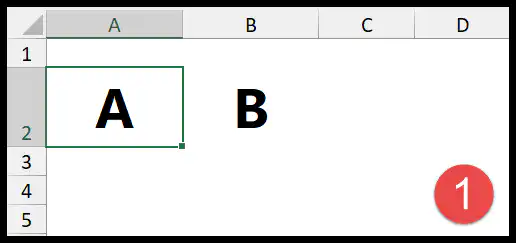
- Now, press and hold the Shift key on your keyboard.

- Next, hover your mouse cursor on the border of cell A2 until it changes to a four-headed arrow.

- After that, click and drag the cell (still holding Shift) to the border between cells B2 and C2, where you see a thick green line.
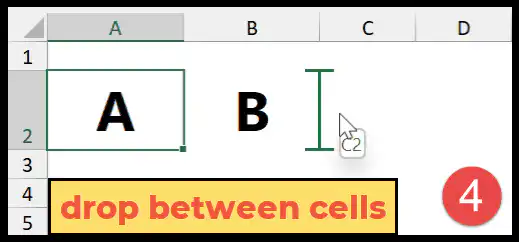
- In the end, drop the cell there to swap the cells with each other.
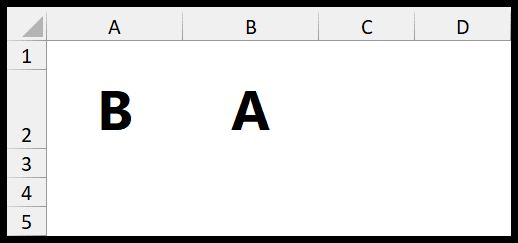
This trick moves cell A2 after cell B2, so B2 shifts left into A2. It works the same way on a Mac (hold Shift while you drag), and Excel moves the cell with its value, formula and formatting.
Swap Two Rows or Columns
You can use the same trick to swap entire rows or columns. Select the row (or column), hold Shift, drag its border and drop it below the next row (or to the right of the next column). The green line shows where the row or column will go.
Swap Two Cells That Are Not Next to Each Other
The Shift and drag trick only swaps cells that are next to each other. For two cells that are apart, use a free cell as a temporary holder:
- First of all, cut the first cell (Ctrl + X) and paste it into an empty cell.
- After that, cut the second cell and paste it where the first cell was.
- In the end, cut the value from the temporary cell and paste it where the second cell was.
If you do this often, a short macro can swap the values of any two cells you select (select the first cell, then hold Ctrl and select the second):
Sub swap_two_cells()
    Dim temp As Variant
    If Selection.Areas.Count <> 2 Then
        MsgBox "Select two cells with the Ctrl key."
        Exit Sub
    End If
    temp = Selection.Areas(1).Cells(1, 1).Value
    Selection.Areas(1).Cells(1, 1).Value = Selection.Areas(2).Cells(1, 1).Value
    Selection.Areas(2).Cells(1, 1).Value = temp
End Sub
This macro swaps only the values, not formulas or formatting, and you can’t undo it with Ctrl + Z, so save your file first.
Frequently Asked Questions
Does swapping cells change my formulas?
No. When you move a cell with Shift and drag, Excel updates the formulas that refer to it, so they still point to the same values.
Why does Excel ask to replace the contents of the destination cells?
You released the mouse without holding Shift, so Excel tried to move the cell on top of the other one. Press Cancel and try again, keeping Shift pressed until you release the mouse.
Can I swap a range of cells?
Yes. Select a range, like A2:A5, hold Shift and drag its border to the other side of the next column, and Excel swaps the two blocks.