

To check whether a date falls before another date, compare them directly — Excel stores dates as numbers, so the ordinary less-than operator works: =IF(A2<$C$1,"Before","After") returns “Before” when the date in A2 comes earlier than the one in C1. Lock the comparison cell with dollar signs so it doesn’t shift as you drag the formula down.
To compare against today, use =IF(A2<TODAY(),"Before","After"), which updates itself each time the file opens. Use <= if a date matching exactly should also count as “before”.
Two things that go wrong. If a date is stored as text — left-aligned in the cell — the comparison gives a wrong answer silently rather than erroring, so convert it first with =DATEVALUE(A2).
And if either cell carries a time as well as a date, two entries on the same day won’t compare as equal; strip the time with =INT(A2). To type the comparison date into the formula rather than reference a cell, build it properly: =IF(A2<DATE(2026,10,30),"Before","After") — a text date in quotes depends on regional settings.
Let’s say you have a date in a cell and want to check if that date is before a particular date. In this case, you need to use the IF function to create a condition to test. And that’s what we will learn in this tutorial, so let’s get started without any ado.
Write Condition to Check If a Date is Before a Date
In the below example, you have a list of dates, and you need to test if these dates are before the date (30-Oct-2023) in cell C1.

- Enter the IF, and in the first argument (condition to test), refer to the cell A2, where we have the date to test.
- After that, enter the lower than operator and refer to the cell with the date you want to test.
- In the second argument, enter the values you want to get if the date is before you specified.
- Next, in the third argument, enter the values you want to get if the date is after the date you specified.
- In the end, close the function and hit enter to get the result.
Below is the formula which you have written:
=IF(A2>$C$1,"Before","After")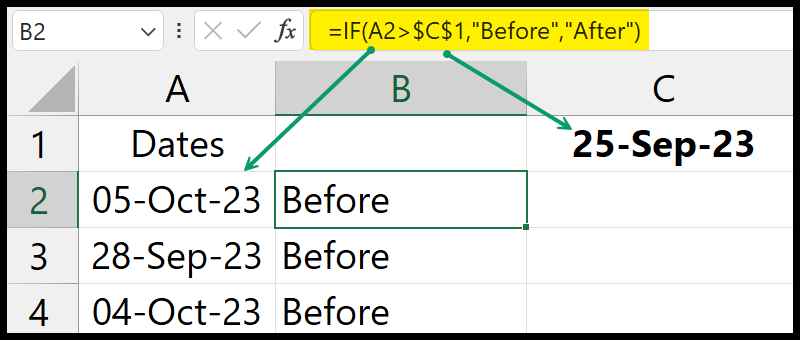
Check If a Date is Before a Date
You can also write a formula where you test for a date if that date is before today’s date or not. For this, you need to write the formula in the following way:
=IF(A2>TODAY(),"Before","After")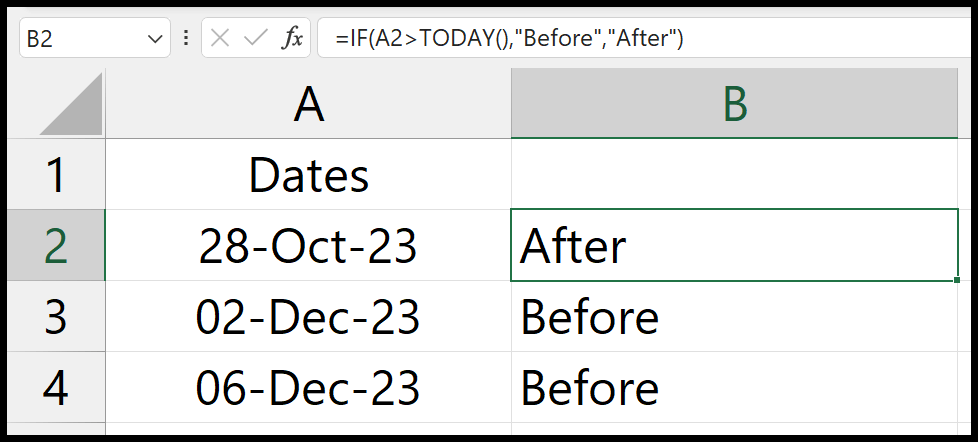
In this formula, you need to use the TODAY function to get the date to check the test. As the TODAY function returns the current date, you can test it with the current date to check if it’s before it.
Important: TODAY is a volatile function; it changes value every time you update your worksheet.
To deal with this, you can use the today function in a cell to get the current date and then convert it into value. Or you can manually enter the current date in a cell.
Written by
Puneet Gogia
Microsoft MVP — Excel · Founder, Excel Champs
Twelve years of teaching Excel, and a decade before that using it as a data analyst. Every tutorial here is written from a file I actually built.