

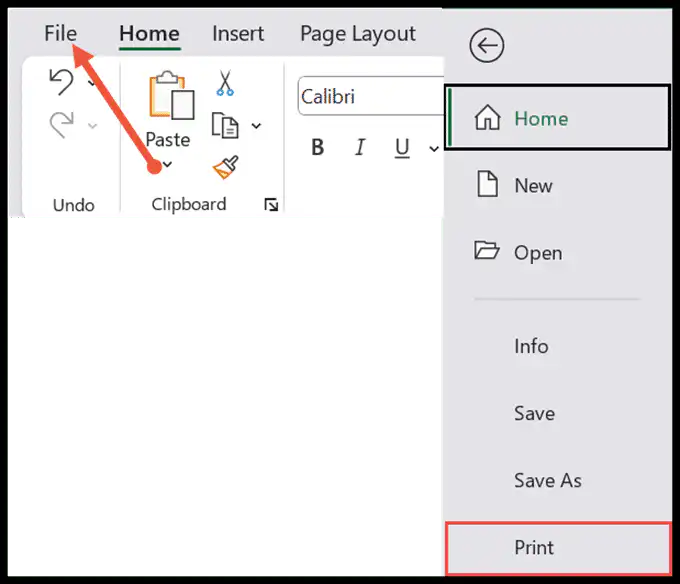
Press Ctrl + P or Ctrl + F2, or go to File → Print. Since Excel 2010 there is no separate Print Preview window: the preview fills the right of the Print screen and the print settings sit on the left.
The preview shows the active sheet by default. To preview only part of it, select those cells first and change the first drop-down under Settings to Print Selection; choose Print Entire Workbook to page through every sheet.
Use the page arrows at the bottom of the preview to move between pages. Show Margins at the bottom right lets you drag the margins, Zoom to Page toggles a close-up, and Esc takes you back to the sheet.
For a one-click button, add Print Preview and Print from the Customize Quick Access Toolbar drop-down. To see page edges while you keep editing, use View → Page Layout, or View → Page Break Preview to drag the page breaks.
If the preview shows columns spilling onto extra pages, change No Scaling to Fit All Columns on One Page rather than Fit Sheet on One Page, which shrinks long lists until they are unreadable. If it shows the wrong range, clear an old print area with Page Layout → Print Area → Clear Print Area.
The print preview option is available in Excel 2010 and now it has been named Print. To get the print, you need to use the keyboard shortcut which is Control + P. It allows you to see the preview of the current page and you can make any changes before printing it out.
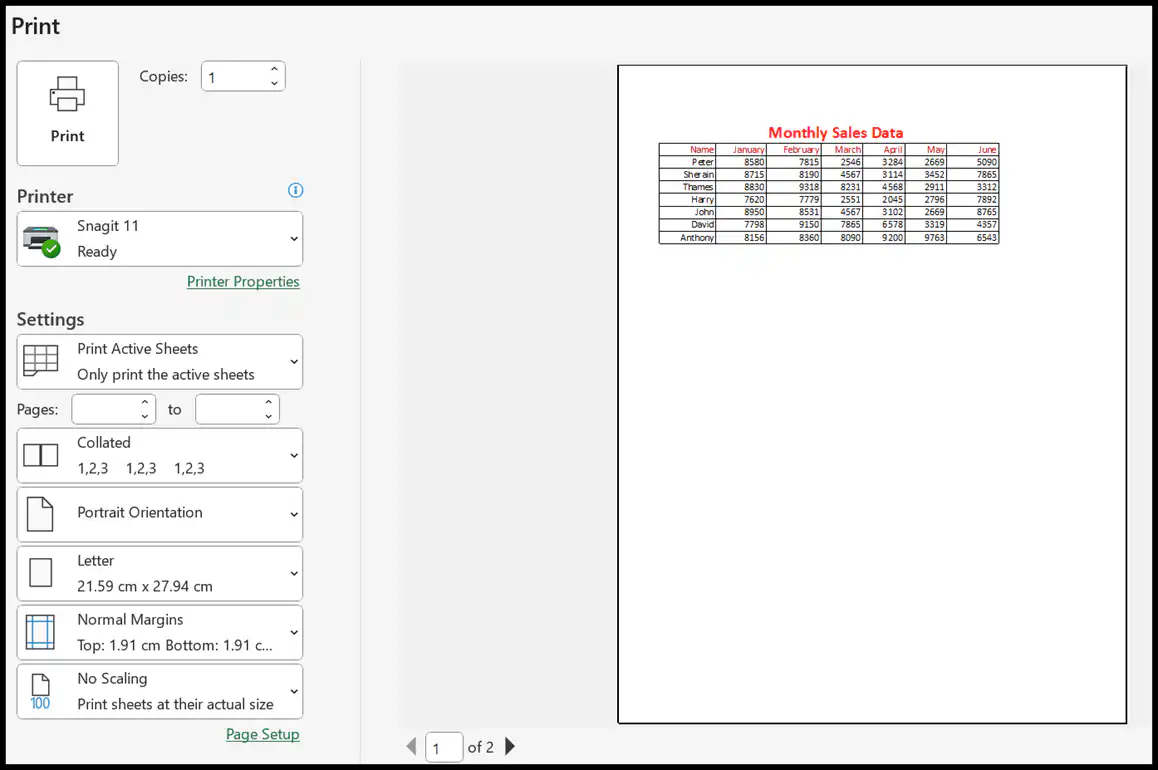
In this tutorial, we will learn the use of the print preview function along with its settings and options in Excel.
Steps to Show Print Preview
There are two ways to do that:
1. From the File Tab on Ribbon
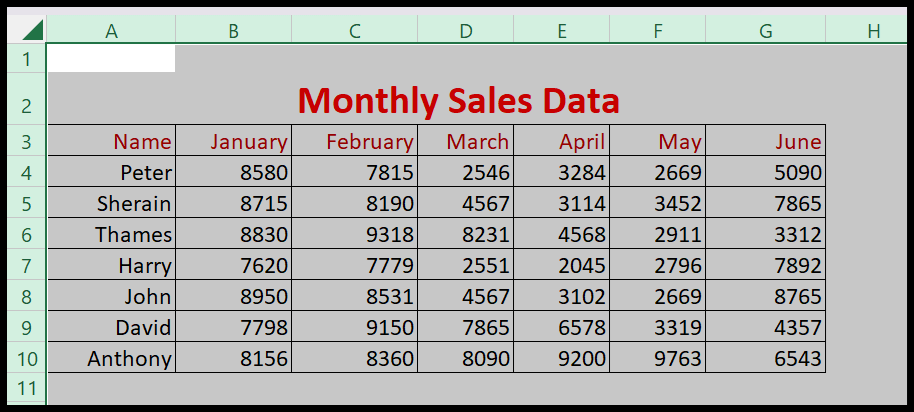
- First, you need to select the entire data that you want to print.
- After that, click on the file tab, and from the list of options select the Print option.
2. Using a Keyboard Shortcut
You can also print the data by pressing the keyboard shortcut keys that are CTRL +P. Once you press these keys, then it will directly open the print preview page.
Page Settings
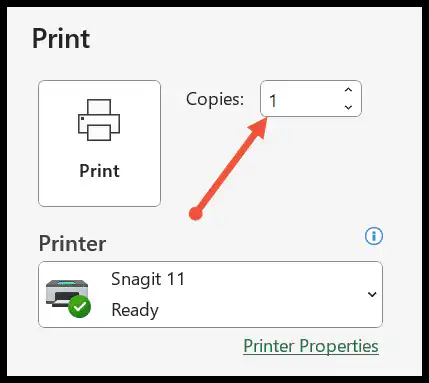
1. Print Button
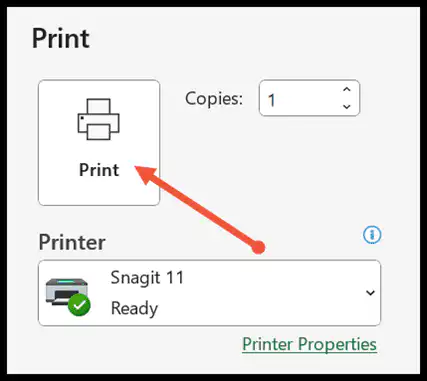
It is on the top left side of the page. And when you click, it will print out the page that you have shown on the right side.
2. Copies
Here, you can specify the number of copies that you want to print.
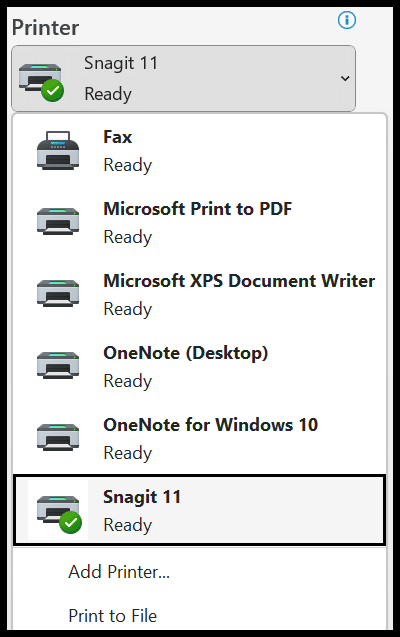
3. Printer
Select the printer and give the command to print the page. If the printer is not available in the list, then add it first.
4. Print Range Drop-down
- Active Sheet: To print an active sheet, select the print active sheets from the print range drop-down and then click print.

- Print Entire Workbook: You have the option to print multiple worksheets altogether from a single workbook. And for this, you need to select the print entire workbook as you see below.
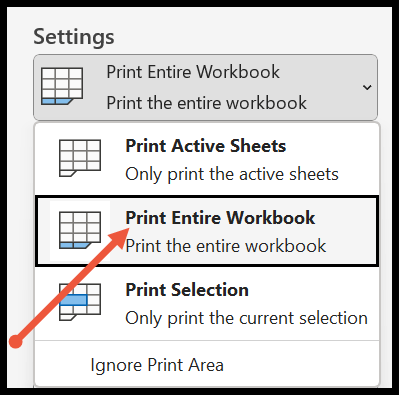
- Print Selection: This option is specially used when you want to print a specific range of cells instead of an entire sheet. For print selection, you need to select the cells first and then click on the print selection from the drop-down.

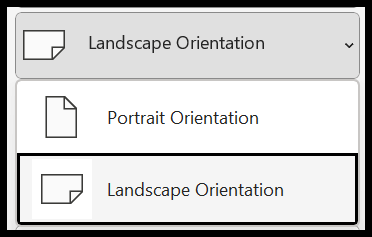
5. Page Orientation
- Portrait Orientation: When you have data with more rows in the worksheet, then select portrait orientation as it will help you to fit all the rows on a single page.
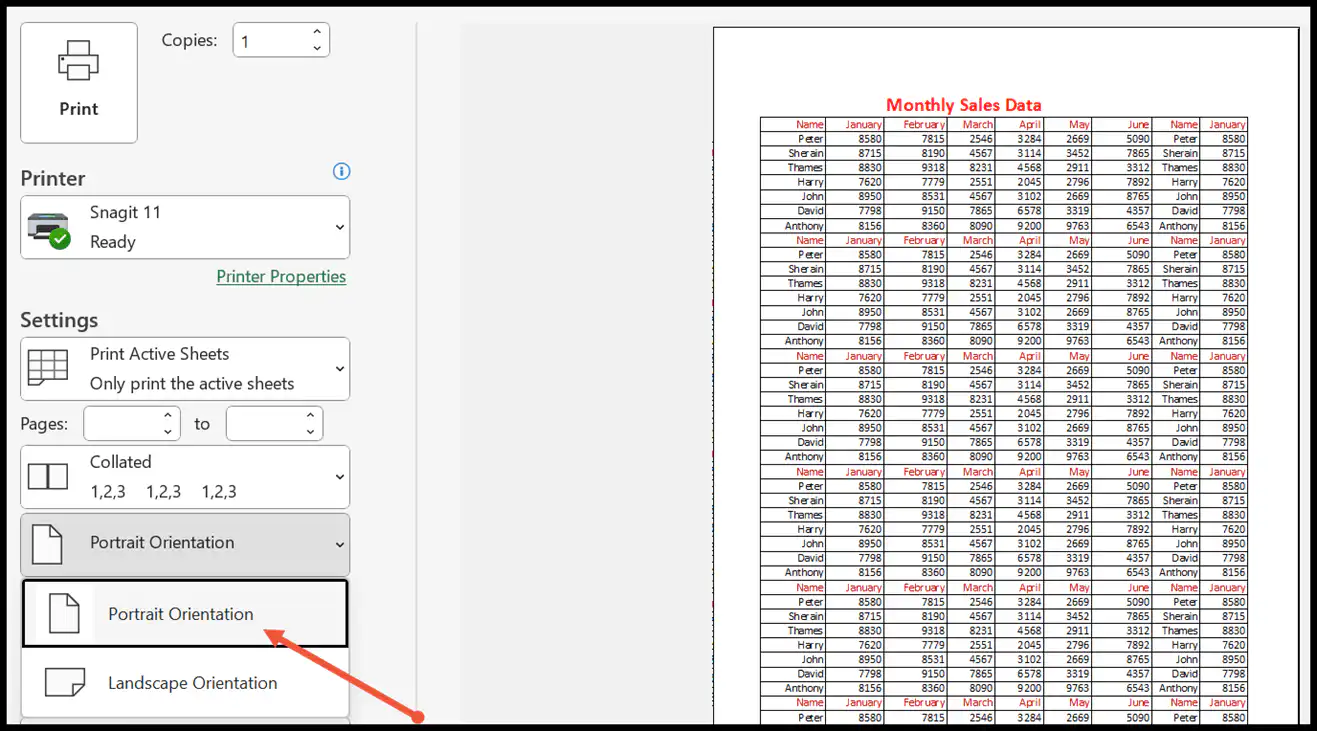
- Landscape Orientation: Just like more rows, the landscape orientation will help you to fit a large number of columns on a single page.
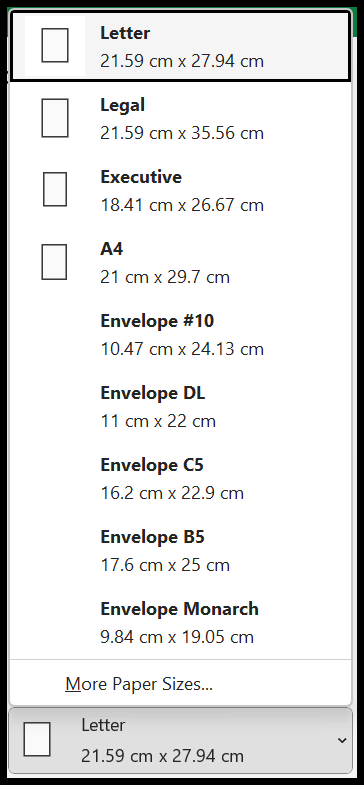
6. Paper Size
The next thing after selecting the page orientation is to select the size of the paper. It is in centimeters and of various forms like letters, A4 sheets, legal, envelope, and so on.
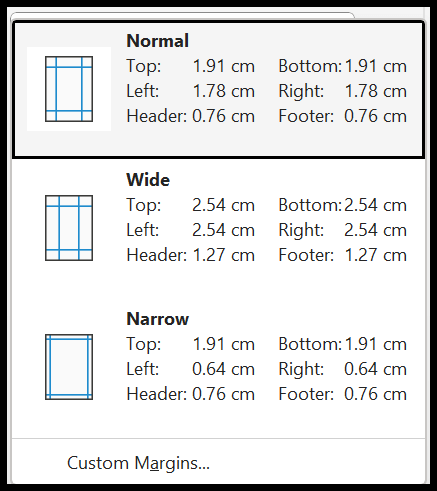
7. Margins
It helps to set the margins of the sheet and the data from the top, bottom, left, right, header, and footer also. It divides into three categories normal, wide, and narrow and you can also customize it as per your need.
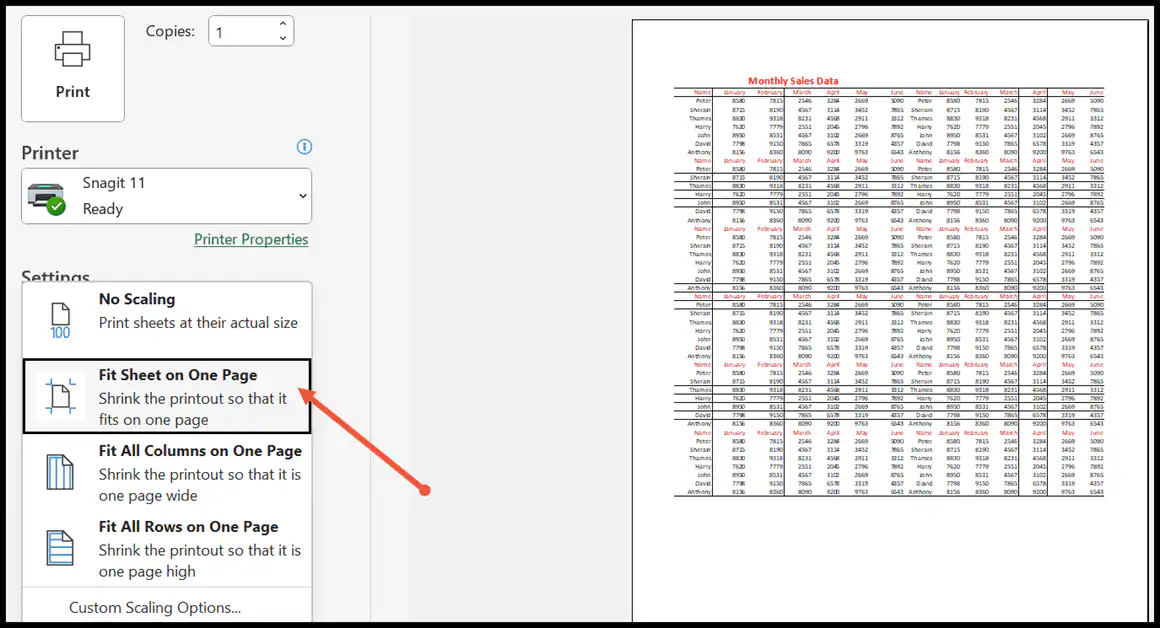
8. Scaling
This feature is used to make some adjustments to fit your data on the page so that it would not be cut off by the printer while printing. In the scaling drop-down, you can select the desired option.
In the following example, we have selected the Fit Sheet on One Page option to fit the entire data into a single page. But, in this, your data has shrunk, and it is very difficult to read.
Related Tutorials

Written by
Puneet Gogia
Microsoft MVP — Excel · Founder, Excel Champs
Twelve years of teaching Excel, and a decade before that using it as a data analyst. Every tutorial here is written from a file I actually built.