

Like other Microsoft Office applications such as Word or PowerPoint, Excel also has a feature to insert page numbers when you print worksheets.
You can insert page numbers on one sheet or on multiple sheets at once, and you can also customize them.
Below are some quick and easy steps to add or remove page numbers in Excel.
- First, go to the “View” tab and then click on the “Page Layout” icon under the “Workbook Views” group.

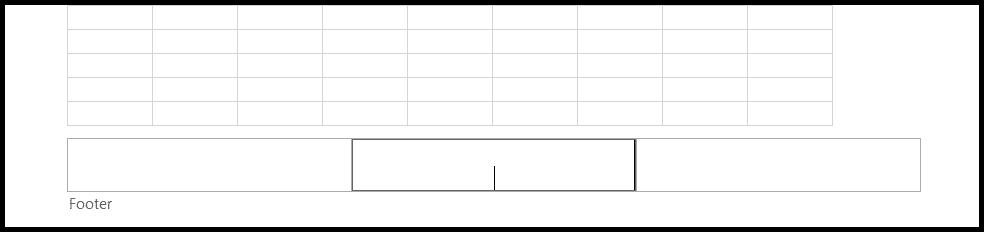
- After that, scroll down the sheet and click in the footer section (left, center, or right) on the side of the page where you want to display the page numbers.
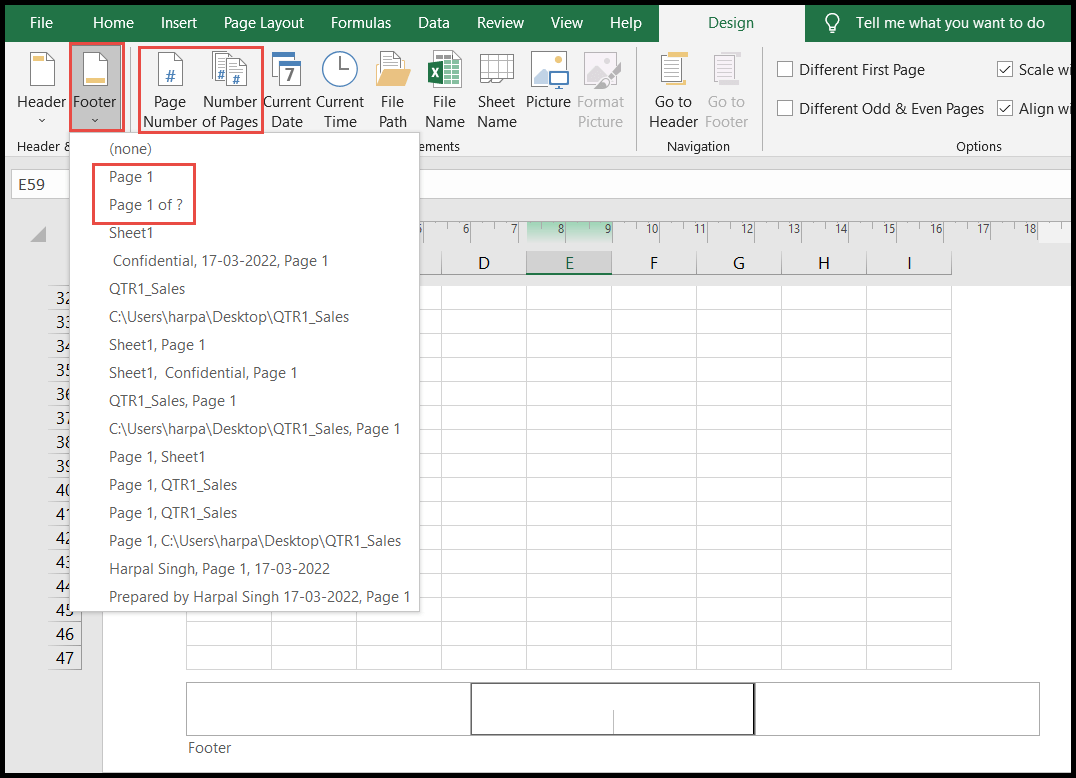
- Now, go to the “Header & Footer” tab (called “Design” in older versions) and click on the “Page Number” or “Number of Pages” icon to add the page numbers.
- Or click on the “Footer” icon and select the page number printing style you want to add.
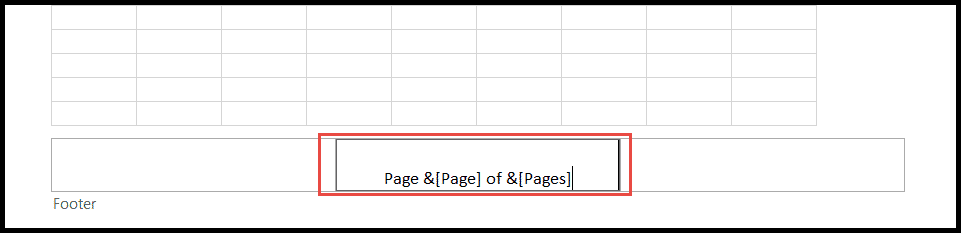
- Once you select the page number option that you want to add and print, Excel adds it to the footer as a code, like &[Page].
- In the end, click anywhere outside the footer to display the page numbers.
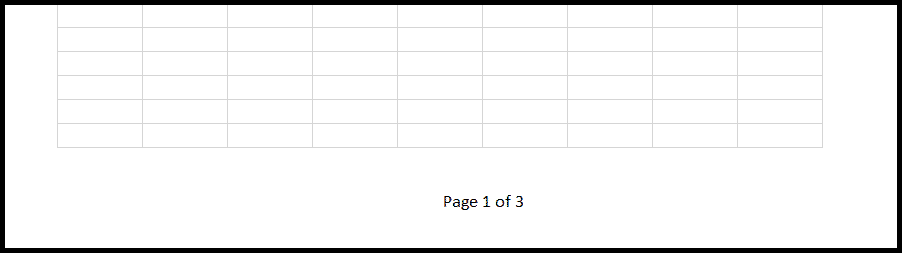
To come back to Normal view after adding the page numbers using the Header & Footer option, click on the “Normal” view icon on the status bar at the bottom of the Excel window. Page numbers don’t show in Normal view, but they still print.

Add Page Numbers Using Page Setup Dialog Box
When users have data in multiple sheets within a workbook and want to print that data in a continuous series, they can add page numbers to all the sheets in one go with the help of the “Page Setup” dialog box.
- First, open the workbook and select the sheets which you want to print (hold Ctrl and click the sheet tabs)

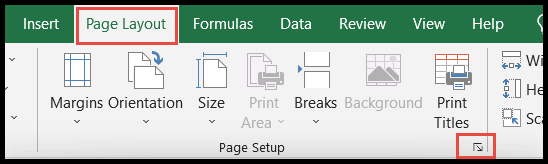
- After that, go to the “Page Layout” tab and click on the “Page Setup” dialog box launcher (the small arrow at the bottom-right of the group).
- Now, select the “Header/Footer” tab in the “Page Setup” window.
- Next, click on the Footer drop-down arrow and select the page number style which you want to display.
- To see how it looks, click on the “Print Preview” button.
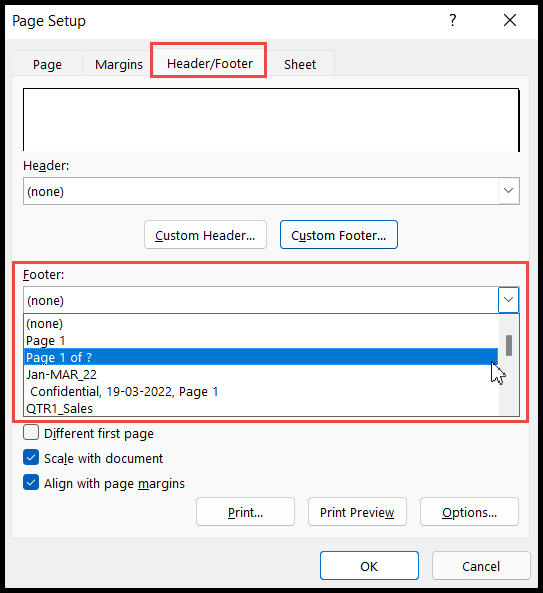
- Once you click OK, all the selected sheets get the page numbers, and when you print them together, the numbering continues from one sheet to the next, starting from the first page of the first sheet. After that, right-click a sheet tab and click Ungroup Sheets, so your next changes don’t go to all the sheets.
Customize the Starting Page Number
In Excel by default, the page number starts with page 1, but users have the option to change the starting number of the first page.
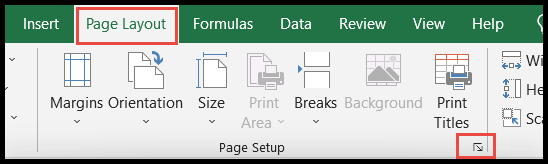
- First, go to the “Page Layout” tab and click on the “Page Setup” dialog box launcher (the small arrow at the bottom-right of the group).
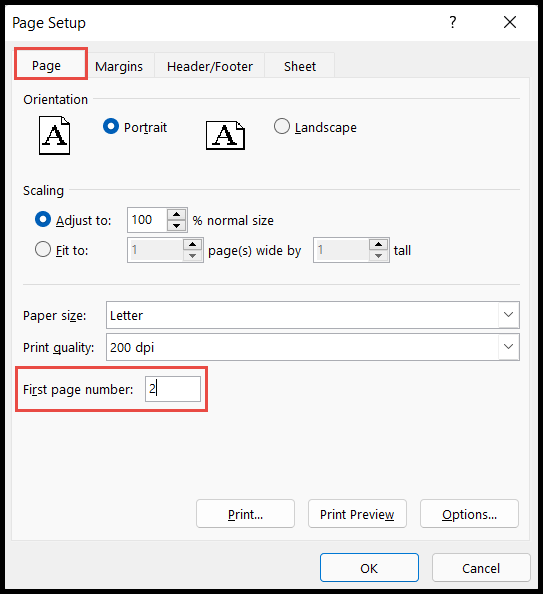
- After that, select the “Page” tab in the “Page Setup” window.
- Now, enter the number you want the first page to start from in the “First page number” box (it’s set to Auto by default) and click OK.
Add Different Page Number Style for Odd and Even Pages
- First, go to the “View” tab and then click on the “Page Layout” icon under the “Workbook Views” group.

- After that, scroll down the sheet and click in the footer section of the first page.
- Now, go to the “Header & Footer” tab and tick the “Different Odd & Even Pages” check box on the ribbon.
- In the end, select the page number printing style you want to display for odd number pages.

- At this moment, your page numbers with the page number printing style you selected are added for odd number pages.
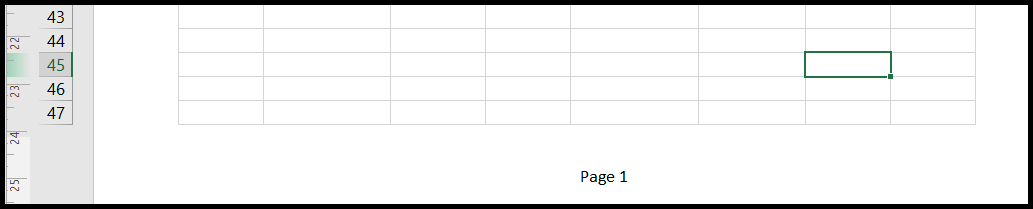
- Again, scroll to the next page, i.e. page number 2, and click in the footer section of that page.
- After that, repeat the same process you just did in the footer of the first page, this time for the even pages.
- At this moment, your page numbers with the page number printing style you selected are added for even number pages.

- Once you are done on both the odd and even footers, your odd and even numbers would get printed in two different styles based on the print page number styles you have selected.
- First, switch to Page Layout view (View ➜ Page Layout) to show the header and footer.
- After that, scroll down the Excel sheet and click in the footer section where you have the page number code.
- Now, select the entire page number code and press Delete.

Remove the Page Numbers Using Page Setup Dialog Box
- First, go to the “Page Layout” tab and click on the “Page Setup” dialog box launcher (the small arrow at the bottom-right of the group).
- After that, select the “Header/Footer” tab and click on the “Custom Footer” option.
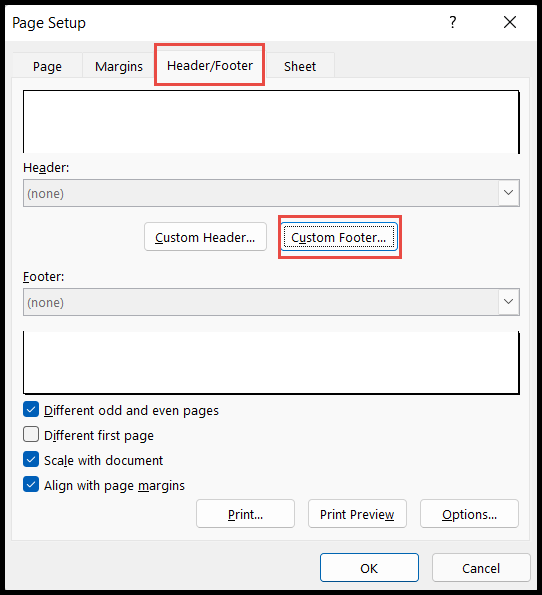
- Now, select the “Odd Page Footer” or “Even Page Footer” tab if you have different page number styles for odd and even pages.
- In the end, select the entire page number code, press Delete, and click OK. Or simply pick “(none)” in the Footer drop-down on the Header/Footer tab.
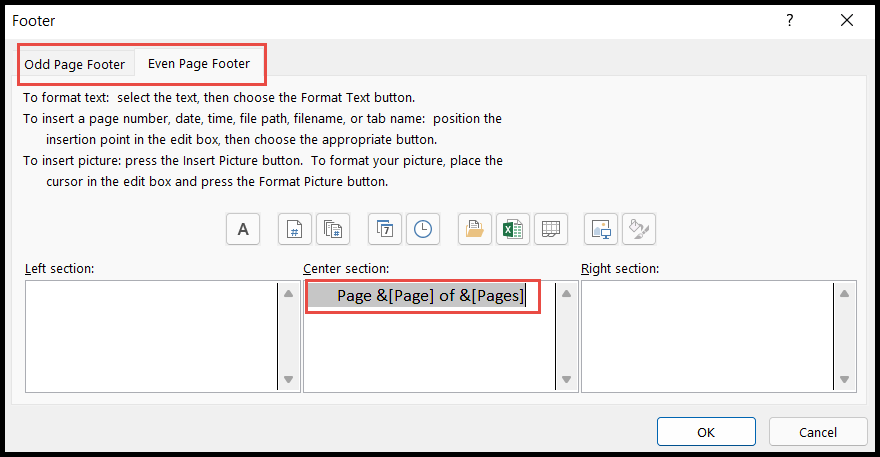
You can also type the codes yourself in the footer, mixed with your own text. &[Page] is the current page number and &[Pages] is the total number of pages. For example, type the following in the center footer to print “Page 1 of 5”:
Page &[Page] of &[Pages]
And if you want to add the page numbers with VBA, the codes are &P and &N. The following code adds “Page X of Y” to the center footer of the active sheet:
Sub AddPageNumbers()
    ActiveSheet.PageSetup.CenterFooter = "Page &P of &N"
End Sub
Frequently Asked Questions
Why can’t I see the page numbers on my sheet?
Page numbers are part of the header and footer, which only show in Page Layout view and in Print Preview. They don’t show in Normal view, but they still print.
Can I put page numbers in a cell?
No, there’s no worksheet function for the printed page number. Page numbers can only go in the header or footer.
How do I skip the page number on the first page?
Tick “Different First Page” on the Header & Footer tab (or in Page Setup ➜ Header/Footer), and leave the first page footer empty.

Written by
Puneet Gogia
Microsoft MVP — Excel · Founder, Excel Champs
Twelve years of teaching Excel, and a decade before that using it as a data analyst. Every tutorial here is written from a file I actually built.