

Select a cell that has the conditional formatting, click Home → Format Painter, then drag over the range you want to format. Double-click Format Painter to keep it on for several ranges, and press Esc when you’re done.
To paste the formatting with the keyboard, copy the source with Ctrl + C, select the destination and press Ctrl + Alt + V, then T for Formats and Enter. You can also use Home → Paste → Paste Special → Formats. Both this and Format Painter also copy fills, borders and number formats, so the destination loses its own formatting.
To copy only the rule, go to Home → Conditional Formatting → Manage Rules, set Show formatting rules for to This Worksheet, select the rule and click Duplicate Rule. Then change the copy’s Applies to range, for example from =$B$2:$B$13 to =$C$2:$C$13, and click OK.
Duplicate Rule keeps the copy on the same sheet. To move a rule to another sheet or workbook, use Format Painter or Paste Special: copy on the source sheet, then paste on the other one.
If a copied formula rule highlights the wrong cells, check its $ signs. A rule such as =$A$1<>"" keeps testing A1 wherever you paste it, so every copy lights up together. Write it as =$A1<>"" so the row follows the pasted cell. Repeated pasting can also leave several near-identical rules, so check Manage Rules and delete the extras.
In Excel, the easiest way is to use the Format Painter when copying and pasting the same conditional formatting to another cell or a range of cells.
But apart from this, there are two more ways that you can use, and in this tutorial, we will look at all these methods to learn about them.

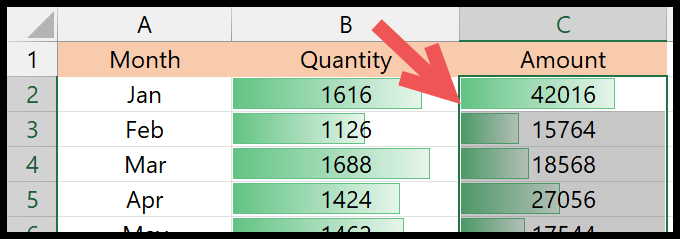
In the above example, we have data bars applied to the quantity column, and now we need to copy from there and paste it into the amount column.
Copy Conditional Formatting with the Format Painter
- First, select the range from where you want to copy the conditional formatting.
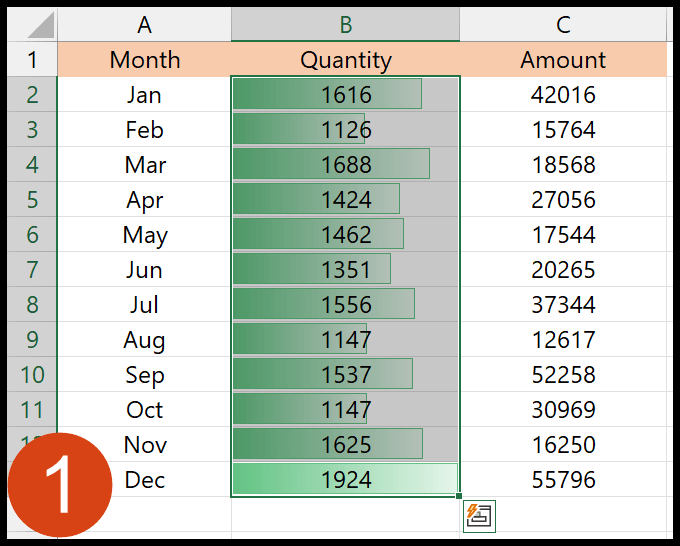
- Afterward, go to the Home tab and click the Format Painter icon.
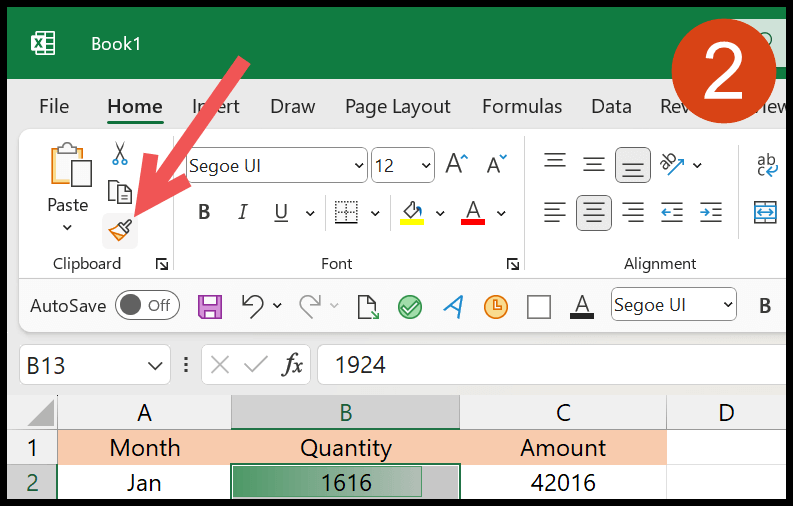
- Your cursor will change into a paintbrush once you click the Format Painter button.

- Now, select the range where you want to paste the conditional formatting.
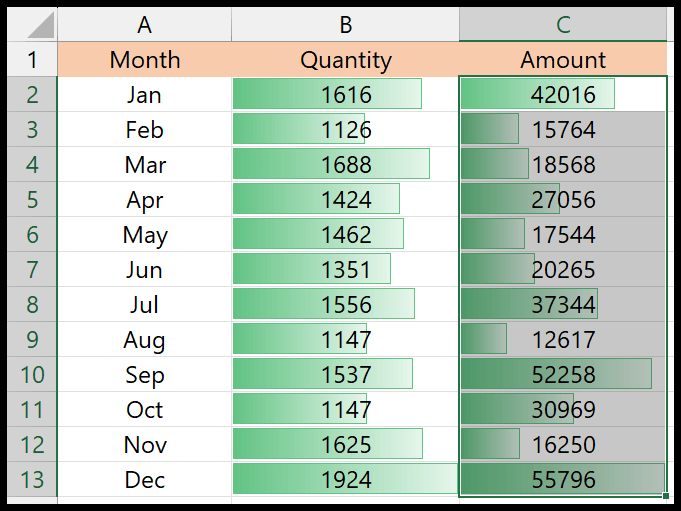
Yes, that’s it.
Note: If you want to paste conditional formatting to multiple sections, you can double-click the Format Painter and then select multiple ranges to apply the conditional formatting you have copied. Press Esc when you are done.
Copy Formats (Paste Special) to Copy Conditional Formatting
With the Paste Special option, you can copy and paste only formats from one place to another. Once you select the range from where to copy the conditional formatting, use the copy option or the keyboard shortcut Ctrl + C to copy.

Next, select the range where you want to paste the conditional formatting. After that, open the Paste Special option (Right Click > Paste Special) and select Formats.
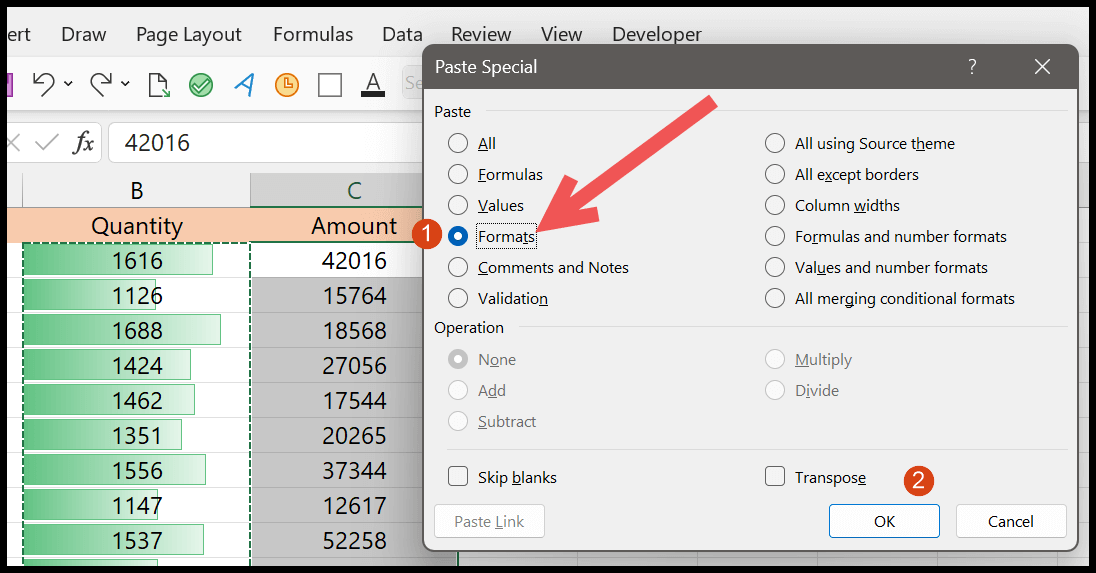
In the end, click OK. And the moment you click OK, it applies the conditional formatting (which you have copied) to the selected range.
Create a Duplicate Conditional Formatting Rule
If you go to Conditional Formatting > Manage Rules, you can see the list of all the conditional formatting rules you have.
Once you open it, select “This Workbook” from the drop-down list “Show formatting rules for”.
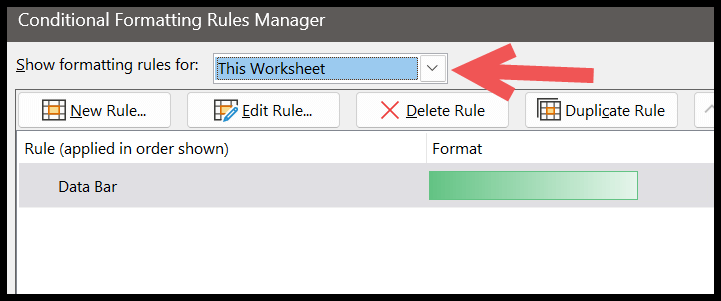
It will show you all the rules in the workbook for conditional formatting. And then, you need to select the rule you want to copy and click Duplicate Rule.
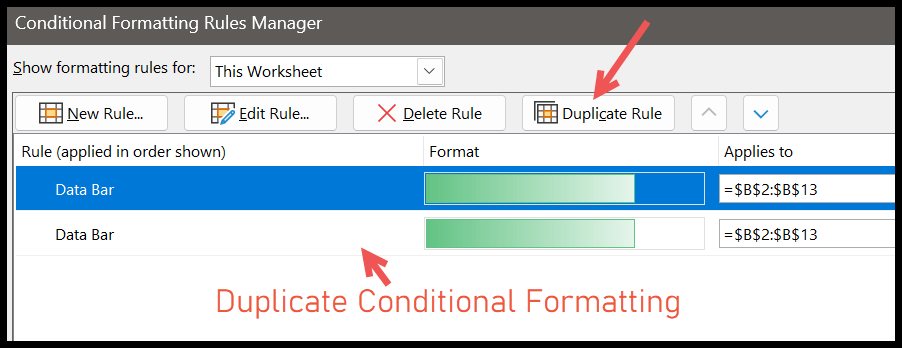
Once you do that, change the range address from “Applies to”.

I have changed the range address from B2:B13 to C2:C13 to apply the same conditional formatting to C2:C13. And in the end, click OK.
A Problem You Might Face
Copying Conditional Formatting is a smooth task. But there can be a few issues when using custom formulas to define a rule for conditional formatting.
Let me give you an example. In the below example, we have conditional formatting that uses a custom formula. In the formatting, if cell A1 has a value, then cell B1 will have a green cell color.

Here’s the rule that we have applied (Home Tab > Conditional Formatting >Manage Rules > Edit Rule)
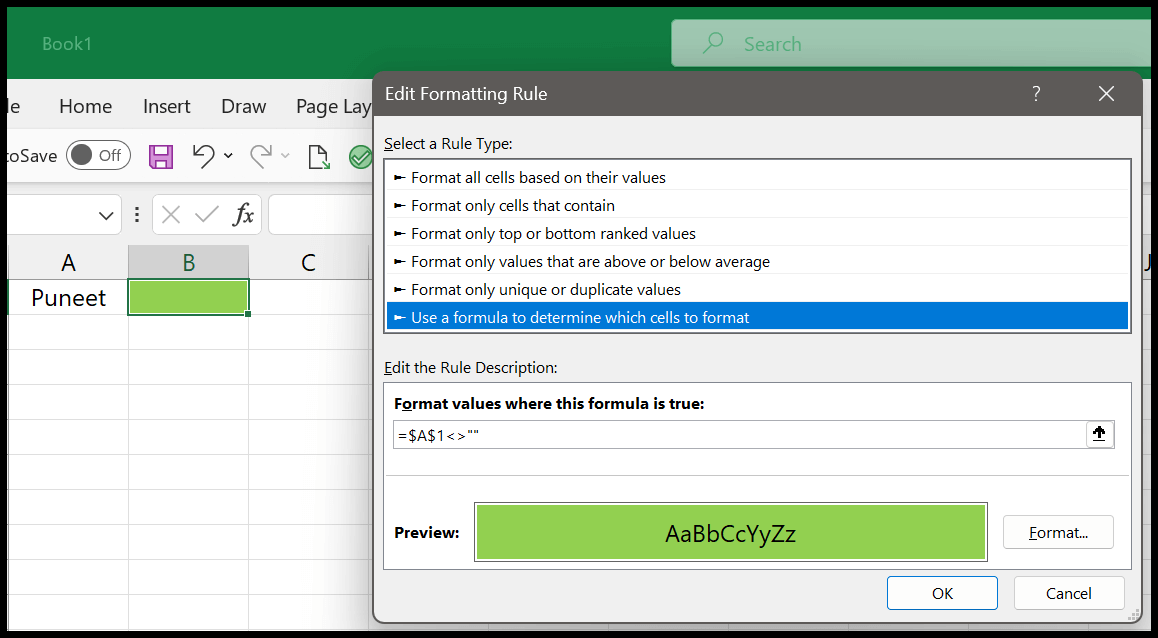
Now, let’s copy and paste this conditional formatting to cell B3. As you can see in the below example, cell B3 is green even though cell A3 doesn’t have a value.
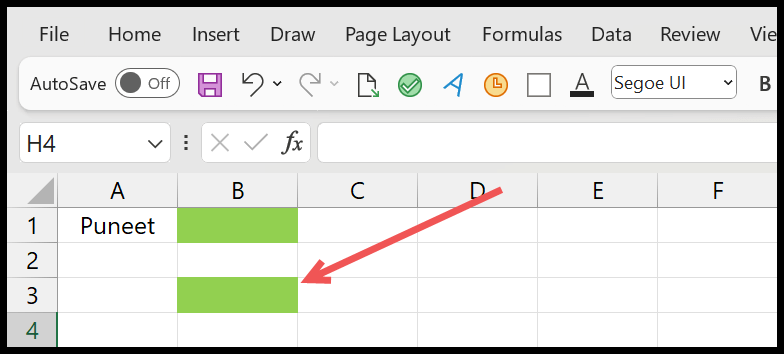
When you copy and paste this conditional formatting, Excel won’t change the reference cell because the reference is absolute.
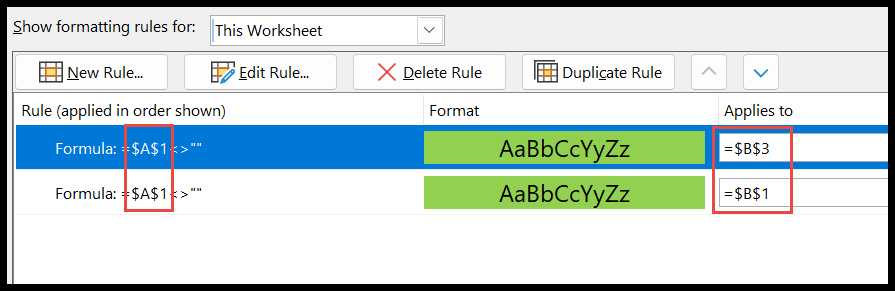
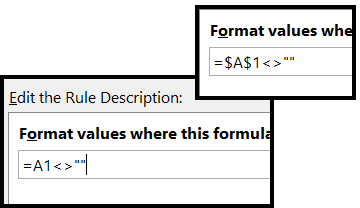
You can see above the reference cell in both rules is A1. So, yes, that’s the problem. To correct this problem, the best way is to use a relative reference, which changes when you copy and paste the conditional formatting to a new range or cell.
For example, a rule like the first one below always checks A1, while the second one checks A1 for row 1, A2 for row 2, and so on (the $ before A keeps the column fixed):
=$A$1<>""
=$A1<>""
Write the formula for the first cell of the range the rule applies to, and Excel adjusts it for the other cells.
What If I Want to Copy a Conditional Formatting Rule to Another Worksheet?
You can use the same methods and steps above to copy it from one cell to another or a range of cells. Once you copy it, you can paste it to another worksheet.
The Format Painter and Paste Special both work across worksheets and even across open workbooks. The Duplicate Rule method doesn’t: the “Applies to” range of a rule must be on the same sheet as the rule, so use one of the first two methods for another sheet.
Copy Only the Conditional Formatting, Not Other Formats
The Format Painter and Paste Special ➜ Formats copy all the formatting of the cells, not just the conditional formatting. So, the font, fill color, borders and number format of the target cells change too. If you only want the rule, use the Duplicate Rule method, or open Manage Rules, select the rule and simply extend its “Applies to” range (like =$B$2:$C$13).
Every time you copy conditional formatting, Excel can create a new copy of the rule. After a lot of copy and paste, Manage Rules may show many similar rules. Clean them up there by deleting the extra ones and extending the “Applies to” range of one rule.
Frequently Asked Questions
Is there a shortcut to paste only the formatting?
Yes. After you copy the cells with Ctrl + C, select the target range and press Ctrl + Alt + V to open Paste Special, then press T (Formats) and Enter.
Why does the copied conditional formatting highlight the wrong cells?
The formula in the rule uses an absolute reference (like $A$1), so it checks the same cell for every row. Change it to a mixed or relative reference (like $A1) in Manage Rules ➜ Edit Rule, as explained above.
Can I copy conditional formatting to another workbook?
Yes. Open both workbooks, then use the Format Painter or Paste Special ➜ Formats. If the rule uses a formula that refers to another sheet, check the formula after pasting.

Written by
Puneet Gogia
Microsoft MVP — Excel · Founder, Excel Champs
Twelve years of teaching Excel, and a decade before that using it as a data analyst. Every tutorial here is written from a file I actually built.