

In Excel, conditional formatting based on another column means you format one cell by checking the value in a different cell. For example, you can highlight a student’s name in column A based on the score in column B, or highlight an entire row based on a status, date, or yes/no value in another column.
This is useful when you want your formatting to react automatically as the data changes. Instead of editing the rule again and again, you write a formula once, and Excel keeps checking the related cell for you. In this tutorial, I’ll show you the exact steps, the formula pattern to use, and how to avoid the most common reference mistakes.
Quick Answer
How do you apply conditional formatting based on another column?
Select the cells you want to format, go to Home → Conditional Formatting → New Rule → Use a formula to determine which cells to format, and enter a formula that points to the other column.
=$B2>=75
What this does: Excel checks the value in column B for each row, and if it is 75 or more, it applies the format to the selected cell in that row. The $ locks the column, while the row number stays flexible so the rule works row by row.
More Examples
Conditional Formatting Based on Another Column – Practical Examples
Once you understand the basic pattern, you can use the same method with numbers, text, dates, blanks, and multiple conditions. Here are some ready-to-use examples you can copy.
1. Highlight names when the score is 75 or more
Use this when names are in column A and scores are in column B.
Formula =$B2>=75
How it works: Excel checks the value in column B for each row. If the score is 75 or more, it formats the selected cell or range for that row.
2. Highlight the full row when status is Completed
Use this when you want all columns in the row to be highlighted.
Formula =$C2=”Completed”
How it works: Select the full data range first. Excel checks the text in column C, and if it says Completed, it highlights the entire row.
3. Highlight rows when the due date is overdue
Helpful for task lists, invoices, and follow-up sheets.
Formula =AND($D2<>””,$D2<TODAY())
How it works: Excel checks whether the date in column D is not blank and whether it is earlier than today. If both are true, the row gets highlighted.
4. Highlight cells when another column is blank
Useful when you want to flag missing data in a related field.
Formula =$E2=””
How it works: If the cell in column E is empty, Excel applies the format to the selected cell or row for that record.
5. Highlight based on Yes / No values
A simple way to track approval, delivery, or review status.
Formula =$F2=”Yes”
How it works: Excel looks at column F for each row. Whenever the value is Yes, it formats the selected cell or entire row.
6. Highlight rows only when two conditions are true
Use this when the format should depend on more than one column.
Formula =AND($B2>=75,$C2=”Pass”)
How it works: Excel checks both conditions together. The row is highlighted only when the score is 75 or more and the result in column C is Pass.
Important: In all these formulas, the column is locked with $, but the row number is left flexible. That is what makes the rule move row by row while still checking the correct column. FAQ
Frequently Asked Questions
Here are the most common questions people ask when using conditional formatting based on another column in Excel.
Why do we use the $ sign in the formula? +
The $ sign locks the column reference so Excel always checks the same column while moving down each row. In the formula =$B2>=75, column B stays fixed, but the row number changes from 2 to 3 to 4, and so on. This helps Excel test the value in column B for each row and then apply the format to the selected cells in that same row.
How do I highlight the entire row based on another column? +
Select the full data range for all the columns in the row, not just one column. After that, use the same type of formula, such as =$B2>=75. Excel will still check the value in column B, but because you selected the full row range, the formatting will be applied across the entire row whenever the condition is true.
Can I use text instead of numbers in the condition? +
Yes, you can use text conditions as well. For example, if you want to highlight rows where the status in column C is Completed, you can use a formula like =$C2=”Completed”. Make sure the spelling and spaces match the text exactly, otherwise the rule may not work as expected.
Why is my conditional formatting not working properly? +
The most common reason is an incorrect cell reference in the formula. Sometimes the column is not locked properly, or the formula starts from the wrong row number. Another common issue is selecting the wrong range before writing the rule. Always make sure the formula matches the first row of your selected range.
Will this work in an Excel Table? +
Yes, this method can work in an Excel Table as long as the rule is applied to the correct table range. The good part about using a table is that the conditional formatting can often extend automatically when you add new rows. That makes it easier to manage compared with a normal range.
Can I use more than one condition in the same rule? +
Yes. You can combine multiple conditions with functions like AND and OR. For example, to highlight rows where the score is 75 or more and the result is Pass, you can use a formula like =AND($B2>=75,$C2=”Pass”). This is useful when your formatting depends on more than one column.
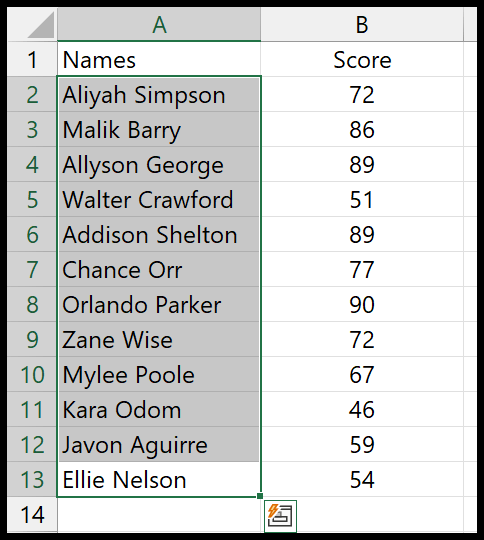
[tcb-script](function(){ var faqWrap = document.getElementById(‘ecFaqBlock’); if(!faqWrap) return; var items = faqWrap.querySelectorAll(‘.ec-faq-item’); items.forEach(function(item){ var btn = item.querySelector(‘.ec-faq-question’); var icon = btn.querySelector(‘span:last-child’); btn.addEventListener(‘click’, function(){ var isActive = item.classList.contains(‘active’); items.forEach(function(other){ other.classList.remove(‘active’); var otherIcon = other.querySelector(‘.ec-faq-question span:last-child’); if(otherIcon) otherIcon.textContent = ‘+’; }); if(!isActive){ item.classList.add(‘active’); if(icon) icon.textContent = ‘−’; } }); });})();[/tcb-script]- First, select the names column by leaving the column name.
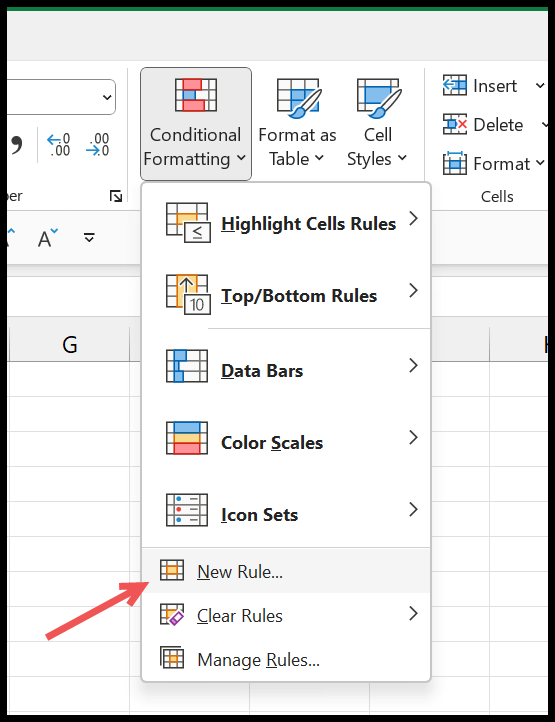
- Afterward, go to the Home Tab > Conditional Formatting > New Rule.
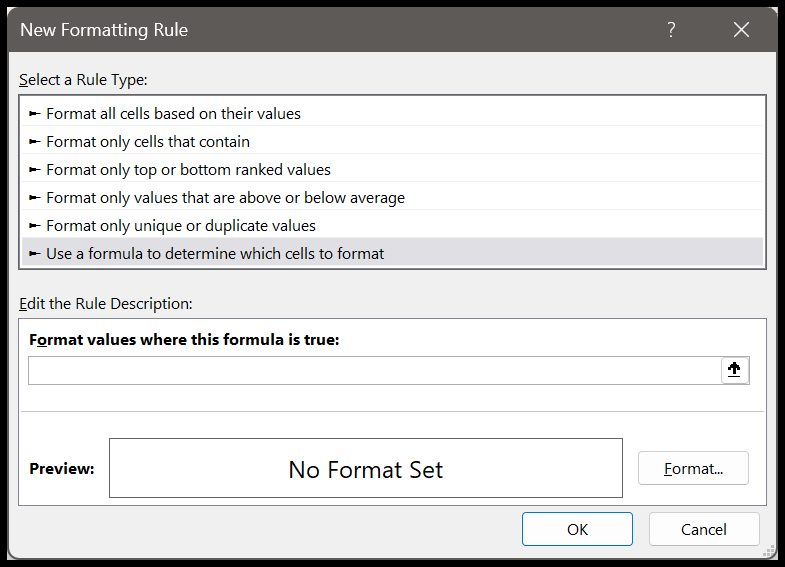
- Next, in the new rule dialog box, click “Use a Formula to determine which cell to format”.
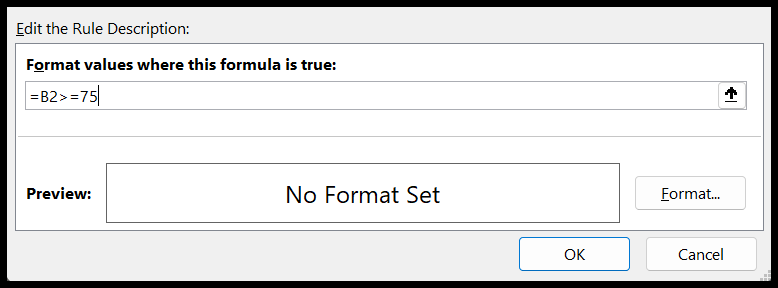
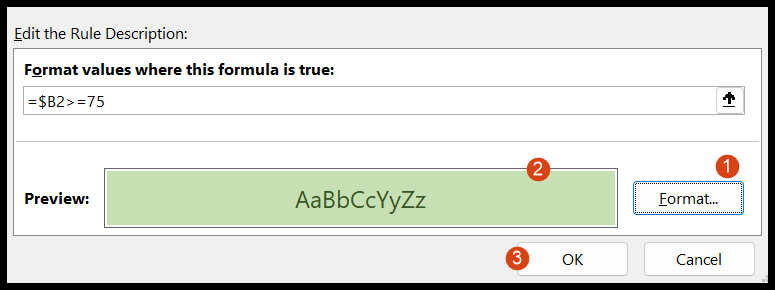
- Now, in the ‘Format value where this formula is true” dialog box, enter this formula =$B2>=75.
- From here, click on the “Format…” button to specify the cell formatting you want to apply to the student’s name cell, and in the end, click OK to save the rule.
- In the end, click OK to close the conditional formatting rules manager.

Written by
Puneet Gogia
Microsoft MVP — Excel · Founder, Excel Champs
Twelve years of teaching Excel, and a decade before that using it as a data analyst. Every tutorial here is written from a file I actually built.