

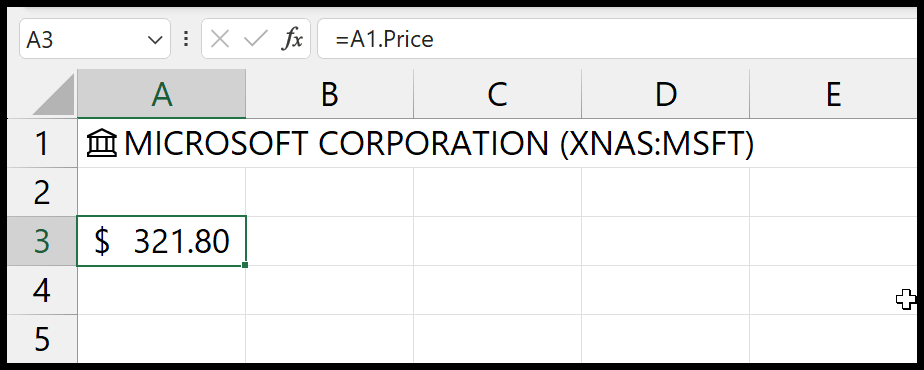
There are two built-in options and they answer different questions. For a current price, use the Stocks data type: type the ticker in a cell, go to Data → Data Types → Stocks, then in another cell type =A1.Price.
That data type links the cell to live market data and exposes over forty fields including price, P/E ratio and market cap. For historical prices, use STOCKHISTORY: =STOCKHISTORY("MSFT",TODAY()-7,TODAY(),0,0,1) returns the closing prices for the last week, and the final 1 selects the close. It spills the results into the cells below and needs an internet connection.
The distinction matters: STOCKHISTORY data refreshes once per trading day after the market closes, so it gives you the latest close, not the price right now. Two limits worth knowing.
Both features require a Microsoft 365 subscription — they don’t work in Excel 2019, 2021, or the one-time-purchase Excel 2024. And the data comes from LSEG rather than the exchanges directly, with US equities close to real time and international exchanges delayed.
Yes, getting the stock’s latest price in Excel is possible. There are three major ways that I have found. In this tutorial, we are going learn these ways in detail.
Let’s get started.
Use the STOCKHISTORY Function to Get the Stock Price
You might find this method the easiest one:

- Enter the STOCKHISTORY function in a cell.
- In the first argument, enter the stock name (here, we are using “MSFT”, which is the stock name of Microsoft) for which you want to get the stock price.
- After that, in the second argument, enter the date for which you want to get the stock price.
- Next, leave the end date and interval argument and enter 0 in the header argument.
- In the properties1 argument, enter 1 to get the closing stock price for the specified date.
- In the end, close the function and hit enter to get the result.
=STOCKHISTORY("MSFT","28-Sep-2023",,,0,1)The moment you hit enter, it returns a tiny data table with the name of the stock and the stock value for the date you have specified.
Note: The stock name we used in the formula is the Stock symbol or the Ticker symbol, which you can find on Google by searching with the company’s name.
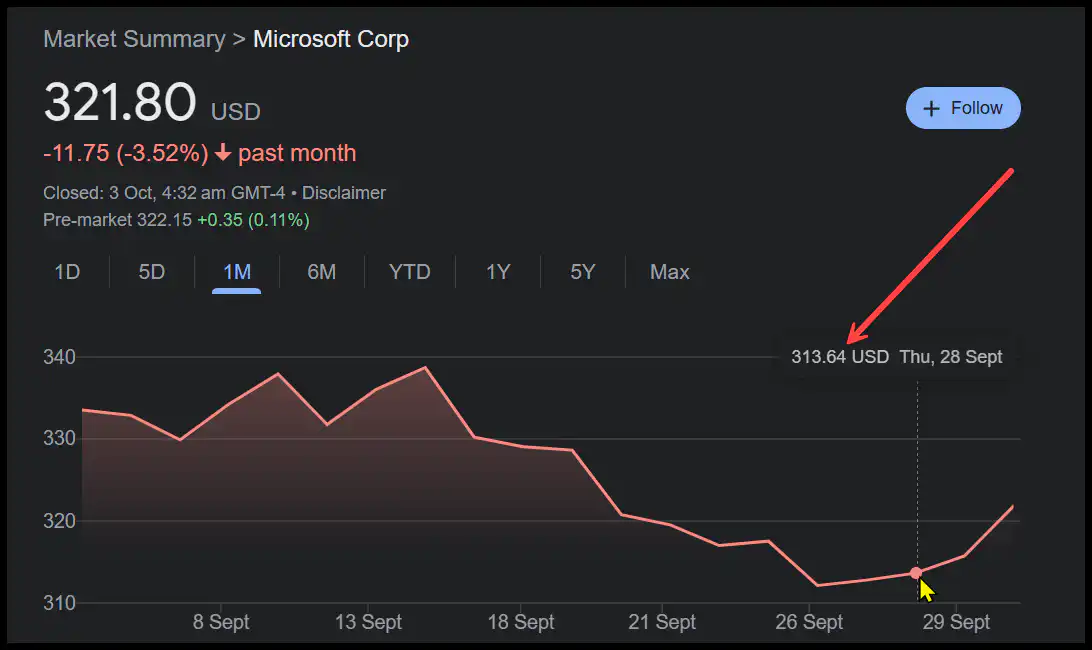
Use the Stock Data Type to Get the Stock Price
Microsoft recently added data types to help you get to stock prices.
- Enter the Stock Name (Ticker Symbol) in a cell and then go to the Data > Data Types > Stock.
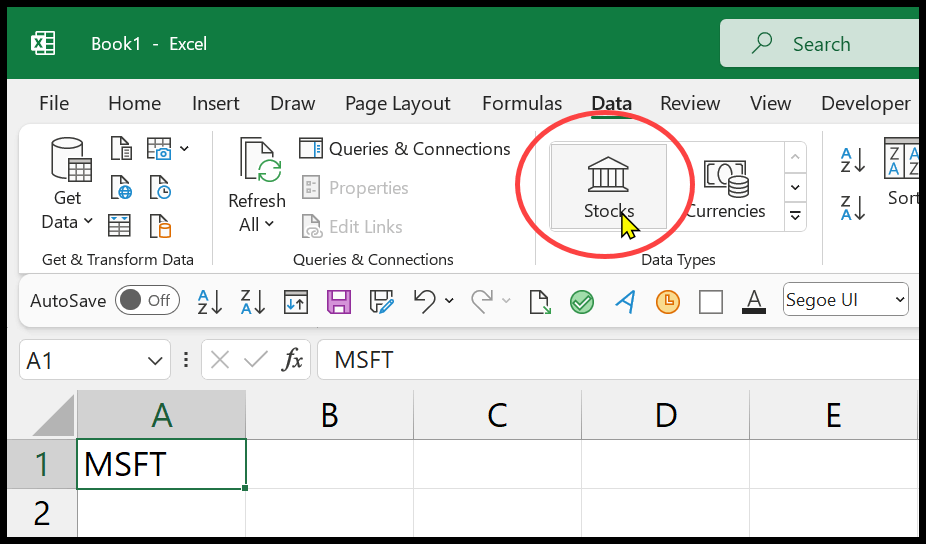
- After that, from the right side of the Excel Window, you have a pane that needs you to select the stock exchange to get the data from.
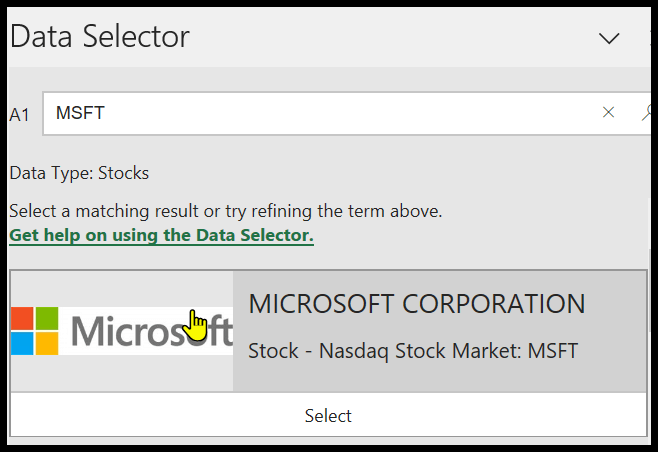
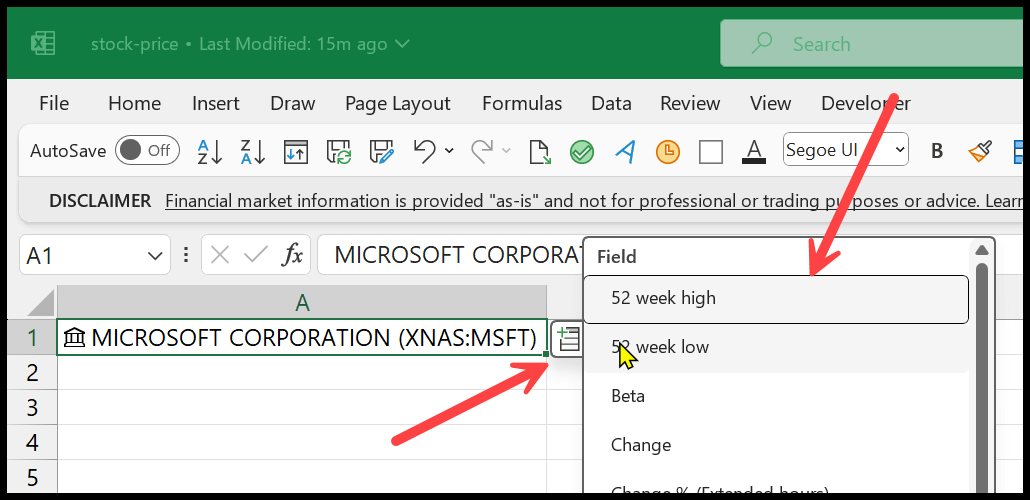
- Now, you have listed the name of the company in the cell. You also have an add column option, which you can use to add values related to the stock.
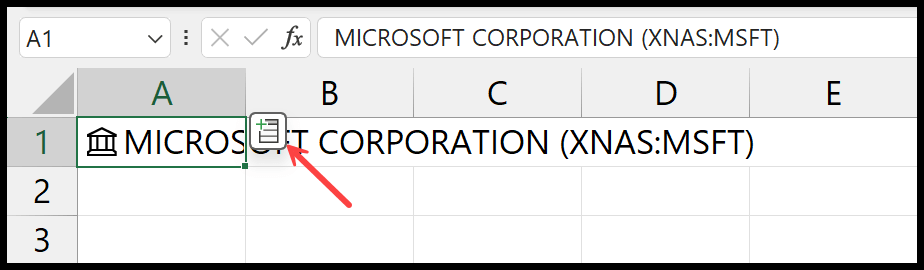
- From here, you need to select a different cell. And type the “=” sign, refer to the cell where you have the stock name, and then type a dot (.).

- You can select the value you want from this list in the cell. If you want to get the price, click on the price and hit enter to get the result.
Applying the Stock data type shows you an add column button to open the list of columns to add.
Install a Third-Party Add-In to Get the Stock Price
If you don’t want to use the above-discussed method, you can also use a third-party add-in to get the stock price.
- If you use any Excel version other than Office 365, go to the Insert Tab > Get Add-Ins.
- And if you are using Office 365, go to the Developer Tab and click the Add-Ins.
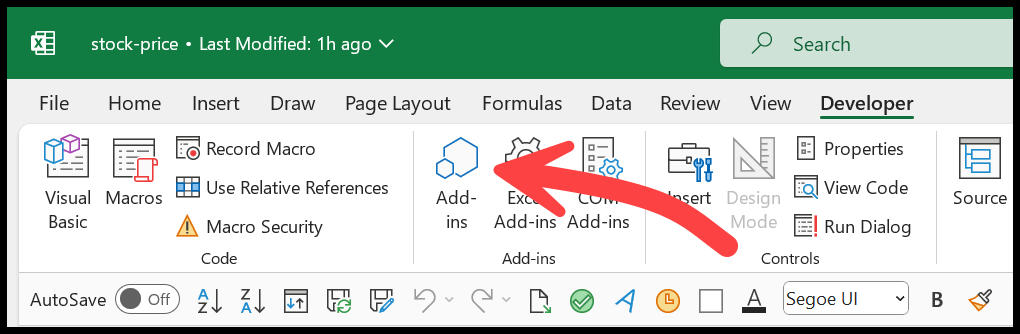
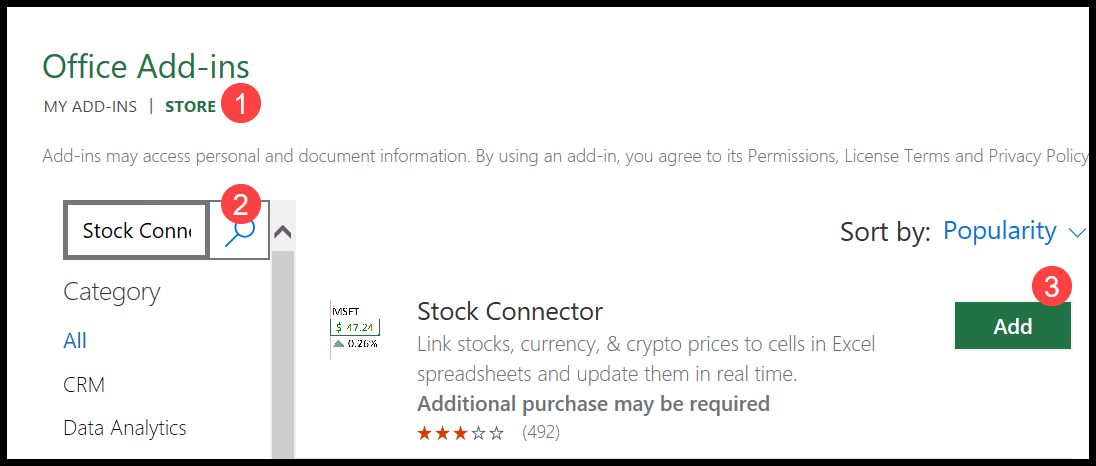
When you click on the button, it shows you a dialog box where you need to click on “Store” and then click in the search bar to search for the Add-In you want to install.
Now, in the search bar, type “Stock Connector” and hit enter to search. From here, click on the “Add” button to add the add-in to Excel.
Next, in a cell, enter the stock name (Stock ticker) of the company for which you want to get the stock value. Let’s say MSFT for MICROSOFT CORPORATION.
At the right side of your Excel Window, you have a pane for the Stock Connector Add-In, and once you select the cell with the stock name, click on the “Connect” button.
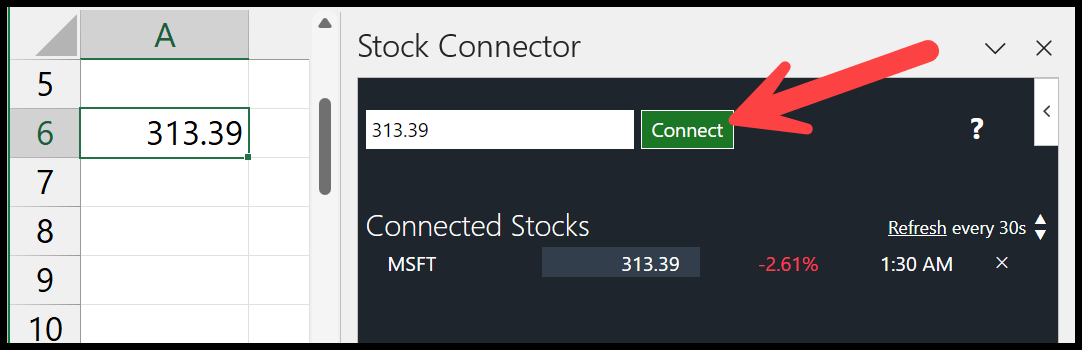
The moment you click on the connect button, it gets the stock price in the cell where you have the stock name and on the pane. You can specify the time interval on the pane’s right to refresh the stock price.
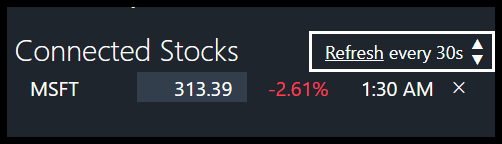
You can change the refresh interval from here.
Note: There are also some other add-ins that you can add to Excel if this add-in doesn’t work correctly.

Your post states “latest”…
Do you mean “current”, like “ as of 2:15 pm”?
Or….do you mean “ latest” close?
Based on what I read, I believe you mean Latest close.
Is there any way, using Stockhistory, to return the “current” price?
my911@aol.com