

Right-click the sheet tab and choose Move or Copy. Pick the destination in To book, choose a position in Before sheet, tick Create a copy to copy (leave it clear to move), and click OK.
Within the same workbook, dragging is quicker: drag a tab to move the sheet, or hold Ctrl while you drag to copy it. Release the mouse before Ctrl; the copy gets (2) after the original name, such as Sales (2).
To send a sheet to a new file, choose (new book) in To book. Another workbook appears in that list only while it is open, so open it first. The same dialog is under Home → Format → Move or Copy Sheet, or press Alt, H, O, M one after another; Ctrl-click several tabs first to copy or move them together.
A sheet copied to another workbook keeps formulas that refer to other sheets in the source file, so they become links back to it, such as =[Book2.xlsx]Data!A1. Copy the linked sheets together, or open Data → Edit Links (Workbook Links in recent Microsoft 365 builds) and break the links if you want plain values.
If Move or Copy is greyed out, the workbook structure is protected. Click Review → Protect Workbook, enter the password, and try again.
In Excel, you can copy or move a sheet to a new workbook or an already open workbook. And in this tutorial, we will learn this in detail.
- Copy – It creates a new copy and moves it to another workbook.
- Move – It moves the original sheet.
Let’s learn this.
Copy a Sheet to an Existing Workbook
- Right-click on the Sheet Tab and click “Move or Copy”.
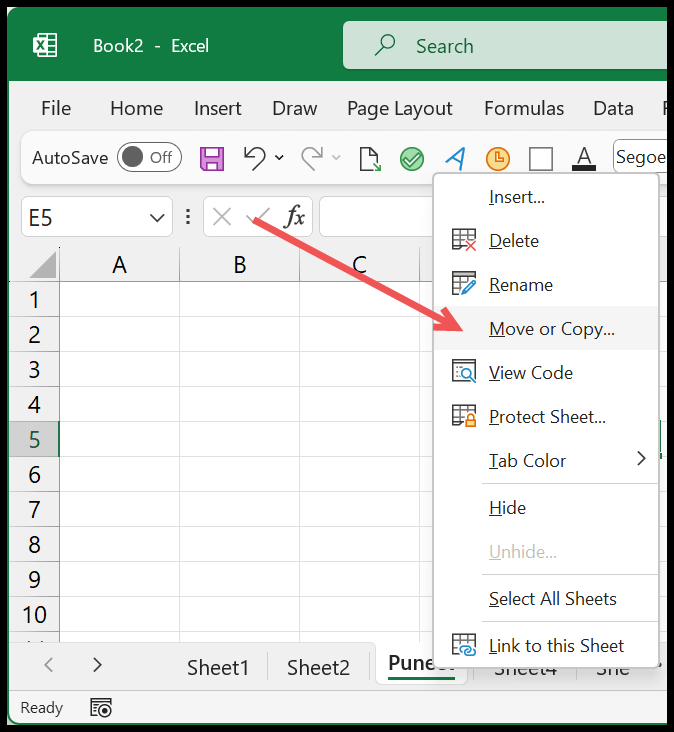
- From the Dialog Box, use the “To Book” drop-down to select the workbook. And from “Before Sheet”, select the sheet before which you want to copy it.
- Next, tick marks the check box “Create a Copy”.

- In the end, click OK.
In this example, we have copied the sheet “Puneet” from Book2 to Book1.

Note: If you want to move the sheet instead of copying it, leave the “Create a Copy” check box unticked.
Copy a Sheet to a New Workbook
In the same way, you can create a new workbook with the same option and copy or move a sheet to that workbook. When opening the “Move or Copy” dialog box, from the “To book;” drop-down, select (new book) and then click OK.

And when you click OK, Excel will instantly open a new workbook and copy the sheet into that new workbook.

Note: If you don’t want to create a copy of the sheet and want to move the sheet to a new workbook, leave the “Create a Copy” check box unticked.
Copy or Move a Sheet Within the Same Workbook
If you only want to reorder or duplicate a sheet inside the same workbook, you don’t even need the dialog box. To move a sheet, just click its tab and drag it left or right to the position you want; a small arrow shows where it will land. To copy a sheet, hold the Ctrl key while you drag the tab, and Excel drops a duplicate named like the original with a number after it, such as “Sheet1 (2)”.
The “Move or Copy” dialog works here too. Just leave the “To book” drop-down set to the current workbook, pick where the sheet should go in the “Before sheet” list, and tick “Create a Copy” if you want a duplicate instead of a move.
Copy or Move a Sheet with VBA
You can do the same thing with a VBA code, which is useful when it’s part of a bigger macro. To copy a sheet and place the copy after the last sheet in the workbook, use the line below:
Worksheets("Sheet1").Copy After:=Worksheets(Worksheets.Count)
To move the sheet instead of copying it, use Move in place of Copy, with the same After argument:
Worksheets("Sheet1").Move After:=Worksheets(Worksheets.Count)
And if you run Copy on its own, with no Before or After argument, Excel copies the sheet into a brand-new workbook, the same as choosing “(new book)” in the dialog:
Worksheets("Sheet1").Copy
Frequently Asked Questions
What is the difference between Move and Copy?
Copy keeps the original sheet where it is and makes a duplicate in the place you choose. Move takes the original sheet out of the source and places it in the new spot, so it no longer exists in the first location. The only difference in the dialog box is the “Create a Copy” check box.
Why do my formulas link back to the old workbook?
When you copy a sheet to another workbook and that sheet has formulas pointing to other sheets in the original file, Excel keeps those references as external links back to the old workbook. To cut the link, go to the Data tab, click “Edit Links” and break it, or replace the formulas with their values by using Paste Special > Values.
How do I quickly duplicate a sheet in the same workbook?
Hold the Ctrl key, click the sheet tab, and drag it to a new position. When you let go, Excel creates a copy named like “Sheet1 (2)”. It’s the fastest way to duplicate a sheet without opening any dialog box.
Written by
Puneet Gogia
Microsoft MVP — Excel · Founder, Excel Champs
Twelve years of teaching Excel, and a decade before that using it as a data analyst. Every tutorial here is written from a file I actually built.