

In Power Query, if you want to get today’s date (current date in a column), you need to add a custom column by using two functions together.
Note: Use the formula DateTime.Date( DateTime.LocalNow() ) to get today’s date using Power Query.
Below are some dates in the Column, and now we need to add a column with today’s date.
Steps to Add a Current Date Column
- First, go to the Data Tab > Get Data > From Other Sources > From Table/Range.

- Now, in the Power Query editor, you need to add a new custom column, so go to Add Column > Custom Column.

- From here, enter the formula DateTime.Date(DateTime.LocalNow()) and give a name to the new column in the Custom Column dialog box.

- In the end, click OK to add the column.

=DateTime.Date( DateTime.LocalNow() )
How this Formula Works
In this formula, we have used two functions:
- The first function (DateTime.LocalNow) returns the current date and time according to the date and time of your system.
- The second function (DateTime.Date) wrapped around the first one gets the date part from it and returns it as a final value.
Alternate Method
Instead of the above formula, you can use DateTime.LocalNow() alone in the custom column.

And after that, go to Home > Data Type and select Date from the drop-down to convert the column into the date only.

It will convert the date and time into date only.
Adding Current Date in a Single Cell
And if you want to have the current date in a single cell, you need to open the Power Query editor with a blank query (Data > Get Data > From Other Sources > Blank Query).

After that, in the editor, enter the below formula in the formula bar and hit enter.
= DateTime.Date( DateTime.LocalNow() )

After that, you can convert this date value into a table or a list (Convert > To Table).
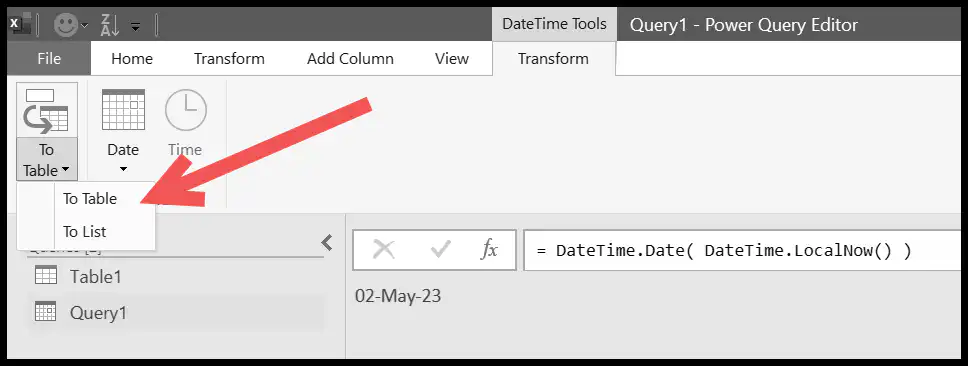
In the end, go to Home ➜ Close & Load to load the date into a worksheet.
When Does the Date Update?
Unlike the TODAY function in a worksheet, this date doesn’t change by itself. Power Query gets the date only when the query runs. So, the column shows the date of the last refresh, and you need to refresh the query (Data ➜ Refresh All) to update it.
If you want it to update every time you open the file, go to Data ➜ Queries & Connections, right-click the query, click Properties, and tick “Refresh data when opening the file”.
DateTime.LocalNow() takes the date and time from the computer where the query runs. If the query runs on a server (like in Power BI Service), it can return the server’s time zone, usually UTC. In that case, use DateTimeZone.UtcNow() and convert it to your time zone with DateTimeZone.SwitchZone.
Calculate Days Between a Date and Today
Once you have today’s date, the most common next step is to find how many days have passed since the date in a column. Add a custom column with the following formula (here, the date column is called Date):
Duration.Days(DateTime.Date(DateTime.LocalNow()) - [Date])
Subtracting two dates in Power Query gives a duration, and Duration.Days takes the number of days from it. A date in the future gives a negative number. Make sure the Date column has the Date data type, or you get an error.
Frequently Asked Questions
Is there a TODAY function in Power Query?
No. Power Query doesn’t have a TODAY function. You get today’s date with DateTime.Date(DateTime.LocalNow()), or Date.From(DateTime.LocalNow()), which gives the same result.
How do I filter rows to show only today’s date?
Click the filter button on the date column and go to Date Filters ➜ Day ➜ Today. Power Query keeps only the rows with today’s date, and the filter updates on every refresh.
Why does my today column show an old date?
Because the query hasn’t been refreshed since that date. Refresh it, or set it to refresh when the file opens, as shown above.