

Select the cells, then go to Home → Conditional Formatting → Clear Rules and choose Clear Rules from Selected Cells. To clear a whole sheet, pick Clear Rules from Entire Sheet; you don’t need to select anything first.
To remove one rule while keeping the others, open Home → Conditional Formatting → Manage Rules, set the Show formatting rules for box to the sheet, select the rule and click Delete Rule.
There is no single command to clear conditional formatting from every sheet at once. A short macro does it:
Sub ClearAllCF()
    Dim ws As Worksheet
    For Each ws In ActiveWorkbook.Worksheets
        ws.Cells.FormatConditions.Delete
    Next ws
End Sub
Don’t confuse this with Home → Clear → Clear Formats, which strips every kind of formatting (fonts, borders, number formats), not only conditional formatting. Use Clear Rules when you want to leave the rest of the formatting intact.
When you apply conditional formatting, you also get an option to remove it with a single click. In the example below, you have a table with conditional formatting of color scales.
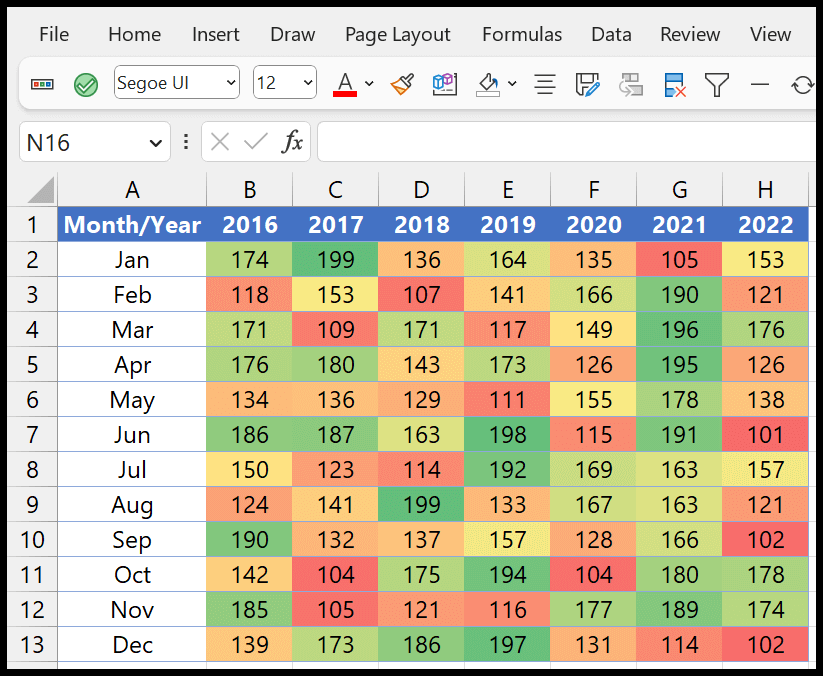
We will learn methods for removing conditional formatting rules in Excel from individual cells, specific ranges, entire worksheets, and across multiple sheets at once.
Clear Option to Remove Conditional Formatting
This method is quite straightforward: you use the default option in Excel for clearing the conditional formatting.
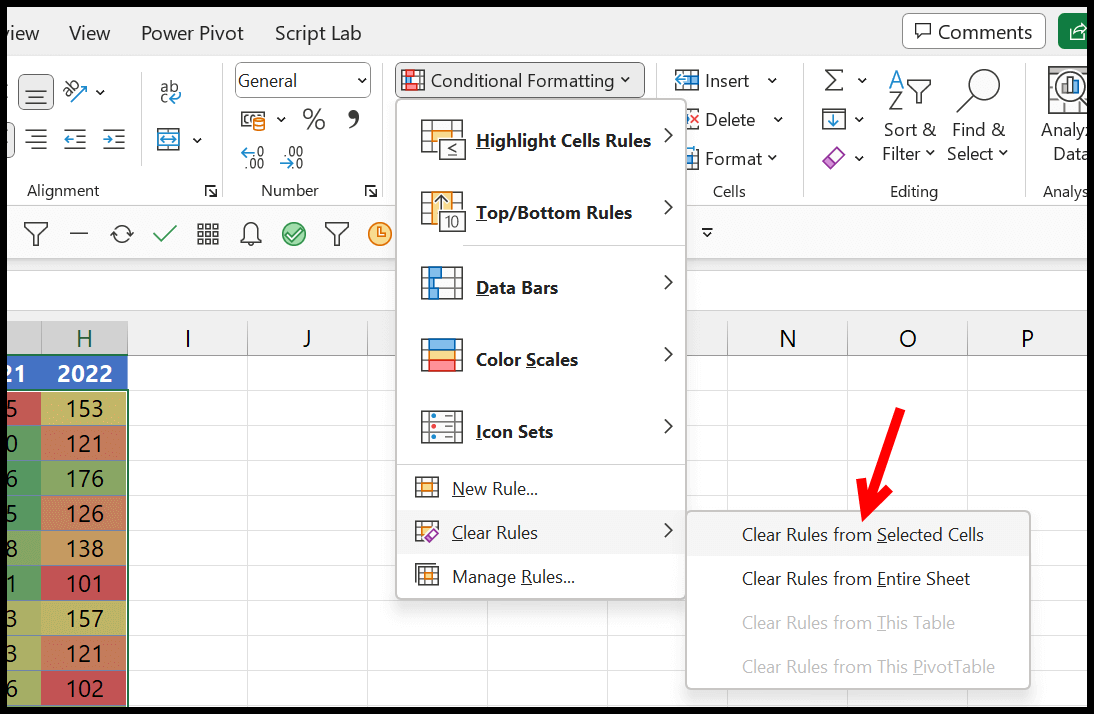
- Select a Cell or Range: To do this, click on a cell to select it. If you want to select a range of cells, click and drag your mouse over the cells. For an entire worksheet, click the triangle in the top-left corner where the row and column headers intersect.
- Go to the Conditional Formatting Option: After selecting the cells, the next step is to access the Conditional Formatting menu. This can be found in the Home tab of the Excel ribbon. Click on Conditional Formatting to open a dropdown menu.
- Go to Clear Rules: Once the dropdown menu opens, click the Clear Rules option. Hovering your mouse over this option will open a side menu containing clearing options.
- Choose the Clear Rule Option: The side menu that appears when you hover over Clear Rules gives you two options: Clear Rules from Selected Cells or Clear Rules from Entire Sheet. You can choose the option you want. If you only want to clear the conditional formatting from the specific cells you selected, choose Clear Rules from Selected Cells. On the other hand, if you want to remove all conditional formatting rules from the entire worksheet, irrespective of whether you’ve selected any cells or not, choose Clear Rules from Entire Sheet.
When you click on it, conditional formatting will be removed from the selected range.
If a rule applies to a bigger range than the one you selected, Excel removes it only from the selected cells and keeps it for the rest. And when the selected cells are in an Excel table or a pivot table, you also get “Clear Rules from This Table” or “Clear Rules from This PivotTable” in the same menu.

And if you want to remove it from the entire sheet, click “Clear Rules from Entire Sheet”.

Use the Manage Rules Option to Clear the Conditional Formatting
Once you select the range where conditional formatting is applied, go to the Home Tab ⇢ Conditional Formatting ⇢ Manage Rules.

Once you click “Manage Rules”, it will show you the dialog box below.

You can select the conditional formatting from here and click the “Delete Rule” button to delete it.

It will instantly remove the conditional formatting rule. To see and remove the rules from the entire worksheet, change the selection in the “Show formatting rules for” drop-down to “This Worksheet.”

Using a Keyboard Shortcut
If you have a lot of conditional formatting, you need to learn the shortcut, which can help you remove it without using any option.
Alt ⇢ H ⇢ L ⇢ C ⇢ S
This shortcut uses the same option we used in the first method (Clear Rules from Selected Cells), just with keyboard keys. To clear the rules from the entire sheet, press E instead of S at the end: Alt ⇢ H ⇢ L ⇢ C ⇢ E.
Using a VBA Code to Remove Conditional Formatting
Excel does not provide an option to remove conditional formatting from the entire workbook. You can use the below VBA code for this.
Sub ClearCF()
Dim mySheet As Worksheet
For Each mySheet In ThisWorkbook.Worksheets
mySheet.Cells.FormatConditions.Delete
Next mySheet
End Sub
It’s simple to use and removes conditional formatting rules from the entire workbook in one go. The loop uses Worksheets and not Sheets, because a chart sheet has no cells, and the code would stop with an error on it. Also note that you can’t undo a macro, so save a copy of the file first. To use this code:
- First, open VBA Editor using the keyboard shortcut Alt + F11.
- After that, right-click on any object in the Project Explorer, go to “Insert,” and click “Module.”
- Then, paste the code into the module.
- In the end, click anywhere inside the code and press F5 to run it.
Here’s a breakdown of the code line by line:
- Dim mySheet As Worksheet: This line declares a variable mySheet that will be used for each worksheet in the workbook.
- For Each mySheet In ThisWorkbook.Worksheets: This line starts a loop that will go to each worksheet in the workbook. Each time through the loop, mySheet will represent the next worksheet.
- mySheet.Cells.FormatConditions.Delete: This line deletes all conditional formatting rules from every cell in the current worksheet.
- Next mySheet: This line ends the loop. After this line is run, if there are any worksheets left in the workbook that haven’t been processed, the code jumps back to the start of the loop (For Each).
Use the Clear Option from the Quick Analysis Tool
When you select the range with conditional formatting, Excel shows you the Quick Analysis Tool at the bottom right.
From here, you can use the “Clear Format” option on the Formatting tab to remove the conditional formatting. If you don’t see the button, press Ctrl + Q after selecting the range.

Creating a Button on the Quick Access Toolbar
You can also add a button on the quick access toolbar to clear the conditional formatting:

Here’s how you add the button to the Quick Access Toolbar:
- Click on the “File” tab. You will see a list of options on the left-hand side. Click on “Options” at the bottom of the list. This will open the Excel Options dialog box.
- Now click on the Quick Access Toolbar category. There’s a dropdown menu next to “Choose commands from:”. Click on this menu and select All Commands. Scroll down the list of commands until you find Clear Conditional Formats. Click on this to select it.
- Click on the “Add >>” button in the middle of the dialog box. It moves the command to the list on the right, with all the commands displayed on the Quick Access Toolbar. Click OK at the bottom of the Excel Options dialog box.
It will add a button to the Quick Access Toolbar to clear the conditional formatting with a single click.
Clearing the Entire Formatting
You can also clear the entire formatting if you have nothing other than conditional formatting. You can use the keyboard shortcut:
Alt ⇢ H ⇢ E ⇢ F
You can also use the Clear Formats option (Home ⇢ Editing ⇢ Clear) from the Home tab.

As I said, this entirely removes the formatting from the selected range or the cell.

Out of all the methods we have discussed above, the best are the option from the Conditional Formatting drop-down on the Home tab, the keyboard shortcut, and creating a button on the Quick Access Toolbar.
Remove Conditional Formatting from the Selection with VBA
If you only want to clear the rules from the selected cells, or from one sheet, you can use one line of code:
Sub ClearCFSelection()
    Selection.FormatConditions.Delete
    ' Or for one sheet: Worksheets("Sheet1").Cells.FormatConditions.Delete
End Sub
Frequently Asked Questions
Does Clear Rules remove my normal formatting?
No. Clear Rules removes only the conditional formatting rules. The fill color, borders and number formats you applied yourself stay. Only Clear Formats removes everything.
Why is the color still there after clearing the rules?
Then the color isn’t from conditional formatting. It may be a normal fill color or an Excel table style. Use Clear Formats, or change the table style to None (Table Design ⇢ Table Styles).
Can I undo clearing the conditional formatting?
Yes, press Ctrl + Z right after using Clear Rules or Delete Rule. But you can’t undo the VBA code, so save a copy before you run it.

Written by
Puneet Gogia
Microsoft MVP — Excel · Founder, Excel Champs
Twelve years of teaching Excel, and a decade before that using it as a data analyst. Every tutorial here is written from a file I actually built.