

The greater-than-or-equal-to operator in Excel is >=, typed as two characters with the angle bracket first. Use it directly to compare: =A1>=B1 returns TRUE when A1 is at least as large as B1, and FALSE otherwise.
On its own, > tests greater than only, and = tests equality — so =4>=3 and =4>3 both return TRUE, while =4=3 returns FALSE. For a readable result instead of TRUE/FALSE, wrap it in IF: =IF(A1>=B1,"Pass","Fail").
Inside functions that take criteria, the operator goes in double quotes and joins to a cell reference with &: =COUNTIF(A1:A10,">=50") counts values of 50 or more, and =COUNTIF(A1:A10,">="&C1) compares against whatever is in C1. That criteria form is where most people actually use it — in COUNTIF, COUNTIFS, SUMIF, SUMIFS, and AVERAGEIF.
The operators also work on dates and text: dates compare as numbers, and text compares alphabetically without regard to case.
You can use the greater than and equal to the operator in Excel to test a logical condition.
- Greater Than: >
- Equal To: =
- Greater Than or Equal To: (>=)
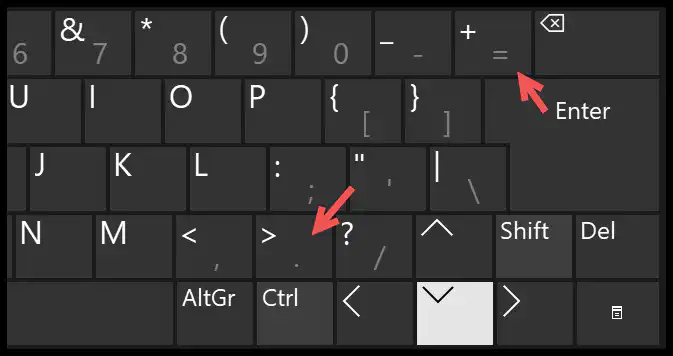
And in this tutorial, we will look at examples to understand this.
Write a Formula using Greater Than or Equal To
- Enter = in a cell to start the formula.
- Enter the first value or refer to the cell.
- Enter (>=).
- Enter the second value or refer to the cell.
- Hit enter to get the result.

While using the greater than or equal to operator, you must first refer to the value you want to test. In the above example, we have tested 4, so we have referred to it first.
[thrive_leads id=’112075′]Only Greater Than (>)
The greater than the operator in Excel is what you use in your mathematical calculations. You can enter this operator from your keyboard. In the below example, you can see we have a condition to test if 4 is greater than 3, and in the result, we TRUE.
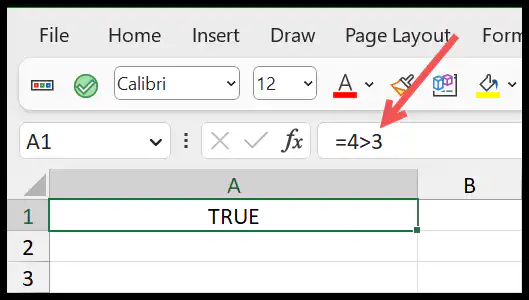
And in the result, we have TRUE, which means the condition is TRUE 4 is greater than 3.
Only Equal To (=)
You can also test a condition only with (=) equal sign. So in the example below, we have (=4=3) where we test if 4 equals 3.
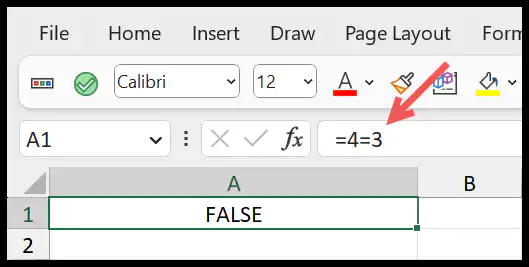
In the result, we have FALSE as 4 is not equal to 3.
Written by
Puneet Gogia
Microsoft MVP — Excel · Founder, Excel Champs
Twelve years of teaching Excel, and a decade before that using it as a data analyst. Every tutorial here is written from a file I actually built.