

To convert a date into a Julian date — the yyyyddd format where the last three digits are the day of the year — combine the year with the day number: =TEXT(A1,"yyyy")&TEXT(A1-DATE(YEAR(A1),1,0),"000"). So 20-Nov-2026 becomes 2026324.
The DATE(YEAR(A1),1,0) part builds 31 December of the previous year, and subtracting it gives the day count; the “000” format pads it to three digits so day 5 reads as 005. For the two-digit year variant, swap the first part to TEXT(A1,"yy"), giving 26324.
To convert back, feed the pieces to DATE: =DATE(LEFT(A2,4),1,RIGHT(A2,3)) — the day number can exceed 31 and DATE rolls it into the right month automatically.
Two things worth knowing: the result is text, not a date, so it can’t be sorted chronologically or used in date arithmetic, and this format is more precisely called an ordinal date — the astronomical Julian Day Number is a different thing entirely, counting days since 4713 BC.
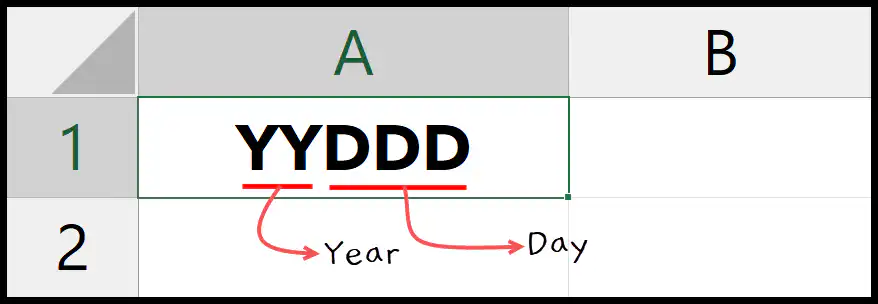
If you want to convert a regular date into a Julian date in Excel, you need to get the year and the day number from the date. And then combine both, where the year comes first and the day number comes second. Below is the format of a Julian date.

Apart from this, you can use the below format as well. There are multiple formats for Julian dates that you can use.
Excel Formula for Julian Date
Below are the steps to write this formula:
- First, enter the TEXT function in a cell to get the year from the date TEXT(A1,”YYYY”).
- After that, enter an ampersand (&) to enter the second formula to get the day of the year.
- Now here, you again need to use TEXT along with DATE and YEAR.
- Therefore, enter this formula TEXT(A1-DATE(YEAR(A1),1,0),”000″) after that ampersand to get the day of the year.

The moment you hit the Enter key, it returns a Julian date. In this date, the first four digits are the year, and the following three digits are the day number of the year.

=TEXT(A1,"YYYY")&TEXT(A1-DATE(YEAR(A1),1,0),"000")
To understand this formula, you need to split it into two parts:

In the first part, you used the TEXT function to get the year from the date in the “YYYY” format.
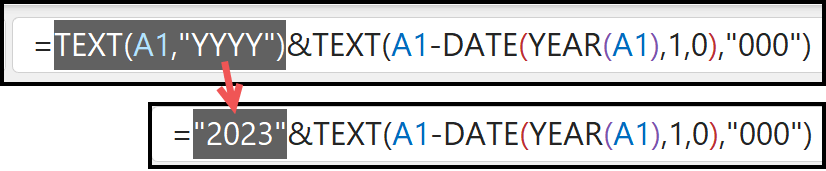
And in the second part, we combine three functions, TEXT, DATE, and YEAR. YEAR returns the year from the original date; with that, DATE(YEAR(A1),1,0) creates day 0 of January, which is the last day of the previous year (31st December).

After that, the formula subtracts that date from the original date, which gives the day number of the year (1 for 1st January). And in the end, TEXT with the format “000” converts it into a three-digit number, so day 5 becomes 005.
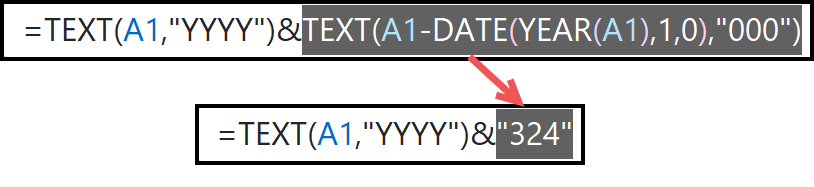
And as a whole, this formula gives you the year and day number in a single cell as a Julian date.
Note that the result is text, as TEXT always returns text. If you need it as a number, for example to sort or to use in a calculation, add two minus signs in front of the formula:
=--(TEXT(A1,"YYYY")&TEXT(A1-DATE(YEAR(A1),1,0),"000"))
The day number counts leap years correctly: 29-Feb-2024 gives 2024060, and 31-Dec-2024 gives 2024366.
Julian Date in Other Formats
As I said at the start, there are multiple formats of the Julian date, and you can use any of them. For example, with the below formula, you can create a Julian date where you have the year as two digits and then the day as a three-digit number.

=TEXT(A1,"YY")&TEXT(A1-DATE(YEAR(A1),1,0),"000")
Converting Back from a Julian Date
If you already have a Julian date and want to convert it back to a regular date, you can use the below formula:

=DATE(LEFT(A2,4),1,RIGHT(A2,3))
To understand this formula, you need to understand the DATE function because the primary function is the DATE function.

LEFT returns the year from the date by extracting four digits from the left. In the second argument (month), you have 1, which means the first month (Jan).
Now, in the third argument, we have RIGHT, which returns the day number of the year. The day number here is 324, more than the total number of days a month has (30/31). And the DATE function is smart enough to roll these days over into the following months and give the correct date.

Convert a Two-Digit Year Julian Date Back
If your Julian date has a two-digit year (like 23001), take two digits from the left and add 2000 to get the year:
=DATE(2000+LEFT(A2,2),1,RIGHT(A2,3))
Use 1900 instead of 2000 if your dates are from the 1900s. A two-digit year doesn’t tell Excel the century, so you need to decide it in the formula.
CYYDDD Julian Date (JD Edwards)
Some systems, like JD Edwards, use a six-digit Julian date in the CYYDDD format, where C is the century (0 for 1900s, 1 for 2000s), YY is the year and DDD is the day number. So, 19-Nov-2024 becomes 124324. Here’s the formula to create it from a date:
=(YEAR(A1)-1900)*1000+A1-DATE(YEAR(A1),1,0)
And to convert a CYYDDD date back to a regular date:
=DATE(1900+INT(A2/1000),1,MOD(A2,1000))
Format the result cell as a date to see it as a date.
Astronomical Julian Day Number
In astronomy, a Julian date means something else: the number of days since 1st January 4713 BC. To get it from an Excel date, add 2415018.5 to the date and format the cell as General (or Number):
=A1+2415018.5
For 19-Nov-2024, this returns 2460633.5. The .5 is there because an astronomical Julian day starts at noon, not midnight.
Frequently Asked Questions
Why does my Julian date formula return a number like 2024324 as text?
Because the formula joins two TEXT results with an ampersand, and the result of TEXT is always text. Add — in front of the whole formula to convert it into a number.
Is a Julian date the same as the day of the year?
Not exactly. The day of the year is only the three-digit part (1 to 366). The Julian date used in business adds the year in front of it, like 2024324.
How do I convert a Julian date in VBA?
You can use the same logic in VBA: Format(myDate, “yyyy”) & Format(DatePart(“y”, myDate), “000”), where DatePart with “y” returns the day of the year.
Written by
Puneet Gogia
Microsoft MVP — Excel · Founder, Excel Champs
Twelve years of teaching Excel, and a decade before that using it as a data analyst. Every tutorial here is written from a file I actually built.