

In Excel, naming a range of cells is the easiest and fastest way of referring to those cells in the formula. You can create multiple named ranges in the spreadsheet and use them as cell references while writing formulas.
But sometimes, if you have multiple named ranges within the workbook, it may become difficult to remember the names and locations of the named ranges.
So, in this tutorial, we will show you how to find the named ranges within the current workbook.
Steps to Find the Named Range Using Name Manager
The best and recommended way to find all the named ranges within the entire workbook is the “Name Manager”.
From there, you can also edit the referred cells of any named range and change the name of any named range by following the below steps:
- First, go to the “Formulas” tab and then click on the “Name Manager” icon under the “Defined Names” group.
- Or first, press and hold the “Ctrl” key and then press the “F3” key.

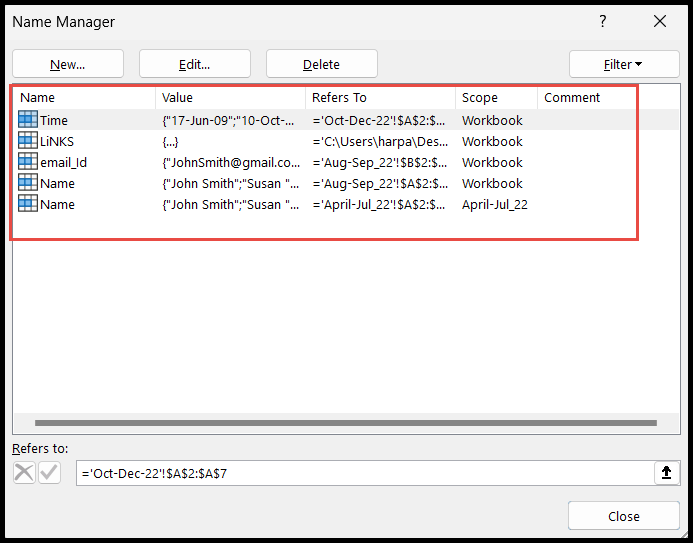
- At this point, you will get the “Name Manager” dialog box opened.
- In this, you will find all the named ranges with their names under the “Name” column and the location (sheet name), including the range of cells given to them, under the “Refers To” column.
- From here, double-click on any named range which you want to edit or whose referred cells you want to see.
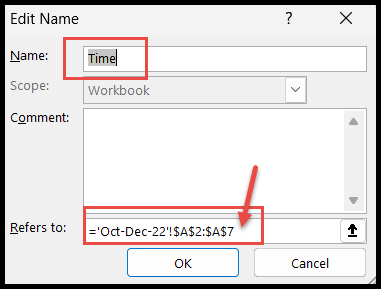
- The moment you double-click on a named range, it opens the “Edit Name” dialog box for that name, as in the image below.
- Now, to change the name of this named range, go to the “Name” field, remove the existing name, add the new name, and press OK.
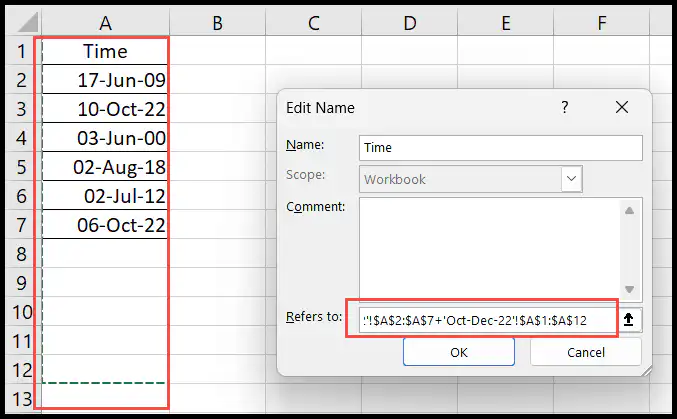
- To see the referred cells, click inside the “Refers to” field, and Excel shows a moving border around those cells on the sheet.
- From here, you can re-select the cells range and the range will get updated.
- You can see the new range in the “Refers to” field in the dialog box, and then press OK.
Find Named Range Using Go To Option
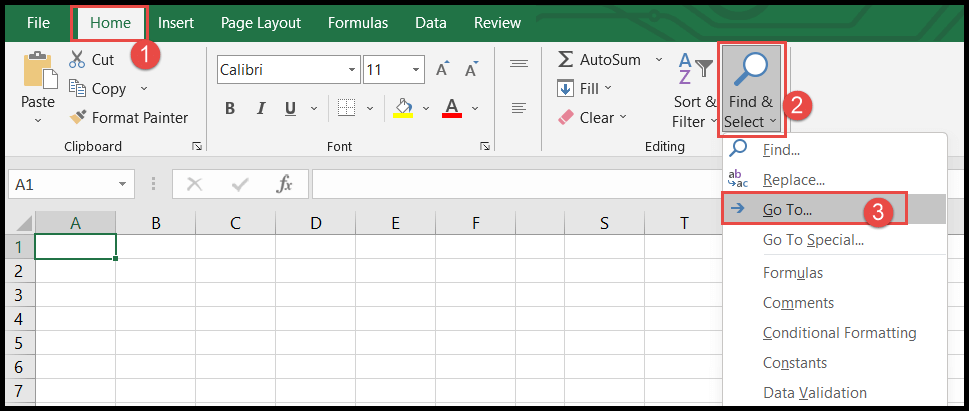
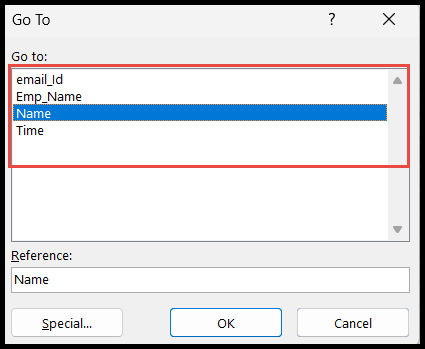
- First, go to the “Home” tab and then click on the “Find & Select” icon and then click on the “GO TO” option to open the “GO TO” dialog box.
- Or simply press the “Ctrl + G” (or F5) keyboard shortcut, and it will open the “GO TO” dialog box.
- Here in the “GO TO” dialog box, you will find all the named ranges within your workbook. Select one and click OK to go to those cells.
Find the Name Range by Zoom-out
To find the named ranges within the current worksheet, just zoom out the spreadsheet to 30% (any zoom below 40% works), and you will find the named ranges’ names shown on their cells.

In the below image, the spreadsheet is zoomed out at 30% and you can see we have two separate named ranges defined within the current spreadsheet, with their names shown on the cells.

Find Name Range from Name Box
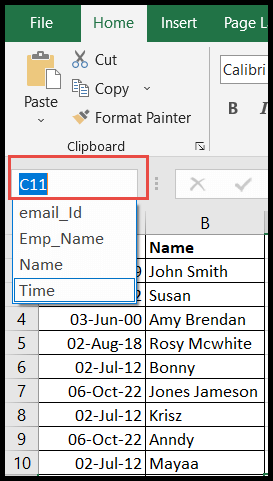
You can also find the named ranges from the drop-down of the “Name Box” at the top left of the spreadsheet, and to go to the cells of a named range, just click on its name.
List All Named Ranges on a Sheet
If you want a list of all the names with their ranges that you can print or share, select an empty cell, press F3 (Paste Name), and click “Paste List”. Excel writes each name in one column and its range in the next one. Make sure there’s enough empty space, as it overwrites the cells below and to the right.
In Name Manager, you can also use the “Filter” button to show only the names with errors (like #REF! after deleting cells), names scoped to the worksheet or to the workbook, or table names.
Frequently Asked Questions
Why is my named range not in the Name Box?
The Name Box only lists names that refer to a range. Names that hold a formula or a constant, and names scoped to another sheet, don’t show there. Hidden names don’t show in Name Manager either.
How do I find which formulas use a named range?
Press Ctrl + H, type the name in “Find what”, set “Look in” to Formulas, and click Find All. Excel lists every cell whose formula uses that name.
How do I delete a named range?
Open Name Manager (Ctrl + F3), select the name and click Delete. Formulas that use that name show the #NAME? error afterwards.