

To add VAT to a net amount, multiply by the rate and add it on: =A2*B2 gives the VAT amount where A2 is the net price and B2 the rate (say 20%), and =A2*(1+B2) gives the gross total in one step.
To work backwards from a VAT-inclusive price — which is what most people actually need — divide rather than multiply: =A2/(1+B2) gives the net amount, and =A2-A2/(1+B2) gives the VAT contained within it.
This is the part people get wrong: taking 20% of a VAT-inclusive 120 gives 24, but the VAT in it is 20, because the 20% was added to 100, not to 120. Use =A2*B2/(1+B2) for the shortcut.
Keep the rate in its own cell so a change from 15% to 15.5% means editing one cell, not every formula. And round to two decimals with =ROUND(A2*B2,2) if the figures go onto an invoice, since unrounded VAT can leave totals a penny out.
To calculate VAT in Excel, you need to know the exact tax percentage, then multiply it by the gross amount to get the vat tax amount. After that, add that tax amount to the actual invoice amount.

In this tutorial, we write a formula to calculate the VAT. Let’s check this out.
Calculate VAT Separately
You can use the below steps:
- First, refer to the cell with the invoice amount.
- After that, enter the asterisk (*) operator for multiplication.
- Now, refer to the cell where you have the VAT percentage.
- In the end, hit enter to get the tax amount.
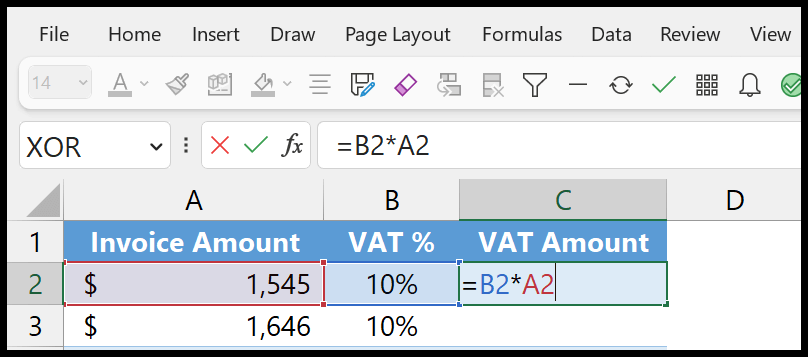
=tax_percentage * invoice_amountOnce you hit enter, you’ll get the VAT amount in the cell.

In the next part, you need to add the tax to the total amount. For this, you need to refer to the cell with the gross invoice amount, enter the addition operator, and refer to the cell with the VAT amount (TAX) you have calculated.
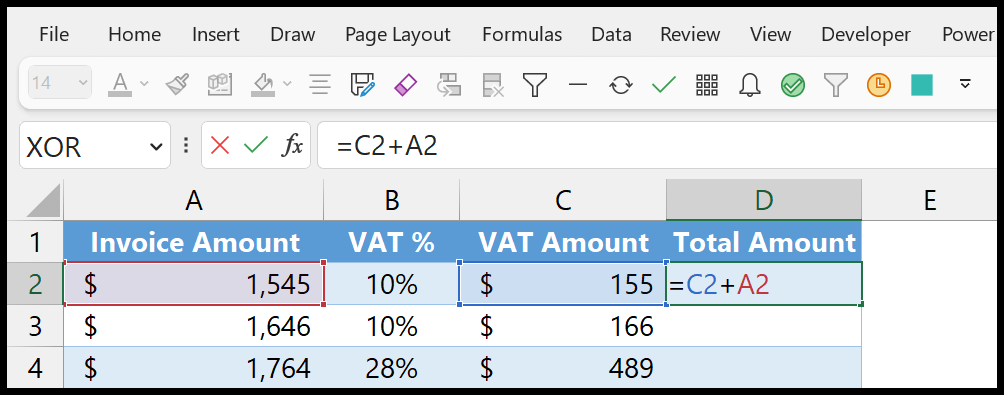
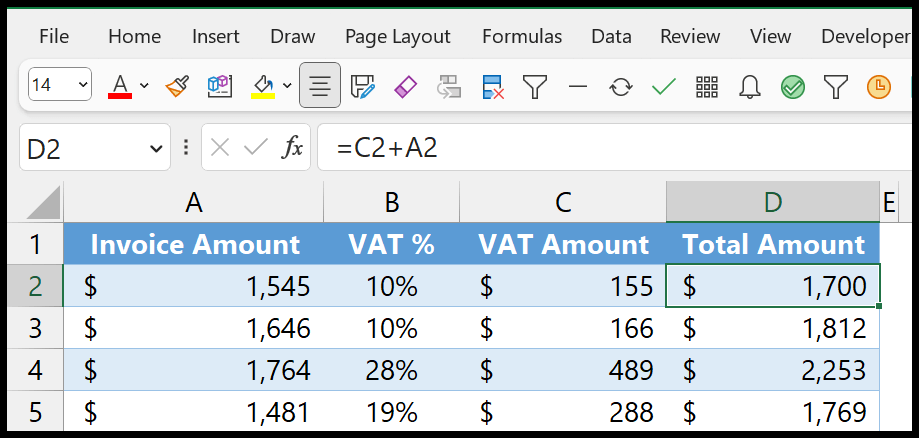
=vat_amount + invoice_amountThis will give you the total amount, including the VAT amount.
Calculating VAT in the Total Amount
If somehow you want to get the VAT amount included in the total amount, you can use the formula below:
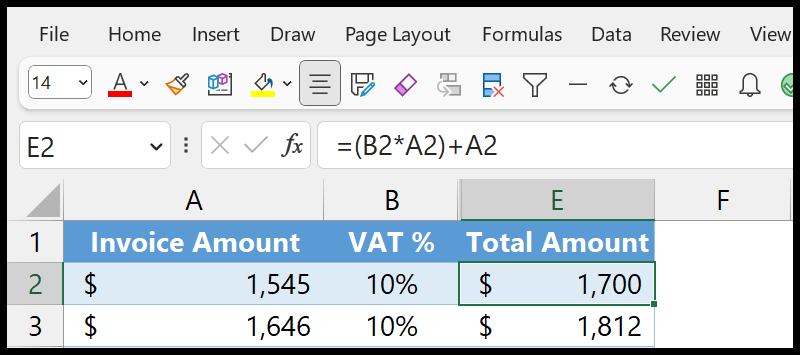
=(tax_percentage * invoice_amount) + invoice_amountWith the above formula, you don’t need a separate column for the VAT amount. The total amount includes the tax and the invoice amount.
There’s one more way to write this formula. In this formula, you can use the percentages to get the total amount with the VAT.
=invoice_amount * (100% + vat_percentage)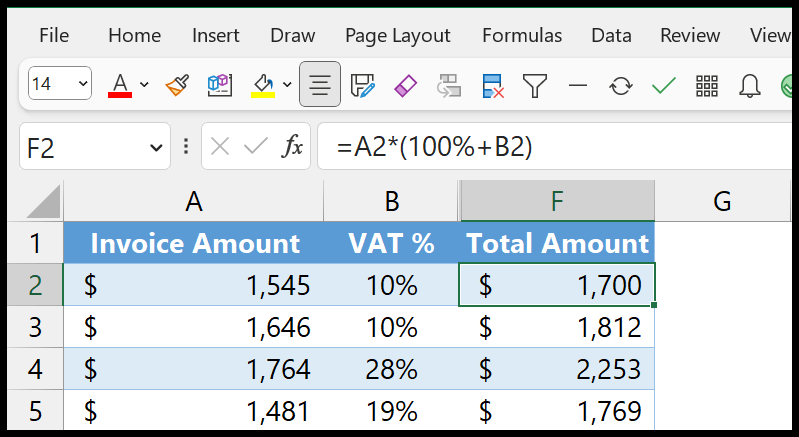
This formula works exactly like the first one, but we use the percentage instead.
When you use 100% and add the tax percentage, for example, 10%, multiply it with the invoice amount. It increases the amount with the exact tax percentage, and you get the total amount, including tax.

How to increase 15% to 15.5% VAT in spreadsheet.
i.e R total
VAT 15.5%
Total price
Are you facing a problem changing the VAT percentage?