

To add a comma between two values, join them with the ampersand: =A1&", "&B1. The comma and the space both sit inside the double quotes, so you control the spacing exactly.
To put a comma at the end of a single value, use =A1&",", and to put one at the start, =","&A1. For a whole range, TEXTJOIN is far quicker than chaining ampersands — =TEXTJOIN(", ",TRUE,A1:A10) turns a column into one comma-separated line, and the TRUE tells it to skip blank cells.
Two things worth separating: if you want commas as thousands separators in numbers (1,234,567), that’s a formatting job, not a formula — select the cells and press Ctrl+Shift+1, or use =TEXT(A1,"#,##0") if you need the result as text. TEXTJOIN needs Excel 2019 or later; on older versions, use CONCATENATE.
If you want to add a comma before or after a value from a cell, you can write different formulas in Excel. For this, you need to use the concatenation methods or functions that allow you to combine two or more values.
In this tutorial, we will look at these formulas in detail.
Using Ampersand to Add a Comma Between Two Values
In the below example, you have two cells, A1 and B1, with text values. You have to combine these values from these cells and add a comma between them.

Use the below formula for this:
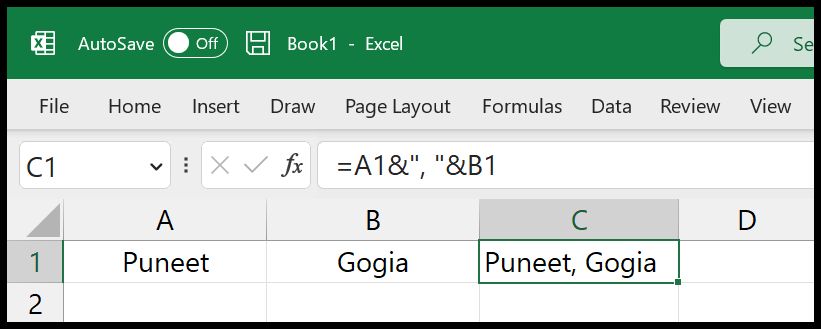
=A1&", "&B1
In this formula, you have values from the cells A1 and B1. And with the help of double quotation marks, there’s a comma and a space between both values.
Or you can do it by using the CONCATENATE function as well.
=CONCATENATE(A1,", ",B1)
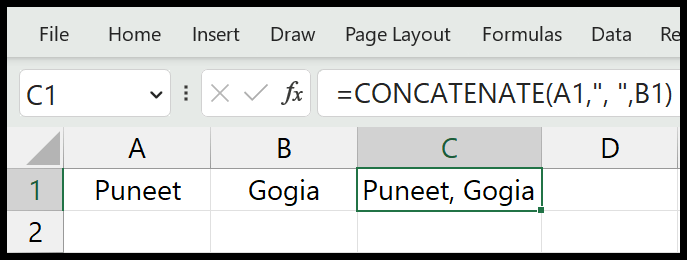
And if you already have a comma in a cell, you can use the CONCAT function for that.
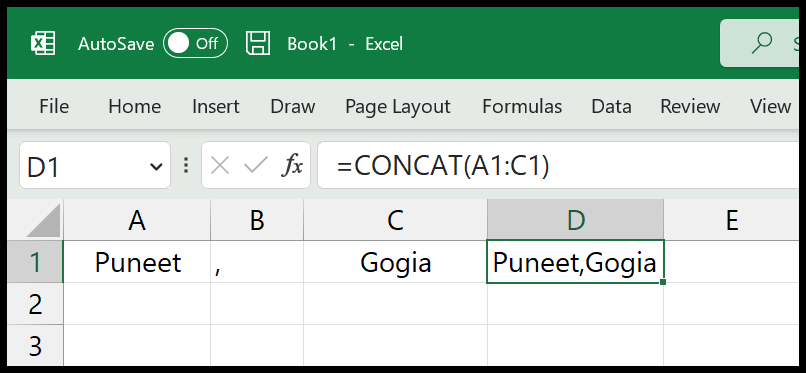
Note: The ampersand and CONCATENATE work in any version of Excel. CONCAT needs Excel 2019 or later, or Microsoft 365, so in older versions stick to the first two.
Use TEXTJOIN to Add Commas Between Multiple Values
If you want to add commas between multiple values from a range of cells, TEXTJOIN is the best function.
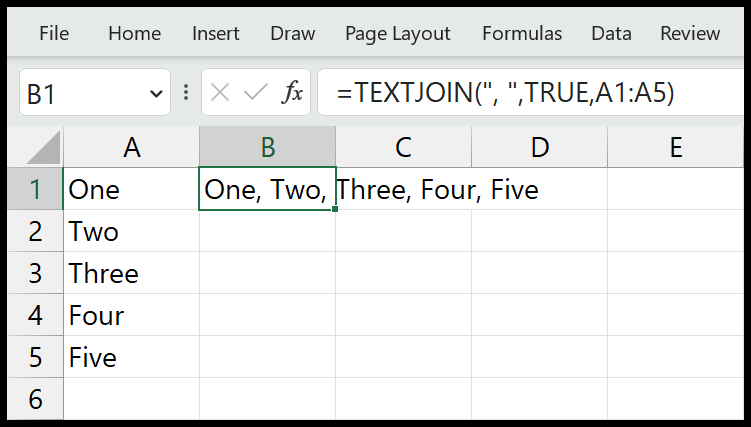
=TEXTJOIN(", ",TRUE,A1:A5)
It’s easy to add a comma or any other delimiter with TEXTJOIN. As you can see:
- We have specified a comma and space in the function’s first argument.
- And then TRUE to ignore empty cells.
- In the end, we referred to the range from which we wanted to get the values.
When you hit Enter, it gives you all the values with a comma and a space between every value.
If you use FALSE in the second argument, TEXTJOIN keeps the empty cells, and you get two commas next to each other wherever a cell is blank. That’s why TRUE is the better choice for this.
=TEXTJOIN(", ",FALSE,A1:A5)
TEXTJOIN is available in Excel 2019, Excel 2021, Excel 2024, Microsoft 365 and Excel for the web. If you are using Excel 2016 or an older version, use the ampersand or CONCATENATE instead and refer to each cell one by one. Also, if the result is longer than 32,767 characters (the limit of a cell), TEXTJOIN returns the #VALUE! error.
Add a Comma at the End of a Value
Sometimes you don’t need to combine two values; you just need a comma after the value in each cell. For this, you can use the ampersand with a comma in double quotation marks.
=A1&","
After that, drag the formula down to the last cell of your data. And if you want the comma before the value, flip the order:
=","&A1
In the end, if you want to keep the values and not the formulas, copy the cells and use Paste Special > Values.
Skip the Comma When a Cell Is Blank
With the ampersand, if B1 is empty, you still get a comma at the end (“John, “). To skip the comma when the second cell is blank, wrap it in IF:
=A1&IF(B1="","",", "&B1)
This formula adds the comma and the value from B1 only when B1 has something in it. If you have TEXTJOIN in your Excel version, you don’t need this, as TRUE in its second argument already skips the blank cells.
Join Values with Commas Based on a Condition
Let’s say you have names in A1:A5 and “Yes” or “No” in B1:B5, and you only want to join the names with a “Yes”. You can combine TEXTJOIN with IF for this:
=TEXTJOIN(", ",TRUE,IF(B1:B5="Yes",A1:A5,""))
IF returns the name when the condition is met and a blank when it isn’t, and TEXTJOIN skips those blanks. In Microsoft 365, Excel 2021 and Excel 2024, just press Enter. In Excel 2019, you need to enter it as an array formula with Ctrl + Shift + Enter.
Replace Spaces with Commas
If the words are already in one cell with spaces between them, you can use SUBSTITUTE to replace each space with a comma and a space.
=SUBSTITUTE(A1," ",", ")
For “red green blue” in A1, this gives you “red, green, blue”. If a cell has extra spaces between the words, use TRIM inside SUBSTITUTE first, or you will get extra commas.
=SUBSTITUTE(TRIM(A1)," ",", ")
Add Commas to Numbers (Thousands Separator)
If you want commas inside a number, like 1,234,567, you don’t need a formula. You can do it with number formatting, and the value stays a number that you can use in calculations.
- First of all, select the cells with the numbers.
- After that, go to Home > Number and click the dialog box launcher (the small arrow in the corner of the group) to open Format Cells.
- Next, select Number in the Category list and tick Use 1000 Separator (,).
- In the end, click OK.
A quicker way is the Comma Style button in Home > Number (Alt > H > K on Windows). It also adds two decimal places, which you can remove with Decrease Decimal.
When you join a number with text, the ampersand drops the number format, so 1234567 shows without commas. Use TEXT to keep the commas in the result:
="Total: "&TEXT(A1,"#,##0")
Use “#,##0.00” in place of “#,##0” if you want two decimal places. Just keep in mind that TEXT returns text, so use it for display and not for further calculations.
Excel uses the separator from your system’s region settings. If you see a period or a space in place of the comma, that’s your regional setting, and you can change it in File > Options > Advanced by unticking Use system separators.
Which Method to Use
- Two or three cells: The ampersand or CONCATENATE. Both work in every version of Excel.
- A range of cells: TEXTJOIN, which adds the comma for you and skips blank cells (Excel 2019 and later).
- Only some of the values: TEXTJOIN with IF.
- Commas inside numbers: Comma Style or Format Cells, and TEXT when the number is part of a text.
Frequently Asked Questions
How do I add a comma without a space?
Use just a comma inside the double quotation marks, without the space after it. With TEXTJOIN, the formula looks like this:
=TEXTJOIN(",",TRUE,A1:A5)
How do I remove commas from a cell?
Use SUBSTITUTE to replace the comma with nothing, or use Find and Replace (Ctrl + H) with a comma in Find what and nothing in Replace with. If the commas come from a number format, turn off Use 1000 Separator (,) in Format Cells instead.
=SUBSTITUTE(A1,",","")
Do these formulas work in Google Sheets?
Yes, the ampersand, CONCATENATE and TEXTJOIN work the same way in Google Sheets. CONCAT is different there, as it takes only two values, so use TEXTJOIN for a range.
Written by
Puneet Gogia
Microsoft MVP — Excel · Founder, Excel Champs
Twelve years of teaching Excel, and a decade before that using it as a data analyst. Every tutorial here is written from a file I actually built.