

Copy a cell in the column whose width you want, select a cell in the target column, then press Ctrl + Alt + V, W and Enter (Paste Special → Column widths). Only the width changes; the target’s values and formatting stay as they are.
To paste data and keep its column widths, use Home → Paste → Keep Source Column Widths, or press Alt → H → V → W after copying.
To copy widths across several columns at once, copy the same number of columns and paste column widths onto the first target column. Clicking a column header, then Format Painter, then another column header copies the width along with all the formatting.
Paste Special has no option for row heights. To copy them, select the source rows by their headers, click Format Painter and click the target row headers; this copies the formatting too. To set an exact size instead, use Home → Format → Column Width or Row Height.
In Excel, you may have seen that when you copy and paste some data, the column width does not get pasted, and the pasted values may not fit in the cells.
And sometimes, users only want to copy and paste the column widths without any values to be pasted.
The good news is that Excel has a solution to this: you can copy and paste the data including the column width, or copy and paste only the column width without the data.
This tutorial will show you how to copy and paste the column width in multiple ways.
Copy and Paste Column Width Only
To copy and paste only the column width, follow the below steps:
- First, select and copy the column whose width you want to copy.
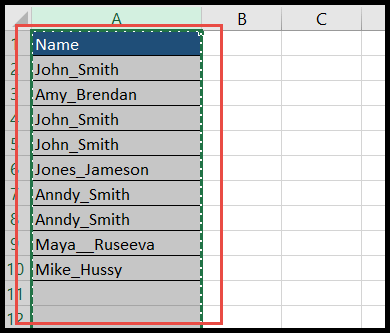
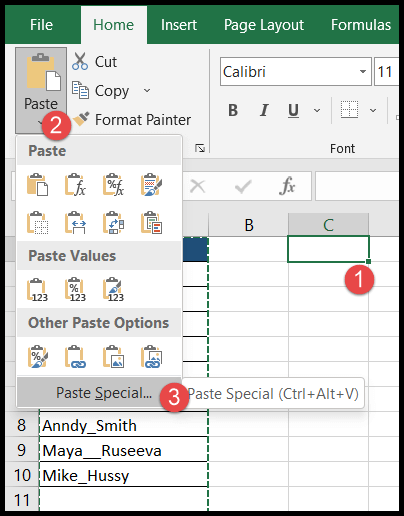
- After that, go to any cell within the column where you want to paste only the copied width, go to the “Paste” icon on the “Home” tab, and then click on the “Paste Special” option.
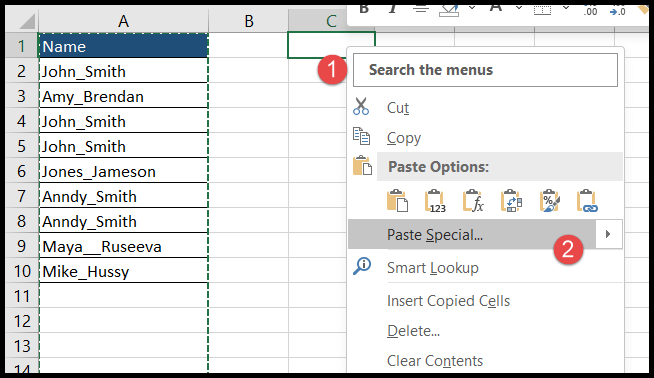
- Or, go to any cell within the column, right-click, and then click on the “Paste Special” option.
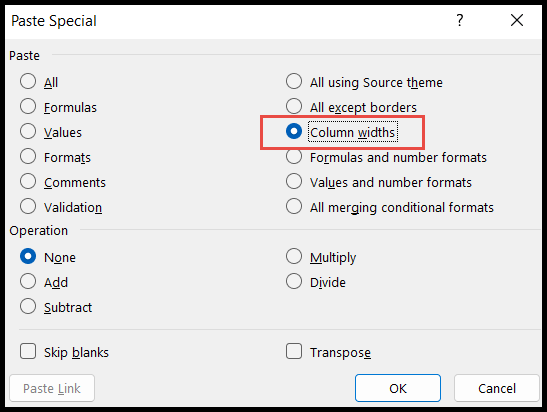
- At this point, the “Paste Special” dialog box opens; select the “Column widths” option.
- In the end, click OK.
- The moment you click OK, the column width will get pasted.
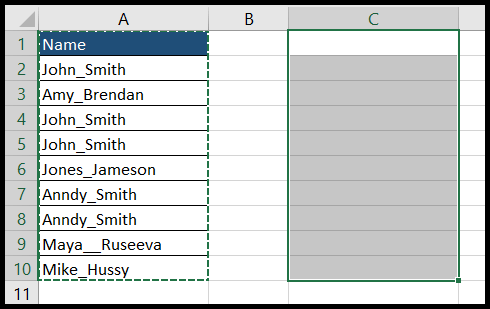
Keyboard Shortcut to Copy and Paste Column Width Only
Alt → E → S → W
- First, go to any cell within the column whose width you want to copy and press the “Ctrl + C” shortcut keys to copy that cell.
- After that, go to the column cell where you want to paste the copied width and press “Alt → E → S → W”, then press “Enter”, and the column width will get pasted. In newer versions, you can also press Ctrl + Alt + V to open Paste Special and then press W and Enter.
Copy and Paste Column Width, including the Values and Formatting
As you have noticed, when you copy and paste data, the width of the column does not get pasted. To paste both the copied data and the column width, follow the below steps:
- First, select and copy the data which you want to paste somewhere else in the same sheet or the new worksheet.

- After that, go to the cell where you want to paste this data, click on the “Paste” icon on the “Home” tab, and then click on the “Keep Source Column Widths” option.
- The moment you click on that option, the copied data will get pasted with the column width and the formatting, if any, of the copied cells.
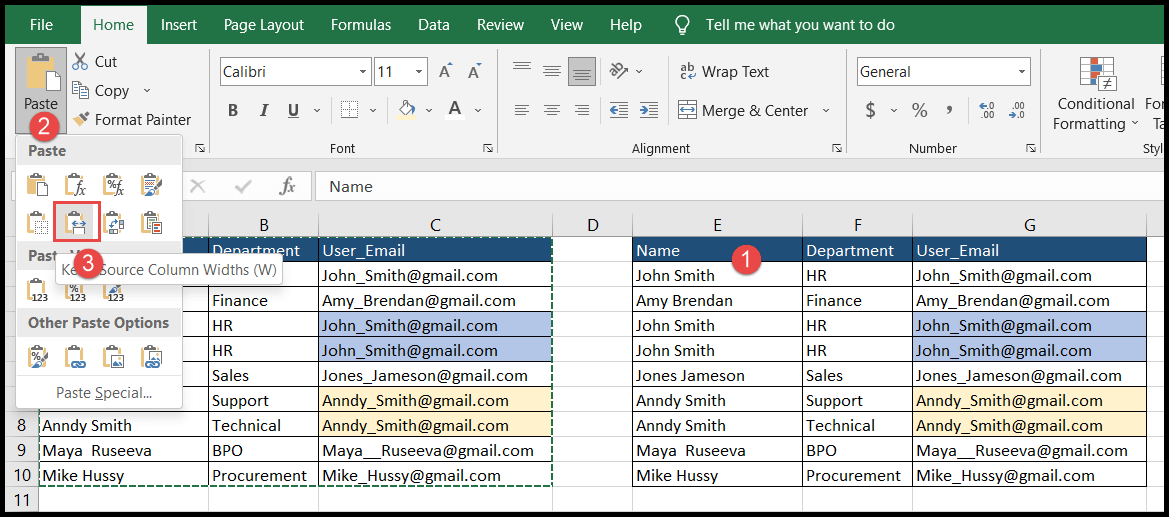
Keyboard Shortcut to Paste Data with the Column Width
Alt → H → V → W
- First, select the data and copy it using the “Ctrl + C” shortcut keys.
- After that, go to the cell where you want to paste the copied data along with the width and then press “Alt → H → V → W”, and the data with the column width will get pasted.
Copy and Paste Column Width Including Formatting Using Format Painter
- First, click the column header to select the entire column, and then click on the “Format Painter” icon on the “Home” tab.
- The moment you click on “Format Painter”, your mouse cursor will change into a paintbrush symbol.
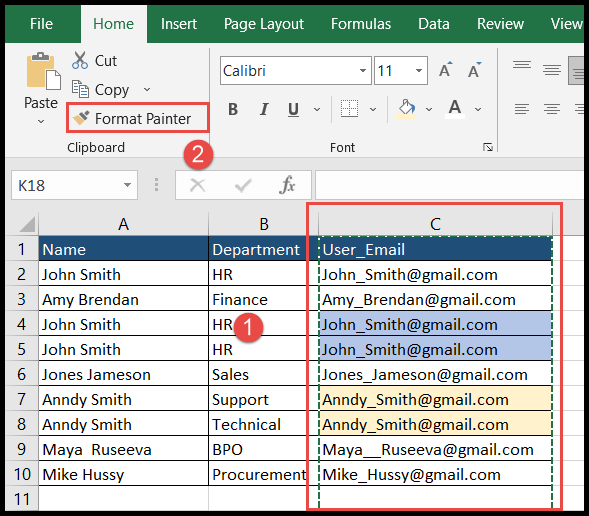
- Now, go to the column header where you want to paste the column width including the formatting, and simply click it, and the width and formatting will get pasted.
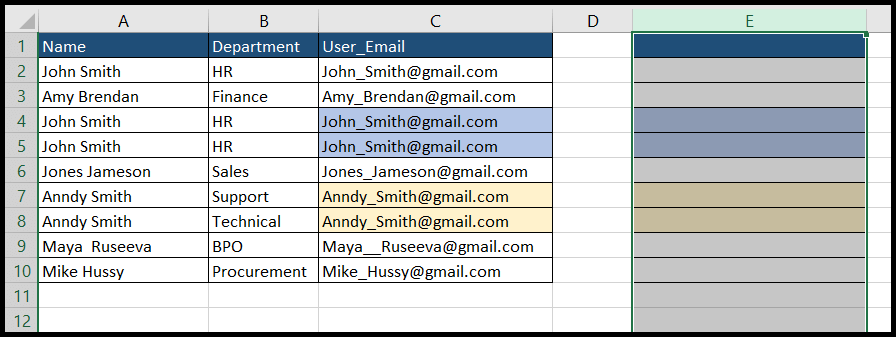
Remember that Format Painter also copies the fill, font and number formats of the column, so use Paste Special ➜ Column widths when you only want the width.
Copy the Width of Multiple Columns
All these methods work with more than one column as well. Copy cells from several columns (like A1:D1), select the first cell of the destination, and use Paste Special ➜ Column widths. Each destination column gets the width of the matching source column.
Copy Column Width with VBA
If you need to do this often, you can set the width of one column equal to another with one line of code. The following code gives column D the same width as column A:
Sub copy_column_width()
    Columns("D").ColumnWidth = Columns("A").ColumnWidth
End Sub
Frequently Asked Questions
Can I copy and paste row height?
Paste Special has no option for row height. To copy it, select the entire row (click the row number) and use Format Painter on the destination row, or copy and paste the entire rows.
Why does the column width not paste?
A normal paste (Ctrl + V) never pastes the width. You need Paste Special ➜ Column widths, Keep Source Column Widths, or copy the entire column (click the column header) and paste it on another column header.
Does this work in Excel for Mac?
Yes. Use Paste ➜ Paste Special (Ctrl + Command + V) and choose Column widths. The Alt key shortcuts are only for Windows.

Written by
Puneet Gogia
Microsoft MVP — Excel · Founder, Excel Champs
Twelve years of teaching Excel, and a decade before that using it as a data analyst. Every tutorial here is written from a file I actually built.