

Copy the cells with Ctrl + C, select the destination and press Ctrl + Shift + V to paste values only in current Microsoft 365. In any version, Ctrl + Alt + V, then V and Enter, does the same, as does Alt → H → V → V or the Values (123) icon under Home → Paste.
Values only drops number formats along with fills and fonts, so dates turn into serial numbers such as 45658 and currency loses its symbol. To keep those, use Values & Number Formatting instead (Alt → H → V → A).
To copy values with the mouse, right-drag the selection’s border to the new spot, release, and choose Copy Here as Values Only.
To turn formulas into their results in place, copy the range and paste values over the same cells. The formulas are gone after that, so keep a copy if you’ll need them again.
As you all know, copy and paste is something everyone does while working with data. Sometimes you want to copy data that has formatting applied to it, but you want to paste only the values. Excel has many ways to do this.
In this tutorial, we will show you multiple ways to copy and paste only the values, without formatting.
Steps to Copy and Paste Values Only Using Paste Special Option
- First, select the cell or range of cells that you want to copy and paste.
- After that, press the “Ctrl + C” shortcut keys, or right-click and select the “Copy” option from the menu to copy the selected cells.

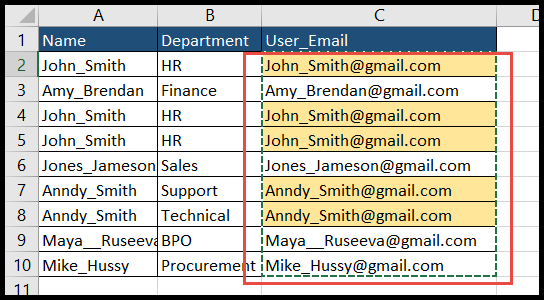
- Once your data is copied, Excel shows a moving border around the copied area, as shown in the below image.
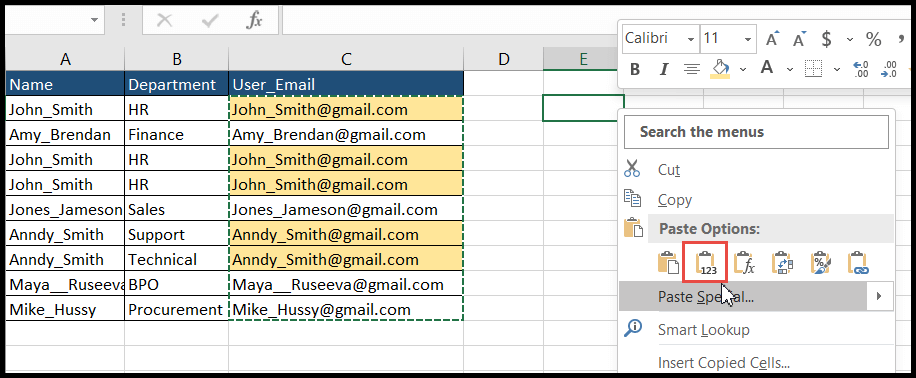
- Now, go to the cell where you want to paste the copied data, right-click, and choose the “123” (Values) option, and your data will get pasted as values.
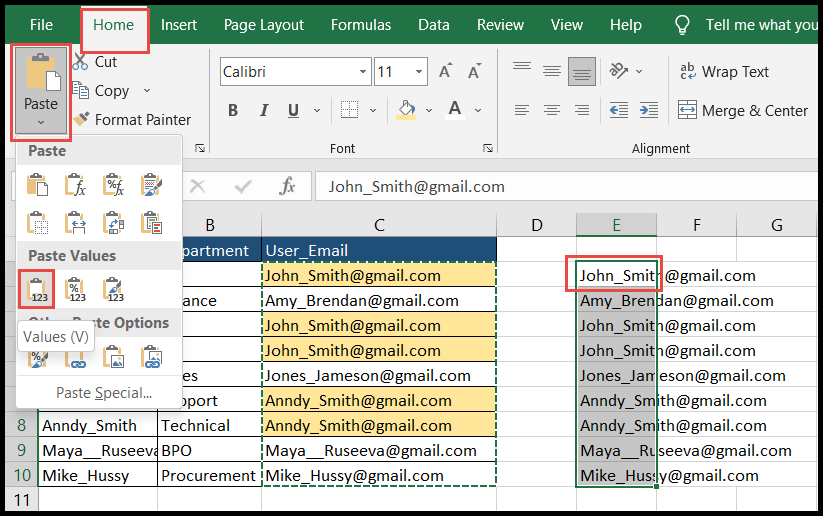
- Or, go to the cell where you want to paste the copied data, go to the “Home” tab, click on the arrow below the “Paste” icon, and choose the “123” Values option from there, and your data will get pasted as values.
Copy and Paste Values Using Drag and Drop
Excel also has a very quick and easy drag-and-drop feature to paste data as values only. To do so, follow the below steps:
- First, select the cell or range of cells you want to copy and paste.
- After that, hover your mouse on the border of the selected range.
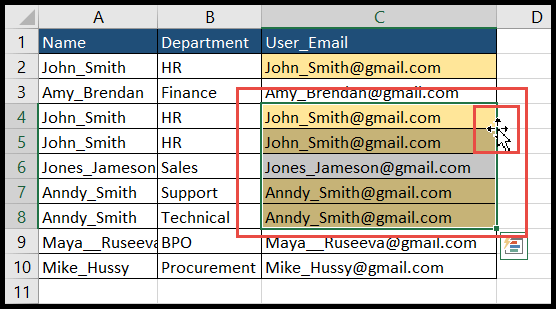
- Now, click and hold the right mouse button on the border, drag the range to the cell where you want to paste it, and then release the right button.
- Once you release the right button, you will get a menu with multiple options, and from there, click on “Copy Here as Values Only”.

- The moment you click on the “Copy Here as Values Only” option, the data will get pasted as values only.
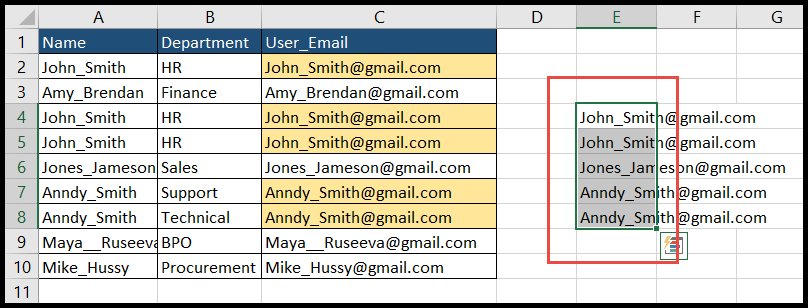
Copy and Paste Values Only Using the Keyboard Shortcut
If you are an Excel shortcut lover, then copying and pasting with keyboard shortcuts is the best choice for you.
- First, select the data range which you want to copy and paste, and then press the “Ctrl + C” keyboard shortcut to copy that range.
- Or, if you want to select the entire data, first press “Ctrl + A” to select the entire data set and then press “Ctrl + C” to copy that selected data set.
- Once your data is copied, Excel shows a moving border around the copied area, as shown in the below image.
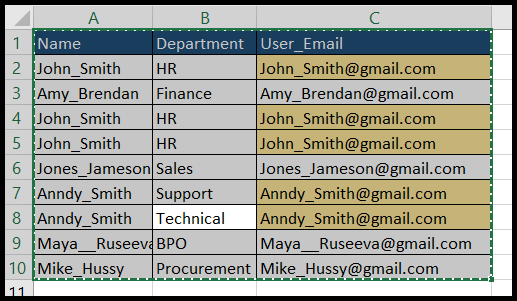
- Now, go to the cell where you want to paste the copied data, and then press the “Alt → E → S → V” keys in sequence and then the “Enter” key, and your data will get pasted as values only.
- Or you can press “Ctrl + Alt + V”, then “V”, and then the “Enter” key to paste the copied data as values only.

Both the shortcuts mentioned above open the “Paste Special” dialog box when you press the first three keys of the shortcut combination, and when you press the last key, “V”, it selects the “Values” option from the dialog box to paste the data as values only.
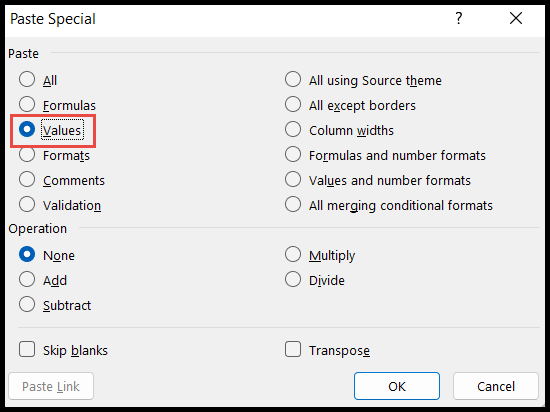
There are two more shortcuts you can use. Alt → H → V → V (one key after another) picks Values from the Paste menu on the Home tab, without opening the dialog box. And in Excel for Microsoft 365 on Windows, Ctrl + Shift + V pastes values only in one go.
Copy and Paste Values Using Cell Edit Mode
This option works only if you want to copy and paste a single cell value.
- Go to the cell which you want to copy, double-click on it (or press F2) to put the cell in edit mode, and then select and copy the value from the cell.
- After that, go to the cell where you want to paste the copied value and paste it there using the keyboard shortcut “Ctrl + V”.
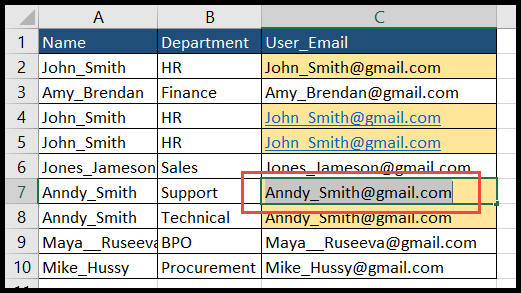
As you copy the text from inside the cell, the pasted value takes the formatting of the cell where you paste it. If the cell has a formula, edit mode shows the formula, so this method copies the formula text, not its result. It works best for cells with typed values.
Paste Values and Keep the Number Format
Values only drops the number format as well, so dates turn into numbers like 45292 and percentages into decimals if the destination cells use the General format. To keep the number format but leave out the rest of the formatting (colors, borders, fonts), choose “Values & Number Formatting” in the Paste menu (the 123 icon with a % sign), or use Paste Special and select “Values and number formats”.
Paste Values Only with VBA
If you do this often, a short macro can do it for you. The first code pastes the values with PasteSpecial, and the second one sets the values of the destination directly, without using the clipboard:
Sub paste_values_only()
    Range("A1:A10").Copy
    Range("C1").PasteSpecial Paste:=xlPasteValues
    Application.CutCopyMode = False
End Sub
Sub copy_values_directly()
    Range("C1:C10").Value = Range("A1:A10").Value
End Sub
Frequently Asked Questions
Can I make Paste Values the default paste?
Excel doesn’t have a setting for that. But you can add the Paste Values button to the Quick Access Toolbar and use it with Alt plus its number, or use Ctrl + Shift + V in Microsoft 365.
Why is the Paste Values option missing or greyed out?
You have copied from outside Excel (like a web page or Word), or the copy mode was cancelled by pressing Esc or editing a cell. Copy the cells again in Excel, or use “Match Destination Formatting” for data from other apps.
Does Paste Values remove formulas?
Yes. It pastes only the results of the formulas. You can even copy a range and paste values on top of the same range to turn its formulas into fixed values.

Written by
Puneet Gogia
Microsoft MVP — Excel · Founder, Excel Champs
Twelve years of teaching Excel, and a decade before that using it as a data analyst. Every tutorial here is written from a file I actually built.