

To count the days remaining until a future date, subtract today from it: =A1-TODAY() returns 23 if A1 is 23 days away. To count days elapsed since a past date, reverse it: =TODAY()-A1. TODAY() re-evaluates every time the file opens, so the number updates on its own.
Two things to expect. If the result appears as a date like 23-Jan-1900 instead of a number, the cell has inherited the date format — press Ctrl+1 and set it to Number.
And once the date passes, the countdown goes negative; use =MAX(0,A1-TODAY()) to stop it at zero, or =IF(A1<TODAY(),"Overdue",A1-TODAY()&" days left") to label it instead. For working days only, use =NETWORKDAYS(TODAY(),A1), or =NETWORKDAYS.INTL(TODAY(),A1,11) if your weekend is Sunday only.
In Excel, the best way to create a countdown is to write a formula that counts the days from today to a date. For this, you need to specify the date for which you want to create the countdown. Along with that, you need to use the TODAY function.

When you deduct today’s date from the future date, it returns the remaining days. As you are using TODAY, which is volatile and updates the date every day, it creates a countdown for the remaining days.
In this tutorial, we will learn to write this formula.
Let’s say you manage projects at work and want to track how long each project has been running. Each project has a start date, and you need to know how many days have passed since each project started until today. For that, you flip the formula and deduct the start date from today, which I have covered below.
Get Count of Days from Date to Today in Excel
You can use the below steps:
- First, enter (=) equals in a cell to start the formula.
- After that, refer to the cell where you have the date.
- Next, enter the (-) sign for subtraction.
- Now, enter the TODAY function without any argument.
- In the end, hit Enter to get the result.

Once you hit Enter, it returns the count of days remaining until the future date you have specified.
=A1-TODAY()
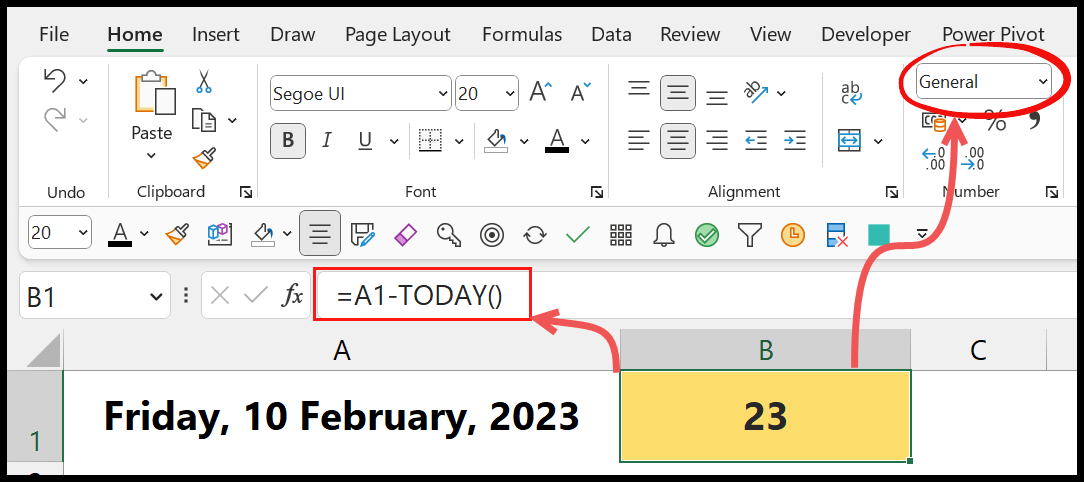
In this example, the date is 10-Feb-2023, and the date returned by TODAY is 18-Jan-2023, so the result is 23 days.
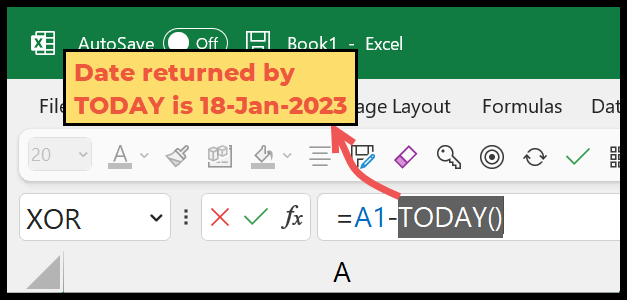
And when you deduct it from the future date, you get the remaining days.
As I mentioned earlier, TODAY is a volatile function. When the date changes in your system, it also changes the date returned by it, which makes it a countdown.
To make the result of the formula more meaningful, you can combine it with a text value.

=A1-TODAY()&" day(s) remaining."
Just remember that the result is now text, so you can’t use it in other calculations. Keep the plain formula in one cell if you need the number.
Count Days Passed Since a Date
For the project example from the start, the start date is in the past, so you deduct it from today. This returns the number of days the project has been running:
=TODAY()-A1
If the result shows as a date, change the format of the cell to General or Number.
Show “Overdue” Instead of a Negative Number
Once the date has passed, the countdown formula returns a negative number. You can use IF to show a message instead, and also keep the cell blank when there’s no date in A1:
=IF(A1="","",IF(A1<TODAY(),"Overdue",A1-TODAY()&" day(s) remaining"))
And if you want the countdown to stop at zero, use MAX:
=MAX(0,A1-TODAY())
Countdown in Working Days
To count only the working days left (Monday to Friday), use NETWORKDAYS with today as the start date. NETWORKDAYS counts both the start and the end date, so it includes today if today is a weekday. Add 1 to TODAY() to leave today out:
=NETWORKDAYS(TODAY()+1,A1)
You can add a range of holiday dates as the third argument, like NETWORKDAYS(TODAY()+1,A1,$E$2:$E$10), so those days aren’t counted either.
Other Formulas to Get the Count of Days from a Date to Today
Below are some formulas for counting the total number of days between today’s date and a past or future date. DATEDIF needs the earlier date first, so it works for a past date; with a future start date, it returns the #NUM! error.
- Using DATEDIF() Function
- =DATEDIF(start_date, TODAY(), “d”) – This formula helps you count the number of days that have passed from a specific start date to the current day. You can specify the start date in start_date. The TODAY() part automatically uses today’s date. The “d” tells Excel that you want the difference in days.
- Using NETWORKDAYS() Function –
- =NETWORKDAYS(start_date, TODAY()) – This formula calculates the weekdays between a start date and today, skipping weekends. You can specify start_date with the cell that contains your starting date. This formula is handy for tracking the number of actual workdays in a project’s duration, helping you manage timelines and count of business days from today. It ensures that only Monday through Friday are counted.
- Using NETWORKDAYS.INTL Function – This allows you to define which days of the week are considered weekends (e.g. if you’re in a region where weekends are Friday and Saturday).
Create a Custom Function to Count Days
You can also use a VBA code to create a custom function that counts the days from a given date to today. Once you add it to a standard module in the VBA editor, you can use it in the worksheet just like any built-in function.
Function DaysFromToDate(startDate As Variant) As Variant
    ' This function calculates the number of days from the given start date to today.
    ' It returns the difference as a long integer.

    ' Check if the input is actually a date
    If IsDate(startDate) Then
        ' Calculate the difference in days from the start date to today's date
        DaysFromToDate = DateDiff("d", startDate, Date)
    Else
        ' Return an error value if the input is not a valid date
        DaysFromToDate = CVErr(xlErrValue)
    End If
End Function
=DaysFromToDate(A1)
The function returns a positive number for a past date and a negative number for a future date. Its argument and result are Variant, so the IsDate check can work and the function can return the #VALUE! error for a cell that doesn’t have a date.
Frequently Asked Questions
Why does my countdown show a date instead of days?
Excel gives the result the date format of the cell you refer to. The value is already the number of days, so change the cell format to General or Number.
Does the countdown update on its own?
Yes. TODAY recalculates whenever the workbook recalculates, like when you open it or edit a cell. If calculation is set to Manual, press F9 to update it.
How do I count down to a date and time?
Use NOW instead of TODAY, like =A1-NOW(), and format the cell with the custom format d “days” hh:mm. This shows the days, hours and minutes left, as long as there are fewer than 32 days to go.
Written by
Puneet Gogia
Microsoft MVP — Excel · Founder, Excel Champs
Twelve years of teaching Excel, and a decade before that using it as a data analyst. Every tutorial here is written from a file I actually built.