

To increase a number by a percentage, multiply it by 1 plus that percentage: =A1*(1+10%) adds 10%, turning 100 into 110. To decrease, subtract instead: =A1*(1-10%) gives 90. You can write the percentage as 10% or as 0.1 — they’re the same value to Excel, since a percentage is just a decimal with percentage formatting applied.
To take the rate from a cell rather than typing it in, use =A1*(1+B1) with 10% in B1, which lets you change the rate without editing the formula. Two things worth knowing. Adding 10% and then subtracting 10% doesn’t return you to the original number — 100 becomes 110, then 99 — because the second calculation works on the larger base.
And to find just the amount of the increase rather than the new total, use =A1*10%, which returns 10 rather than 110.
Let’s say you have a value, and you want to add or subtract a percentage of it. For example, if you want to add 10 percent to 100, or you want to deduct 10 percent from it. It’s a quick and easy formula calculation in Excel that you can do.
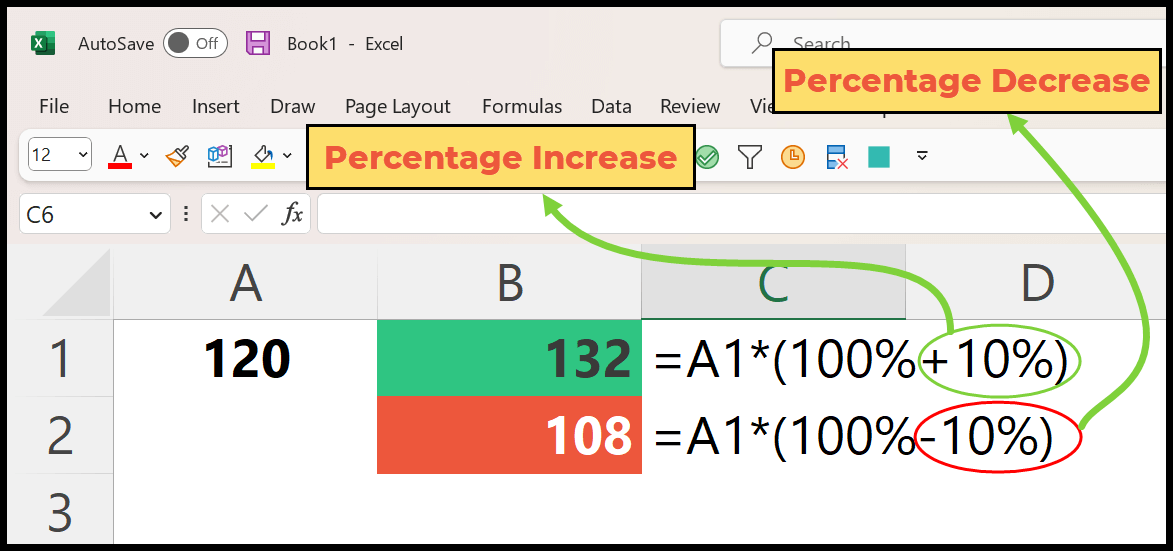
Below are the formulas that you can use to increase and decrease a particular percentage from a numeric value.
- To Increase: =original_value*(100%+increase_percentage%)
- To Decrease: =original_value*(100%-decrease_percentage%)
In this tutorial, we will learn to write this formula:
Formula to Add or Increase a Value by a Percentage
You can use the below steps:
- First, in a cell, refer to the cell where you have the original value.
- After that, enter the asterisk operator for multiplication.
- Now, enter the opening parentheses and then enter “100%”.
- Next, enter the addition operator and 10%, which is the value you want to increase with.
- In the end, enter the closing parentheses and hit enter to get the result.

=A1*(100%+10%)The moment you hit enter, it will return the value by increasing it to 110%.
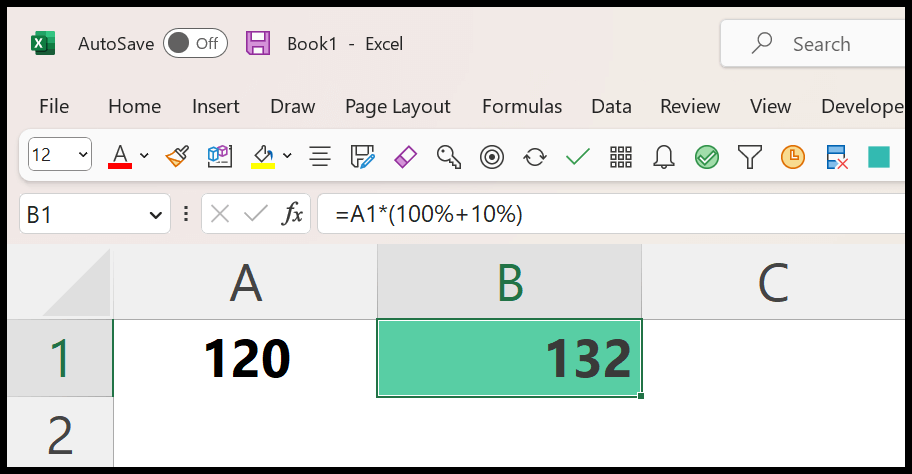
You also use the formula in the flowing way where instead of using 100% you can use a 1 and for the increased percentage, you can decimal value.

=A1*(1+0.1)Formula to Subtract or Decrease a Value by a Percentage
You can use the below steps to write this formula:
- First, enter = in a cell and refer to the cell with the original value.
- After that, enter the closing parentheses and enter 100%.
- Next, use the subtraction sign to deduct and enter the percentage value that you want to decrease.
- In the end, enter the closing parentheses and hit enter to get the result.

=A1*(100%-10%)The moment you hit enter, it will return a new value with a decrease.
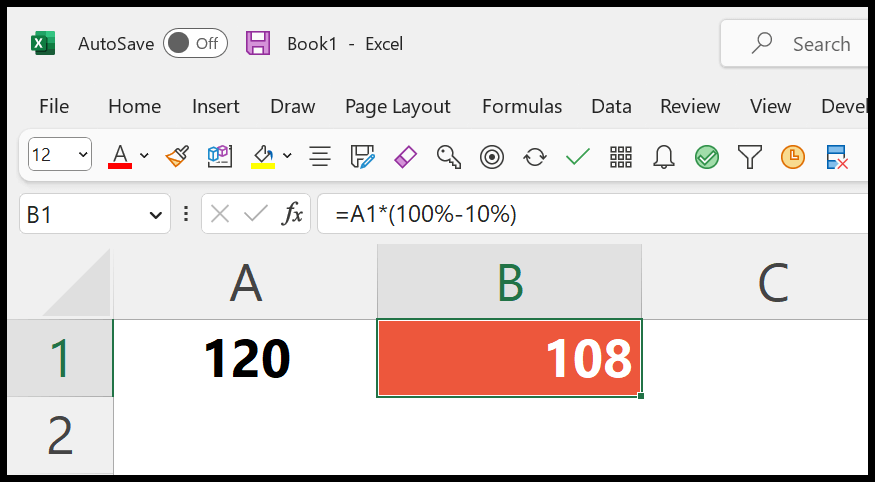
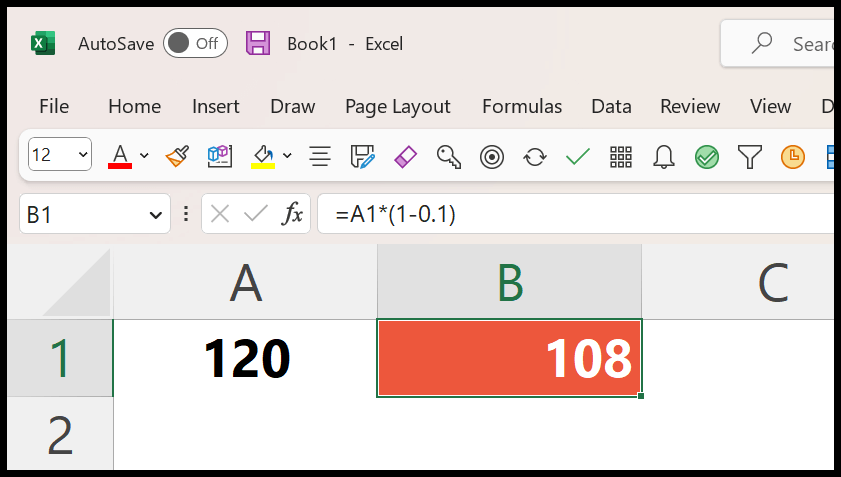
And you can also use the formula in the following way where you can use the 1 instead of the 100%, and .1 to specify the 10%.
How do these Formulas Work?
To understand these formulas, you need to split them into three parts:
- Original Value
- 100% or 1
- Increase and Decrease (In Percentage or Decimal)
If you want to decrease a value by 15 percent, you just need to use 15% with the minus operator, or you can also use -0.15.
A percentage value is a number formatted as a percentage in Excel. When you enter 100% in a cell, Excel treats it as a 1 and formats it with the percentage. That’s why you can use 1 or 100% in the formula. And to specify the increase, you can use a decimal value or a percentage value.
Written by
Puneet Gogia
Microsoft MVP — Excel · Founder, Excel Champs
Twelve years of teaching Excel, and a decade before that using it as a data analyst. Every tutorial here is written from a file I actually built.