

Click the first cell of the range, hold Shift and click the last cell. Everything between the two is selected. Dragging from the first cell to the last with the left mouse button does the same.
From the keyboard, hold Shift and press the arrow keys to extend the selection one cell at a time, or press Ctrl + Shift + arrow key to extend it to the end of the data in that direction. Press Ctrl + A inside a block of data to select the whole block, and press it again (twice more inside an Excel Table) to select the entire sheet.
To select ranges that are not next to each other, select the first one, then hold Ctrl while you select each of the others. You can format a non-adjacent selection in one go, but copying it only works when the ranges share the same rows or the same columns.
To select an entire row or column, click its header, or press Shift + Space for the row and Ctrl + Space for the column of the active cell.
For a large range, type its address, such as A1:D5000, into the Name Box to the left of the formula bar and press Enter. This is quicker and more exact than dragging past the edge of the screen.
When you start learning Excel, it is important to know how to select a range. In this tutorial, we will learn the various methods to select a range (a single cell, continuous and non-continuous cells) using the mouse and keyboard.
Select a Single Cell
To select a single cell, you need to click on the cell that you want to select. And the moment you select the cell, the address of the same cell is displayed in the Name Box. In the below snapshot, we have selected cell A2.

Select the Range of Adjacent Cells
After selecting the single cell in Excel, let’s go through the quick steps to select multiple cells. Suppose you want to select A1:B5:
- First, place your cursor on the cell (A1).
- Then, select it by pressing the left mouse button.
- And now, drag the cursor while holding the mouse button from A1 to B5.

Select the Range of Non-Adjacent Cells
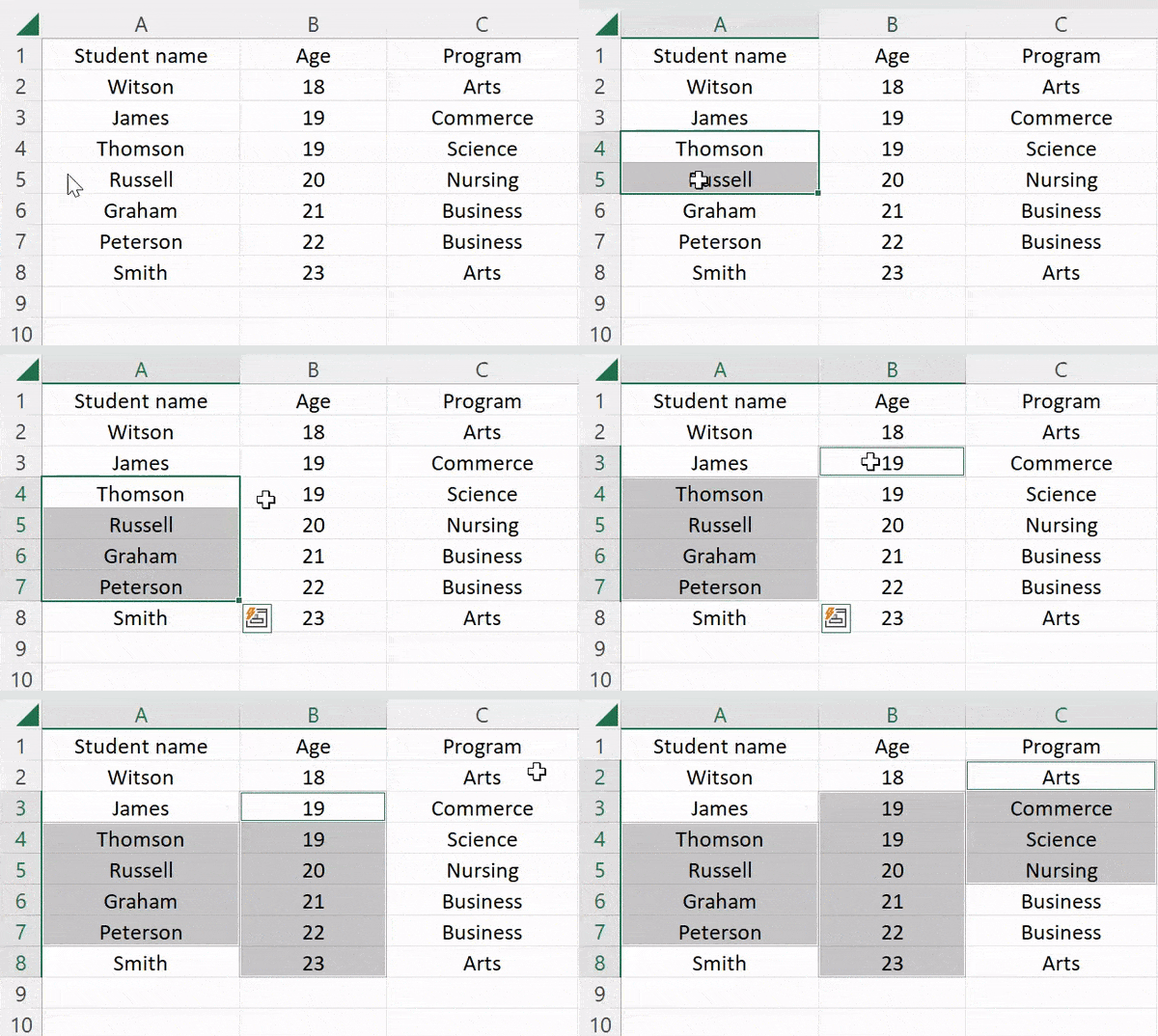
Sometimes, while working, you need to select multiple non-continuous cells in the worksheet (such as A4 to A7, B3 to B8, and C2 to C5).
- Click on the first cell (A4) and drag the cursor till A7.
- After that, hold the Control key and select the next non-adjacent ranges one by one.
- In the end, all the selected ranges of cells are highlighted.
You can also hold Ctrl to select non-continuous rows or columns.
Select the Range of Cells in the Row
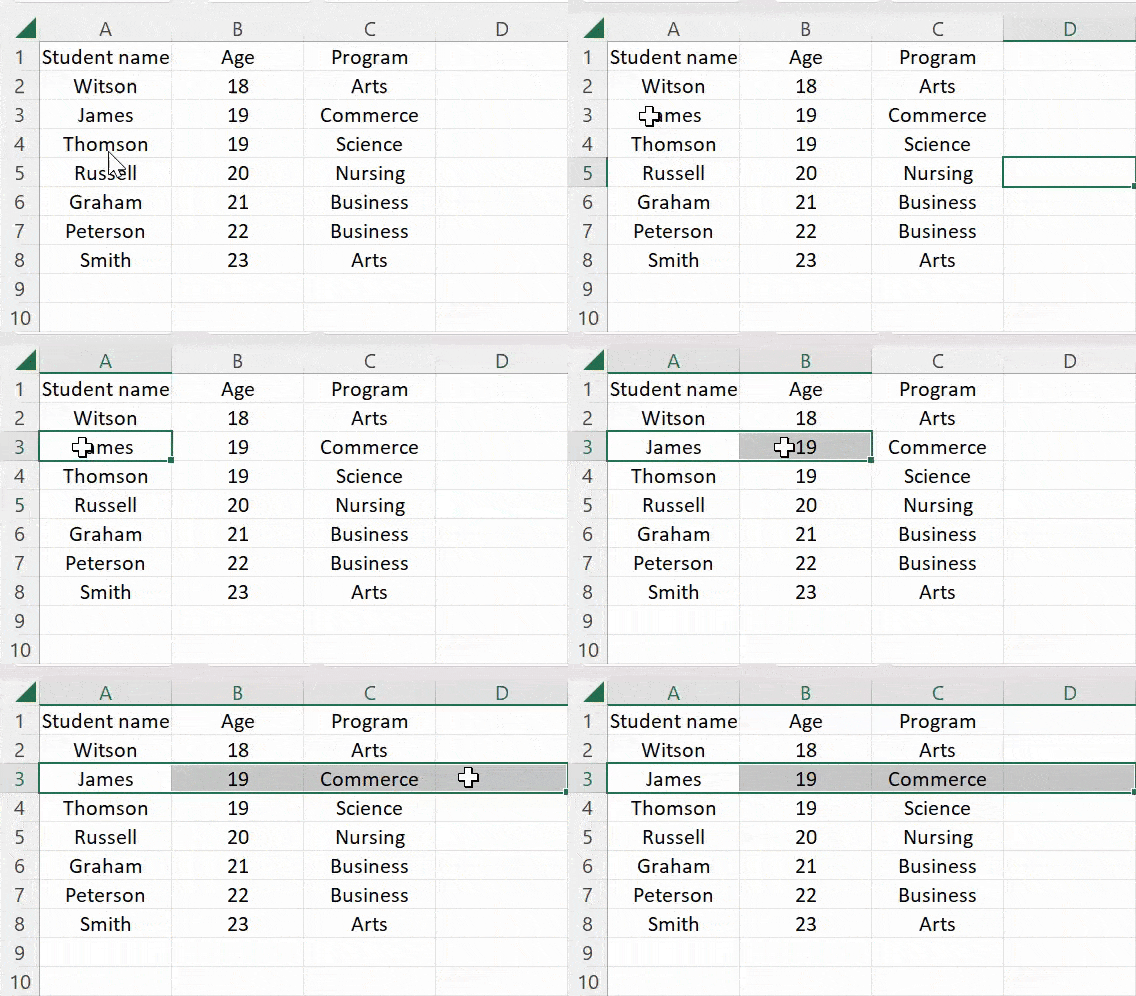
To select the range of cells in a single row, follow the below steps:
- Select the row first in which you want to select the multiple cells.
- Now, click on any of the cells of that row.
- Next, place the cursor on that cell and drag it to the last cell to select.
Like in the below example, we have selected the first four cells of Row 3.
Select the Range of Cells in the Column
You can also select a group of cells in a single column with these steps:
- First, choose the column in which you want to select the range of cells.
- Then, click on any cell and drag the cursor till the last cell.
Let’s take an example of Column C, in which we have selected cells C3 to C10.

Select All the Cells in the Worksheet
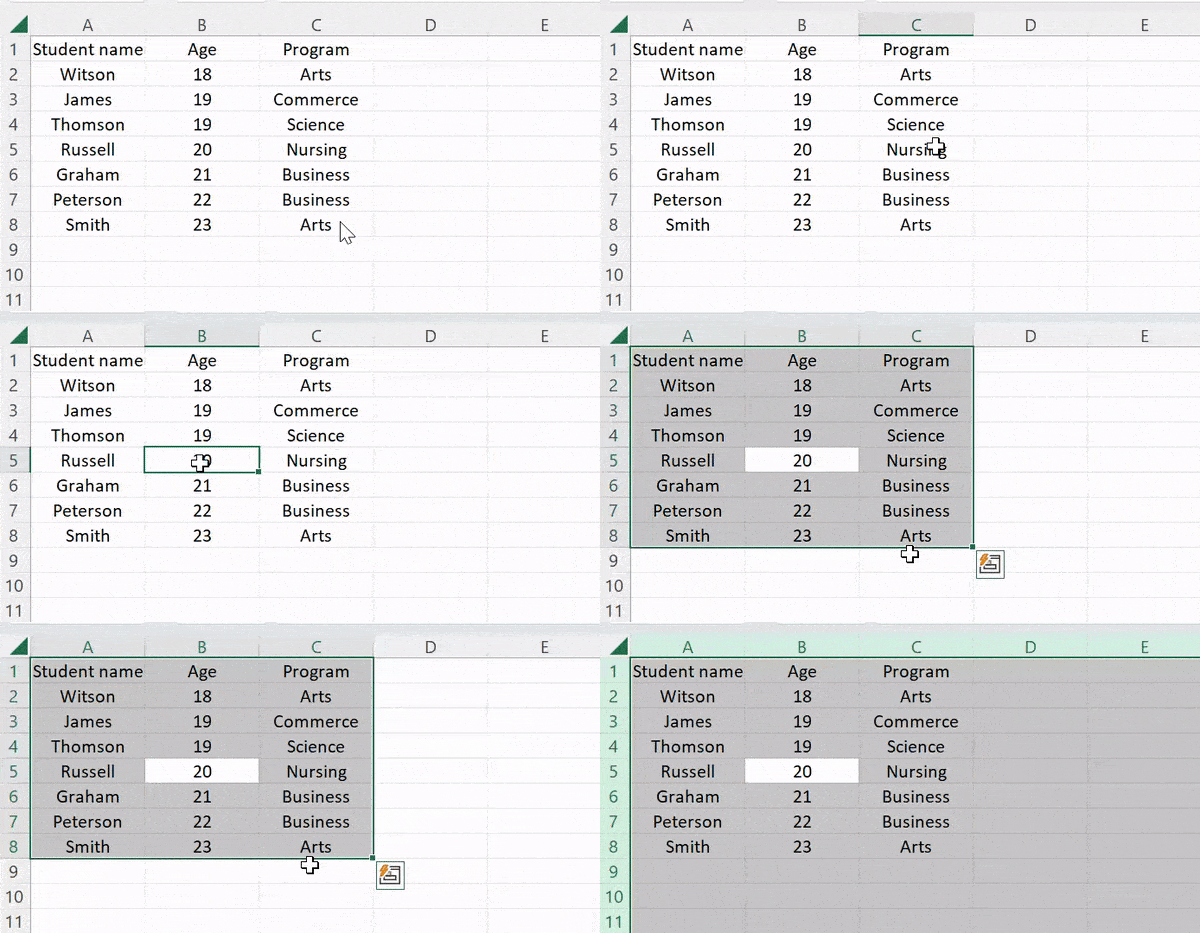
A common task for all Excel users is to select all the cells in the worksheet. Click on the small triangle (the Select All button) at the top-left corner, where the row and column headers meet, and the whole sheet is selected.
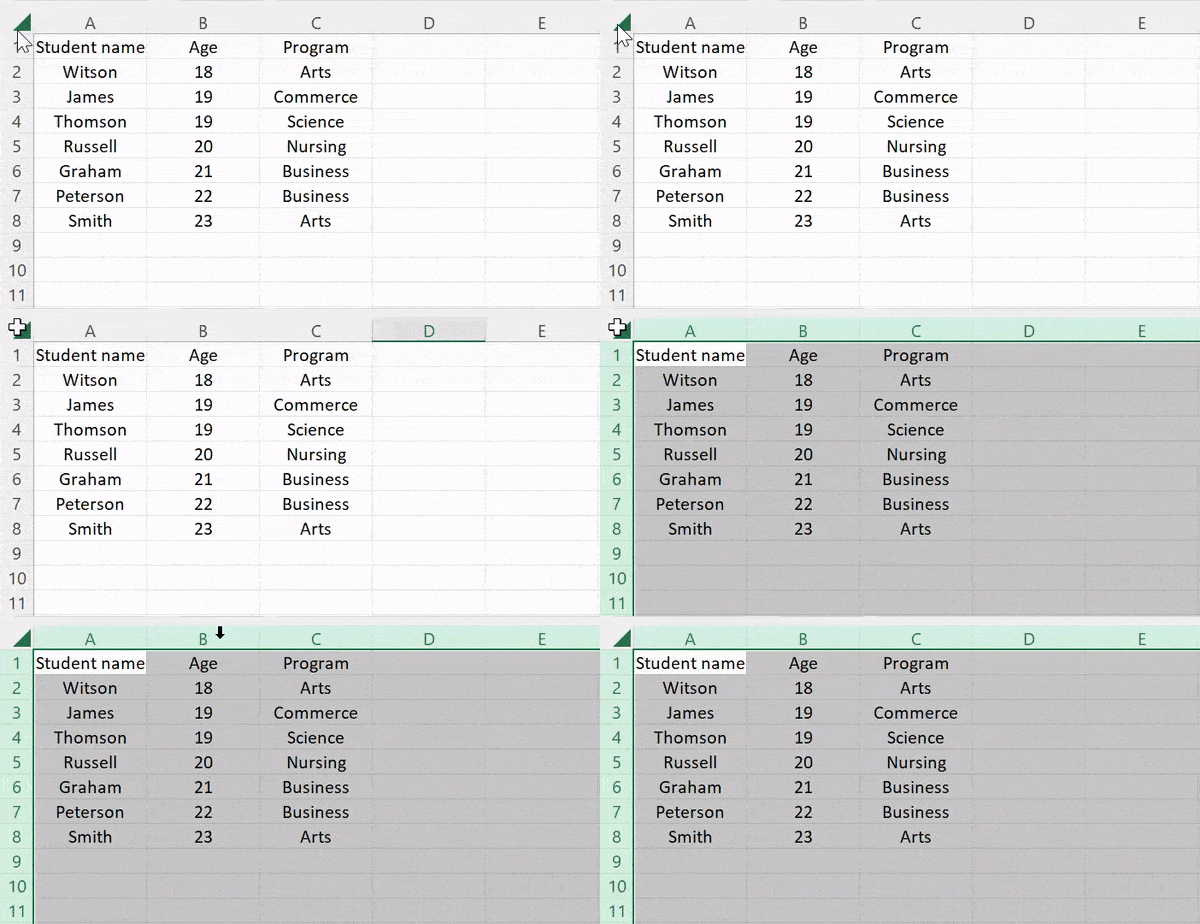
You can also use a keyboard shortcut to select all the cells in the worksheet.
- If the active cell is a blank cell with no data around it, press Control + A.
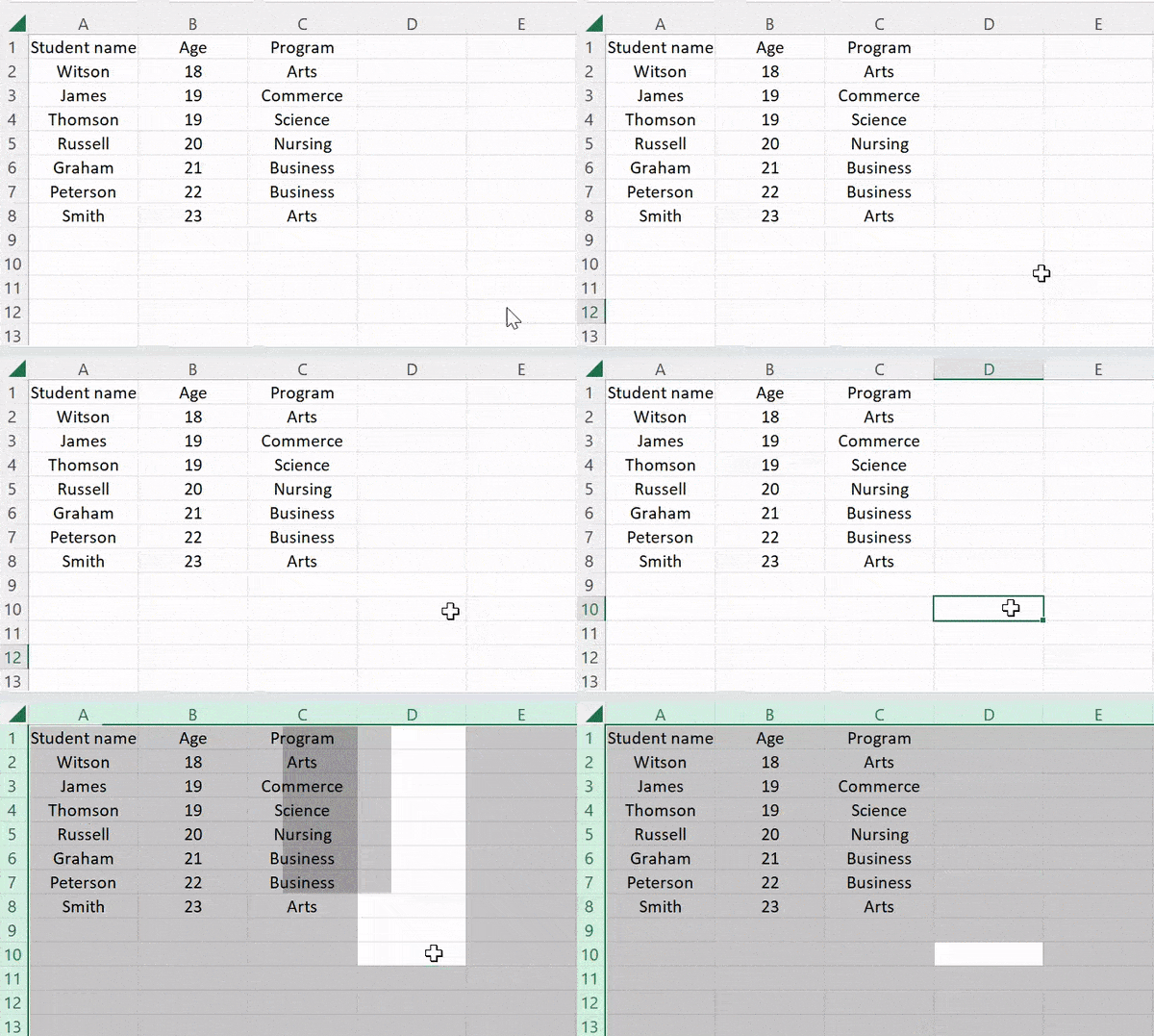
- And when the active cell is inside your data, hold Control and press A twice to select the whole sheet. The first Control + A selects only the data around the active cell (the current region).
Select a Range with the Keyboard
- Shift + Arrow keys: extend the selection one cell at a time from the active cell.
- Ctrl + Shift + Arrow keys: extend the selection to the last non-empty cell in that direction.
- Shift + click: click the first cell, then hold Shift and click the last cell to select everything in between. This is handy for big ranges where dragging is slow.
- F8: turns on Extend Selection mode, so the arrow keys extend the selection without holding Shift. Press F8 again to turn it off.
- Shift + F8: lets you add another range to the selection with the keyboard, like holding Ctrl with the mouse.
Select an Entire Row or Column
Click the row number or the column letter to select the whole row or column. With the keyboard, press Shift + Space to select the entire row of the active cell and Ctrl + Space to select the entire column.
Select a Range with the Name Box
Type the address of the range, like A1:D500, in the Name Box (left of the formula bar) and press Enter. Excel selects it straight away, which is the fastest way to select a large range. You can also type several ranges separated by commas, like A1:A5,C1:C5.
On a Mac, use Command instead of Ctrl for these shortcuts (for example, Command + A and Command + click).
Frequently Asked Questions
How do I deselect one cell from a selection?
In Microsoft 365 and Excel 2021 or later, hold Ctrl and click (or drag over) the selected cell again to remove it from the selection. In older versions, you need to start the selection again.
Why can’t I copy my selection?
Excel can’t copy non-adjacent ranges that are in different rows and columns at the same time. Copy them one by one, or make sure they share the same rows or columns.
How do I select only the visible cells?
Select the range, then press Alt + ; (semicolon). It selects only the visible cells, so hidden or filtered rows are left out when you copy.