

Summing times is just =SUM(B2:B10) — the catch is the format. Excel stores time as a fraction of a day, so a total of 34 hours 30 minutes comes out as 1.4375, and the standard time format shows only the 0.4375 part, displaying 10:30 instead of 34:30. The whole number is being read as a full day and dropped from view.
To fix it, select the total cell, press Ctrl+1 → Custom, and enter [h]:mm. The square brackets tell Excel to let hours run past 24 instead of wrapping.
Use [h]:mm:ss if you need seconds, or November:ss to see the whole total as minutes. Two related things.
To turn the total into a number for billing or payroll, multiply by 24: =SUM(B2:B10)*24 gives 34.5 hours as a decimal — format that cell as Number, not Time. And to add a fixed amount to a total, add it as a time value: =A1+TIME(0,30,0) adds thirty minutes.
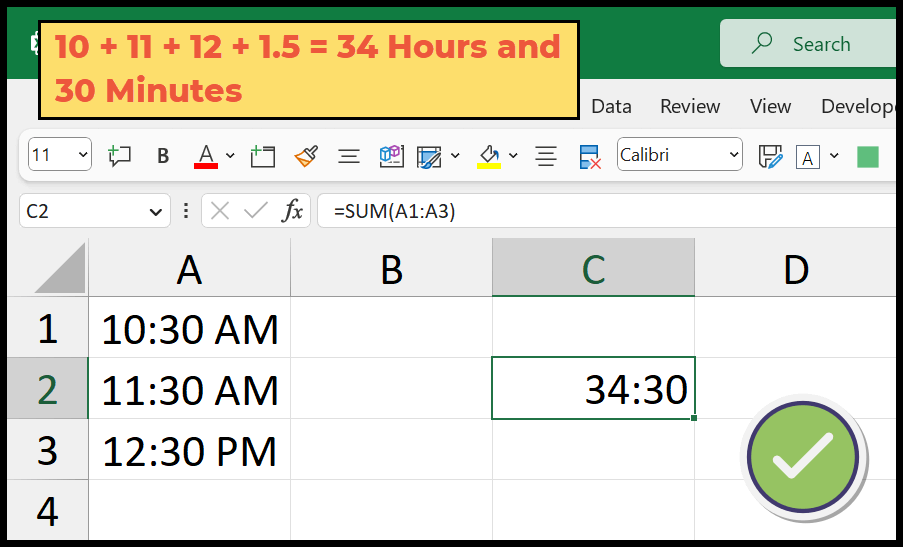
In Excel, if you want to sum time values, you need to use the SUM function to sum the values, and then you need to change the format to show the total hours and minutes. Below is a list of time values that we have summed in cell C2.

In this tutorial, we will learn to write this formula and apply the correct formatting to it.
Write Formula to Sum Time in Excel
- First, in cell C2, enter the SUM function.
- Now, enter the opening parenthesis.
- After that, refer to the range of cells where you have time values.
- In the end, enter the closing parenthesis and hit Enter to get the result.
For example, if your time values are in A2:A5, the formula is:
=SUM(A2:A5)
This will give you the sum of the values, but the format is not correct when the total is more than 24 hours, and we need to change it using custom formatting.

- While selecting the cell, open the Format Cells dialog box with the keyboard shortcut (Ctrl + 1).
- Now, click on the Custom option.
- After that, click on the Type input bar.
- Next, enter [h]:mm in the input bar.
- In the end, click OK to apply the formatting.
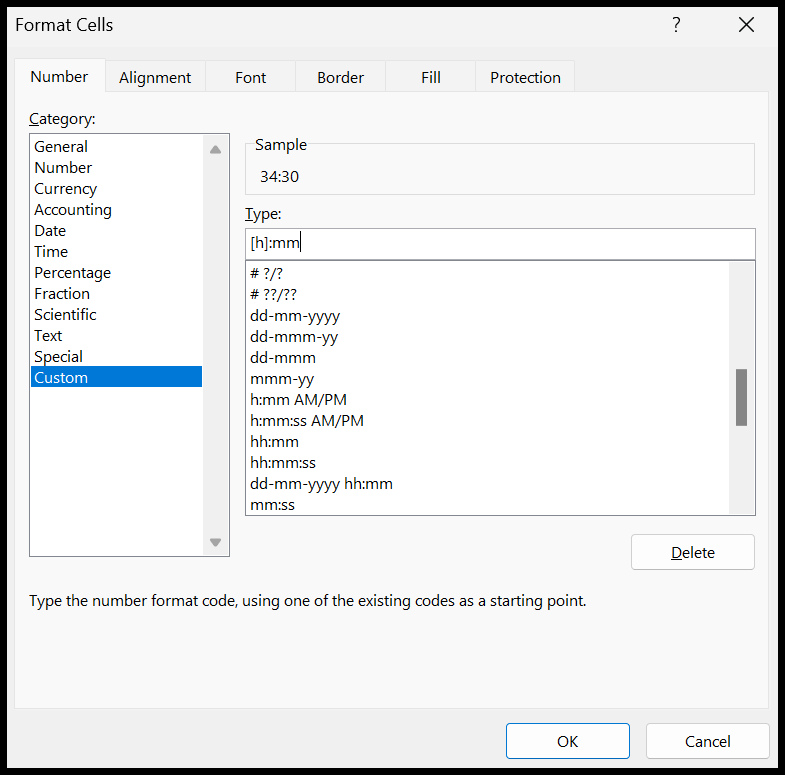
The moment you click OK, it will show you the total number of hours and minutes.
You Need to Understand This
Excel stores the date and time as a number in the backend, and what you see is the format on the cell. So if you convert your time values into numbers, they will look something like the below.
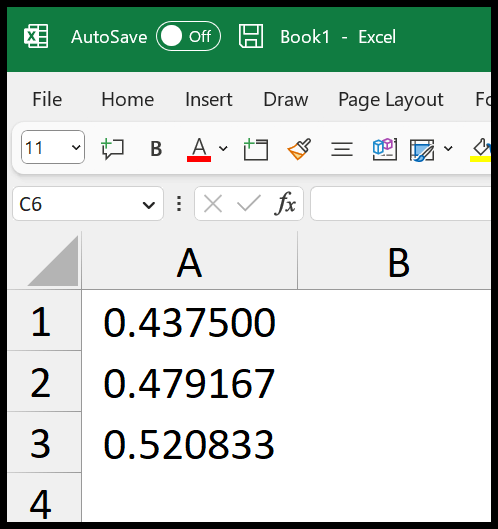
Time values are always in decimals (a fraction of a day).
Now when you sum these values, it returns 1.4375 in the result.
As I said, time values are always in decimals. When you apply a time format (the normal time format HH:MM AM/PM), Excel shows you the time according to the remaining decimal value, which is 0.4375 (10:30), and considers the integer, which is 1, as a complete day.
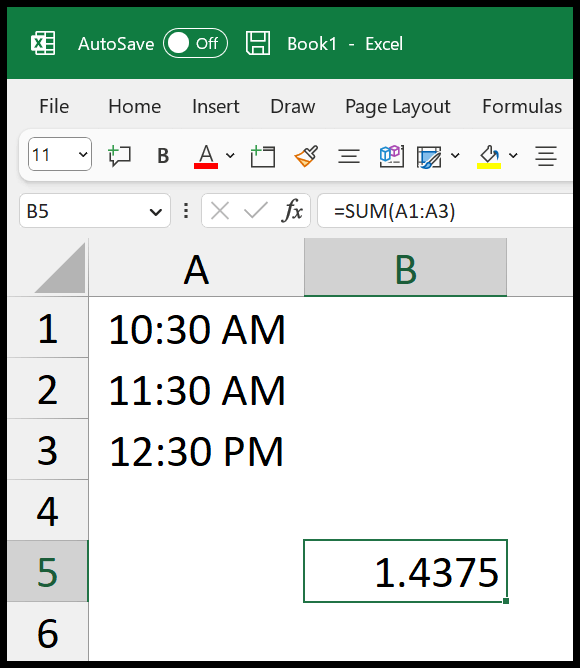
To overcome this problem, you need to use a custom format that we have used in our method. When you add square brackets with the format, it shows the total hours in the result.
[h]:mm
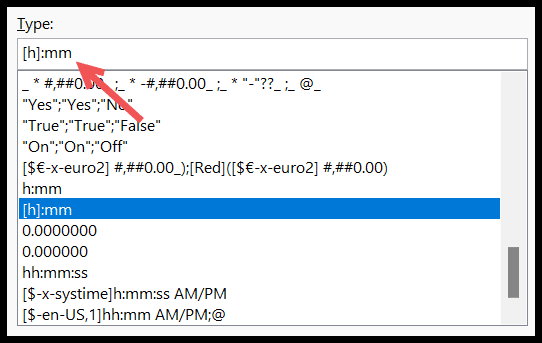
With this format, the total of 1.4375 shows as 34:30, which is 34 hours and 30 minutes. If your times have seconds, use [h]:mm:ss instead.
Get the Total Time as Hours or Minutes
If you need the total as a number, like for calculating pay, multiply the sum by 24 to get hours, or by 1440 (24 x 60) to get minutes. Then format the cell as a number, not as time:
=SUM(A2:A5)*24
=SUM(A2:A5)*1440
For the four times in our example, the first formula returns 34.5 hours and the second returns 2070 minutes.
Show the Total Time as Text
If you want to use the total time in a sentence or join it with other text, use the TEXT function with the same [h]:mm format. Without the square brackets, the result would be 10:30 instead of 34:30:
=TEXT(SUM(A2:A5),"[h]:mm")
Sum Time with a Condition
You can use SUMIF in the same way. The following formula adds up the time for “Mon” from column B. Apply the [h]:mm format to the result, or multiply it by 24 for hours:
=SUMIF(B2:B5,"Mon",A2:A5)
Frequently Asked Questions
Why does my SUM of time return 0?
The time values are stored as text (they are usually aligned to the left). SUM skips text in a range. Convert them to real times with Data ➜ Text to Columns ➜ Finish, or with TIMEVALUE in a helper column.
Why does my total time show ####?
Either the column is too narrow, or the result is a negative time. Excel can’t show negative times in the default date system, so check if you are subtracting a bigger time from a smaller one.
Can I add hours and minutes typed as numbers, like 8.30?
Not directly, because 8.30 is the number eight point three, not 8 hours and 30 minutes. Convert each value with =TIME(INT(A2),ROUND(MOD(A2,1)*100,0),0) first, or type the times with a colon, like 8:30.

Good morning sir I want to added 30 minutes in total 2,530 hours. Please tell me how to calculate in excel with formula
thanks it helped