

=SUMIF(A2:A10,"<40",C2:C10) adds up column C for every row where column A is below 40. The operator and the number sit together inside one pair of double quotes.
Use "<=40" to include 40 itself — plain "<40" excludes it. To take the threshold from a cell instead of hard-coding it, put the operator in quotes and join it with &: =SUMIF(A2:A10,"<"&E5,C2:C10), which lets you change the cutoff without editing the formula. Don’t put a space inside the quotes — "< " won’t work.
When the range you’re testing is also the range you’re summing, drop the third argument entirely: =SUMIF(C2:C10,"<150"). For a second condition, switch to SUMIFS, where the sum range comes first: =SUMIFS(C2:C10,A2:A10,"<40",B2:B10,"North"). And note SUMIF only sums numbers — a value stored as text is skipped silently.
To sum values below a particular value, you need to use the SUMIF function in Excel.
You need to specify the range of cells to check for the criteria, a value to use as criteria, and then the range from where you want to sum values. But you can also use the same range to sum values and check for criteria.

As I said, SUMIF is great for adding up values that are less than a specific value because it’s easy to use and very efficient.
It allows you to quickly specify a condition and sum only those numbers that meet the condition, all within a single, simple formula. And in this tutorial, we will learn to write a formula to sum values less than a particular value.
SUMIF Less Than (Sum Less than Values)
SUMIF is used to add up values in a range that meet a single condition (criterion). When you want to sum values that are less than a specific value, you can specify this in the criteria of the SUMIF.

=SUMIF(A2:A10,"<40",C2:C10)
You can use the following steps:
- First, in a cell, enter the SUMIF function.
- After that, in the first argument, refer to the range where you need to check for the criteria. In our example, you need to refer to the range of lot sizes.
- Now, you need to specify the criteria here. So, we will use 40 with the less than operator to sum all the values that are less than 40.
- Next, we will refer to the range where we have values to sum. In our example, you need to refer to the range of quantity. In the end, hit Enter to get the result.
As you can see, we have got 685 in the result. That means the sum of all the values from the quantity column where the value in the lot size column is less than 40 is 685.
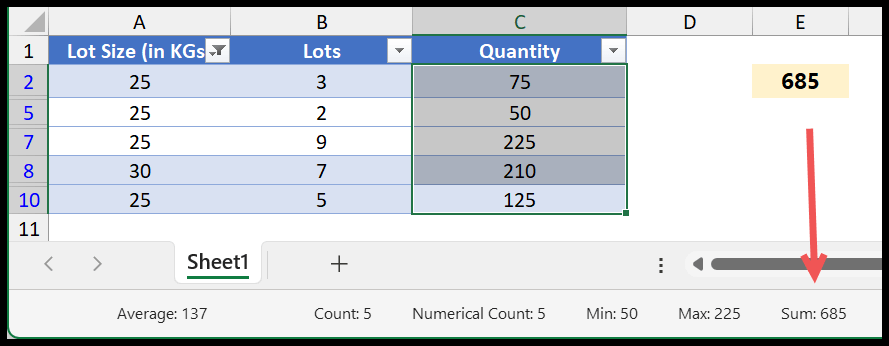
When you use the less than sign with a value, it doesn’t include that value while summing the values. That means with <40, the rows with 40 are not included. To include them, you need to use the equals sign as well, just like the following.

=SUMIF(A2:A10,"<=40",C2:C10)
Using the Less Than Value from a Cell
Let’s say instead of specifying the value in the function, you want to use a value from a cell. In that case, you need to write your formula like the following example:
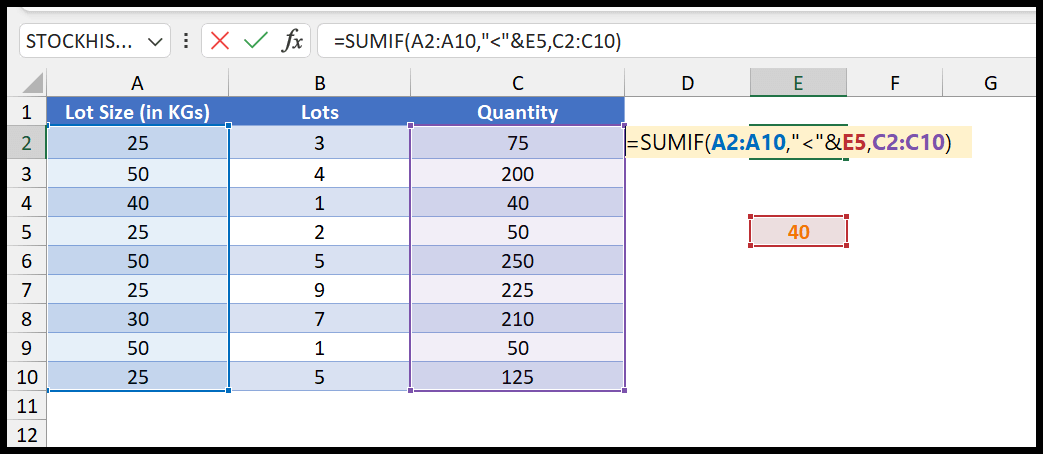
Here you need to enter the less than sign in double quotation marks, and then use an ampersand to combine it with the cell in which you have the less than value.
=SUMIF(A2:A10,"<"&E5,C2:C10)
- A2:A10: This is the range of cells that the function will check according to the criterion entered. The function will look at the set of cells to determine whether to include the corresponding value from the third argument (C2:C10) in the sum.
- “<“&E5: This is the function’s criterion to decide whether to sum the corresponding value from the third argument. In this case, the formula checks whether each value in the range A2:A10 is less than the value in cell E5. The “<” means less than, and the “&” concatenates this operator with the value in E5 to create the entire criterion.
- C2:C10: The function will sum up the actual range of cells based on the criterion. For each cell in the range A2:A10 that meets the criterion (i.e., is less than the value in E5), the function will include the corresponding cell from the range C2:C10 in the sum.
- Ensure no extra spaces are in the concatenation; ” < ” will not work correctly, it should be “<“.
- The cell reference in the criteria allows you to change the value in E5 without altering the formula.
SUMIF Less than When You Have the Same Range to Check for the Condition
Now let’s think about another situation where you have the same range to sum the values and to check the less than criteria.

In the above example, we have referred to the quantity column in the range argument, and in the criteria, we have specified <150, but we have specified no range in the sum_range argument. In SUMIF, sum_range is optional. And when you skip it, the function will use the same range to check the condition and sum the values.
=SUMIF(C2:C10,"<150")
In the above formula, SUMIF sums values less than 150 from the quantity column.
Sum Values Between Two Numbers with SUMIFS
To sum values that are less than one number and greater than (or equal to) another, use SUMIFS with the same range twice, once for each condition. The following formula sums the quantity where the lot size is 20 or more and less than 40:
=SUMIFS(C2:C10,A2:A10,">=20",A2:A10,"<40")
You can also combine the less than condition with a condition on another column, like a region in column B:
=SUMIFS(C2:C10,A2:A10,"<40",B2:B10,"East")
Sum Values Before a Date
The less than operator works with dates as well, as dates are numbers in Excel. Use the DATE function to build the date, so the formula works with any date format on the computer:
=SUMIF(A2:A10,"<"&DATE(2025,3,1),C2:C10)
And to sum the values before today, use “<“&TODAY() as the criteria.
Frequently Asked Questions
Does SUMIF less than include blank cells?
No. A blank cell in the range isn’t treated as 0 with “<40”, so its row isn’t added to the sum.
Why is my SUMIF less than result too small?
Some numbers in the range are probably stored as text. SUMIF skips them in the condition range and in the sum range. Convert them to numbers and the result updates.
Can I use SUMIF less than with negative numbers?
Yes. “<0” sums only the negative numbers, and “<-100” sums the numbers below -100. The criteria works the same way with any number.
Written by
Puneet Gogia
Microsoft MVP — Excel · Founder, Excel Champs
Twelve years of teaching Excel, and a decade before that using it as a data analyst. Every tutorial here is written from a file I actually built.