

Counting characters sounds trivial until a data-validation rule, an SMS or tweet limit, or an imported file pushes a cell past its limit and something quietly breaks. Excel has no single "character count" button, but a small set of formulas built around the LEN function covers every case you'll run into.
In this tutorial you'll learn how to count characters in a single cell, across a whole range, with or without spaces, and how to count how many times one specific character appears — including a case-insensitive version.
- Count every character in a cell with
LEN - Count characters without spaces using
SUBSTITUTE - Ignore stray leading, trailing and double spaces with
TRIM - Total characters across a range with
SUMPRODUCTorSUM - Count a specific character in a cell or a range, case-sensitive or not
Count characters in a single cell
To count the characters in one cell, enter the LEN function and refer to the cell. It returns the total number of characters, and you can copy it down to score a whole column.
=LEN(A1)
Count characters without spaces
If a value has one or more spaces and you don't want to count them, combine LEN with SUBSTITUTE. SUBSTITUTE swaps every space for nothing, then LEN counts what's left.
=LEN(SUBSTITUTE(A1," ",""))
Here SUBSTITUTE removes the space between Hello and World! before the count is taken, so the result drops by one.
Ignore extra spaces with TRIM
Imported data often carries leading, trailing or double spaces that inflate your count. If you only want the "real" characters — single spaces between words, nothing extra — wrap the reference in TRIM before counting.
=LEN(TRIM(A1))Count characters in a range of cells
To total the characters across a whole range, pair LEN with SUMPRODUCT. SUMPRODUCT feeds the entire range to LEN as an array, gets a count for each cell, and adds them up.
=SUMPRODUCT(LEN(A1:A3))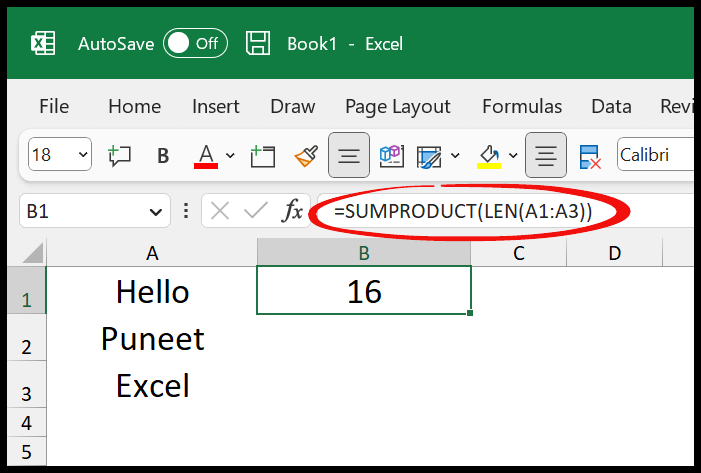
You can get the same result with SUM instead of SUMPRODUCT:
=SUM(LEN(A1:A3))=SUM(LEN(A1:A3)) works as a normal formula thanks to dynamic arrays. In Excel 2019 and earlier, press Ctrl + Shift + Enter to enter it as an array formula. SUMPRODUCT needs no such step and works in every version.Count characters in a range without spaces
To count the characters in a range while ignoring spaces, drop SUBSTITUTE inside the same combination. It clears the spaces from every cell before LEN and SUMPRODUCT do their work.
=SUMPRODUCT(LEN(SUBSTITUTE(A1:A3," ","")))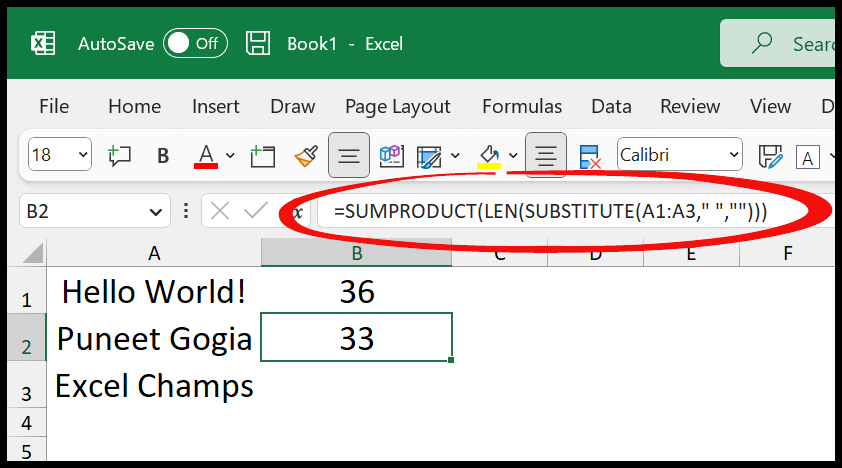
In this example the count is 36 when spaces are included, and it falls once SUBSTITUTE removes them — the difference is exactly the number of spaces in the range.
Count a specific character in a cell
To count how many times one character appears in a cell, combine LEN and SUBSTITUTE. The example below counts the asterisk (*).
=LEN(A1)-LEN(SUBSTITUTE(A1,"*",""))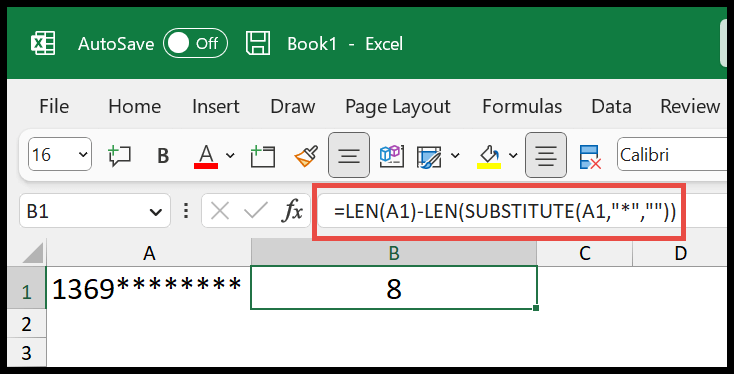
The formula works in three quick steps:
LEN(A1)counts every character in the cell, asterisks included.SUBSTITUTE(A1,"*","")removes the asterisks, and LEN counts what remains.- Subtract the second count from the first — the difference is the number of asterisks.
Count a specific character in a range
To count a specific character across a range, wrap the same idea in SUMPRODUCT and point it at the whole range instead of one cell.
1 =SUMPRODUCT(LEN(A1:A7)-LEN(SUBSTITUTE(A1:A7,"*","")))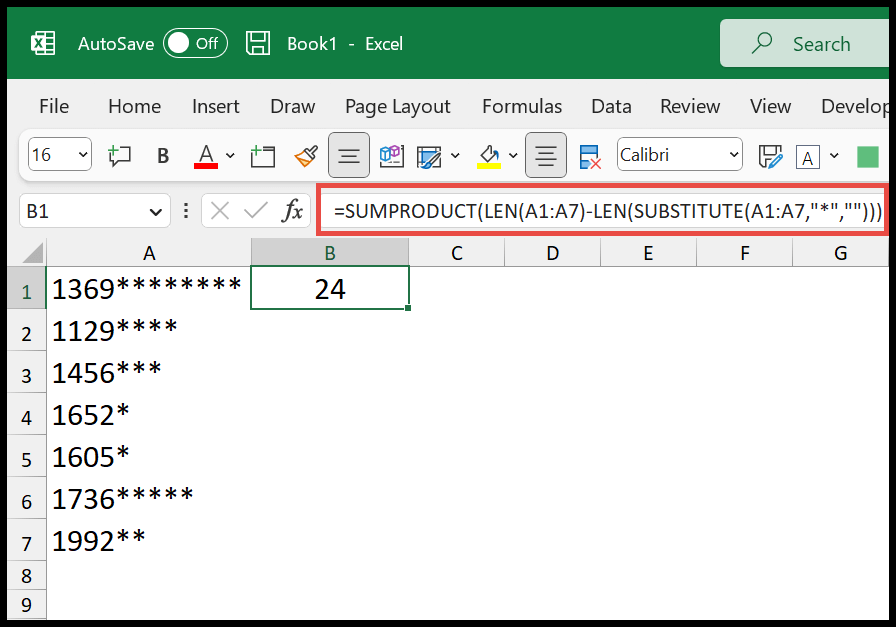
SUMPRODUCT takes the whole range as an array and runs the count on every cell. The first LEN gives the total characters per cell; the second, after SUBSTITUTE removes the asterisks, gives the total without them. Subtract the two and SUMPRODUCT adds up the differences to return the count across the range.
Count a character regardless of case
"a" ignores every "A". To count a character in either case, force one case with UPPER (or LOWER) and match it.=SUMPRODUCT(LEN(A1:A7)-LEN(SUBSTITUTE(UPPER(A1:A7),"A","")))Frequently asked questions
Which function counts characters in Excel?
LEN function counts the number of characters in a cell, including letters, numbers, punctuation and all spaces.How do I count characters without spaces?
=LEN(SUBSTITUTE(A1," ","")) to remove the spaces first, then count the remaining characters.How do I count characters in a range of cells?
=SUMPRODUCT(LEN(A1:A10)), or =SUM(LEN(A1:A10)) in Excel 365 and 2021, to total characters across a range.How do I count how many times a specific character appears?
=LEN(A1)-LEN(SUBSTITUTE(A1,"x","")). SUBSTITUTE is case-sensitive, so wrap the text in UPPER or LOWER for a case-insensitive count.Why does LEN count more characters than I expect?
=LEN(TRIM(A1)), to ignore extra spaces.
=LEN(A1) counts every character in a cell — letters, numbers, punctuation, and all spaces, including trailing ones you can’t see. To exclude spaces, remove them first: =LEN(SUBSTITUTE(A1," ","")).
To ignore only the stray ones while keeping single spaces between words, use =LEN(TRIM(A1)). For a whole range, wrap it in SUMPRODUCT: =SUMPRODUCT(LEN(A1:A10)) works in every version, while =SUM(LEN(A1:A10)) needs Ctrl+Shift+Enter on Excel 2019 and earlier.
To count how many times one character appears, measure the text, remove that character, and subtract: =LEN(A1)-LEN(SUBSTITUTE(A1,"*","")). SUBSTITUTE is case-sensitive, so wrap the cell in UPPER for a count that ignores case.
One thing worth knowing: LEN counts the stored value, not the displayed one — a number rounded to two decimals by formatting still counts all its digits.
Written by
Puneet Gogia
Microsoft MVP — Excel · Founder, Excel Champs
Twelve years of teaching Excel, and a decade before that using it as a data analyst. Every tutorial here is written from a file I actually built.