

To add seconds to a time, divide the seconds by 86400 — the number of seconds in a day — and add: =A1+(34/86400) adds 34 seconds. The TIME function does the same without the arithmetic: =A1+TIME(0,0,34).
To take the number of seconds from a cell rather than typing it in, use =A1+(B1/86400), which lets you drag the formula down a column. To subtract, use a minus sign.
Three things to watch. If the result shows as a decimal rather than a time, the cell needs a time format — press Ctrl+1 and pick one that includes seconds, like h:mm:ss, or you won’t see the change at all.
If the total passes midnight, plain addition rolls into the next day; use =MOD(A1+(34/86400),1) to wrap it, or format as [h]:mm:ss to see the full elapsed total past 24 hours. And TIME’s seconds argument caps at 32767, so for anything larger the division method is the one to use.
To add seconds into a time value in Excel, you can use a simple and short formula where you need to refer to the original time from a cell and the number of seconds that you want to add after dividing it by 86400 (the total number of seconds in a day).
Below, we have a time value in cell A1 (11:30:18 AM), and you need to add 34 seconds to this time.

Excel Formula to Add Seconds to a Time Value
You can use the below steps:
- First, enter the equal operator in a cell and refer to the cell where you have the time.
- After that, enter the addition operator and then enter an opening parenthesis.
- Now, enter the value of seconds you want to add to the time.
- Next, enter the division operator and enter 86400.
- In the end, enter the closing parenthesis and hit Enter to get the result.
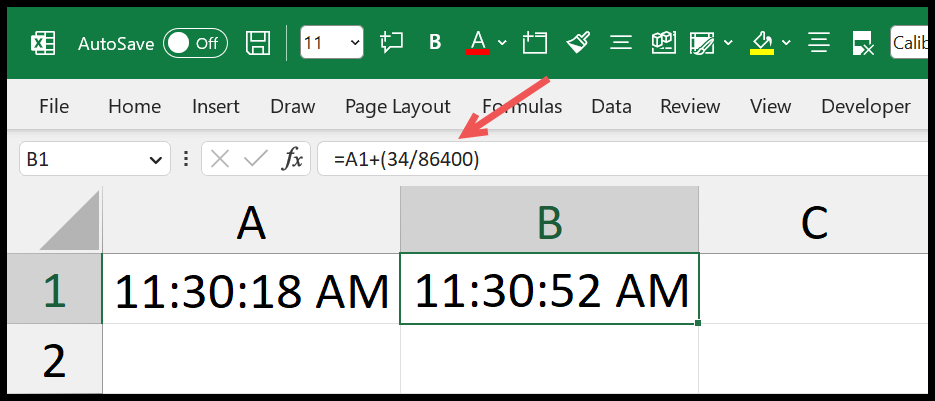
=A1+(34/86400)
Excel stores a time as a fraction of a day, so one second is 1/86400 of a day. That’s why you divide the seconds by 86400 before you add them. With 34 seconds, the result is 11:30:52 AM.
If you have the number of seconds in another cell, like B1, refer to that cell instead of typing the number:
=A1+B1/86400
Use the TIME Function to Add Seconds
In the same way, you can also use Excel’s TIME function to add seconds into a time. See the below example.
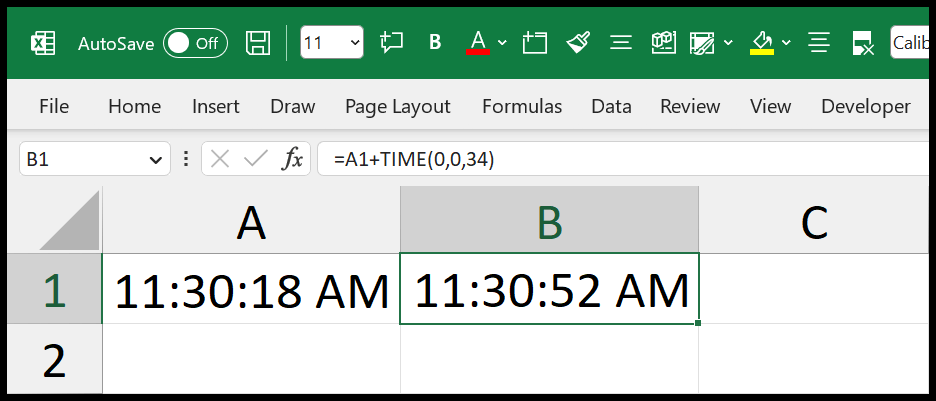
- In this formula, you need to refer to the cell where you have the time.
- After that, use the addition operator and enter the TIME function.
- In the TIME function, there are three arguments to define: hour, minute, and second. Use zero for hours and minutes; enter the seconds you want to add to the original time.
- In the end, hit Enter to get the result.
=A1+TIME(0,0,34)
Each argument of TIME can go up to 32767, and values above 59 seconds are converted into minutes and hours. So, TIME(0,0,90) adds 1 minute and 30 seconds. But TIME can’t return more than one day; for more than 32767 seconds, use the division by 86400 method instead.
You can also use TIME to add hours, minutes and seconds at the same time. The following formula adds 1 hour, 30 minutes and 15 seconds:
=A1+TIME(1,30,15)
Subtract Seconds from a Time
To subtract seconds, use the minus operator instead of the plus operator:
=A1-B1/86400
If the result goes below midnight (like 00:00:10 minus 20 seconds), Excel can’t show a negative time and shows ##### in the cell. Wrap the formula in MOD to get the time from the previous day (23:59:50):
=MOD(A1-B1/86400,1)
Show the Seconds in the Result
If the result cell uses a time format without seconds (like h:mm AM/PM), the seconds you add won’t show, even though they are there. Press Ctrl + 1 to open Format Cells, go to Custom, and use the format h:mm:ss AM/PM or hh:mm:ss.
And when the result goes past midnight, the time starts again from 00:00:00, and the value moves to the next day. Use a date and time format, like dd-mmm-yyyy hh:mm:ss, if you want to see that.
Frequently Asked Questions
Why do I divide the seconds by 86400?
A day has 24 × 60 × 60 = 86400 seconds, and Excel counts time as a part of one day. Dividing by 86400 turns the seconds into that fraction of a day.
Why does my result show as a decimal number?
The result cell has the General or Number format. Change it to a time format (Home ➜ Number Format ➜ Time) to see the result as a time.
Can I add seconds to a date and time?
Yes. The same formulas work with a cell that has both a date and a time. If the seconds push the time past midnight, the date moves to the next day as well.
Written by
Puneet Gogia
Microsoft MVP — Excel · Founder, Excel Champs
Twelve years of teaching Excel, and a decade before that using it as a data analyst. Every tutorial here is written from a file I actually built.