

On Mac, the Excel options are called Excel Preferences, and in Windows, they’re simply called Options.
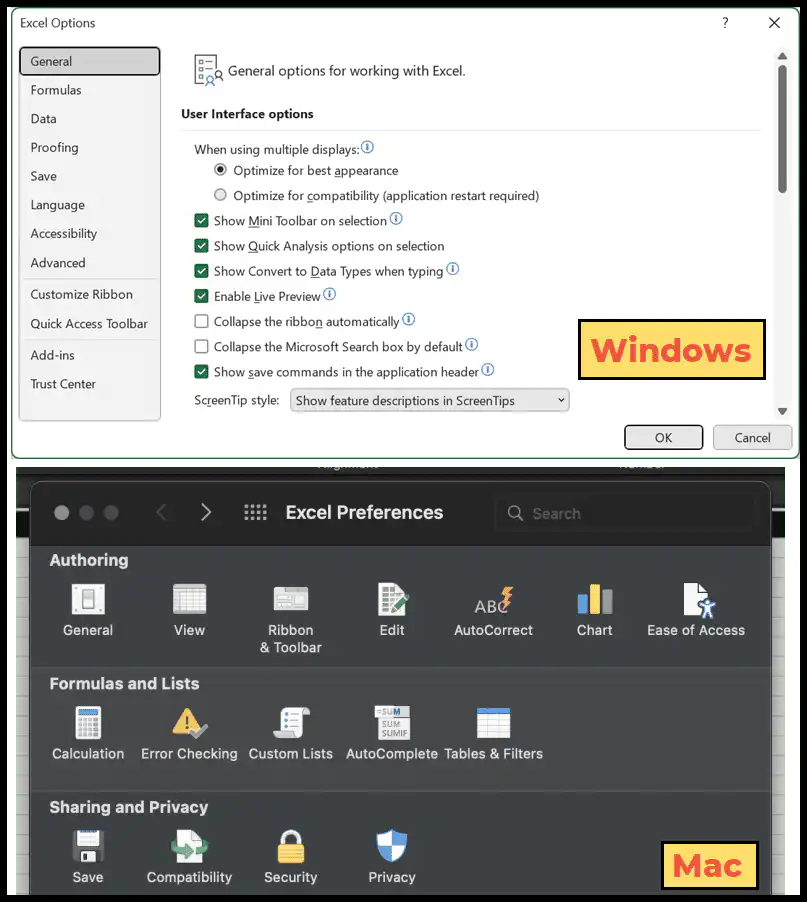
In this tutorial, we will look at simple steps to open and use Excel options on Mac and Windows.
Steps to Open Excel Options on Mac
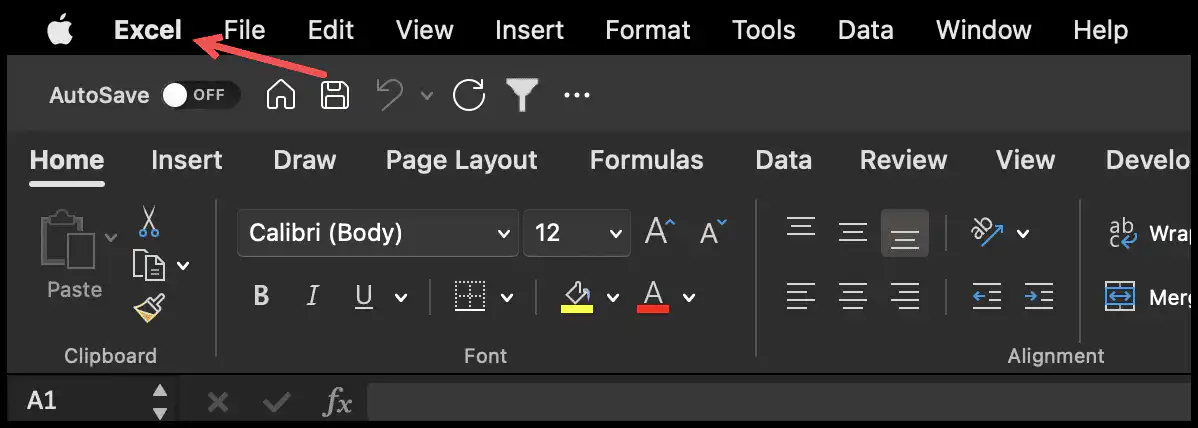
- First, click on “Excel” in the menu bar at the top of the screen.
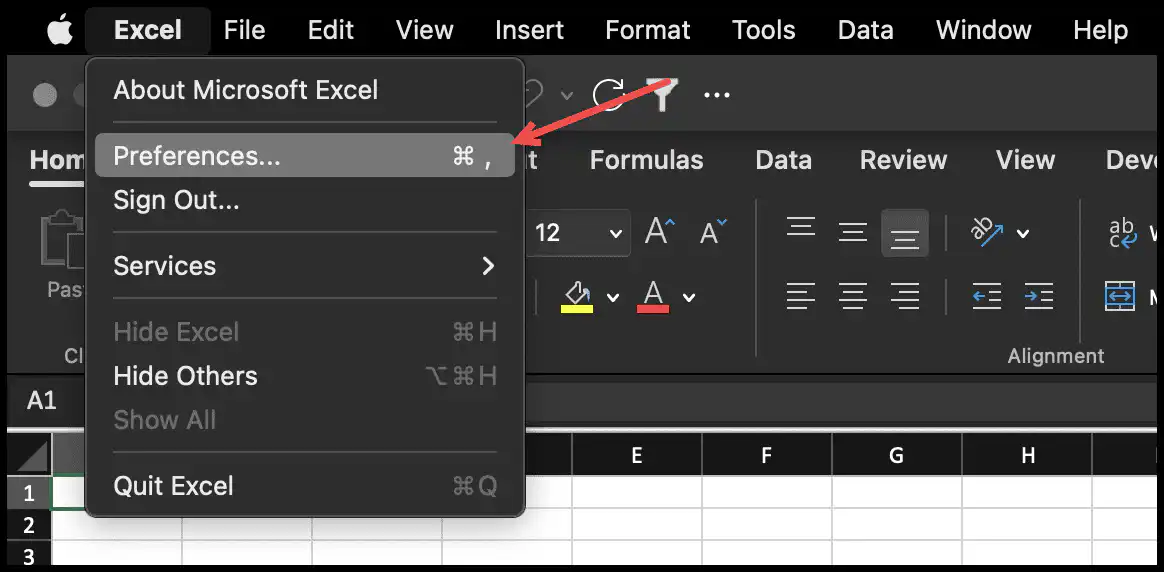
- After that, click on “Preferences…” to open the Excel options (or press Cmd + , as a shortcut).
- From there, click on a category to open the options inside it.
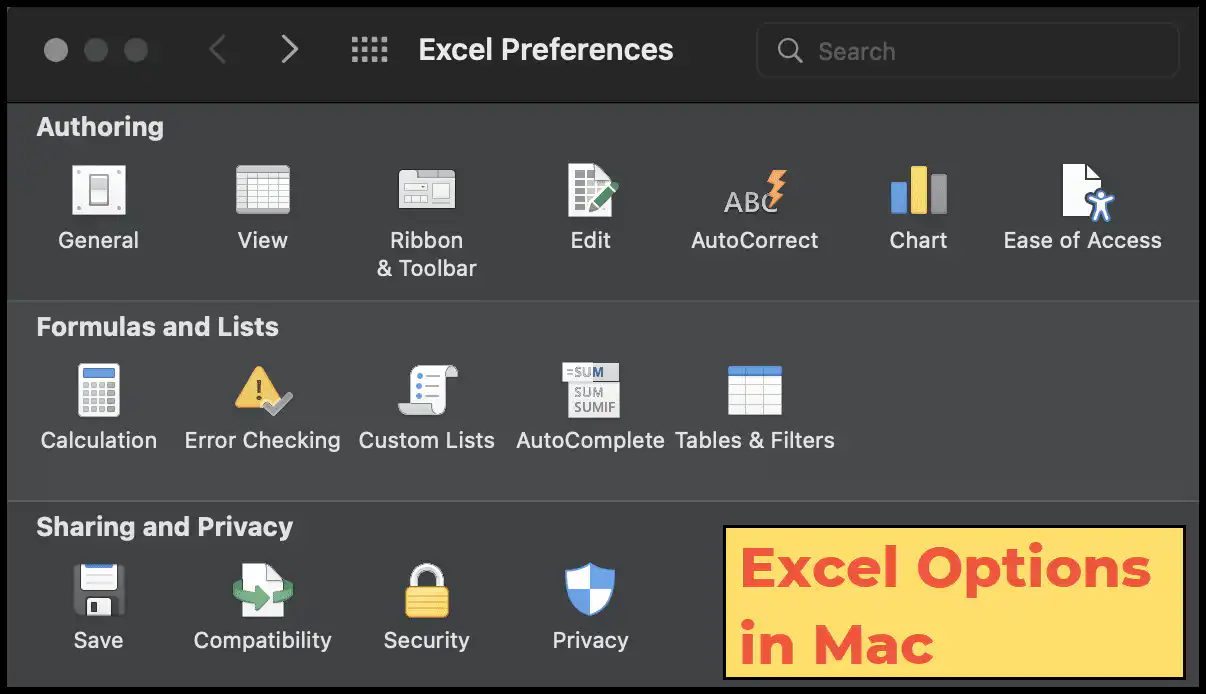
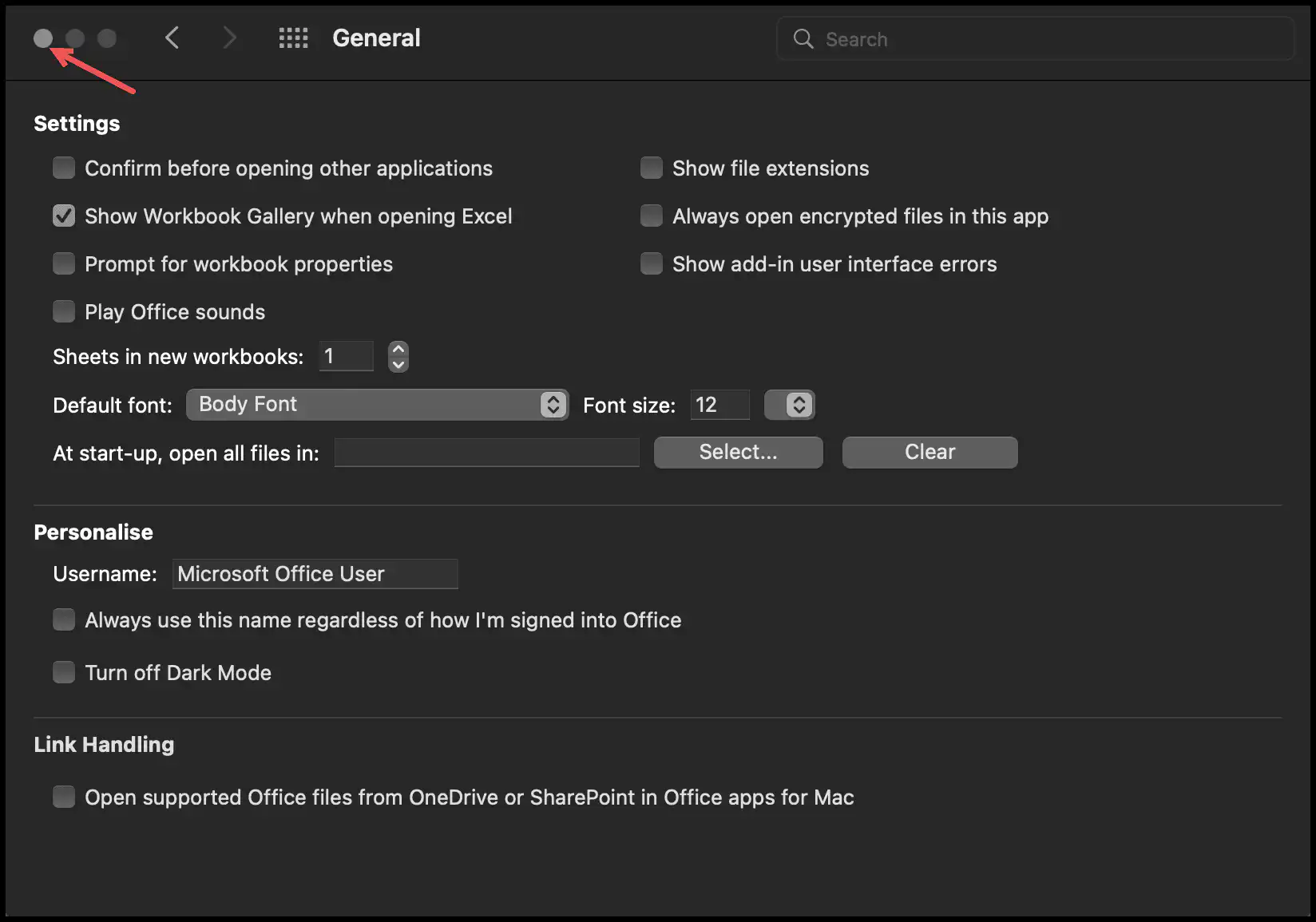
- In the end, once you make your changes (for example, if you want to change the default font), click on the close icon at the top left. Mac applies the changes right away, so there’s no OK button.
Steps to Open Excel Options in Windows
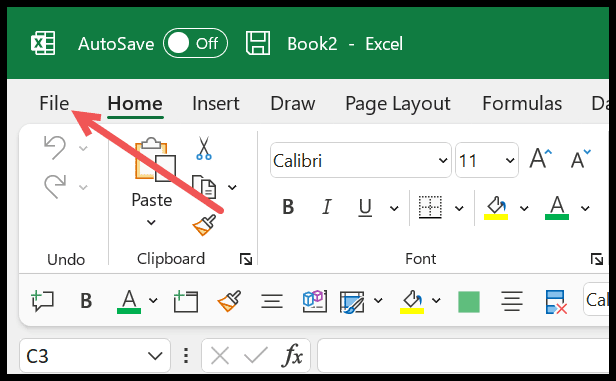
- First, go to the File Tab from the Ribbon.
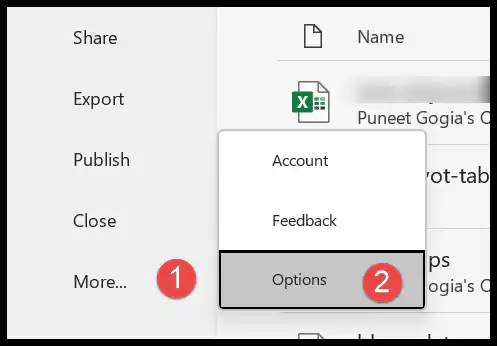
- From there, click on Options at the bottom of the left pane. If you don’t see it (in a small window), click on More, and then click on Options. You can also press Alt ⇢ F ⇢ T.
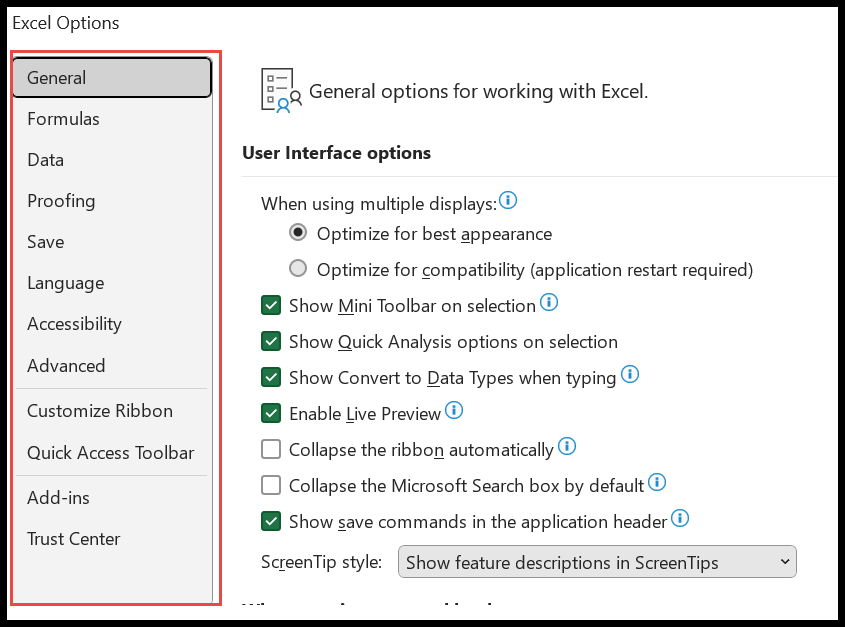
- From there, click on a category in the left pane to open the options inside it.
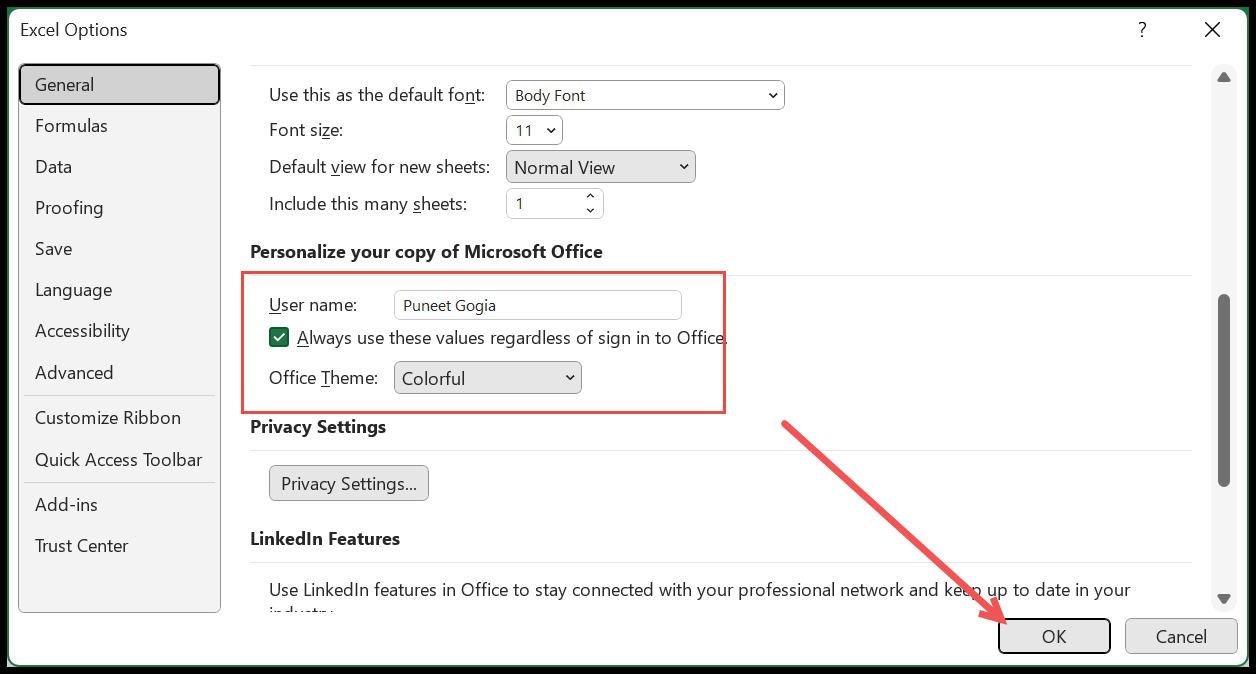
- In the end, once you make your changes (for example, if you want to change the Office color theme), click on the OK button at the bottom right of the dialog box.
What You Can Change in Excel Options
On Windows, the Excel Options dialog box has these main categories:
- General: the default font and size for new workbooks, the Office theme, and your user name.
- Formulas: automatic or manual calculation, iterative calculation, R1C1 references and error checking.
- Proofing: spelling and AutoCorrect options.
- Save: the default file format, AutoRecover time and the default save location.
- Advanced: editing options (like the fill handle and the direction after Enter), display options (like the formula bar and gridlines), and much more.
- Customize Ribbon and Quick Access Toolbar: add, remove and reorder commands, and turn on tabs like Developer.
- Add-ins and Trust Center: manage add-ins and set macro and security settings.
Some options apply to Excel as a whole (like the default font), while others are saved with the current workbook or sheet (like manual calculation or showing gridlines). The heading of each section in Advanced tells you which workbook or sheet it applies to.
Frequently Asked Questions
Why are some Excel options greyed out?
Either the option needs a workbook to be open, or your organization manages that setting for you. In the second case, only your IT admin can change it.
Why do my option changes disappear?
Some options are stored in the workbook, not in Excel. For example, the calculation mode comes from the first workbook you open in a session, so opening a different file can switch it back.
Is there a keyboard shortcut to open Excel Options?
Yes. On Windows, press Alt ⇢ F ⇢ T (one key after another). On Mac, press Cmd + , to open Preferences.

Written by
Puneet Gogia
Microsoft MVP — Excel · Founder, Excel Champs
Twelve years of teaching Excel, and a decade before that using it as a data analyst. Every tutorial here is written from a file I actually built.