

To check whether a cell contains a piece of text, use =IF(COUNTIF(A1,"*Excel*"),"Y","N"). The asterisks are wildcards meaning “anything before or after”, so “Excel Champs” and “Learn Excel Now” both return Y.
This method is not case-sensitive. The alternative is =IF(ISNUMBER(SEARCH("Excel",A1)),"Y","N") — SEARCH returns the position where the text starts, ISNUMBER turns that into TRUE, and an error into FALSE.
Both work; SEARCH is the one to use when the text you’re looking for might contain a literal * or ?, since wildcards would misfire there. For a case-sensitive check, swap SEARCH for FIND: =IF(ISNUMBER(FIND("Excel",A1)),"Y","N") treats “excel” as no match.
To point at a cell rather than typing the text in, use =IF(COUNTIF(A1,"*"&C1&"*"),"Y","N"). And to check for any of several words at once, =IF(SUMPRODUCT(--ISNUMBER(SEARCH({"Excel","VBA","Power Query"},A1)))>0,"Y","N").
To check if a cell contains a partial text in Excel, you need to create a formula, with the help of IF, COUNTIF, and wildcard characters.
Wildcard characters help you define the partial text, then COUNTIF checks for partial value, and IF returns the result according to that.
This combination of functions works perfectly.
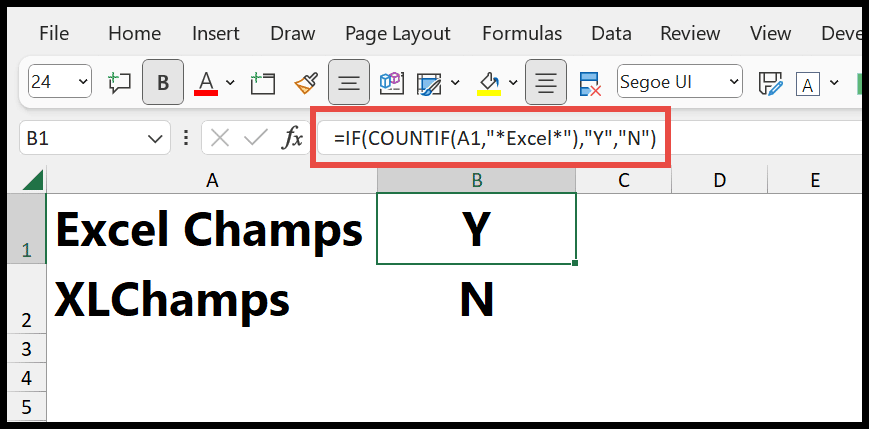
In this tutorial, we will learn to write this formula.
Excel Formula: IF a Cell Contains a Partial Text
Below is the formula and steps to write this formula using a combination of COUNTIF and IF in a single formula:

- First, in cell B1 enter “=IF(“.
- After that, enter “COUNTIF(“.
- Next, in the first argument of COUNTIF, refer to cell A1.
- Now, enter the value that you want to check by using an asterisk before and after that value and close the function.
- In the end, enter “Y” for value_if_true, “N” for value_if_false, enter the closing parenthesis, and hit Enter.
=IF(COUNTIF(A1,"*Excel*"),"Y","N")
In the following example, you can see in the first value you have “Excel”, and it has returned “Y”. But in the second value, you don’t have that value, and it has returned “N” in the result.

If “Excel” is part of the text in cell A1 (like “Excel Champs”, “MS Excel Tips”, etc.), COUNTIF returns a number greater than 0. Since any number greater than 0 is treated as TRUE in logical tests, IF then returns “Y”. If “Excel” is not in cell A1, COUNTIF returns 0, which is treated as FALSE in logical tests, and IF returns “N”.
Wildcard Characters – In Excel, wildcard characters are special symbols that represent one or more unspecified characters in your searches or when setting conditions in formulas. An asterisk (*) matches any sequence of characters. A Question Mark (?) matches any single character. A tilde (~) lets you search for items that actually contain an asterisk, question mark, or tilde.
To understand this formula, you need to break it up into two parts:

- COUNTIF – This function counts the number of cells that meet a specific criterion. In this formula, the criterion is that cell A1 must contain the substring “Excel”.
- Range – A1 – The cell to check.
- “*Excel*” – An asterisk (*) is a wildcard character in Excel that represents any sequence of characters. Including them before and after “Excel” means the formula looks for any occurrence of “Excel” anywhere within the cell’s value.
- IF – IF is used for a conditional check. It evaluates the result of the COUNTIF function and decides what to return based on that result.
- COUNTIF(A1, “*Excel*”) – This part of the formula counts cell A1 if it contains “Excel”. As there’s only one cell, it returns 1 when “Excel” is in the cell (once or more) and 0 when it isn’t.
- Value_if_true: “Y” – If the COUNTIF function finds one or more occurrences of “Excel”, the IF returns “Y”.
- Value_if_false: “N” – If the COUNTIF function returns 0 (meaning “Excel” is not found), the IF returns “N”.
IF a Cell Contains a Partial Text (SEARCH + ISNUMBER)
You can also use a formula combining SEARCH, ISNUMBER, and IF to check if a partial value is there in a cell.

=IF(ISNUMBER(SEARCH("Excel", A1)), "Y", "N")
- SEARCH: This searches for text string within another text string and returns the position of the first character of the first text string. It is case-insensitive.
- “Excel” – The text to find. You don’t need asterisks here, as SEARCH finds the text anywhere in the cell.
- A1 – This specifies that SEARCH should look within the contents of cell A1.
- ISNUMBER: It checks whether the result of the SEARCH function is a number. This part of the formula evaluates to TRUE if “Excel” is found (because SEARCH returns a number indicating the starting position of “Excel”), and FALSE if “Excel” is not found (because SEARCH results in an error, which is not a number).
- IF: It uses the result from ISNUMBER. If ISNUMBER is TRUE (meaning “Excel” was found), the IF function returns “Y”. If ISNUMBER is FALSE (meaning “Excel” was not found), the IF function returns “N”.
With FILTER Function (Excel 365 and Excel 2021)
If you need to filter out all rows that contain the partial text in a separate range, you can use the FILTER function with the wildcard characters, like the following:
=FILTER(A2:A100, ISNUMBER(SEARCH("Excel", A2:A100)))
Here’s how each part of the formula works:
- SEARCH(“Excel”, A2:A100): This searches for the string “Excel” within each cell in the range A2 to A100. If “Excel” is found in a cell, SEARCH returns the starting position of the text as a number. If it is not, SEARCH returns an error (#VALUE!).
- ISNUMBER(SEARCH(“Excel”, A2:A100)): It checks whether the SEARCH function’s result is a number. ISNUMBER returns TRUE for cells where SEARCH found “Excel” (since it returns a numeric position) and FALSE for cells where SEARCH did not find “Excel” (since it results in an error).
- FILTER(A2:A100, ISNUMBER(SEARCH(“Excel”, A2:A100))): The FILTER function takes the range A2:A100 as the data to filter. The second argument, ISNUMBER(SEARCH(“Excel”, A2:A100)), serves as the condition for filtering. Only those cells in A2 to A100 where ISNUMBER returns TRUE (meaning “Excel” was found within them) will display as the FILTER function output.
FILTER is available in Excel 2021, Excel 2024 and Microsoft 365, not in Excel 2019. If no cell has the text, it returns the #CALC! error, so add a third argument with what you want to show instead:
=FILTER(A2:A100,ISNUMBER(SEARCH("Excel",A2:A100)),"Not found")
Use Conditional Formatting to Identify the Partial Text
Here are the steps to use conditional formatting in Excel to highlight cells that contain specific partial text:
- Select the Range – Select the range of cells where you want to apply the conditional formatting. For example, select A1:A10 if you want to check all these cells.
- Open the Conditional Formatting: Go to the Home tab on the Ribbon. Click on Conditional Formatting. Hover over Highlight Cells Rules. Click on “Text that Contains…”

- Set the Text Condition: A dialog box will appear where you can specify the text that triggers the formatting. In the box, enter the partial text you want to search for. For example, type “Excel” to highlight cells containing the text “Excel.”
- Set Format – You can choose the formatting style after entering the text. Click on the drop-down menu, which shows different formatting options like changing the cell fill color, text color, or filling pattern. Select a format that makes the cells stand out. For example, you might choose a light red fill with dark red text.

- Apply and Close – Click OK to apply the conditional formatting. The cells in your selected range that contain the specified partial text will now be highlighted with the formatting you chose.

Note – If you want to apply conditions for multiple values, repeat the process for each text condition.
Case-Sensitive Check with FIND
COUNTIF and SEARCH both ignore the case, so “excel” and “EXCEL” also match. If the case matters, use FIND instead of SEARCH. The following formula returns “Y” only for “Excel” with a capital E:
=IF(ISNUMBER(FIND("Excel",A1)),"Y","N")
Check for Partial Text from Another Cell
Instead of typing the text in the formula, you can refer to a cell that has it. Join the asterisks to the cell reference with the & operator. Here, C1 has the text to look for:
=IF(COUNTIF(A1,"*"&C1&"*"),"Y","N")
Check for One of Several Partial Texts
To return “Y” when the cell contains any one of several values, give COUNTIF an array of criteria and add the results with SUM:
=IF(SUM(COUNTIF(A1,{"*Excel*","*Word*"})),"Y","N")
And to count how many cells in a range contain the text, use COUNTIF on the whole range:
=COUNTIF(A1:A10,"*Excel*")
Partial Match with Numbers
There’s one thing to keep in mind with the COUNTIF method: in Excel, wildcards only work with text. So if a cell has the number 12345, COUNTIF(A1,”*23*”) doesn’t count it. The SEARCH method works with numbers as well, because SEARCH reads the number as text:
=IF(ISNUMBER(SEARCH("23",A1)),"Y","N")
Frequently Asked Questions
Is the IF + COUNTIF formula case-sensitive?
No. COUNTIF and SEARCH ignore the case. Use FIND with ISNUMBER for a case-sensitive check.
Can I return the cell value instead of Y or N?
Yes. Use the cell reference as value_if_true, like this:
=IF(COUNTIF(A1,"*Excel*"),A1,"")
How do I check for partial text that has an asterisk or a question mark?
Put a tilde (~) before the character, like “*~?*” to look for a real question mark. Or use FIND, which doesn’t use wildcards.
Written by
Puneet Gogia
Microsoft MVP — Excel · Founder, Excel Champs
Twelve years of teaching Excel, and a decade before that using it as a data analyst. Every tutorial here is written from a file I actually built.