

Press Ctrl + F, click Options, then Format. On the Alignment tab, tick Merge cells and click OK, then click Find All. The list at the bottom shows every merged cell on the sheet.
Click in the list and press Ctrl + A to select all of them at once. Close the dialog and they stay selected, ready to fill with a colour or to unmerge with Home ? Merge & Center ? Unmerge Cells.
If Find All returns nothing, open Format again and clear any other ticks on the Alignment tab, such as Wrap text or Shrink to fit, because Find only matches cells that have every format you set. To search every sheet, set Within to Workbook.
To list them with VBA, loop through the used range and report each merged block once:
Sub ListMergedCells()
    Dim c As Range, msg As String
    For Each c In ActiveSheet.UsedRange
        If c.MergeCells Then
            If c.Address = c.MergeArea.Cells(1, 1).Address Then
                msg = msg & c.MergeArea.Address & vbLf
            End If
        End If
    Next c
    MsgBox IIf(msg = "", "No merged cells", msg)
End Sub
Excel for the web cannot search by format, so use the desktop app for these steps. Once you have found them, consider replacing merged headings with Center Across Selection (Format Cells ? Alignment ? Horizontal), which looks the same but does not break sorting, filtering or copying.
Let’s say you’re working with a team schedule in Excel and need to update employee shifts. Some cells are merged to show shared shifts, and you need to find these merged cells to make changes without changing the layout.
In that case, you must find the merged cells in Excel and unmerge them, and finding these cells one by one could be a time-consuming task.
But Excel has the functionality to find and highlight all the merged cells in one go, so you can review them quickly before unmerging them, and we have described that functionality for you.
Steps to Find Merged Cells Using Find and Replace
This is one of the best ways to find all the merged cells in one go from the active worksheet.
- First, select the cell range or the entire sheet from where you want to find the merged cells. Once the range is selected, go to the “Home” tab, and in the “Editing” group, click on the “Find & Select” icon and select the Replace option to open the Replace dialog box.
- Or simply press the “Ctrl + H” shortcut key to open the “Replace” dialog box.

- After that, click on the “Format” button in the “Find and Replace” dialog box (click “Options” first if you don’t see it), and the “Find Format” dialog box will open.

- In the “Find Format” dialog box, go to the “Alignment” tab and tick the “Merge cells” option, untick the “Wrap text” and “Shrink to fit” options as shown in the image, and click OK.

- Now, click on “Find All” in the “Find and Replace” dialog box, and you will get all the merged cells listed at the bottom of the dialog box.

- Now, click on any listed cell in the “Find and Replace” dialog box and select all the listed cells using the “Ctrl + A” keys, and your merged cells in the data will get selected.

- To highlight the selected merged cells, go to the “Home” tab and under the “Font” group, click on the “Fill Color” icon and select a color. Your merged cells will get highlighted, and you can review them quickly before unmerging them.
- In the end, to unmerge them, just click on the “Merge & Center” icon in the “Alignment” group, and all the merged cells will get unmerged.

Find Merged Cells in Excel Online
Excel Online has limited functionality compared to the desktop version, and you need to do it manually to find merged cells. Adding borders to all cells is a practical workaround. This way, merged cells will be clearly visible as larger than normal cells with a single border.
To add borders, select the range, go to the “Home” tab, click on the “Borders” in the “Font” group, and choose “All Borders.”
Find Merged Cells in Excel with a VBA Code
Users can also use a VBA code to find and highlight the merged cells.
Sub find_merged_cells()
    Dim Cel As Range, Msg As String, Addr As String
    For Each Cel In ActiveSheet.UsedRange
        If Cel.MergeCells Then
            Cel.Interior.Color = 65535
        End If
    Next
End Sub
- Dim Cel As Range, Msg As String, Addr As String: This line is declaring three variables. Cel is declared as a Range object, which will be used to refer to a cell. Msg and Addr are declared as String but are not used in this macro.
- For Each Cel In ActiveSheet.UsedRange: This line starts a For Each loop that will iterate through each cell in the used range of the active sheet. ActiveSheet.UsedRange refers to the area that contains data or formatting.
- If Cel.MergeCells Then: This line is an If statement that checks if the current cell (Cel) is part of a merged cell. MergeCells is a property that returns True if the range contains merged cells, and False otherwise.
- Cel.Interior.Color = 65535: If the current cell is part of a merged cell, this line changes the interior color of the cell to yellow. In VBA, colors are represented by a unique number, and the number 65535 represents yellow.
- End If: This line marks the end of the If statement.
- Next: This line marks the end of the For Each loop. After executing the commands in the loop for the current cell, it moves on to the next cell in the ActiveSheet.UsedRange.
- End Sub: This line marks the end of the macro. After this line is executed, the macro stops running.
If you want a list of the merged cells instead of colors, the following code shows the address of each merged area once, along with the count:
Sub list_merged_cells()
    Dim Cel As Range, Msg As String, iCount As Long
    For Each Cel In ActiveSheet.UsedRange
        If Cel.MergeCells Then
            If Cel.Address = Cel.MergeArea.Cells(1, 1).Address Then
                Msg = Msg & Cel.MergeArea.Address & vbLf
                iCount = iCount + 1
            End If
        End If
    Next Cel
    MsgBox iCount & " merged area(s):" & vbLf & Msg
End Sub
It checks only the first cell of each merged area, so every merged area is listed once, like $A$1:$C$1.
How Merged Cells in Excel Create Problems
Merged cells in Excel can cause a few problems. First, they can make sorting and filtering your data difficult because they disrupt the layout of rows and columns. When you sort a range with merged cells of different sizes, Excel shows the message “To do this, all the merged cells need to be the same size”.
Also, if you use formulas referencing a range of cells, merged cells can lead to incorrect calculations because they’re treated as a single cell.
To avoid these issues, always try to use a minimum number of merged cells in your worksheet. Or you can unmerge cells back to normal if you don’t require them anymore.
Unmerging Cells in Excel Once You Find Them
Unmerging cells in Excel that have previously been merged can help you avoid some of the issues associated with merged cells, such as sorting and filtering difficulties, formula errors, and data entry problems.
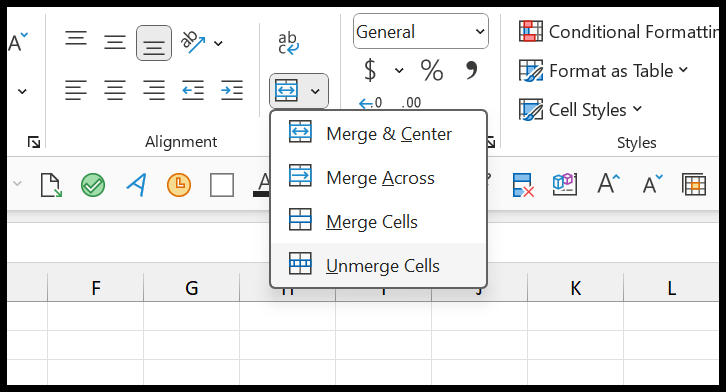
- Select the Merged Cell: Select all the cells you want to unmerge. If you want to unmerge multiple merged cells, you can select them all.
- Go to the Home Tab: At the top of the Excel Ribbon, click the “Home” tab to open it. By default, when you open Excel, the Home tab is already open.
- Find the Merge & Center Button: In the “Alignment” group on the Home tab, you will find the “Merge & Center” button.
- Click on the “Merge & Center” Dropdown: Click on the dropdown arrow next to the “Merge & Center” button for more options.
- Select “Unmerge Cells”: From the dropdown menu, select “Unmerge Cells.” This will unmerge any selected merged cells.
You can also use the keyboard shortcut Alt + H + M + U. After unmerging, the value stays in the top-left cell, and the other cells become empty.
Frequently Asked Questions
Can I find merged cells in the whole workbook?
Yes. In the Find and Replace dialog box, click Options and change “Within” from Sheet to Workbook before you click Find All.
What can I use instead of merged cells?
Use Center Across Selection (Format Cells ➜ Alignment ➜ Horizontal). It looks the same as a merged cell, but the cells stay separate, so sorting, filtering and copying keep working.
Does unmerging cells delete data?
No. A merged cell only keeps the value of its top-left cell, and after unmerging, that value stays in the top-left cell. The other cells are empty.
As I mentioned, you should avoid merging cells, but if you want to do it, check this quick guide to merge cells in Excel without losing data. You can also learn to merge cells in Google Sheets.