

In Excel, if you want to sort by dates, that is, where you have dates in a column, you can simply use the SORT option.
When you select the column where you have dates and then open the sorting option, you can choose whether to sort in ascending order or in descending order.
In the following example, you have dates in column A, and now you need to sort by the dates in this column.

Now let’s see how we can sort it.
Steps to Sort by Date in Excel
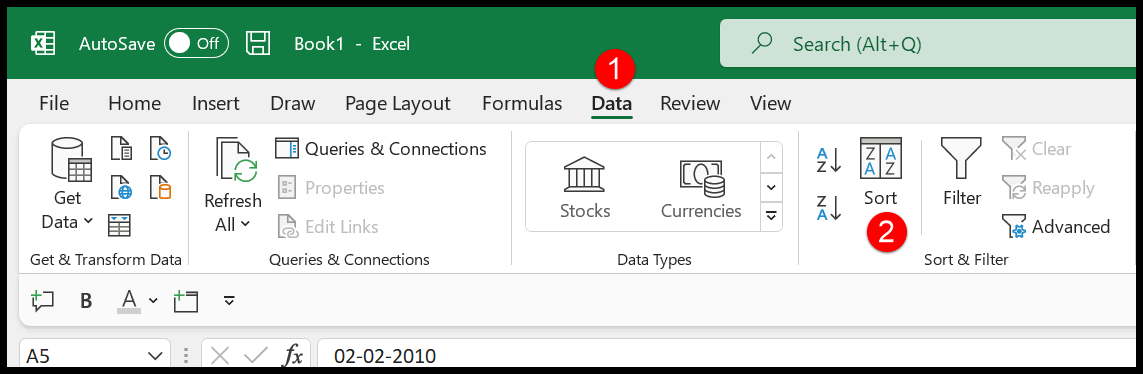
- First, go to the Data tab and click on the Sort button to open the sorting option. You can also use the keyboard shortcut Alt ➤ A ➤ S ➤ S.
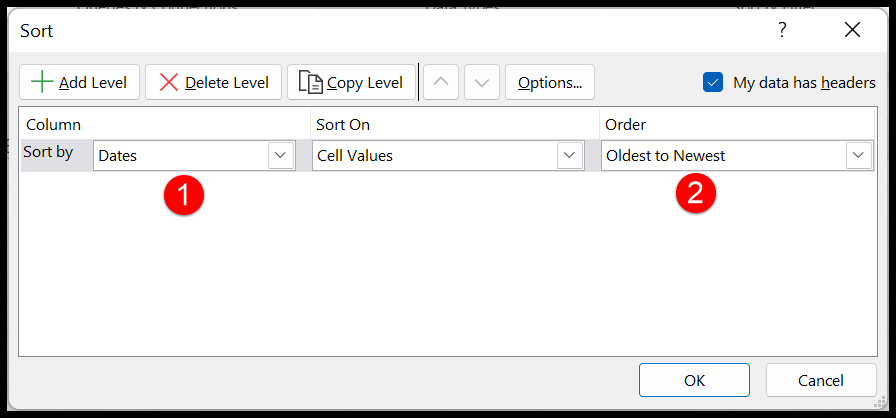
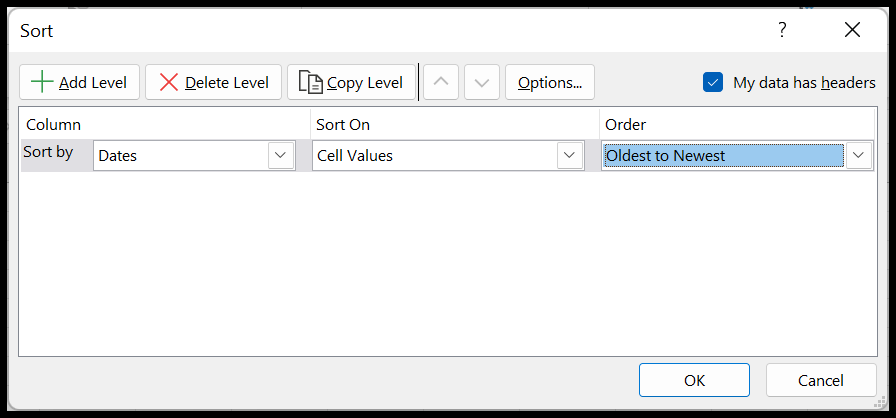
- After that, in the SORT option, select the column that you want to sort, and select the order that you want to follow to sort.
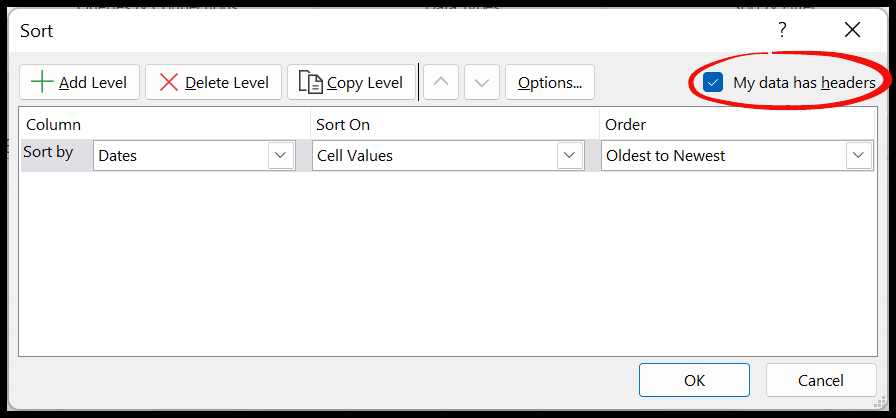
- Next, check the “My data has headers” option. It’s usually ticked already, but if your data doesn’t have headers, untick it.
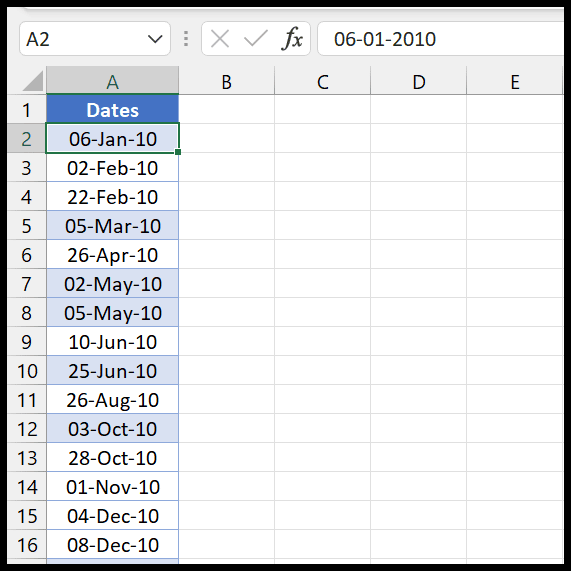
- In the end, click OK to get the column sorted by dates.
The moment you click OK, you get all the dates sorted from oldest to newest.
Sort by Date and Time
In Excel, dates are stored as whole numbers, and the time is stored as the decimal part of those numbers. So, when you sort by date, the time is also taken into account.
In the following example, you have time with dates.
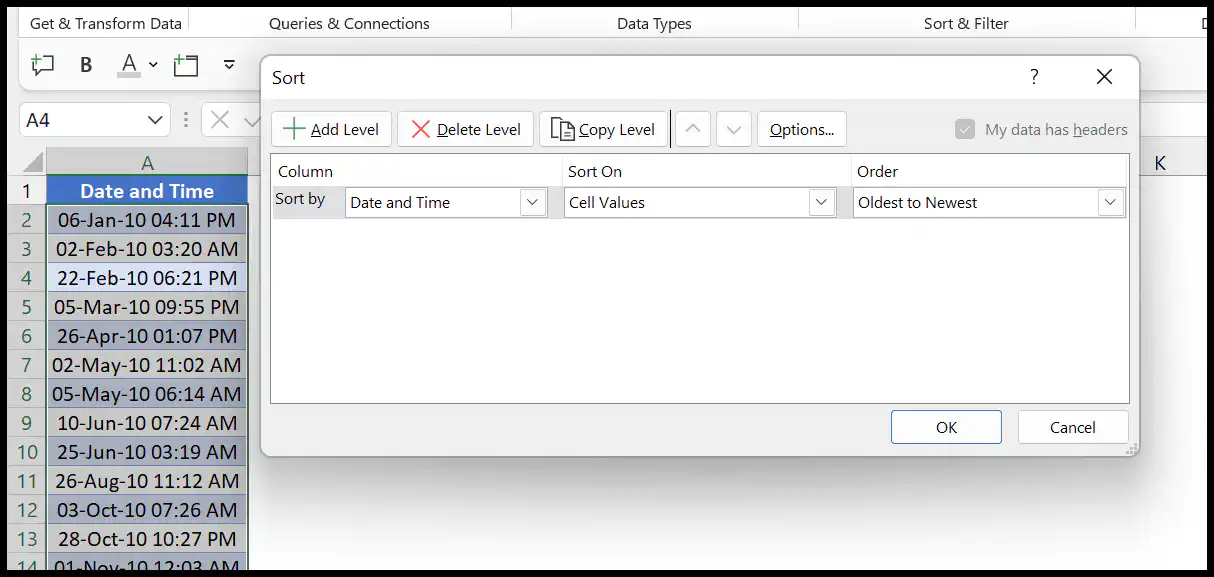
And when you click OK, it sorts all the dates from oldest to newest.
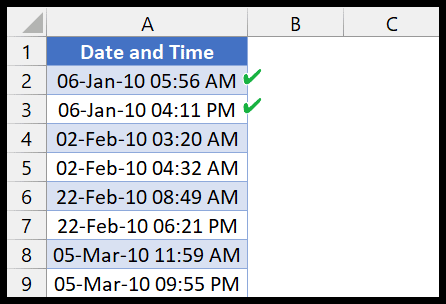
Now, if you look at the first two values, they have the same date but different times, so Excel has sorted them based on the time.
You have the date with 05:56 AM first and then the date with 04:11 PM.
Sort by Years from Dates
Now, let’s say you want to sort by the years of the dates. In that case, you need to add a helper column to get the year from each date first, and then sort both columns.
In the following example, we have used the YEAR function in column B to get the years:
=YEAR(A2)
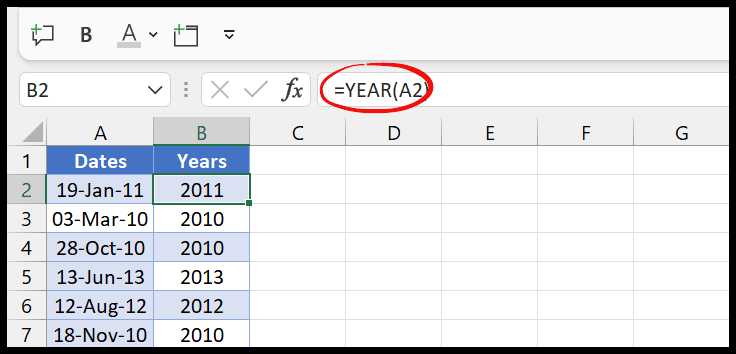
After that, sort both columns based on the years column, as I said before.
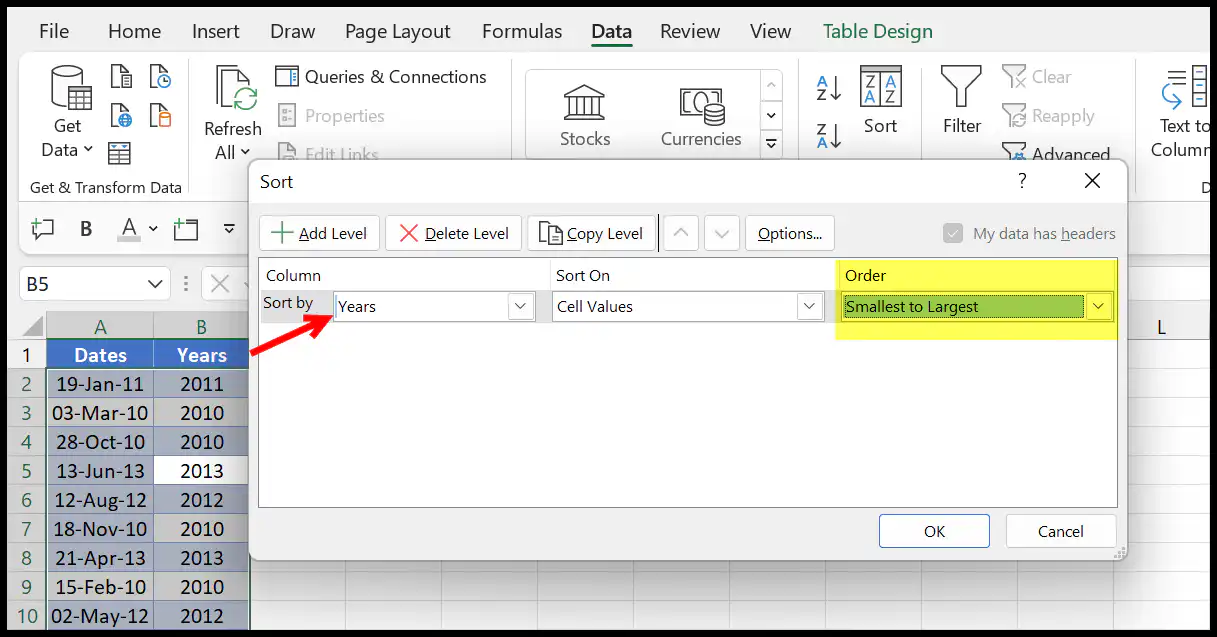
And in the order, you need to use smallest to largest, and after that, click OK.
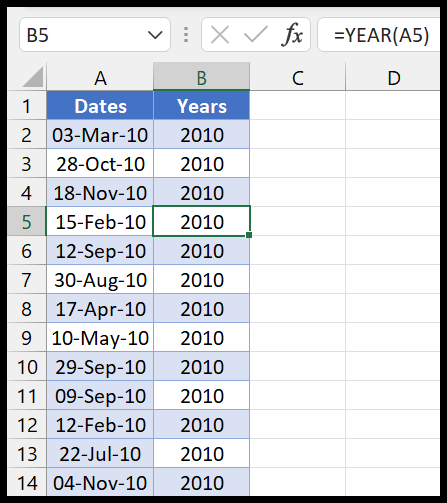
This is how you sort by dates using only years.
Reverse Sort by Date
In the first example, we discussed that you have the option to change the sort order.
So, if you want to sort it in the reverse order, you can change “Oldest to Newest” to “Newest to Oldest”.
Sort by Month and Day (Ignoring the Year)
For a list of birthdays or anniversaries, you may want to sort by month and day only. Add a helper column with the following formula, which turns each date into a number like 0315 for 15 March, and sort by that column from A to Z:
=TEXT(A2,"mmdd")
Sort Dates with a Formula
In Microsoft 365, Excel 2021 and Excel 2024, you can use the SORT function to get a sorted copy of the dates that updates when the dates change. Use 1 for oldest to newest or -1 for newest to oldest:
=SORT(A2:A20,1,-1)
When Dates Do Not Sort Correctly
If the sort options show “A to Z” instead of “Oldest to Newest”, or the dates come out in a strange order, some of your dates are stored as text. Text dates are usually aligned to the left of the cell. Convert them to real dates first, for example with Data ➜ Text to Columns ➜ Finish, or with the DATEVALUE function in a helper column:
=DATEVALUE(A2)
DATEVALUE reads the text using your system’s date settings, so a text date in a different order (like day/month when your system uses month/day) can still give the wrong date or #VALUE!.
Frequently Asked Questions
How do I sort dates without mixing up the rows?
Select a single cell in the date column (not the whole column) before you sort, so Excel sorts the whole data range together. If you see the Sort Warning, choose “Expand the selection”.
How do I sort dates by month only?
Add a helper column with =MONTH(A2), which gives 1 to 12, and sort by that column from smallest to largest.
Why are my dates sorting by the day first?
Because they are text, not dates, so Excel sorts them character by character. Convert them to real dates as shown above, and they’ll sort in date order.

Written by
Puneet Gogia
Microsoft MVP — Excel · Founder, Excel Champs
Twelve years of teaching Excel, and a decade before that using it as a data analyst. Every tutorial here is written from a file I actually built.