

To check whether a cell is empty, use =IF(ISBLANK(A1),"Blank","Non-Blank"). ISBLANK returns TRUE only for a genuinely empty cell, and IF turns that into your own message.
The alternative is =IF(A1="","Blank","Non-Blank"), which looks identical but behaves differently in one important case: a cell holding a formula that returns “” looks empty and is treated as blank by A1=””, while ISBLANK reports it as not blank, because the cell does contain something.
Use A1=”” when you want “looks empty” and ISBLANK when you want “truly empty”. Neither catches a cell holding only a space — for that, test =IF(TRIM(A1)="","Blank","Non-Blank").
To leave the result cell empty rather than writing “Blank”, use =IF(A1="","",A1), and to check several cells at once, =IF(COUNTBLANK(A1:C1)>0,"Missing","Complete") flags any row with a gap.
In Excel, if you want to check if a cell is blank or not, you can use a combination formula of IF and ISBLANK. These two functions work together: ISBLANK checks the cell, and then IF returns a meaningful message (specified by you) in return.
In the following example, you have a list of numbers where you have a few cells blank.

Formula to Check IF a Cell is Blank or Not (Empty)
- First, in cell B1, enter the IF function.
- Now, in the first argument, enter ISBLANK, refer to cell A1, and enter the closing parenthesis.
- Next, in the second argument, use the “Blank” value.
- After that, in the third argument, use “Non-Blank”.
- In the end, close the function, hit Enter, and drag the formula down to the last value that you have in the list.
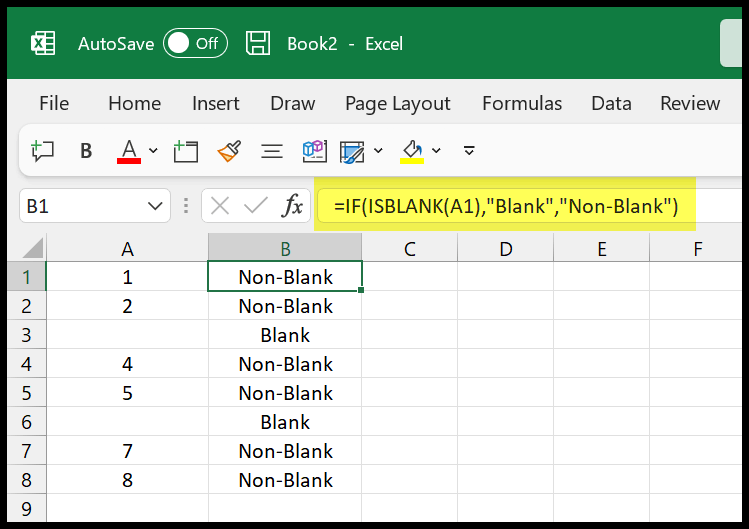
As you can see, we have the value “Blank” for the cell where the cell is empty in column A.
=IF(ISBLANK(A1),"Blank","Non-Blank")
Now let’s understand this formula. In the first part, we have ISBLANK, which checks if the cell is blank or not.

And, after that, if the value returned by the ISBLANK is TRUE, IF will return “Blank”, and if the value returned by the ISBLANK is FALSE, IF will return “Non-Blank”.
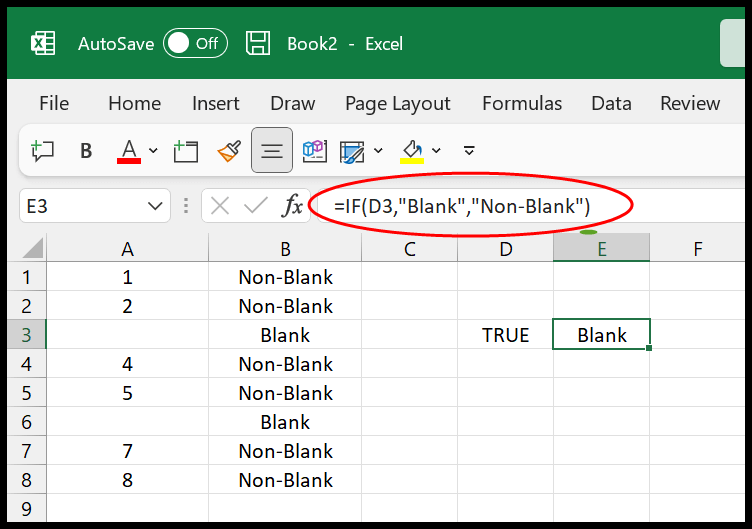
Alternate Formula
You can also use an alternate formula where you just need to use the IF function.
Now in the function, you just need to specify the cell where you want to test the condition and then use an equal operator with a blank value (“”) to create a condition to test. And you just need to specify the two values that you want to get when the condition is TRUE or FALSE.
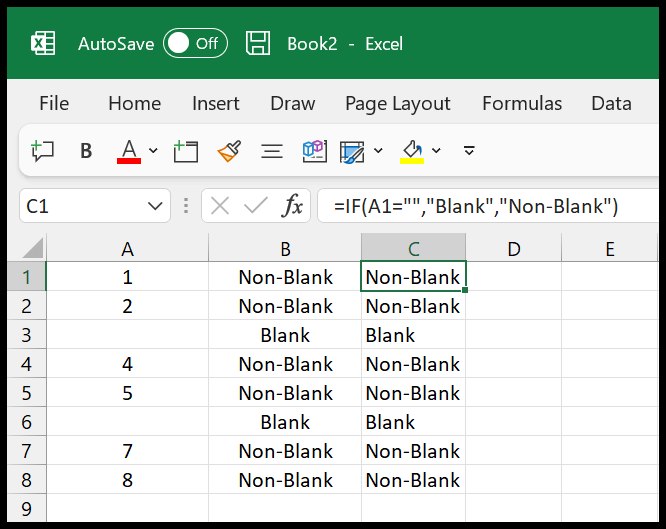
=IF(A1="","Blank","Non-Blank")
ISBLANK vs =””: Which One to Use
Both formulas give the same result for a truly empty cell, but not for a cell that only looks empty:
- A formula that returns “”: ISBLANK returns FALSE (the cell has a formula), while A1=”” returns TRUE.
- A space: both treat it as not blank, as a space is a character.
- A zero: both treat it as not blank.
So, if your column has formulas that return blanks, use A1=””. And if you also want to treat cells with only spaces as blank, use LEN and TRIM:
=IF(LEN(TRIM(A1))=0,"Blank","Non-Blank")
Calculate Only If a Cell Is Not Blank
Most of the time, you want to run a calculation only when there’s a value in the cell, and leave the result blank otherwise. Use the not equal operator (<>) with a blank value:
=IF(A1<>"",A1*2,"")
Check IF a Range Has Blank Cells
To check a whole range at once, use COUNTBLANK, which counts the blank cells (including formulas that return “”):
=IF(COUNTBLANK(A1:A10)>0,"Has Blanks","No Blanks")
And to check if all the cells in a range are empty, use COUNTA, which counts the cells that are not empty:
=IF(COUNTA(A1:A10)=0,"All Blank","Has Values")
Frequently Asked Questions
Why does ISBLANK return FALSE for an empty-looking cell?
The cell has something in it: a formula that returns “”, a space, or an apostrophe. Use A1=”” or the LEN and TRIM formula above instead.
How do I highlight blank cells?
Select the range, go to Home ➜ Conditional Formatting ➜ New Rule ➜ “Format only cells that contain”, and choose Blanks. Or use a formula rule with ISBLANK and the first cell of the range.
Can I return a blank instead of text?
Yes. Use “” as the value for TRUE and your calculation as the value for FALSE. Just remember that “” is text, so other formulas see it as text, not as an empty cell.
Written by
Puneet Gogia
Microsoft MVP — Excel · Founder, Excel Champs
Twelve years of teaching Excel, and a decade before that using it as a data analyst. Every tutorial here is written from a file I actually built.