

Select the column and press Alt, H, O, I (Home → Format → AutoFit Column Width), one key after another. For row height, select the rows and press Alt, H, O, A (Home → Format → AutoFit Row Height).
The width fits only the cells you have selected, not the whole column. Press Ctrl + Space first so Excel measures every cell in the column; with one cell selected, the column fits that cell alone. To fit several columns at once, select them all, or the whole sheet with Ctrl + A, before you press the keys.
The mouse equivalent is to double-click the right edge of a column header, or the bottom edge of a row header. With several columns selected, double-clicking the edge of any one of them fits them all.
The older Excel 2003 menu sequences still do the same jobs: Alt, O, C, A fits the column width and Alt, O, R, A fits the row height.
Two things trip AutoFit up. One long title in a column makes the whole column very wide, so select only the data cells below it before pressing Alt, H, O, I. And row height does not auto-fit on merged cells with wrapped text; set the height yourself with Alt, H, O, H (Home → Format → Row Height).
Latest Video Tutorial – 10 Excel Keyboard Shortcuts (Probably YOU are NOT Using)
In Excel, the AutoFit feature is used to resize the row height and column width based on the size of the values in the cells.
As you know, Excel has a default row height and column width, and when you enter a value that is longer than the column width, the text spills over into the next cells (or a number shows as ###). To resize the cells based on that value, you can use AutoFit.
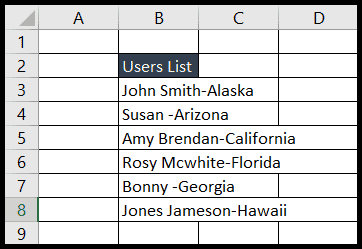
In the below image, you can see that the values entered were longer than the default size of the cells, so they spilled over the cells.
Keyboard Shortcut to Use AutoFit in Excel
AutoFit Column Width (Columns)
Alt → H → O → I
AutoFit Row Height (Rows)
Alt → H → O → A
Steps to Use AutoFit Column Width Using Keyboard Shortcut
- First, select the single cell or the whole column using the “Ctrl + Spacebar” keys.
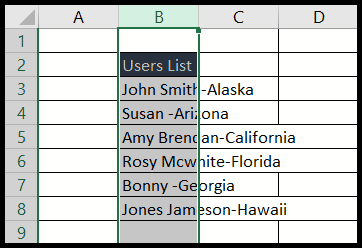
- Now, simply press “Alt → H → O → I” (one key after another), and the column width will expand to fit the longest value in the column. If you have selected a single cell, the column fits that cell’s value only.

Steps to Use AutoFit Row Height Using Keyboard Shortcut
Let’s assume you have unstructured data where some values in a column have wrapped text and some don’t, so the row heights are not the same. To AutoFit the rows and the column, follow the below steps:
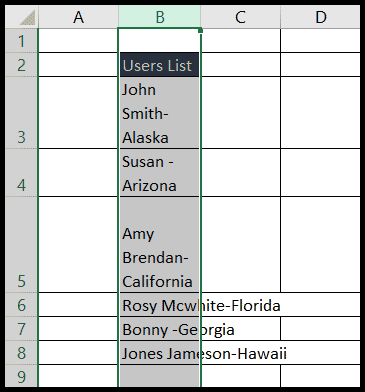
- First, select the column and expand the column width manually to a level where all the values can be covered.
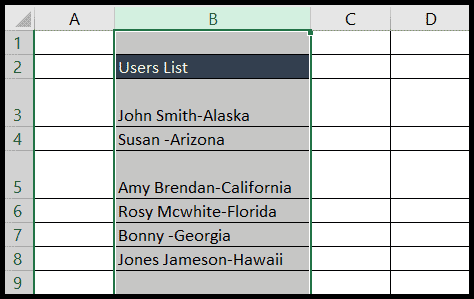
- After that, simply press “Alt → H → O → A” and you will get the rows’ height adjusted.
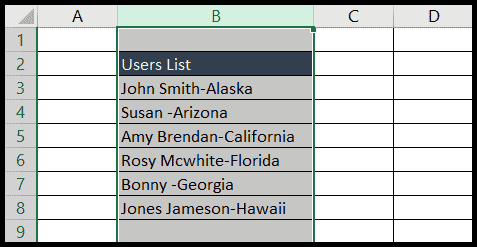
In the above case, if you use the AutoFit column width shortcut, it will not work properly, because AutoFit doesn’t widen a column to show wrapped text on one line.
There might be a larger value in any wrapped text cell, so it is advised to expand the column manually and then use the AutoFit row height shortcut.
Other Ways to AutoFit
- Double-click: double-click the right edge of the column header to AutoFit the column width, or the bottom edge of the row header to AutoFit the row height.
- Whole sheet: press Ctrl + A to select all the cells, then use Alt → H → O → I and Alt → H → O → A, or double-click any column border.
- Ribbon: Home ➜ Cells ➜ Format ➜ AutoFit Column Width or AutoFit Row Height.
Note that AutoFit ignores merged cells, so a merged cell won’t get wider or taller with these shortcuts.
Frequently Asked Questions
Why is AutoFit not working?
The common reasons are merged cells, wrapped text, and a protected sheet that doesn’t allow formatting columns or rows. Also, AutoFit doesn’t update on its own when the values change later, so use it again after you edit the data.
What is the AutoFit shortcut on a Mac?
Excel for Mac has no ribbon key tips, so double-click the column or row border, or use Format ➜ Column ➜ AutoFit Selection from the menu bar.
Can I AutoFit with VBA?
Yes. Use Columns(“A:D”).AutoFit for column width or Rows(“1:20”).AutoFit for row height.