

=MID(CELL("filename",A1),SEARCH("[",CELL("filename",A1))+1,SEARCH("]",CELL("filename",A1))-SEARCH("[",CELL("filename",A1))-1) returns the workbook name — Excel stores it in square brackets inside the full path, so this pulls out what sits between them. In Excel 365, =TEXTAFTER(TEXTBEFORE(CELL("filename",A1),"]"),"[") does the same thing far more readably.
The result includes the extension; strip it with =TEXTBEFORE(...,"."). Two requirements: the file must have been saved at least once, or CELL returns nothing, and the reference argument (,A1) should always be included.
In Excel, there is no direct function to get the name of the file, but you can use the CELL function to get the path of the file, and then we can use the MID function to extract the file name from it.
You can use the following steps:
- First, you need to enter the CELL function in a cell.
- After that, you need to specify “filename” in the first argument and refer to any cell of the sheet, like A1, in the second argument.
- Next, enter the closing parenthesis.
- In the end, hit Enter.
=CELL("filename",A1)
Always add the cell reference (A1). Without it, CELL returns the path of the workbook and sheet where you last selected a cell, which can be a different sheet or even a different workbook, and the result can change when Excel recalculates. Also, the workbook must be saved; for a new workbook that isn’t saved yet, CELL returns an empty text.
At this point, you have the full path of the file, along with the workbook name in square brackets and the sheet name. You can see in the following example that I have the path in cell D1.

Now the next thing is to get the name of the file from this address, and for this, we will use the MID + SEARCH functions.
There’s one thing that you need to note down: the name of the file is in the square brackets. So, let’s create a formula to get the name of the file.
- First, use the SEARCH function to know the position of the starting square bracket.
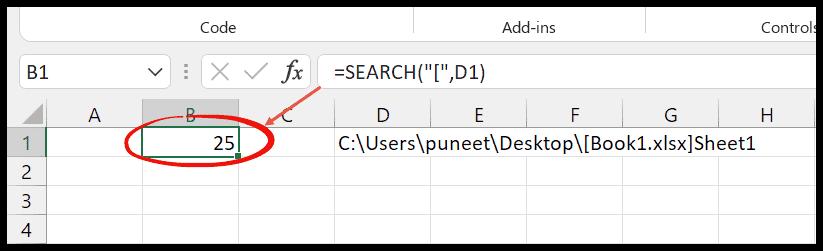
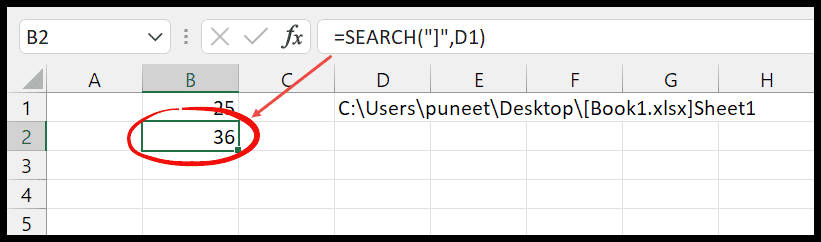
- Next, you need to find the position of the ending square bracket.
- After that, you need to use the MID function to get the file name from the entire path.
- And for this, we need to use the following formula where you need to use the values that you have got from the search function.
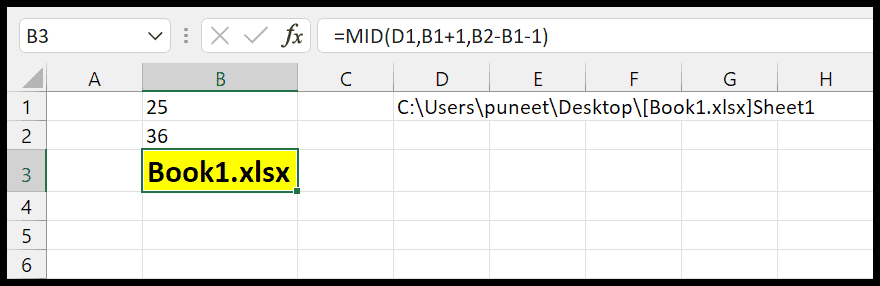
Now let’s understand this formula that we have written with the MID function. In the MID function:
- In the first argument, you have referred to the cell where we have the full path of the file.
- In the second argument, you have used the position of the starting square bracket, which you have got from the SEARCH function, and then added 1 to it.
- In the third argument, you used the position of the ending square bracket and deducted the position of the starting square bracket, and after that deducted 1 from it. This gives you the exact number of characters to get.
Here, I have put all the functions in a single formula to get the result in a single cell.
=MID(CELL("filename",A1),SEARCH("[",CELL("filename",A1))+1,SEARCH("]",CELL("filename",A1))-SEARCH("[",CELL("filename",A1))-1)
This formula returns the file name with its extension, like Sales Report.xlsx. Note that CELL with “filename” doesn’t work in Excel for the web.
Get the File Name without the Extension
To remove the extension (.xlsx, .xlsm), take the text before the dot. If you have the file name in cell E1, use:
=LEFT(E1,FIND(".",E1)-1)
This looks for the first dot, so it works as long as the file name itself doesn’t have a dot in it.
Get the Folder Path and the Sheet Name
With the full path in D1, you can get the other parts as well. The following formula returns the folder path (everything before the starting square bracket):
=LEFT(D1,FIND("[",D1)-1)
And this one returns the sheet name (everything after the ending square bracket):
=MID(D1,FIND("]",D1)+1,255)
Use TEXTAFTER and TEXTBEFORE in Microsoft 365
In Excel for Microsoft 365, you can write the same formula in a much simpler way. TEXTAFTER takes the text after the “[“, and TEXTBEFORE keeps the text before the “]”:
=TEXTBEFORE(TEXTAFTER(CELL("filename",A1),"["),"]")
Frequently Asked Questions
Why does the formula return a #VALUE! error?
The workbook isn’t saved yet, so CELL returns an empty text, and SEARCH can’t find the square brackets. Save the file and press F9 to recalculate.
Why does the file name not update after I rename the file?
The formula updates when Excel recalculates. After you save the file with a new name, press F9 to see the new name.
Can I get the file name with VBA?
Yes. ThisWorkbook.Name returns the file name with the extension, and ThisWorkbook.Path returns the folder path.
Written by
Puneet Gogia
Microsoft MVP — Excel · Founder, Excel Champs
Twelve years of teaching Excel, and a decade before that using it as a data analyst. Every tutorial here is written from a file I actually built.