

Draw a shape from Insert → Shapes, type a label on it, then right-click it, choose Assign Macro, pick the macro and click OK. Shapes are the easiest buttons to style, since you can change their fill, outline and font from Shape Format.
For a standard grey button, turn on the Developer tab (File → Options → Customize Ribbon, tick Developer), then use Developer → Insert → Button (Form Control), draw it and pick the macro in the dialog that opens.
Save the workbook as Excel Macro-Enabled Workbook (*.xlsm). In an .xlsx file the macro is removed when you save, and the button stops working. Files downloaded from the internet or received by email can have macros blocked until you unblock them in the file’s Properties.
To stop a button moving when you resize rows or columns, right-click it, choose Format Shape (or Format Control), open Properties and select Don’t move or size with cells.
ActiveX buttons (Developer → Insert → Command Button) run code from their own CommandButton1_Click event, and they respond only after you switch off Design Mode. They don’t work on a Mac or in Excel for the web, so use a shape or form button for shared files.
In Excel, users can add macro-enabled buttons on the worksheets and can run macros by just clicking on them.
Users can use these macro-enabled buttons to perform several different tasks like filtering data, selecting data, printing a worksheet, running formulas, and calculations just by clicking on the buttons.
Adding buttons and assigning macros to them is easy. Excel has multiple ways to add macro-enabled buttons to a worksheet. Below, we have some quick and easy ways for you to add macro buttons in Excel.
Add Macro Buttons Using Shapes
Users can create buttons in Excel using shapes. Buttons created using shapes have more formatting options than buttons created with Form Controls or ActiveX Controls. Users can change the design, color, font, and style of the button created using shapes.
- First, go to the “Insert” tab, click on the “Illustrations” icon, then click on the “Shapes” option and select any rectangle shape.

- After that, with the help of the mouse, draw the rectangular button on the worksheet.
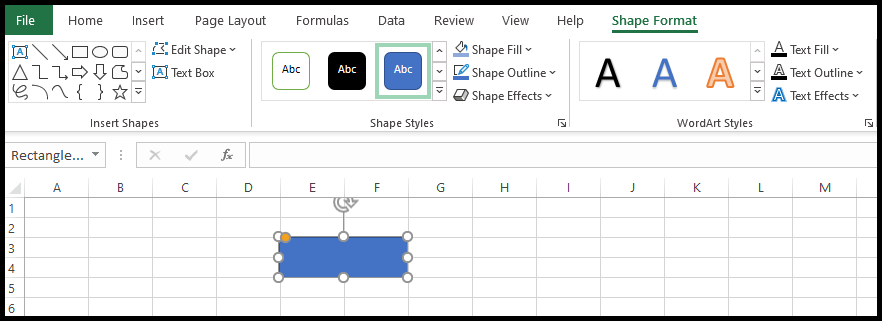
- Now, to enter the text in the button, double-click on the button and type the text.
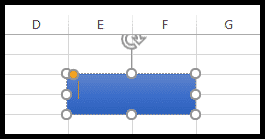
- For formatting, go to the “Shape Format” tab, where you will get multiple options to format the button.
- From here, you can format the font style, font color, button color, button effects, and much more.

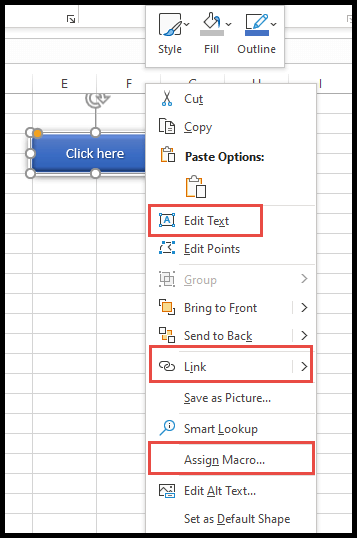
- To edit the text, add a hyperlink, or add a macro, just right-click on the button, and you will get a pop-up menu with multiple options.
- From here, you can edit the text, add a hyperlink, and add a macro to the button.
- Now, select the “Assign Macro” option to add the macro to the button.
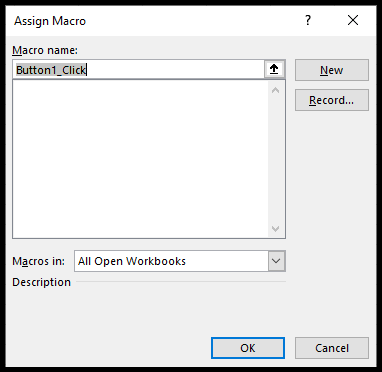
- Once you select the “Assign Macro” option, the “Assign Macro” dialog box opens.
- From here, select the macro and click OK.

- At this point, the button has become macro-enabled, and when you move your cursor over the button, the cursor turns into a hand pointer.

- To freeze the button’s position, right-click on the button, select “Format Shape”, and under Size & Properties ➜ Properties, select the option “Don’t move or size with cells”.

Add Macro Buttons Using Form Controls
- First, go to the “Developer” tab and click on the “Insert” icon under the “Controls” group on the ribbon.

- After that, select the first button option from the “Form Controls” menu and draw a button on the worksheet.

- Now, select or type the macro name from the “Assign Macro” dialogue box and click OK.
- If you haven’t created any macro yet, you can click Cancel and add the macro at a later stage.
- From here, right-click on the button and select “Assign Macro” to add the macro to the button if you haven’t assigned one yet.
- To format the button’s font size, style, color, etc., select the “Format Control” option.

- Once you click on “Format Control”, the “Format Control” window opens, where you can format the button’s font.
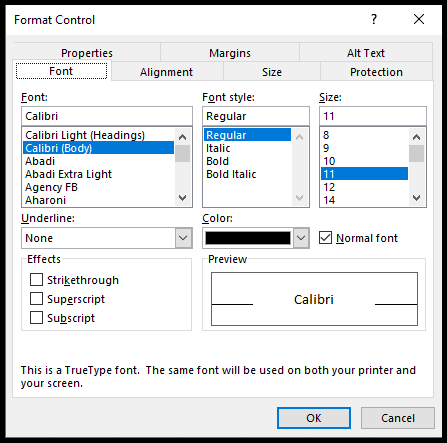
- To freeze the button’s position, select the “Properties” tab and select the option “Don’t move or size with cells” and click OK.

Add Macro Buttons Using ActiveX Controls
- First, go to the “Developer” tab and click on the “Insert” icon under the “Controls” group on the ribbon.

- After that, select the first button option from the “ActiveX Controls” menu and draw a button on the worksheet.

- Now, to create and insert the macro to the button, click on the “View Code” icon to launch the VBA editor.
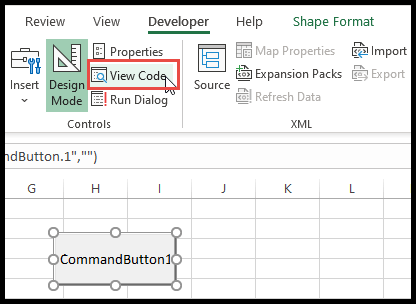
- Now, select “CommandButton1” in the drop-down list on the left side of the editor and choose the “Click” option from the drop-down list on the right side.

Then, write the code that you want to run between the two lines that VBA adds for the Click event. For example, the following code calls a macro named myMacro from a standard module when you click the button:
Private Sub CommandButton1_Click()
    Call myMacro
End Sub
In the end, go back to Excel and click “Design Mode” on the Developer tab to turn it off. While Design Mode is on, clicking the ActiveX button selects it instead of running the code.
Which Button to Use
- Shape: the best choice when you want the button to look good, as you get all the shape formatting options. It works on Windows and Mac.
- Form Controls button: a simple, classic-looking button that works on Windows and Mac.
- ActiveX button: has more properties and events, but it works only in Excel for Windows, and some security settings block ActiveX controls.
Whichever button you use, save the workbook as an Excel Macro-Enabled Workbook (.xlsm). Otherwise, Excel removes the macros when you save the file.
Frequently Asked Questions
Why don’t I see the Developer tab?
It’s hidden by default. Go to File ➜ Options ➜ Customize Ribbon, tick Developer in the list on the right, and click OK.
The common reasons are that macros are disabled (click Enable Content on the yellow bar), the file was saved as .xlsx, the macro was renamed or deleted, or, for an ActiveX button, Design Mode is still on.
Right-click the button to select it without running the macro. Then you can change its text, format, or assigned macro from the right-click menu.

Written by
Puneet Gogia
Microsoft MVP — Excel · Founder, Excel Champs
Twelve years of teaching Excel, and a decade before that using it as a data analyst. Every tutorial here is written from a file I actually built.