

10 Mod 3 returns 1, the remainder after dividing 10 by 3. In VBA, Mod is an operator, not a function, so it goes between the numbers: Range("B1").Value = Range("A1").Value Mod 3.
The common use is a test inside a loop. If n Mod 2 = 0 Then checks for an even number, and If i Mod 3 = 0 Then acts on every third row as i counts up.
VBA’s Mod doesn’t always match Excel’s MOD function. It rounds both numbers to whole numbers first, so 5.7 Mod 2 gives 0 where =MOD(5.7,2) gives 1.7. With a negative number, the result takes the sign of the first number, so -7 Mod 3 gives -1 where =MOD(-7,3) gives 2.
To get Excel’s result in VBA, use a - b * Int(a / b). Dividing by zero, as in 10 Mod 0, stops the macro with run-time error 11, and an empty cell counts as zero, so check the divisor when it comes from a cell.
In VBA, MOD is an operator, not a function. This operator divides two numbers and returns the remainder in the result.
It works like the MOD function in Excel, but with a few differences that you will see later in this tutorial.
You can use Mod in many ways, and in this tutorial, we will see some examples. Use the steps below to use the Mod operator in VBA:
Range("A1") = 10 Mod 3
- Specify the first number, which you want to divide.
- After that, enter the “mod” operator.
- Now, enter the number that you want to divide by.
- In the end, use a message box or a cell to get the remainder from the division.
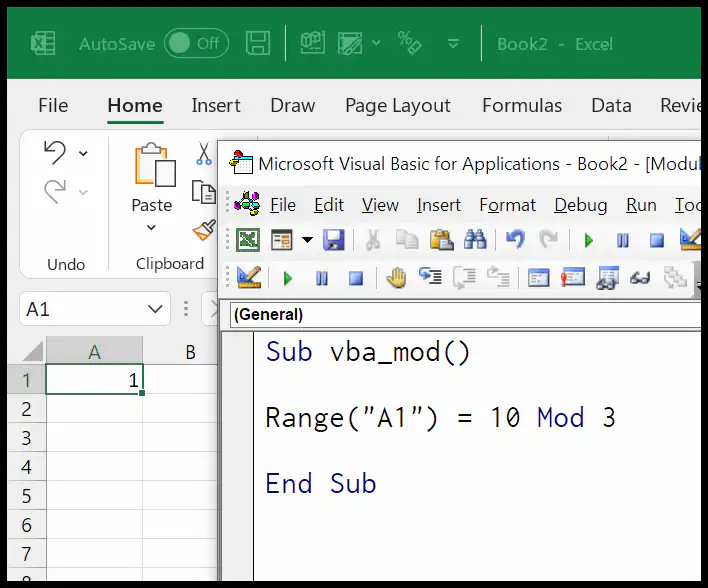
In the same way, you can also get the remainder using a message box.
In the following code, we used a message box and then used the Mod operator to get the remainder after dividing.
MsgBox 9 Mod 3
When you run this code, it returns zero in the message box, as there’s no remainder left when you divide 9 by 3.

Note: As I said, there’s also a function in Excel to get the remainder from the division of two numbers, and there are a few situations where the result you get from Excel is different from the result you get in VBA (decimal and negative numbers, see below).
Error in MOD
If you try to divide a number by zero, it always returns the division by zero error (run-time error 11).
Debug.Print 10 Mod 0
The above code returns that error.
If the divisor comes from a cell or a variable, check it before you use Mod, so the code doesn’t stop with this error:
Sub Mod_Check_Zero()
    If Range("B1").Value = 0 Then
        MsgBox "The divisor can't be zero."
    Else
        Range("C1") = Range("A1").Value Mod Range("B1").Value
    End If
End Sub
Mod also has a size limit. It converts the numbers to the Long data type, so numbers bigger than 2,147,483,647 can give you an Overflow error. For such numbers, use the formula in the next section, which doesn’t have this limit.
Mod in VBA vs the MOD Function in Excel
There are two situations where VBA’s Mod gives a different result from Excel’s MOD function:
- Decimal numbers: VBA rounds both numbers to whole numbers before it divides, and the result is always a whole number. So, 12.6 Mod 5 returns 3 (13 divided by 5), while MOD(12.6,5) in Excel returns 2.6.
- Negative numbers: In VBA, the result takes the sign of the number you divide. In Excel, it takes the sign of the divisor. So, -10 Mod 3 returns -1 in VBA, while MOD(-10,3) in Excel returns 2.
If you want the same result as Excel in your code, use the formula below instead of Mod. It uses Int, which rounds down, just like Excel’s MOD does:
Sub Mod_Like_Excel()
    Dim n As Double, d As Double
    n = -10
    d = 3
    MsgBox n - d * Int(n / d)
End Sub
This code returns 2, the same as MOD(-10,3) in a worksheet. And with 12.6 and 5, it returns 2.6. Note that MOD is not available in WorksheetFunction, so you can’t use Application.WorksheetFunction.Mod.
Check If a Number Is Even or Odd
One of the most common uses of Mod is to check if a number is even or odd. When you divide an even number by 2, the remainder is 0. The code below checks the number in cell A1:
Sub Even_Or_Odd()
    If Range("A1").Value Mod 2 = 0 Then
        MsgBox "Even"
    Else
        MsgBox "Odd"
    End If
End Sub
Here, comparing with 0 also works for negative numbers, because -7 Mod 2 returns -1, which is not 0.
Use Mod in a Loop to Work on Every Nth Row
In a loop, you can use Mod with the counter to do something on every second, third or nth row. The code below colors every second row from row 2 to row 20:
Sub Color_Every_Second_Row()
    Dim i As Long
    For i = 2 To 20
        If i Mod 2 = 0 Then
            Rows(i).Interior.Color = RGB(221, 235, 247)
        End If
    Next i
End Sub
To work on every third row, change the condition to i Mod 3 = 0.
Frequently Asked Questions
Why does Mod in VBA return a whole number for decimals?
Because VBA rounds both numbers to whole numbers before it divides them, and it drops any decimal part from the result. Use n – d * Int(n / d) if you need the decimal remainder.
How do I get the quotient without the remainder in VBA?
Use the integer division operator, the backslash (\). For example, 10 \ 3 returns 3, and 10 Mod 3 returns the remainder, 1.
What does Mod return if a cell is empty?
VBA treats an empty cell as 0. So, if the first number is empty, the result is 0, and if the divisor is empty, you get the division by zero error.

Written by
Puneet Gogia
Microsoft MVP — Excel · Founder, Excel Champs
Twelve years of teaching Excel, and a decade before that using it as a data analyst. Every tutorial here is written from a file I actually built.