

pos = WorksheetFunction.Match(943, Range("A2:A100"), 0) returns the position of 943 in A2:A100. The 0 asks for an exact match; leave it out and MATCH assumes the list is sorted in ascending order and returns an approximate match.
The result is a position within the range, not a row number. With the range starting at A2, a result of 14 means row 15, so add the offset when you need the row: Range("A2").Row + pos - 1.
When the value isn’t there, WorksheetFunction.Match stops the macro with run-time error 1004. Application.Match returns an error value instead, which you can test:
Dim pos As Variant
pos = Application.Match(943, Range("A2:A100"), 0)
If IsError(pos) Then
    MsgBox "Not found"
Else
    MsgBox "Found in row " & Range("A2").Row + pos - 1
End If
Text and numbers don’t match each other, so 943 won’t find “943” stored as text. For part of a text value, use wildcards with an exact match, as in Application.Match("*North*", Range("B2:B100"), 0); the match ignores upper and lower case.
There are many functions in VBA that you can use, but there’s no function equivalent to MATCH. Still, there’s a way to use it. In VBA, there’s the WorksheetFunction property that helps you access the worksheet functions to use in a macro.
Using Match in VBA
As I said, we are going to use the worksheet function in the macro, but there’s one thing that you need to take care of: when you use a worksheet function in VBA, it won’t show you the names of the arguments, so make sure to check all the arguments that you need to specify in MATCH. Below is a sample shot for your reference.

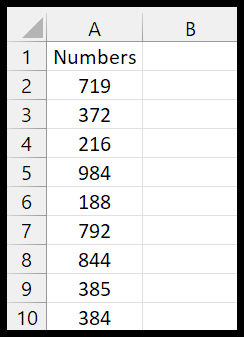
Following is an example where we have a list of random numbers, and you need to match the number “943”.
To write a code for this, open the visual basic editor, insert a new module, and follow the steps below:
Range("B1") = WorksheetFunction.Match(943, Range("A:A"), 0)
- Enter the WorksheetFunction property and type a dot to get the list of functions.
- Select the MATCH function, or you can also type it.
- Type a starting parenthesis to specify the arguments.
- In the arguments, you need to specify the value to look for, the range to look into, and the type of match.
- In the end, use a cell reference to get the result of the function.
The MATCH function has three arguments: lookup_value (the value to look for), lookup_array (the range to look into) and match_type. For match_type, use 0 for an exact match, 1 (the default) for the largest value that is less than or equal to the lookup value, or -1 for the smallest value that is greater than or equal to it. With 1, the range must be sorted in ascending order, and with -1, in descending order.
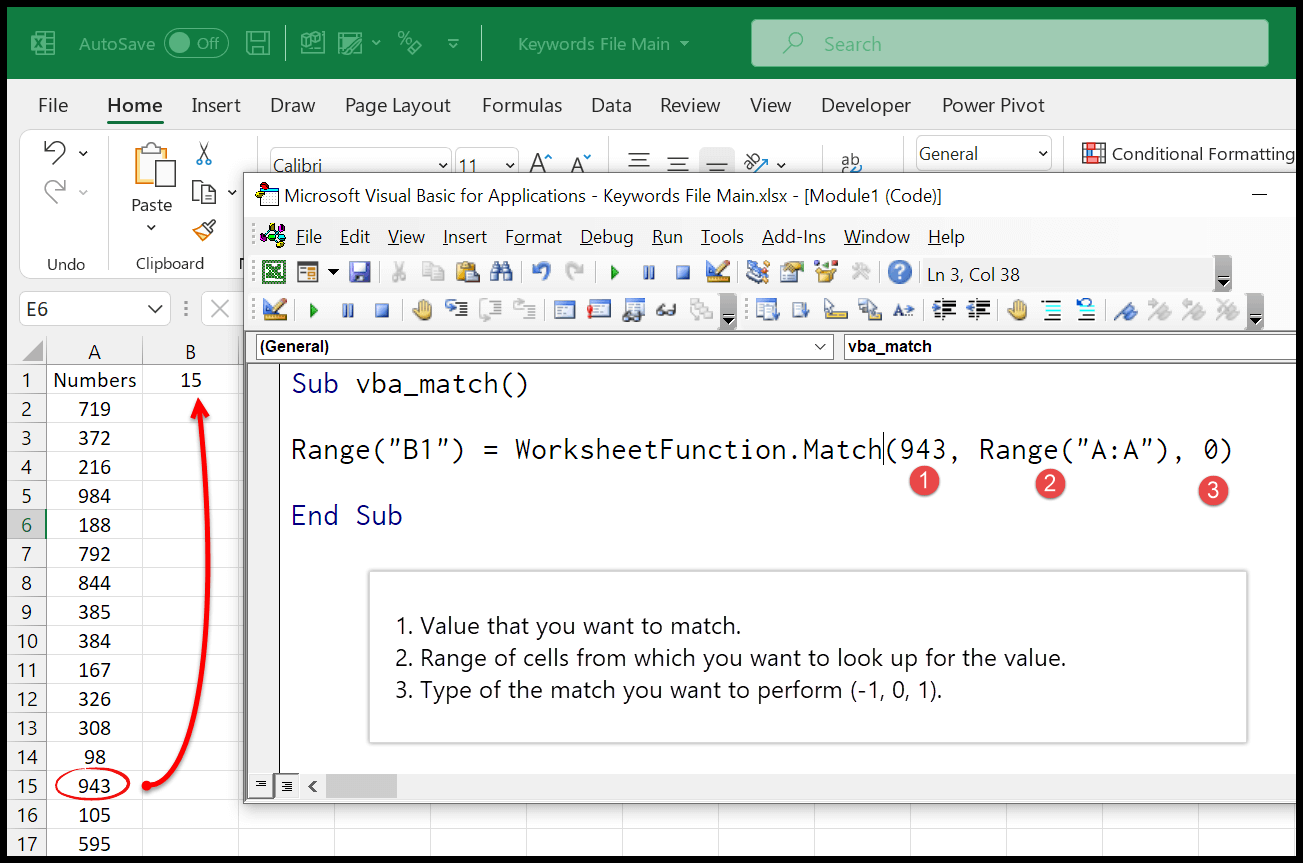
Now when you run the code, it enters the number 15 in cell B1. Why? Because the value “943” is in the 15th cell in column A. And as you can see in the code, we have referred to the entire column instead of a range.
Important Note
When you use the WorksheetFunction property in a VBA code, it won’t show you the names of the arguments. Instead, it shows you Arg1, Arg2 and so on. So, you need to know the arguments that you are going to define in the function.
For this, the best way is to go to the worksheet and enter the MATCH function there in a cell and then use the keyboard shortcut Ctrl + Shift + A to get the name of the arguments. Then you can copy those names and paste them into the code to get a reference for specifying the argument.
Otherwise, you can just remember the names of the arguments and then define them in the code.
Handle the Error When There Is No Match
If the value is not in the range, WorksheetFunction.Match doesn’t return #N/A as it does in a worksheet. Instead, the code stops with run-time error 1004 (“Unable to get the Match property of the WorksheetFunction class”).
To avoid this, use Application.Match instead. It returns an error value instead of stopping the code, and you can test it with IsError:
Sub Match_With_Error_Check()
    Dim result As Variant
    result = Application.Match(943, Range("A:A"), 0)
    If IsError(result) Then
        MsgBox "The value is not in the list."
    Else
        Range("B1") = result
    End If
End Sub
Declare the variable as Variant here. A Long or Double variable can’t hold the error value, and you get a Type mismatch error.
Use a Cell Value as the Lookup Value
Instead of typing 943 in the code, you can take the lookup value from a cell. In the code below, the value comes from cell D1, and the code looks for it in A1:A20:
Sub Match_Cell_Value()
    Range("B1") = WorksheetFunction.Match(Range("D1").Value, Range("A1:A20"), 0)
End Sub
MATCH treats a number and a number stored as text as different values. So, if cell D1 has 943 as a number and the list has “943” as text (or the other way around), there’s no match.
Match Text with Wildcards
With match_type 0, you can use wildcards in a text lookup value. An asterisk (*) matches any number of characters, and a question mark (?) matches one character. The code below finds the first value that starts with “Ap”:
Sub Match_Wildcard()
    Range("B1") = WorksheetFunction.Match("Ap*", Range("A:A"), 0)
End Sub
MATCH is not case-sensitive, so “ap*” and “AP*” give the same result.
Use MATCH with INDEX to Get a Value
MATCH only gives you the position of the value. To get a value from another column in the same row, use the position with INDEX. In the code below, MATCH finds the position of the value from D1 in column A, and INDEX returns the value from column B in that position:
Sub Index_Match()
    Dim pos As Variant
    pos = Application.Match(Range("D1").Value, Range("A1:A20"), 0)
    If Not IsError(pos) Then
        Range("E1") = WorksheetFunction.Index(Range("B1:B20"), pos)
    End If
End Sub
Keep both ranges the same size and starting in the same row, or INDEX returns a value from the wrong row.
Frequently Asked Questions
Does MATCH in VBA return the row number?
It returns the position in the range, not the row number of the sheet. The two are the same only when the range starts in row 1 (like A:A or A1:A20). For a range like A5:A20, add 4 to the position to get the row number.
What is the difference between Application.Match and WorksheetFunction.Match?
Both give the same position when there’s a match. When there’s no match, WorksheetFunction.Match stops the code with a run-time error, while Application.Match returns an error value that you can check with IsError.
Can I use MATCH on a VBA array?
Yes. The lookup array can be a one-row or one-column VBA array instead of a range, for example Application.Match(“b”, Array(“a”, “b”, “c”), 0), which returns 2.

Written by
Puneet Gogia
Microsoft MVP — Excel · Founder, Excel Champs
Twelve years of teaching Excel, and a decade before that using it as a data analyst. Every tutorial here is written from a file I actually built.