

Columns("B").Hidden = True hides column B, and Rows(5).Hidden = True hides row 5. Set the property to False to show them again, and give a range to do several at once: Columns("B:D").Hidden = True or Rows("2:10").Hidden = True.
To unhide everything on a sheet, use Worksheets("Data").Cells.EntireColumn.Hidden = False and Worksheets("Data").Cells.EntireRow.Hidden = False. To switch a column between hidden and visible each time the macro runs, use Columns("B").Hidden = Not Columns("B").Hidden.
To hide rows by their content, loop through them and test a cell. This hides every row where column C is 0 or empty and shows the rest:
Dim r As Long
For r = 2 To Cells(Rows.Count, "A").End(xlUp).Row
    Rows(r).Hidden = (Cells(r, "C").Value = 0)
Next r
Hidden works only on whole rows or columns, so Range("A1").Hidden = True fails with error 1004; use Range("A1").EntireRow.Hidden. The same error appears on a protected sheet, so unprotect it first with Worksheets("Data").Unprotect, or protect it with UserInterfaceOnly:=True so macros can still make changes.
VBA Hidden Property
To hide/unhide a column or a row in Excel using VBA, you can use the “Hidden” property. To use this property, you need to specify the column, or the row using the range object and then specify TRUE (to hide) or FALSE (to unhide).
- Specify the column or the row using the range object.
- After that, use the EntireColumn/EntireRow property to refer to the entire column or row.
- Next, use the Hidden property.
- In the end, specify True or False.
Following is an example to consider:
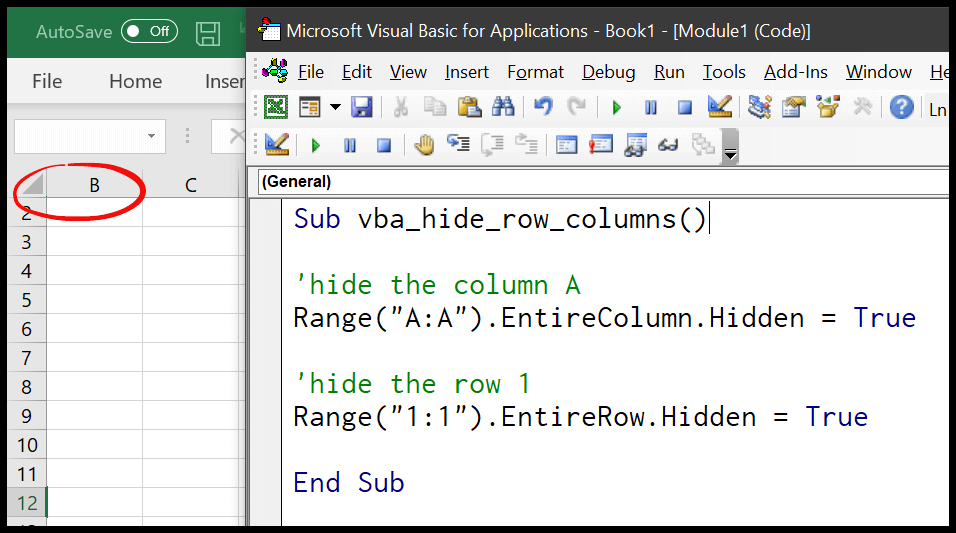
Sub vba_hide_row_columns()
'hide the column A
Range("A:A").EntireColumn.Hidden = True
'hide the row 1
Range("1:1").EntireRow.Hidden = True
End Sub
In the above code, we have used the Hidden property to hide column A and row 1. And here is the code for unhiding them.
Sub vba_hide_row_columns()
'unhide the column A
Range("A:A").EntireColumn.Hidden = False
'unhide the row 1
Range("1:1").EntireRow.Hidden = False
End Sub
VBA Hide/Unhide Multiple Rows and Columns
To hide more than one column or row, refer to the whole range of them in the range object, like A:C for columns A to C and 1:4 for rows 1 to 4.
Sub vba_hide_row_columns()
'hide the column A to C
Range("A:C").EntireColumn.Hidden = True
'hide the row 1 to 4
Range("1:4").EntireRow.Hidden = True
End Sub
And in the same way, if you want to unhide multiple rows and columns, you can use the following code.
Sub vba_hide_row_columns()
'unhide the column A to C
Range("A:C").EntireColumn.Hidden = False
'unhide the row 1 to 4
Range("1:4").EntireRow.Hidden = False
End Sub
If the columns or rows are not next to each other, separate them with commas inside the range object.
Sub vba_hide_non_adjacent()
    'hide columns A, C and E
    Range("A:A,C:C,E:E").EntireColumn.Hidden = True
    'hide rows 2 and 5
    Range("2:2,5:5").EntireRow.Hidden = True
End Sub
You can also use the Columns and Rows properties directly, without EntireColumn or EntireRow. Both lines below hide column B and row 3.
Sub vba_hide_with_columns_rows()
    Columns("B").Hidden = True
    Rows(3).Hidden = True
End Sub
Hide All Columns and Rows
Sub vba_hide_row_columns()

'hide all the columns
Columns.EntireColumn.Hidden = True

'hide all the rows
Rows.EntireRow.Hidden = True

End Sub

Unhide All Columns and Rows
Sub vba_hide_row_columns()

'unhide all the columns
Columns.EntireColumn.Hidden = False

'unhide all the rows
Rows.EntireRow.Hidden = False

End Sub
Hide/Unhide Columns and Rows in Another Worksheet
Sub vba_hide_row_columns()

'unhide all columns in the sheet 1
Worksheets("Sheet1").Columns.EntireColumn.Hidden = False

'unhide all rows in the sheet 1
Worksheets("Sheet1").Rows.EntireRow.Hidden = False

End Sub
The above code unhides all the columns and rows in “Sheet1”, even when another sheet is active. To hide them instead, change False to True. You can use the sheet name in the same way with a specific range, like Worksheets(“Sheet1”).Range(“A:C”).EntireColumn.Hidden = True.
Toggle a Column or Row (Hide or Unhide with One Code)
If you want one macro that hides a column when it’s visible and unhides it when it’s hidden, use Not with the Hidden property. Every time you run this code, column B switches between hidden and visible.
Sub vba_toggle_column()
    Columns("B").Hidden = Not Columns("B").Hidden
End Sub
The Hidden property also tells you whether a column or a row is hidden right now, so you can use it in an IF statement.
Sub vba_check_hidden()
    If Rows(5).Hidden = True Then
        MsgBox "Row 5 is hidden."
    Else
        MsgBox "Row 5 is visible."
    End If
End Sub
Hide Rows Based on a Cell Value
This is one of the most common uses of the Hidden property. The following code goes through the cells in column A (from row 2 to the last used row) and hides every row where the value is “Closed”.
Sub vba_hide_rows_by_value()
    Dim lastRow As Long, i As Long
    lastRow = Cells(Rows.Count, "A").End(xlUp).Row
    Application.ScreenUpdating = False
    For i = 2 To lastRow
        If Cells(i, "A").Value = "Closed" Then
            Rows(i).Hidden = True
        End If
    Next i
    Application.ScreenUpdating = True
End Sub
You can change the column, the value and the condition as you need. For example, use Cells(i, “A”).Value = “” to hide the blank rows. And to show all the rows again, use Rows.Hidden = False.
Frequently Asked Questions
Why do I get error 1004 when I hide a row or column?
The most common reason is that the sheet is protected. Unprotect it with ActiveSheet.Unprotect before hiding (add the password if it has one) and protect it again at the end of the code.
Yes. Functions like SUM still include the values in hidden rows. If you want a total of only the visible rows, use SUBTOTAL with 109 as the first argument (or AGGREGATE), which skips the rows you have hidden:
=SUBTOTAL(109,A2:A100)
Is setting the column width to 0 the same as hiding it?
Yes. ColumnWidth = 0 (or RowHeight = 0 for a row) hides it in the same way, and the Hidden property returns True. But Hidden = True is clearer to read, and when you unhide it, Excel brings back the width it had before.

Written by
Puneet Gogia
Microsoft MVP — Excel · Founder, Excel Champs
Twelve years of teaching Excel, and a decade before that using it as a data analyst. Every tutorial here is written from a file I actually built.