

Erase myArray clears an array. For a fixed-size array, such as Dim myArray(1 To 10) As Long, it keeps the size and resets every element: numbers to 0, strings to "", Variants to Empty and objects to Nothing.
For a dynamic array, declared with empty brackets and sized with ReDim, Erase removes the elements and frees the memory. Size it again with ReDim myArray(1 To 20) before you use it; until then, UBound(myArray) or any element stops with error 9, “Subscript out of range”.
ReDim on its own also clears a dynamic array while setting a new size. Add Preserve to keep the values: ReDim Preserve myArray(1 To 30) keeps the first 20 and adds 10 empty slots, and a smaller size drops the elements past the new end. Preserve can change only the last dimension.
To clear one element, assign it the empty value for its type, as in myArray(5) = 0 or myArray(5) = "". VBA can’t remove an element from the middle of an array; copy the ones you want to keep into a new array instead.
You need to use the “Erase” statement to clear an array in VBA. Add the keyword “Erase” before the name of the array that you want to clear, but note that all the values will be reset in the array. In the following array, you have 3 elements, and we have used the Erase statement to erase all of them.
Sub ClearArray()
    Dim myArray(1 To 3) As Long
    myArray(1) = 10
    myArray(2) = 20
    myArray(3) = 30
    Erase myArray
    Debug.Print myArray(2)  ' Prints 0
End Sub
You can also clear a dynamic array by using ReDim again without Preserve. In the following code, the array has four values, and the second ReDim statement clears all of them:
Sub myMacro1()

Dim myArray() As Long
ReDim myArray(4)

myArray(1) = 1
myArray(2) = 2
myArray(3) = 3
myArray(4) = 4

ReDim myArray(1 To 5)

MsgBox myArray(3)

End Sub
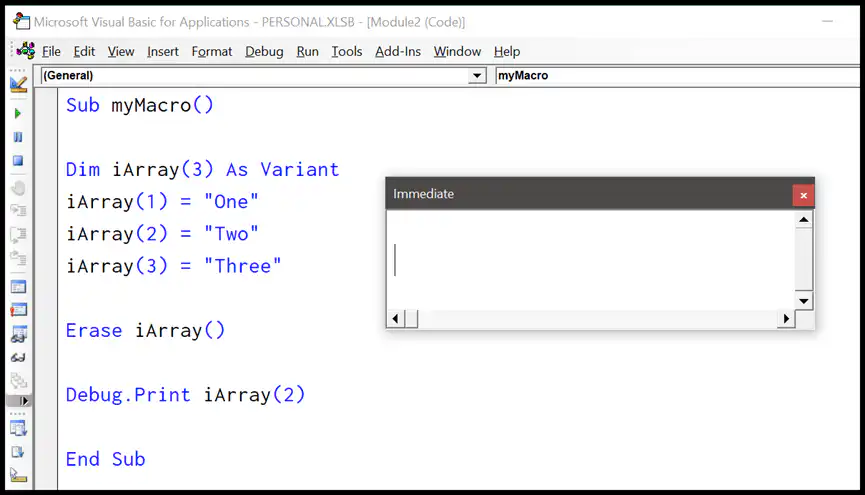
And with that statement, it has erased all the elements from the array, and when we use the Debug.Print (Immediate Window) to get the array element, there’s nothing left (an array of numbers returns 0).
Clear Dynamic Array
When you use ReDim, it removes all the elements. But you can use the Preserve keyword to preserve some of the elements and clear an array partially. In the following example, we have an array, and we have erased the fourth value and then re-defined the array to 5 elements.
And here’s the code if you want to clear a dynamic array partially:
Sub myMacro2()

Dim myArray() As Long
ReDim myArray(1 To 4)

myArray(1) = 1
myArray(2) = 2
myArray(3) = 3
myArray(4) = 4

'erase position 4 but preserve the 1,2, and 3
ReDim Preserve myArray(1 To 3)

'redefine the array items to five
ReDim Preserve myArray(1 To 5)

MsgBox myArray(3)

End Sub
In this code, the message box shows 3, as the first three values are kept. Positions 4 and 5 are now empty and hold 0.
You can use Erase with a dynamic array as well, but it removes the array completely. After that, you need to use ReDim before you can store values in it again, otherwise you get the “Subscript out of range” error (Error 9).
Sub EraseDynamicArray()
    Dim myArray() As Long
    ReDim myArray(1 To 3)
    myArray(1) = 10
    Erase myArray
    ReDim myArray(1 To 3)  ' Needed before using the array again
    myArray(1) = 20
    Debug.Print myArray(1)  ' Prints 20
End Sub
Clear Multiple Arrays at Once
Erase can clear more than one array in a single line. Just separate the array names with commas:
Sub ClearMultipleArrays()
    Dim custNames(1 To 3) As String
    Dim amounts(1 To 3) As Double
    custNames(1) = "John"
    amounts(1) = 250
    Erase custNames, amounts
    Debug.Print custNames(1) = ""  ' Prints True
End Sub
Clear a Single Element of an Array
There’s no statement to clear just one element. Instead, assign the empty value of the array’s data type to that element: 0 for numbers, “” for strings, Empty for a Variant, and Nothing for objects.
Sub ClearOneElement()
    Dim myArray(1 To 3) As Long
    myArray(1) = 10
    myArray(2) = 20
    myArray(3) = 30
    myArray(2) = 0  ' Clears only the second element
End Sub
Erase vs ReDim: Which One to Use
- Erase on a fixed array: clears all the values and keeps the size, so you can use the array again straight away.
- Erase on a dynamic array: removes the array and frees its memory, so you need ReDim before you use it again.
- ReDim without Preserve: clears all the values of a dynamic array and lets you set a new size in the same line.
- ReDim Preserve: keeps the values and only clears the positions you cut off (you can only change the last dimension).
Important Points
- When you erase a fixed array:
- In an array of strings, the Erase statement will reset variable-length strings to the zero-length string “” and fixed-length strings to zero.
- In an array which has numeric values, the Erase statement will reset all the elements to zero.
- In an array which has the Variant data type, the Erase statement will reset all the elements to Empty.
- In an array which has objects, the Erase statement will reset all the elements to Nothing.
- In an array of a user-defined type, the Erase statement will reset each element as if it were a separate variable.
- When you erase a dynamic array, the Erase statement frees the memory used by the dynamic array, and you need to use ReDim before you can use it again.
Frequently Asked Questions
Does Erase delete the array?
Only a dynamic array. A fixed array keeps its size and only its values are reset, while a dynamic array is removed until you use ReDim on it again.
Why do I get “Subscript out of range” after Erase?
Because the array is dynamic, and Erase has removed all its elements. Using an element, or UBound and LBound, on it gives Error 9 until you use ReDim to give it a size again.
How do I clear a dynamic array but keep its size?
Use ReDim with the same size and without Preserve, like ReDim myArray(1 To 5). It clears all the values and the array stays ready to use.

Written by
Puneet Gogia
Microsoft MVP — Excel · Founder, Excel Champs
Twelve years of teaching Excel, and a decade before that using it as a data analyst. Every tutorial here is written from a file I actually built.