

Exit Sub stops the procedure at that line and skips everything after it. It usually sits inside an If to stop early when there’s nothing to do: If Range("A1").Value = "" Then Exit Sub. In a Function, use Exit Function instead, after setting the return value.
With an input box, check the answer and exit on bad input:
Dim age As Variant
age = InputBox("Enter your age.", "Age")
If age = "" Then Exit Sub
If Not IsNumeric(age) Then
    MsgBox "Enter your age as a number."
    Exit Sub
End If
Range("B2").Value = CLng(age)
In error handling, Exit Sub goes before the handler’s label, so the handler runs only when there’s an error:
Sub UpdateTotals()
    On Error GoTo Handler
    Range("C2").Value = Range("A2").Value / Range("B2").Value
    Exit Sub
Handler:
    MsgBox "Error " & Err.Number & ": " & Err.Description
End Sub
Exit Sub ends only the current procedure. When MacroA calls MacroB and MacroB exits, MacroA carries on from its next line. To stop everything, have MacroB return a value that MacroA checks, or use End, which also clears every global variable.
VBA Exit Sub is a statement that you use to exit a Sub procedure. As you know, each line in a macro executes one after another, and when you add the “Exit Sub” statement, VBA exits the procedure without running the rest of the code that comes after it. It works best with loops and the message box.
Using Exit Sub Statement in VBA
- First, decide on which line you want to add the “Exit Sub”.
- After that, check the structure of the code that will get executed when you run the code.
- Next, enter the “Exit Sub”.
- In the end, it’s better to have a comment that describes why you are using the “Exit Sub” statement.
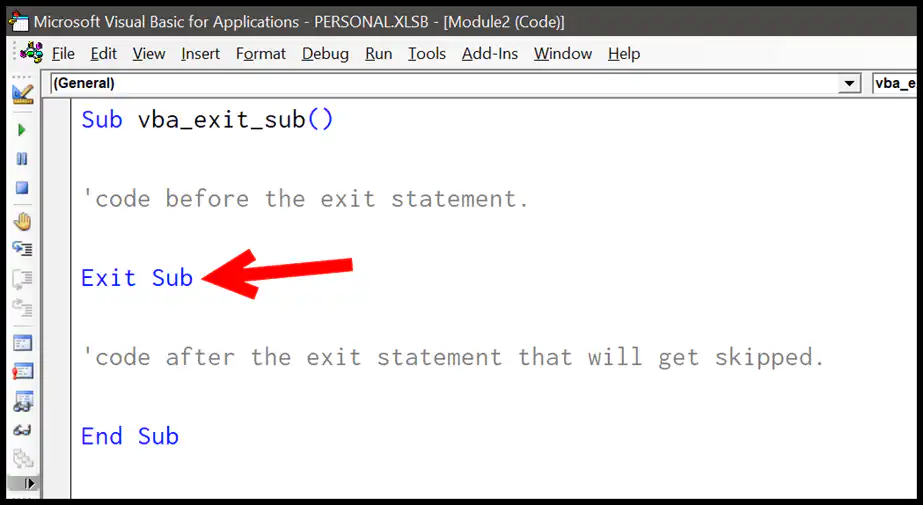
Note: In a VBA function procedure, the statement that you need to use is “Exit Function”.
Use Exit Sub with a Message Box and Input Box
Let’s say you want to get input from the user with an input box and exit the procedure if the user’s reply is not a number (consider the following example).
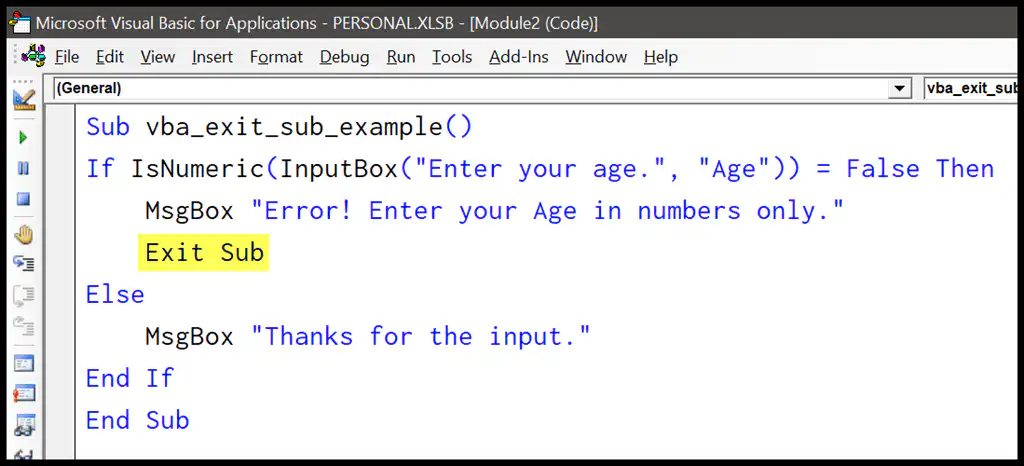
In the above code, you have ISNUMERIC that checks whether the value entered in the input box is a number. If it is not, it uses the Exit Sub statement to end the procedure after showing a message box.
Sub vba_exit_sub_example()

If IsNumeric(InputBox("Enter your age.", "Age")) = False Then
    MsgBox "Error! Enter your Age in numbers only."
    Exit Sub
Else
    MsgBox "Thanks for the input."
End If

End Sub
On Error Exit Sub
One of the best things about “Exit Sub” is that you can use it to exit the procedure when an error occurs. Below is the code that divides a number by zero, which returns “Run-time error ’11′” (Division by zero) and stops the execution.
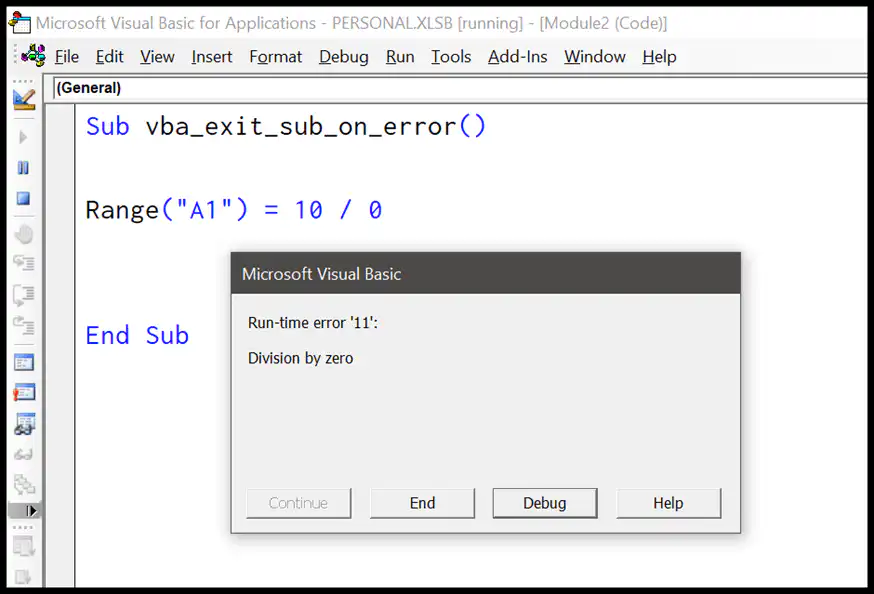
Here you can use the GoTo statement to create an error handler with the “Exit Sub” to exit the procedure (consider the following code).
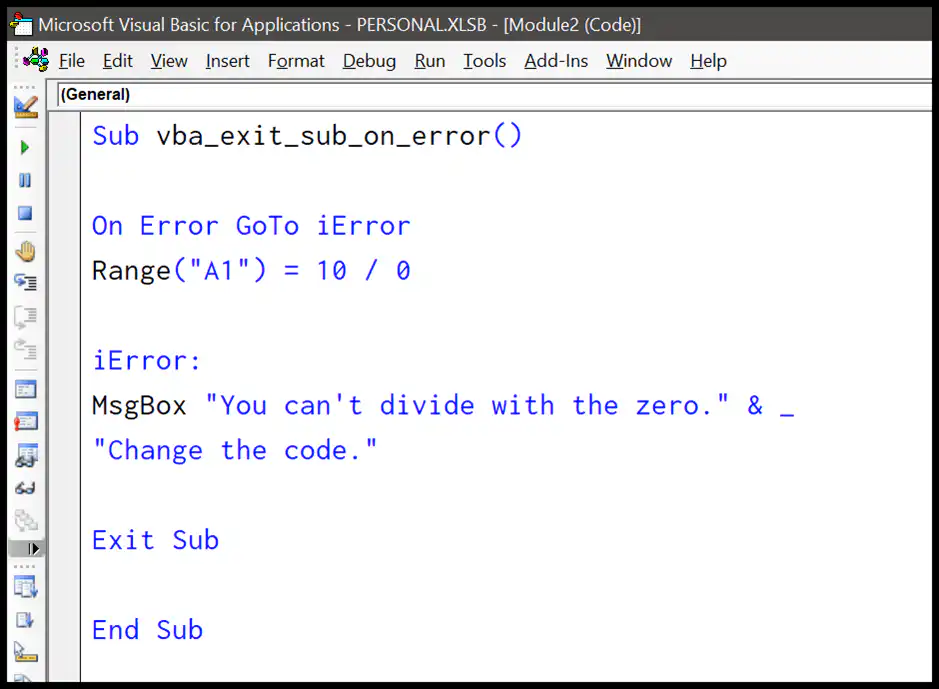
Sub vba_exit_sub_on_error()

On Error GoTo iError
Range("A1") = 10 / 0

iError:
MsgBox "You can't divide with the zero." & _
"Change the code."
Exit Sub

End Sub
In the above code, you have an error handler, “iError” with a message box and then the “Exit Sub” statement. When an error occurs during the calculation, the GoTo statement jumps to the error handler (VBA Error Handling), and it will exit the procedure.
Here is a small catch in the code above: the error handler sits in the normal flow of the code. If there is no error, VBA still runs the lines under “iError:” and shows the message. To run the handler only when an error occurs, put the “Exit Sub” before the label, like the code below:
Sub vba_exit_sub_before_handler()

On Error GoTo iError
Range("A1") = 10 / 2
Exit Sub

iError:
MsgBox "You can't divide by zero. Change the code."

End Sub
Now, when the calculation works, the “Exit Sub” ends the procedure before it reaches the error handler. And when an error occurs, the GoTo statement skips the “Exit Sub” and jumps straight to the handler.
Exit Sub Inside a Loop
You can also use “Exit Sub” inside a loop to stop the whole procedure as soon as you find what you are looking for. The code below loops through the range A1:A100, selects the first blank cell, and exits the procedure. If there is no blank cell, the loop ends and the message box shows up.
Sub vba_exit_sub_in_loop()

Dim c As Range
For Each c In Range("A1:A100")
    If IsEmpty(c.Value) Then
        c.Select
        Exit Sub
    End If
Next c

MsgBox "There is no blank cell in A1:A100."

End Sub
If you only want to leave the loop and run the rest of the code, use “Exit For” (in a For…Next or For Each…Next loop) or “Exit Do” (in a Do…Loop) instead of “Exit Sub”. Both jump to the line after the loop, while “Exit Sub” ends the entire procedure.
Exit Sub in a Procedure Called by Another Procedure
“Exit Sub” only ends the procedure it is in. When that procedure was called by another one, VBA goes back to the calling procedure and runs the line after the call. In the code below, “check_sheet” exits when the active sheet is not named “Data”, but the message box in “main_macro” still shows up.
Sub main_macro()
    Call check_sheet
    MsgBox "This line still runs after check_sheet exits."
End Sub

Sub check_sheet()
    If ActiveSheet.Name <> "Data" Then Exit Sub
    Range("A1").Value = "Checked"
End Sub
If you want the calling procedure to stop as well, turn the check into a function that returns True or False, and use “Exit Sub” in the calling procedure when the function returns False.
Restore Settings Before You Exit Sub
When your code turns off a setting at the start, like events, make sure you turn it back on before the “Exit Sub”. Otherwise, the setting stays off after the macro ends. Application.EnableEvents is one such setting: Excel doesn’t switch it back on by itself.
Sub vba_exit_sub_restore_settings()

Application.EnableEvents = False

If ActiveSheet.Name <> "Report" Then
    Application.EnableEvents = True
    Exit Sub
End If

Range("A1").Value = Now
Application.EnableEvents = True

End Sub
Exit Sub vs End vs End Sub
These three look alike, but they do different things:
- Exit Sub: Ends the current procedure right away. If another procedure called it, the code goes back to that procedure and carries on.
- End Sub: The last line of every Sub procedure. It marks where the procedure ends, and you can only have one of it in a procedure.
- End: Stops all the running code at once, including the procedure that called the current one. It also resets all module-level and static variables, and it doesn’t run the Unload, QueryUnload or Terminate events of forms and class modules.
In most cases, “Exit Sub” is the one you need. Use “End” only when you want to stop everything, as Microsoft suggests ending a program in the normal way instead.
Frequently Asked Questions
What is the difference between Exit Sub and Exit Function?
“Exit Sub” works in a Sub procedure, and “Exit Function” works in a Function procedure. Both end the procedure right away. If you use “Exit Sub” in a function, VBA shows a compile error.
Does Exit Sub stop the macro that called it?
No. “Exit Sub” only ends the procedure it is in, and the code goes back to the line after the call in the calling procedure. To stop the calling procedure too, return a value from a function and check it there, or use the “End” statement.
Can I use more than one Exit Sub in a procedure?
Yes. You can have as many “Exit Sub” statements as you need, for example, one for each check at the start of the code. But a procedure has only one “End Sub”, which is its last line.

Written by
Puneet Gogia
Microsoft MVP — Excel · Founder, Excel Champs
Twelve years of teaching Excel, and a decade before that using it as a data analyst. Every tutorial here is written from a file I actually built.