

Application.StatusBar = "Processing row " & i shows your own text in the status bar at the bottom of the Excel window. Set Application.StatusBar = False at the end to hand the bar back to Excel; without that line, your last message stays there for the rest of the session.
For a progress message in a loop, update it on each pass and add DoEvents so Excel redraws it:
Dim i As Long, lastRow As Long
lastRow = Cells(Rows.Count, "A").End(xlUp).Row
For i = 2 To lastRow
    'work on row i here
    Application.StatusBar = "Processing " & i & " of " & lastRow & " (" & Format(i / lastRow, "0%") & ")"
    DoEvents
Next i
Application.StatusBar = False
The status bar keeps updating even with Application.ScreenUpdating = False, so it’s a good way to show progress in a fast macro. On a long loop, update it every 100 rows with If i Mod 100 = 0 Then, and put Application.StatusBar = False in your error handler so a failed run doesn’t leave an old message behind.
To hide the status bar altogether, use Application.DisplayStatusBar = False, and True to show it again. It stays hidden until you set it back, so restore it before the macro ends.
In VBA, there’s a “StatusBar” property that can help you show a value on the status bar, and there’s also “DisplayStatusBar” to hide and show the status bar in the Excel window. While using these properties, you need to reset the status bar at the end; otherwise, the last message or setting will stay there.
In this tutorial, we will see a few examples that you can use while working in Excel.
Show a Value on the Status Bar
As I said, you can use the StatusBar property to show a value on the status bar. In the below code, you have used the value “Hello” to show on the status bar.
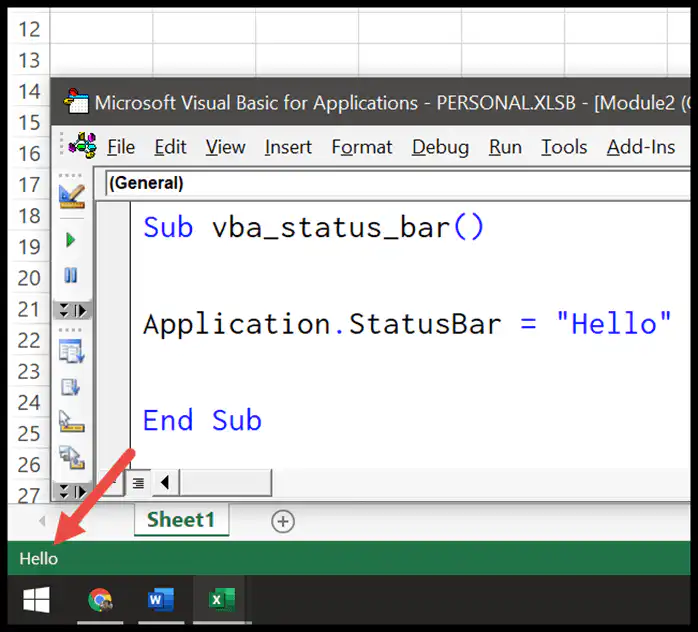
- Use the keyword “Application” to refer to the Excel application.
- Type a dot to get the list of properties and methods.
- Select the “StatusBar” property.
- In the end, use the equals sign to specify the value you want to display on the status bar.
Sub vba_status_bar()
Application.StatusBar = "Hello"
End Sub
The message stays there even after the macro ends. To give the status bar back to Excel, set the StatusBar property to False:
Sub vba_status_bar_reset()
    Application.StatusBar = False
End Sub
Hide the Status Bar using VBA
Now let’s say you want to hide the status bar. You can use the DisplayStatusBar property and set it to “False” (consider the following code).
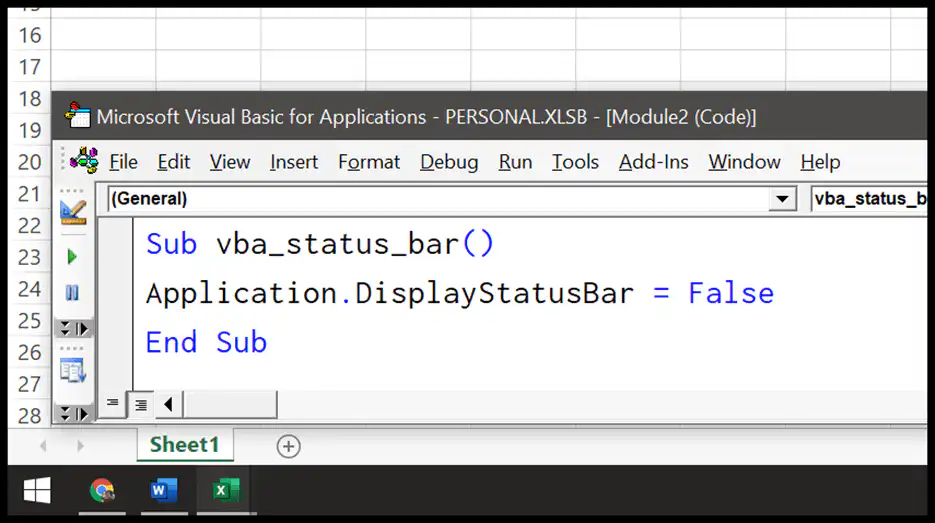
- Use the keyword “Application” to refer to the Excel application.
- Type a dot to get the list of properties and methods.
- Select the “DisplayStatusBar” property.
- In the end, use the equals sign to specify “False”.
Sub vba_status_bar_hide()
Application.DisplayStatusBar = False
End Sub
To show it again, set DisplayStatusBar to True. This setting belongs to Excel, not to the workbook, so the status bar stays hidden in all the workbooks until you show it again.
Sub vba_status_bar_show()
    Application.DisplayStatusBar = True
End Sub
Update Progress on Status Bar
The following code shows a progress counter on the status bar using the count 1 to 100, which you can change as per your need.
Sub vba_status_bar_update()

Dim x As Integer
Dim iTimer As Double

'you can change the loop if you need
For x = 1 To 100

'dummy loop to run, you can change it as well
iTimer = Timer
Do
Loop While Timer - iTimer < 0.03

Application.StatusBar = "Progress: " & x & " of 100: " & Format(x / 100, "Percent")
DoEvents

Next x

Application.StatusBar = False

End Sub
The Do loop is only there to slow the code down so that you can see the counter; in your own code, put your real work in its place. DoEvents lets Excel redraw the status bar on each round, and in the end, StatusBar = False gives the status bar back to Excel.
Reset the Status Bar Even If the Code Fails
If your macro stops with an error, the line that resets the status bar never runs, and the message stays there. Use an error handler so the status bar is reset in both cases:
Sub vba_status_bar_safe()
    On Error GoTo CleanUp
    Application.StatusBar = "Working on the report..."
    ' your code here
CleanUp:
    Application.StatusBar = False
    If Err.Number <> 0 Then MsgBox "Error " & Err.Number & ": " & Err.Description
End Sub
Important Points to Remember
- You need to use “Application” with the status bar properties to use them.
- Once you show a message on the status bar, you need to clear that message with Application.StatusBar = False.
Frequently Asked Questions
Why doesn’t my status bar message update during the loop?
Excel may not get the time to redraw it while the code runs. Add DoEvents right after you change the message, as in the progress code above.
Does ScreenUpdating = False hide the status bar message?
No. The status bar still shows your messages when screen updating is turned off, which makes it a good place to show progress in a fast macro.
How do I read the current status bar text?
Use Application.StatusBar in your code, like MsgBox Application.StatusBar. It returns your message, or False when Excel controls the status bar.

Written by
Puneet Gogia
Microsoft MVP — Excel · Founder, Excel Champs
Twelve years of teaching Excel, and a decade before that using it as a data analyst. Every tutorial here is written from a file I actually built.