

Join text in VBA with &: Range("C2").Value = Range("A2").Value & " " & Range("B2").Value puts a first name, a space and a last name together. Add any separator the same way, as in city & ", " & country.
Use &, not +. + also joins text, but next to a number it tries to add, so "Order " + 5 stops with a type mismatch while "Order " & 5 gives “Order 5”. Format numbers and dates as you join them: "Total: " & Format(total, "$#,##0.00").
To join a whole range, use WorksheetFunction.TextJoin(", ", True, Range("A2:A20")), where True skips empty cells. TEXTJOIN needs Excel 2019 or 365. In older versions, loop through the cells and add a separator only when a cell isn’t empty:
Dim cell As Range, result As String
For Each cell In Range("A2:A20")
    If cell.Value <> "" Then result = result & ", " & cell.Value
Next cell
result = Mid(result, 3)
For a line break inside the text, join vbLf, as in "Line 1" & vbLf & "Line 2", and turn on Wrap Text for the cell so both lines show. Don’t write the result into a cell inside the range you’re joining, or each run adds the previous result again.
To concatenate two strings using a VBA code, you need to use the ampersand. You can use an ampersand in between two strings to combine them and then assign that new value to a cell, variable, or message box. In the same way, you can concatenate more than two values as well.
Further, we will see a simple example to understand it.
Steps to Use VBA to Concatenate
- First, enter the first string using double quotation marks.
- After that, type an ampersand.
- Next, enter the second text using double quotation marks.
- In the end, assign that value to a cell or a variable, or use a message box to see it.
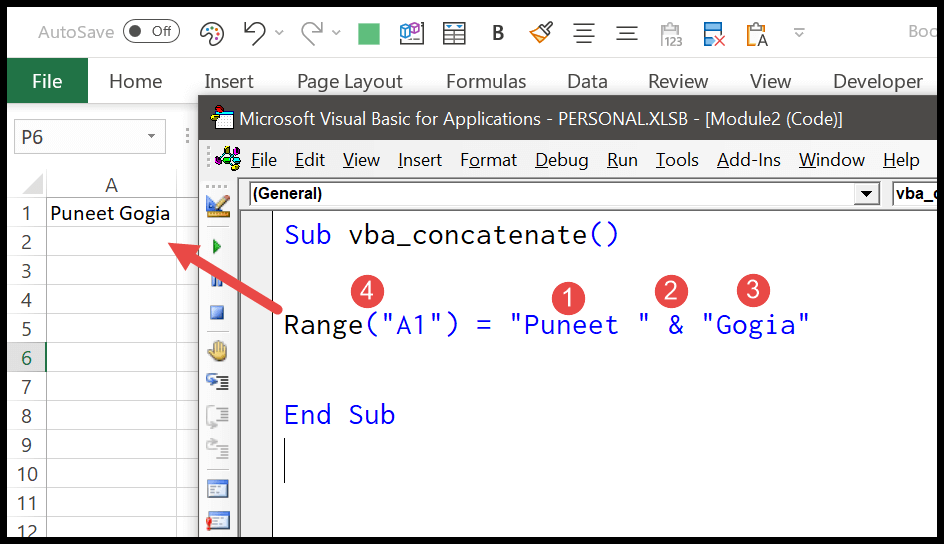
Sub vba_concatenate()
Range("A1") = "Puneet " & "Gogia"
End Sub
Always type a space before and after the ampersand. If you write a variable name and an ampersand without a space between them (like myText&”Gogia”), VBA can read the ampersand as the type-declaration character for a Long, and you get an error. Microsoft points this out in its own concatenation example.
Concatenate with a Delimiter
You can also use a delimiter between two strings by adding it as a third value with one more ampersand (two ampersands in total). Consider the following code.
Range("A1") = "Puneet " & "-" & "Gogia"
In the above code, you have used a delimiter between two strings and joined them by simply using ampersands. So basically, whenever you need to join anything, you have to use an ampersand within.
As “Puneet ” has a space at the end, this code gives “Puneet -Gogia” in cell A1. Remove that space if you want “Puneet-Gogia”, or use ” – ” as the delimiter if you want a space on both sides of the hyphen.
Concatenate Using Variables
You can also store values in variables and then concatenate values from those two variables. Consider the following code.

In the above code, you have declared the variables and then you have assigned values to those variables. And in the end, we used an ampersand to combine all three variables and then assigned the result to cell A1.
Concatenate a Range using VBA
You can also concatenate values from a range of cells using VBA. Consider the following macro.
Sub vba_concatenate()

Dim rng As Range
Dim i As String
Dim SourceRange As Range

Set SourceRange = Range("A1:A10")

For Each rng In SourceRange
i = i & rng & " "
Next rng
Range("B1").Value = Trim(i)

End Sub
In the above code, you have used the FOR NEXT (For Loops) to loop through the range that you want to concatenate.
So it goes to each cell of the range (A1:A10) and uses an ampersand to add that value, with a space after it, to the variable i with each iteration. In the end, it assigns the combined string to cell B1, and Trim removes the extra space at the end.
And the following code concatenates the values from the selected range. All you need to do is to select a range and then run the code.
Sub vba_concatenate_selection()

Dim rng As Range
Dim i As String

For Each rng In Selection
i = i & rng & " "
Next rng

Range("B1").Value = Trim(i)

End Sub
There’s one thing to keep in mind here. VBA’s Trim only removes the spaces from the start and the end of the text, not the extra spaces in between. So, if the range has blank cells, you get double spaces in the middle of the result. To skip blank cells, check each cell before adding it:
Sub vba_concatenate_skip_blanks()
    Dim rng As Range
    Dim i As String
    For Each rng In Range("A1:A10")
        If rng.Value <> "" Then i = i & rng.Value & " "
    Next rng
    Range("B1").Value = Trim(i)
End Sub
Also, if a cell in the range has an error value (like #N/A), the code stops with a “Type mismatch” error, as VBA can’t concatenate an error value. Fix the error in the cell, or use rng.Text instead of rng.Value to join the text the cell shows.
Concatenate Entire Column or a Row
If you want to concatenate an entire column or a row, it’s better not to use the loop method. You can use the worksheet function “TextJoin”, which can join an entire row or a column (consider the following code).
'join values from column A.
Dim myRange As Range
Dim myString As String
Range("B1") = WorksheetFunction.TextJoin(" ", True, Range("A:A"))

'join values from row 1.
Range("A2") = WorksheetFunction.TextJoin(" ", True, Range("1:1"))
These are two separate examples, so use the one you need inside a macro. The second one writes the result in cell A2, as a cell in row 1 itself (like B1) would end up in the result the next time you run it.
Here are a few things to know about TextJoin:
- Versions: TEXTJOIN is available in Excel 2019, Excel 2021, Excel 2024 and Microsoft 365 (Windows and Mac). In a one-time purchase of Excel 2016 or an earlier version, WorksheetFunction.TextJoin doesn’t exist, and VBA stops with an error. Use the loop method or the Join function there.
- Arguments: The first argument is the delimiter, and the second one (True) tells it to ignore empty cells. With False, each blank cell adds an extra delimiter.
- Length limit: If the result is longer than 32,767 characters (the limit for a cell), TEXTJOIN returns the #VALUE! error, and in VBA, WorksheetFunction.TextJoin stops with a run-time error.
Concatenate Numbers and Dates
The ampersand also works with numbers and dates. VBA converts them to text first and then joins them. But you don’t get any number format with it, so 1234.5 stays 1234.5, and a date comes out in your system’s short date format. To control how a number or a date looks in the result, use the Format function:
Sub vba_concatenate_numbers()
    Range("A1").Value = "Total: " & 1500
    Range("A2").Value = "Price: " & Format(1234.5, "#,##0.00")
    Range("A3").Value = "Today is " & Format(Date, "dd-mmm-yyyy")
End Sub
In the above code, cell A2 gets “Price: 1,234.50” and cell A3 gets today’s date in a format like 05-Nov-2026. When you join values from cells, you can also use the Text property of the cell (like Range(“B1”).Text) to get the value exactly as the cell shows it.
Concatenate with a Line Break
To put each value on a new line, join them with a line break constant. In a message box, use vbNewLine. In a cell, use vbLf (the same line break you get with Alt + Enter) and turn on Wrap Text for the cell so that it shows the lines.
Sub vba_concatenate_line_break()
    MsgBox "Puneet" & vbNewLine & "Gogia"
    Range("A1").Value = "Puneet" & vbLf & "Gogia"
    Range("A1").WrapText = True
End Sub
Concatenate Two Columns Row by Row
Let’s say you have first names in column A and last names in column B, and you want the full name in column C for each row. For this, you can loop through the rows and join the two cells of each row:
Sub vba_concatenate_columns()
    Dim lastRow As Long
    Dim r As Long
    lastRow = Cells(Rows.Count, "A").End(xlUp).Row
    For r = 1 To lastRow
        Cells(r, "C").Value = Cells(r, "A").Value & " " & Cells(r, "B").Value
    Next r
End Sub
First of all, the code finds the last row with data in column A. After that, it goes through each row and puts the value from column A, a space, and the value from column B into column C.
If you want formulas instead of fixed values (so that the result updates when the names change), you can write a formula to the whole range in one go. In a VBA string, you need to double the quotation marks that are part of the formula:
Range("C1:C10").Formula = "=A1&"" ""&B1"
This enters the following formula in cell C1, and Excel adjusts the references for each row below it (C2 gets A2 and B2, and so on):
=A1&" "&B1
Concatenate Using the Join Function
VBA has a Join function that combines all the values of an array into one string, with a delimiter between them. If you don’t specify a delimiter, it uses a space. Unlike TextJoin, it works in all versions of Excel.
Sub vba_join()
    Dim names As Variant
    names = Array("Puneet", "Gogia", "ExcelChamps")
    Range("D1").Value = Join(names, ", ")
    'join the values from a column range
    Range("D2").Value = Join(Application.Transpose(Range("A1:A10").Value), " ")
End Sub
In the above code, cell D1 gets “Puneet, Gogia, ExcelChamps”. Join only takes a one-dimensional array, and the values of a range come as a two-dimensional array, so the code uses Application.Transpose to turn the column into a one-dimensional array. For a row (like A1:J1), you need to use Transpose twice: Application.Transpose(Application.Transpose(Range(“A1:J1”).Value)).
Keep in mind that Join doesn’t skip blank cells, so a blank cell adds an extra delimiter, and the range needs to have more than one cell.
Ampersand vs Plus Operator
You may see code that uses the plus sign (+) to join strings. It works when both values are text, but when one of them is a number, VBA tries to add them instead. So “10” + 5 returns 15 (not 105), and “Puneet” + 5 stops the code with a “Type mismatch” error. With the ampersand, “10” & 5 returns 105 and “Puneet” & 5 returns Puneet5. That’s why it’s better to always use the ampersand to concatenate in VBA.
Which Method to Use
- Ampersand (&): To join a few strings, variables or cells. It works in every version.
- Loop with an ampersand: To join a range when you want control over each cell (like skipping blanks). It works in every version, but it’s slow for a whole column.
- TextJoin: To join a large range, an entire column or a row, with a delimiter and with blank cells skipped. It needs Excel 2019 or later, or Microsoft 365.
- Join: To join the values of an array, or a single row or column, in any version.
Frequently Asked Questions
Is There a CONCATENATE Function in VBA?
No, VBA doesn’t have a CONCATENATE function of its own. The ampersand (&) is VBA’s concatenation operator, and you can use it in place of the function. To join a range with a delimiter, use the Join function or WorksheetFunction.TextJoin (Excel 2019 or later).
How Do I Add a Comma Between the Values?
Use “, ” as the delimiter. With TextJoin or Join, pass “, ” as the delimiter argument. In a loop, add “, ” after each value in place of the space, and then remove the last two characters from the result with the Left and Len functions, as Trim only removes spaces and not the comma.
Why Does My Code Show a Type Mismatch Error?
There are two common reasons. First, you have used the plus sign (+) to join text with a number, so VBA tries to add them. Use the ampersand instead. Second, one of the cells you are joining has an error value (like #N/A or #DIV/0!). Fix the error in the cell, or use the cell’s Text property in place of its value.

Written by
Puneet Gogia
Microsoft MVP — Excel · Founder, Excel Champs
Twelve years of teaching Excel, and a decade before that using it as a data analyst. Every tutorial here is written from a file I actually built.