

lastRow = Cells(Rows.Count, "A").End(xlUp).Row returns the last filled row in column A. It starts at the bottom of the sheet and moves up to the first cell with something in it, so gaps in the data don’t matter. For the last column in row 1, use lastCol = Cells(1, Columns.Count).End(xlToLeft).Column.
Range("A1").End(xlDown) works the other way: it stops at the first blank cell, so it gives the wrong row whenever the column has a gap, and it jumps to row 1,048,576 when nothing below A1 is filled.
To find the last row with data in any column, search backwards with Find:
Dim lastCell As Range
Set lastCell = Cells.Find(What:="*", LookIn:=xlFormulas, SearchOrder:=xlByRows, SearchDirection:=xlPrevious)
If Not lastCell Is Nothing Then lastRow = lastCell.Row
On an empty sheet, Find returns Nothing, so test the result before reading .Row, as above. Avoid UsedRange and SpecialCells(xlCellTypeLastCell) for this: both include cells that only have formatting or once held data, so they often point below the real last row.
Let’s say you’re a sales analyst at a company, and you’ve been tracking yearly sales data in Excel. Each row in this spreadsheet represents the sales figures for a different year.
Over the years, as your company grows and expands, more rows are added to this table to accommodate the new data for each year.
At some point, you need to quickly discover how many years of sales data are in your spreadsheet, especially when preparing annual reports or forecasts. You can use a simple VBA code to find the last row of data in your worksheet.
In VBA, there are several methods to find the last row, column, or cell with data in a worksheet. Each method has advantages and may be more suitable depending on the data. Here are the main methods:
- End Method – This is similar to pressing Ctrl+Arrow in Excel. It’s fast and efficient, particularly for contiguous data. For instance, Range(“A1”).End(xlDown) moves from cell A1 downward to the last contiguous non-empty cell in that column.
- Find Method – This method is highly flexible and can find the last cell that contains data or a specific value/formula, even in a non-contiguous range.
- UsedRange – It considers any cell that has ever been formatted, even if it is currently empty.
- SpecialCells – This method identifies the last cell that has data or formatting.
- Iterating Through Each Row – In cases where data is highly sparse or irregular, you need to loop through rows to find the last row with data.
- Array – If you want to check multiple columns and find the absolute last row used, you might compare the last rows of various columns.
Each method serves different purposes and works differently depending on your data’s layout (sparse, contiguous, formatted, etc.). It’s important to choose the method that best fits your data.
Find the Last Row, Column, or Cell using the VBA End Method
- Define the cell or the range from where you want to navigate to the last row.
- After that, enter a dot to get the list of properties and methods.
- Select or type “End” and enter an opening parenthesis.
- Use the argument that you want to use.
- Further, use the Address property to get the address of the cell.
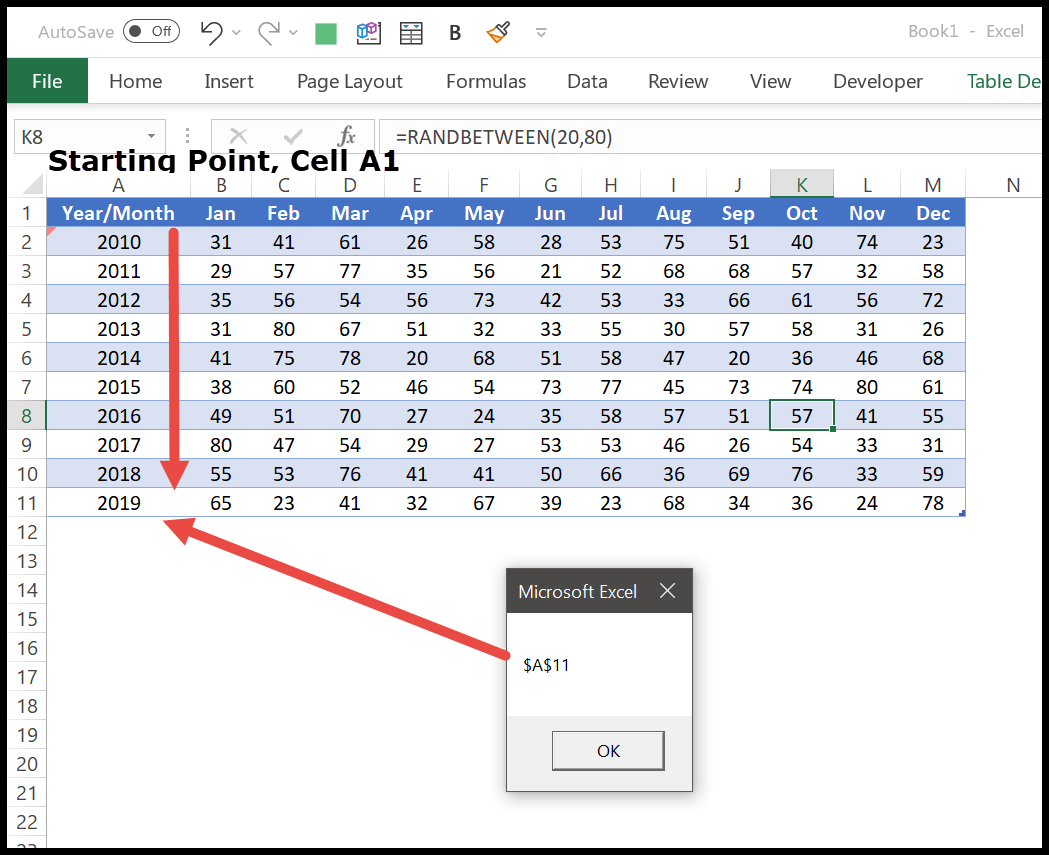
MsgBox Range("A1").End(xlDown).Address
When you run the above code, it shows you a message box with the address of the last non-empty cell (before the first blank cell) in column A.
Find the Last Column using VBA
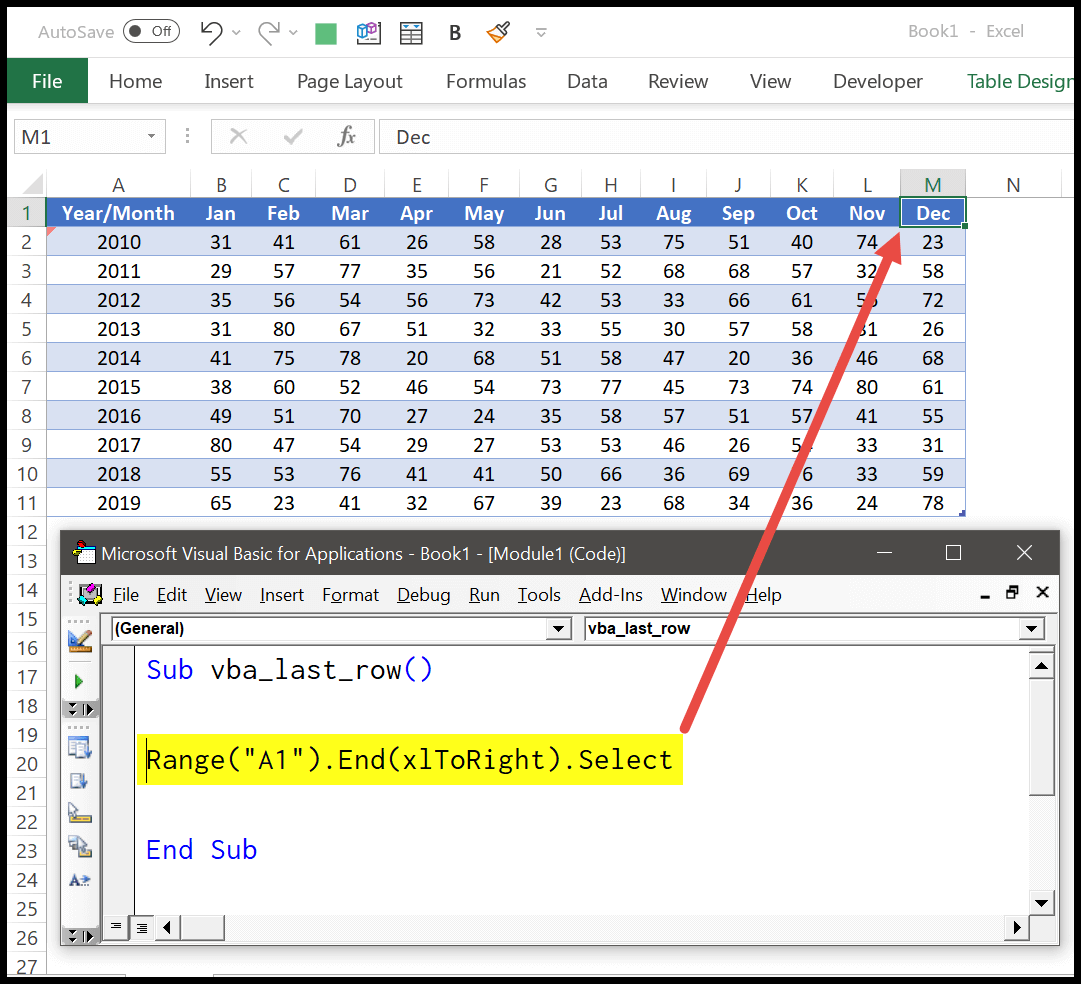
Now, let’s say you want to find the last column. In that case, instead of using the “xlDown” constant, you need to use “xlToRight”, and if you want to select that cell instead of getting the address, then you can use the “Select” method. Consider the following code.
Range("A1").End(xlToRight).Select
Find the Last Cell
Using the same method, you can also get the last cell, which is a non-empty cell. To write this code, you need to know the last row and column.
Sub vba_last_row()
  Dim lRow As Long
  Dim lColumn As Long
  lRow = Range("A1").End(xlDown).Row
  lColumn = Range("A1").End(xlToRight).Column
  Cells(lRow, lColumn).Select
End Sub

To understand the above code, we need to split it into three parts.

- In the FIRST part, you have declared two variables to store the row and the column number.
- In the SECOND part, you have used “End” with the “xlDown” and then the Row property to get the row number of the last row, and in the same way, you have used “End” with “xlToRight” and then the “Column” property to get the column number of the last column.
- In the THIRD part, by using the last column number and the last row number, you refer to the last cell and select it.
Note: If you want to select a cell in a different worksheet using the last row and last column method, you must activate that worksheet first.
Find the Last Row from the Bottom with xlUp
There’s one problem with xlDown and xlToRight: they stop at the first blank cell. So, if your data has an empty cell in the middle, you get the row before that blank, not the real last row. And if A2 is empty, xlDown takes you all the way down to the last row of the worksheet.
That’s why the most common way is to start from the last cell of the column and go up with xlUp. It works the same way as selecting the last cell of the column and pressing Ctrl + Up Arrow, so blank cells in the middle don’t matter:
Sub vba_last_row_xlup()
    Dim lRow As Long
    lRow = Cells(Rows.Count, "A").End(xlUp).Row
    MsgBox lRow
End Sub
In the same way, start from the last column of row 1 and go left with xlToLeft to get the last column:
Sub vba_last_column_xltoleft()
    Dim lColumn As Long
    lColumn = Cells(1, Columns.Count).End(xlToLeft).Column
    MsgBox lColumn
End Sub
To use it on another sheet without activating it, put the sheet name in front of both Cells and Rows, like Worksheets(“Sheet2”).Cells(Worksheets(“Sheet2”).Rows.Count, “A”).End(xlUp).Row, or use a With block. Always store the row number in a Long variable, as an Integer can’t hold row numbers above 32,767.
Last Row, Column, and Cell using the Find Method
The Find method in VBA effectively searches for specific data within a range, making it incredibly useful for locating the position of data, such as the last row, last column, or a specific cell containing a particular value.
The below code starts its search from the very first cell in your sheet, “A1,” and it looks through all the rows from the bottom up. It doesn’t matter if the data is just part of a cell (like a few characters in a larger text) or if it’s hidden within a formula; this code will still find the last row where something was entered.
Sub vba_last_row()
Dim iRow As Long
iRow = Cells.Find(What:="*", _
                    After:=Range("A1"), _
                    LookAt:=xlPart, _
                    LookIn:=xlFormulas, _
                    SearchOrder:=xlByRows, _
                    SearchDirection:=xlPrevious, _
                    MatchCase:=False).Row
MsgBox iRow
End Sub
Once it identifies the last row with a value, the code stores the row number in an iRow variable. The MsgBox function then pops up a message box showing this row number. And for column number:
Sub vba_last_row()
Dim iColumn As Long
iColumn = Cells.Find(What:="*", _
                    After:=Range("A1"), _
                    LookAt:=xlPart, _
                    LookIn:=xlFormulas, _
                    SearchOrder:=xlByColumns, _
                    SearchDirection:=xlPrevious, _
                    MatchCase:=False).Column
MsgBox iColumn
End Sub
And to get the address of the last cell:
Sub vba_last_row()
Dim iColumn As Long
Dim iRow As Long
iColumn = Cells.Find(What:="*", _
                    After:=Range("A1"), _
                    LookAt:=xlPart, _
                    LookIn:=xlFormulas, _
                    SearchOrder:=xlByColumns, _
                    SearchDirection:=xlPrevious, _
                    MatchCase:=False).Column
iRow = Cells.Find(What:="*", _
                    After:=Range("A1"), _
                    LookAt:=xlPart, _
                    LookIn:=xlFormulas, _
                    SearchOrder:=xlByRows, _
                    SearchDirection:=xlPrevious, _
                    MatchCase:=False).Row
MsgBox Cells(iRow, iColumn).Address
End Sub
As the Find method searches all the cells of the sheet, it gives you the last row and column across all the columns, even when each column ends at a different row. Keep two things in mind:
- Empty sheet: if the sheet has no data, Find returns Nothing, and .Row gives the “Object variable or With block variable not set” error (Error 91). Store the result in a Range variable first and check it with If Not rng Is Nothing.
- Same procedure name: the three codes above use the same name, vba_last_row. Give each one its own name if you put them in the same module, or VBA shows the “Ambiguous name detected” error.
Sub vba_last_row_safe()
    Dim rng As Range
    Set rng = Cells.Find(What:="*", LookIn:=xlFormulas, _
        SearchOrder:=xlByRows, SearchDirection:=xlPrevious)
    If Not rng Is Nothing Then
        MsgBox rng.Row
    Else
        MsgBox "The sheet is empty."
    End If
End Sub
UsedRange Method to Find the Last Row, Column, and Cell in Excel with VBA
In VBA, the UsedRange property is helpful in determining the extent of used areas within a worksheet, which includes any cell that has been formatted or contains data. Here are examples of how to use UsedRange to find the last row, last column, and a specific last cell:
Finding the Last Row
This code finds and displays the last row of the used range of the worksheet.
Sub FindLastRowUsedRange()
    Dim lastRow As Long
    With ThisWorkbook.Sheets("Sheet1") ' Change "Sheet1" to your sheet's name
        lastRow = .UsedRange.Rows(.UsedRange.Rows.Count).Row
    End With
    MsgBox "The last row used is: " & lastRow
End Sub
First, it sets up a variable named lastRow to hold the number of the last row with data. The code then focuses on the workbook and specifically “Sheet1” (you can change “Sheet1” to the name of your worksheet).
It determines the last row by taking the last row of the used range (UsedRange.Rows(UsedRange.Rows.Count).Row) and storing this number in the lastRow variable. This works even when the used range doesn’t start in row 1.
In the end, it uses a message box to show you the result. It concatenates the text “The last row used is: ” with the number stored in lastRow, effectively giving you a message box that tells you which row is the last one with data on your specified worksheet.
Below is the code that you can use to find the last column from the data.
The code below shows you a message box with the last column number used in the worksheet.
Sub FindLastColumnUsedRange()
    Dim lastColumn As Long
    With ThisWorkbook.Sheets("Sheet1") ' Change "Sheet1" to your sheet's name
        lastColumn = .UsedRange.Columns(.UsedRange.Columns.Count).Column
    End With
    MsgBox "The last column used is: " & lastColumn
End Sub
It creates a variable called lastColumn to store the number of the final column where data is found. It focuses on the workbook you’re using, particularly on “Sheet1”.
It calculates the last column by taking the last column of the used range and saves this number in the lastColumn variable. In the end, it shows you a message box with the column number of the last column.
And here’s the code for finding the last cell from the data using the UsedRange.
Sub FindLastCellUsedRange()
    Dim lastRow As Long, lastColumn As Long
    Dim lastCell As Range
    With ThisWorkbook.Sheets("Sheet1") ' Change "Sheet1" to your sheet's name
        lastRow = .UsedRange.Rows(.UsedRange.Rows.Count).Row
        lastColumn = .UsedRange.Columns(.UsedRange.Columns.Count).Column
        Set lastCell = .Cells(lastRow, lastColumn)
    End With
    MsgBox "The last cell used is: " & lastCell.Address
End Sub
In this code, you have two variables to store the number of the last row and column that contain data. Additionally, it declares a variable to represent the last cell where data is entered.
Within the worksheet, the code calculates which row and column are the last ones used and then identifies the exact cell at the intersection of these two. And in the end, it shows you a message box with the cell address. As lastCell is a Range (an object), you need the Set keyword to assign the cell to it.
Just remember that UsedRange also counts cells that only have formatting, or had data that you have deleted. So, it can give you a row or column beyond your actual data. Saving the workbook usually resets the used range.
SpecialCells Method to Find the Last Cell
The SpecialCells method with xlCellTypeLastCell gives you the same cell you get by pressing Ctrl + End. Like UsedRange, it includes cells with formatting, so it can be beyond your data.
Sub vba_last_cell_specialcells()
    Dim lastCell As Range
    Set lastCell = ActiveSheet.Cells.SpecialCells(xlCellTypeLastCell)
    MsgBox "Last cell: " & lastCell.Address & ", row: " & lastCell.Row & ", column: " & lastCell.Column
End Sub
Which Method to Use
- End(xlUp) or End(xlToLeft): the best choice for one column or one row, even with blank cells in between.
- End(xlDown) or End(xlToRight): only when the data has no blank cells.
- Find: the best choice for the last row or column across the whole sheet, and it ignores cells with formatting only.
- UsedRange and SpecialCells: quick, but they include formatted and deleted cells, so check the result before you rely on it.
Frequently Asked Questions
Why does my last row code return 1048576?
You have used End(xlDown) from a cell that has an empty cell below it, so VBA goes to the last row of the worksheet. Use Cells(Rows.Count, “A”).End(xlUp).Row instead.
How do I find the last row in an Excel table?
Use the table’s ListRows count, like ListObjects(1).ListRows.Count, to get the number of data rows. To get the worksheet row of the last record, use ListObjects(1).DataBodyRange.Rows(ListObjects(1).DataBodyRange.Rows.Count).Row.
How do I find the next empty row?
Find the last row and add 1 to it: Cells(Rows.Count, “A”).End(xlUp).Row + 1. That’s the row where you can add the next record.

Written by
Puneet Gogia
Microsoft MVP — Excel · Founder, Excel Champs
Twelve years of teaching Excel, and a decade before that using it as a data analyst. Every tutorial here is written from a file I actually built.