

Use the Name statement with the file’s full current path and the full new path. The file must be closed:
Name "C:\Reports\Sales.xlsx" As "C:\Reports\Sales-2026.xlsx"Give a different folder in the new path to move the file at the same time: Name "C:\Reports\Sales.xlsx" As "C:\Archive\Sales.xlsx".
To rename the workbook you have open, including the one running the macro, save it under the new name and then delete the old file:
Sub RenameOpenWorkbook()
    Dim oldPath As String
    oldPath = ThisWorkbook.FullName
    ThisWorkbook.SaveAs Filename:=ThisWorkbook.Path & "\Sales-2026.xlsm", _
        FileFormat:=ThisWorkbook.FileFormat
    Kill oldPath
End Sub
Name stops with an error when something is off: “File not found” (error 53) if the old path is wrong, “File already exists” (error 58) if the new name is taken, and “Path/File access error” (error 75) if the file is open. Check with If Dir(newPath) = "" Then before renaming.
Keep the extension the same. Renaming .xlsx to .xlsm does not convert the file, and Excel then refuses to open it because the format and extension do not match. To change the type, open the file and use SaveAs with the matching FileFormat.
To RENAME an Excel file that is stored on your computer, you need to use the “NAME” statement. In this statement, you need to define the old file name and the new name that you want to apply. But there’s one thing that you need to remember: the file must be closed.
Here I have an Excel file, “SampleFile”, that is stored in the “myFolder” folder on my desktop, and I want to rename it to “myNewFile”. The code for this would be like the following.
Name "C:\Users\Dell\Desktop\myFolder\SampleFile.xlsx" As _
"C:\Users\Dell\Desktop\myFolder\myNewFile.xlsx"
Steps to use VBA to Rename Excel File
Now, let’s understand this line of code in detail.
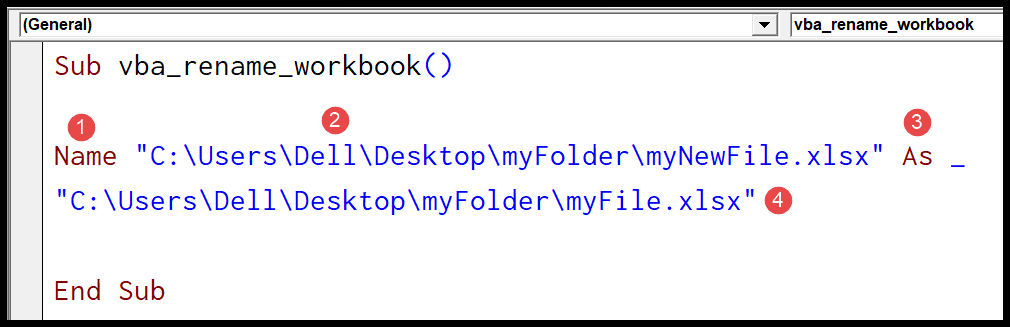
- The Name statement, with which you need to start the code.
- The address of the file with the old name and file extension.
- “As” refers to the new name.
- The address of the file with the new name and file extension.
To make the Name statement a little clearer, you can use variables, just like in the following code.

Sub vba_rename_workbook()
Dim oldName As String
Dim newName As String
oldName = "C:\Users\Dell\Desktop\myFolder\SampleFile.xlsx"
newName = "C:\Users\Dell\Desktop\myFolder\myNewFile.xlsx"
Name oldName As newName
End Sub
Errors You Can Get with the Name Statement
- File not found (Error 53): the old path or file name is wrong.
- File already exists (Error 58): a file with the new name is already in that folder. Name doesn’t overwrite files.
- Path/File access error (Error 75): usually, the file is open, in your Excel or someone else’s.
To avoid the first two, check both names with the DIR function before renaming:
Sub rename_workbook_safe()
    Dim oldName As String, newName As String
    oldName = "C:\Users\Dell\Desktop\myFolder\SampleFile.xlsx"
    newName = "C:\Users\Dell\Desktop\myFolder\myNewFile.xlsx"
    If Dir(oldName) = "" Then
        MsgBox "The file to rename doesn't exist."
    ElseIf Dir(newName) <> "" Then
        MsgBox "A file with the new name already exists."
    Else
        Name oldName As newName
        MsgBox "File renamed."
    End If
End Sub
Rename an Open Workbook
You can’t use Name on a workbook that’s open. Instead, save it with the new name using SaveAs, and then delete the old file with Kill. The following code renames the workbook that has the code:
Sub rename_open_workbook()
    Dim oldPath As String
    oldPath = ThisWorkbook.FullName
    ThisWorkbook.SaveAs ThisWorkbook.Path & "\myNewFile.xlsm"
    Kill oldPath
End Sub
Keep the same file type when you do this. A workbook with macros needs the .xlsm extension, or the macros are removed.
Frequently Asked Questions
Can the Name statement move a file to another folder?
Yes. If the new path has a different folder, Name moves the file there (and renames it, if the name is different too). Both folders need to be on the same drive.
Can I change the file extension with Name?
Name changes only the file name, not the file format. Renaming an .xlsx file to .xls makes Excel show a warning that the format and extension don’t match. To change the format, open the file and use SaveAs with the FileFormat argument.
Can I rename many files at once?
Yes. Put the old and new names in two columns and loop through the rows, running Name oldName As newName for each row with the folder path in front of both names.

Written by
Puneet Gogia
Microsoft MVP — Excel · Founder, Excel Champs
Twelve years of teaching Excel, and a decade before that using it as a data analyst. Every tutorial here is written from a file I actually built.