

Use the Protect method on the sheet, adding a password if you want one, and Unprotect with the same password to remove it:
ThisWorkbook.Worksheets("Sheet1").Protect Password:="test123"
ThisWorkbook.Worksheets("Sheet1").Unprotect Password:="test123"
Leave out Password:= to protect without one. Passwords are case-sensitive, and a wrong one stops the macro with error 1004.
To keep users out but let your own macros edit the sheet, add UserInterfaceOnly:=True. Excel does not save this setting with the file, so reapply it each time the workbook opens, in the ThisWorkbook module:
Private Sub Workbook_Open()
    Me.Worksheets("Sheet1").Protect Password:="test123", UserInterfaceOnly:=True
End Sub
Allow specific actions with the other arguments, such as AllowFiltering:=True, AllowSorting:=True or AllowFormattingCells:=True. Turn the AutoFilter on before protecting, and unlock the cells in any range users need to sort.
To protect every sheet, loop For Each ws In ThisWorkbook.Worksheets and run ws.Protect Password:="test123" inside it. ws.ProtectContents returns True when a sheet is already protected.
Protection only applies to locked cells, and every cell is locked by default. Unlock input cells before protecting with ws.Range("B2:B20").Locked = False. The password also sits in the macro as plain text, so lock the VBA project under Tools → VBAProject Properties → Protection.
In VBA, there’s the PROTECT method that you can use with a sheet. In this method, you have the option to protect a sheet, with or without a password. And you can also protect an object from the sheet. We will see all these in detail in this tutorial.
In the tutorial, we will look at how to protect and unprotect a single sheet or multiple sheets using a VBA code.
Write a VBA Code to Protect a Sheet
To protect a sheet, you need to specify the sheet first and then use the Protect method. Here are the steps.
- Use the Sheets object to specify the sheet.
- Enter the name of the sheet that you want to protect.
- Type a dot to get the list of the methods and properties.
- Select the Protect method or type it.

Sheets("Sheet1").Protect
Write a VBA Code to Unprotect a Sheet
To unprotect a sheet, you need to specify the sheet first and then use the Unprotect method. Here are the steps.
- Specify the sheet using the Sheets object.
- And then, enter the name of the sheet that you want to unprotect.
- Enter a dot to get the list of the methods and properties.
- Select the “Unprotect” method or type it.
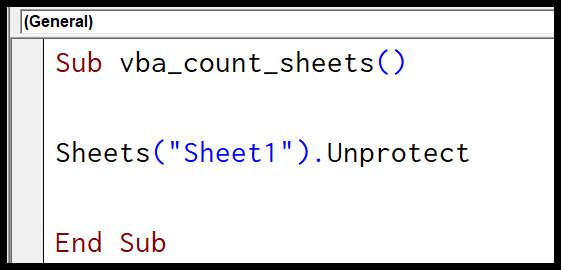
Sheets("Sheet1").Unprotect
Protect a Sheet with a Password
If you want to set a password while protecting a sheet, you need to use the Password argument to specify a password.
Let’s say you want to set the password “test123” to protect the sheet; the code would be like the one below.

Sheets("Sheet1").Protect Password:="test123"
Unprotect a Sheet with a Password
In the same way, if you want to unprotect a sheet, you need to mention the password in the Password argument.
Let’s say the password that you have used to protect the sheet is “ADSBP”, so the code to unprotect it would be like below.
Sheets("Sheet1").Unprotect Password:="ADSBP"
There’s one thing that you need to take care of: passwords are case-sensitive, so “ADSBP” and “adsbp” are different passwords.
Other Things to Know
As I said, we are using VBA’s “Protect” method, and there are arguments other than “Password” with this method that you can use.
expression.Protect (Password, DrawingObjects, Contents, Scenarios, UserInterfaceOnly, AllowFormattingCells, AllowFormattingColumns, AllowFormattingRows, AllowInsertingColumns, AllowInsertingRows, AllowInsertingHyperlinks, AllowDeletingColumns, AllowDeletingRows, AllowSorting, AllowFiltering, AllowUsingPivotTables)
- DrawingObjects: To protect and unprotect shapes.
- Contents: To protect the locked cells (and the contents of a chart sheet).
- Scenarios: To protect scenarios in the worksheet.
- UserInterfaceOnly: To protect the sheet from changes by the user, but let macros change it.
- AllowFormattingCells: To allow the user to apply formatting to cells.
- AllowFormattingColumns: To allow the user to apply formatting to columns.
- AllowFormattingRows: To allow the user to apply formatting to rows.
- AllowInsertingColumns: To allow the user to insert new columns.
- AllowInsertingRows: To allow the user to insert new rows.
- AllowInsertingHyperlinks: To allow the user to create hyperlinks.
- AllowDeletingColumns: To allow the user to delete columns.
- AllowDeletingRows: To allow the user to delete rows.
- AllowSorting: To allow the user to sort rows, columns, and tables.
- AllowFiltering: To allow the user to filter columns.
- AllowUsingPivotTables: To let the user use a pivot table.
For example, the following code protects the sheet with a password but still lets the user filter and format cells:
Sub protect_allow_filter()
    Sheets("Sheet1").Protect Password:="test123", _
        AllowFiltering:=True, AllowFormattingCells:=True
End Sub
One thing to know about UserInterfaceOnly: Excel doesn’t save this setting with the file. When you open the workbook again, the sheet is fully protected, and macros can’t change it either. So, apply it again every time the workbook opens, for example in the Workbook_Open event in the ThisWorkbook module:
Private Sub Workbook_Open()
    Sheets("Sheet1").Protect Password:="test123", UserInterfaceOnly:=True
End Sub
Notes
- Make sure to use strong passwords that combine uppercase and lowercase letters, numbers, and symbols.
- If you forget your password, Microsoft cannot retrieve it. So, make sure to write down your password somewhere in a safe place.
- If a sheet is protected without a password, and now you want to protect it with a password, you need to unprotect it first. And then reprotect it with a password using the code you have seen above.
Protect or Unprotect All the Sheets
To protect all the sheets in a workbook with the same password, loop through the worksheets. To unprotect them all, use the same loop with Unprotect:
Sub protect_all_sheets()
    Dim ws As Worksheet
    For Each ws In ThisWorkbook.Worksheets
        ws.Protect Password:="test123"
    Next ws
End Sub
Let Users Edit Some Cells on a Protected Sheet
Protection only applies to locked cells, and all the cells are locked by default. So, unlock the cells that users should be able to fill in, and then protect the sheet:
Sub protect_with_input_cells()
    With Sheets("Sheet1")
        .Unprotect Password:="test123"
        .Range("B2:B10").Locked = False
        .Protect Password:="test123"
    End With
End Sub
Check IF a Sheet Is Protected
Use the ProtectContents property. It returns True when the cells of the sheet are protected:
Sub check_sheet_protection()
    If Sheets("Sheet1").ProtectContents Then
        MsgBox "The sheet is protected."
    Else
        MsgBox "The sheet is not protected."
    End If
End Sub
Frequently Asked Questions
What happens if I use the wrong password to unprotect?
VBA shows run-time error 1004, and the sheet stays protected. If you leave out the password for a sheet that has one, Excel asks for it in a dialog box.
Is the password in my code safe?
Anyone who can open the VBA editor can read it. Lock the VBA project with a password (Tools ➜ VBAProject Properties ➜ Protection) to keep it hidden. Sheet protection itself is meant to prevent accidental changes, not to secure data.
What is the difference between protecting a sheet and a workbook?
Sheet protection stops changes to the cells and objects on one sheet. Workbook protection stops changes to the structure, like adding, deleting, renaming or moving sheets.

Written by
Puneet Gogia
Microsoft MVP — Excel · Founder, Excel Champs
Twelve years of teaching Excel, and a decade before that using it as a data analyst. Every tutorial here is written from a file I actually built.