

Use the Merge method on the range:
ThisWorkbook.Worksheets("Sheet1").Range("A1:D1").MergeMerging keeps only the value in the top-left cell and deletes the rest. Excel shows a warning first, and with Application.DisplayAlerts = False it deletes them without asking. To keep the text, join it first and write it back after merging:
Dim rng As Range, c As Range, txt As String
Set rng = ThisWorkbook.Worksheets("Sheet1").Range("A1:D1")
For Each c In rng
    If c.Value <> "" Then txt = txt & " " & c.Value
Next c
Application.DisplayAlerts = False
rng.Merge
Application.DisplayAlerts = True
rng.Value = Trim(txt)
Range("A1:D5").Merge Across:=True merges each row separately, the same as Merge Across on the ribbon. Centre the result with .HorizontalAlignment = xlCenter and .VerticalAlignment = xlCenter.
Use Range("A1:D1").UnMerge to split merged cells. Range("B1").MergeCells returns True if the cell is part of a merge, and Range("B1").MergeArea returns the whole merged block, such as A1:D1.
Merged cells break sorting, filtering and pasting, and AutoFit ignores them. To centre a heading across columns without those problems, use Center Across Selection instead: Range("A1:D1").HorizontalAlignment = xlCenterAcrossSelection.
In VBA, there is a “MERGE” method that you can use to merge a range of cells or even multiple ranges into one. This method has an argument “Across”, which is optional. If you specify TRUE, it will merge each row in the range separately, and if you specify FALSE (the default), it will merge the entire range as one.

Steps to follow to use VBA to Merge Cells:
- First, you need to define the range of cells that you want to merge.
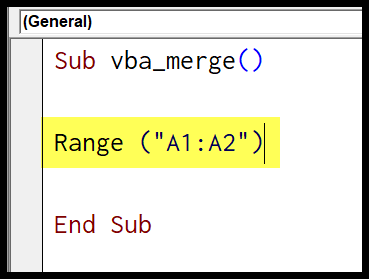
- After that, type a (.) dot to get the list of properties and methods and select “Merge” from that list, or you can type it directly.
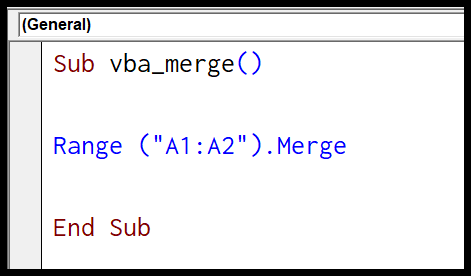
- After that, you need to define the argument “Across” as TRUE or FALSE.
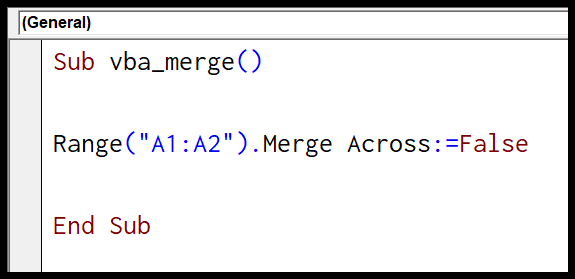
- In the end, run that code to merge the range.
Here’s the code.
Range("A1:A2").Merge False
And if you want to merge each row of the range separately, you can use TRUE for the Across argument.
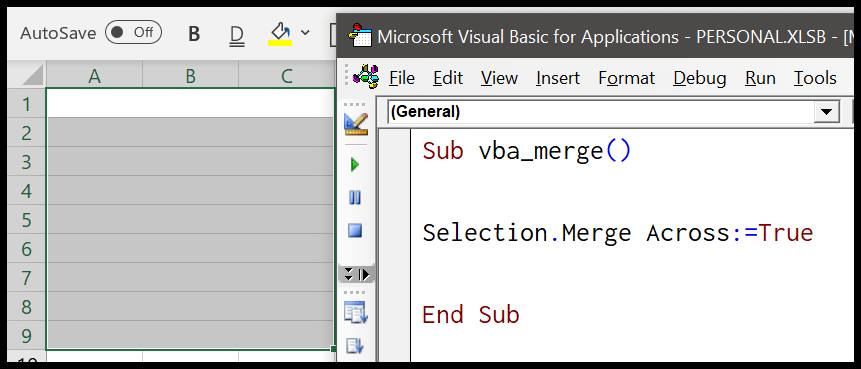
Selection.Merge Across:=True
In the above code, you have the selection as the range, the Merge method, and Across as TRUE. And it has merged the cells of each row in the selected range, row by row.
Now, let’s say you want to merge the range of cells from another worksheet, you don’t need to activate it first. You can simply refer to the worksheet first and then use the Merge method with the range that you want to merge.
Worksheets("Sheet1").Range("A1:A2").Merge
In the same way, you can refer to a workbook as well by specifying the name of the workbook (it needs to be open).
Workbooks("Book1.xlsx").Worksheets("Sheet1").Range("A1:A2").Merge
Merge a Range and Align the Cell Content
Now when you merge two or more cells you need to align the content that you have in the cell. Look at the below snapshot, where you have cells A1 and A2 merged, and the value in the cells is aligned to the bottom. To deal with this problem, you can use the alignment properties and align the cell content to the center and middle so that it’s easy to read.
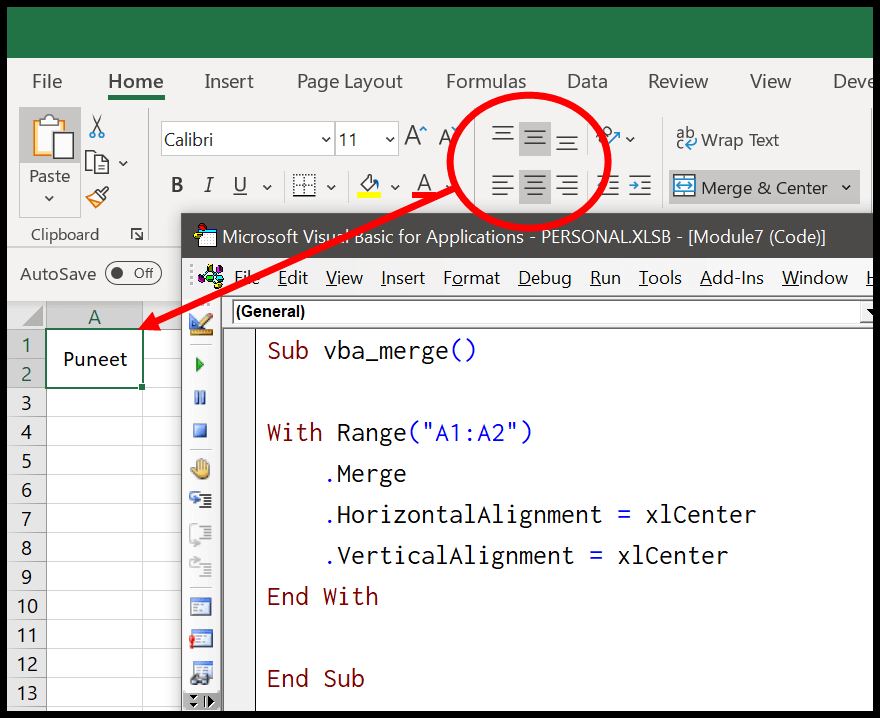
With Range("A1:A2")

    .Merge
    .HorizontalAlignment = xlCenter
    .VerticalAlignment = xlCenter

End With
Combine the Text and then Merge
Let’s talk about a real-life scenario. You have text in a range of cells, and you need to merge those cells but don’t want to lose the content that you have. Well, you can write code that loops through the entire range using For Each, combines the text, and then adds it to the merged range in the end.
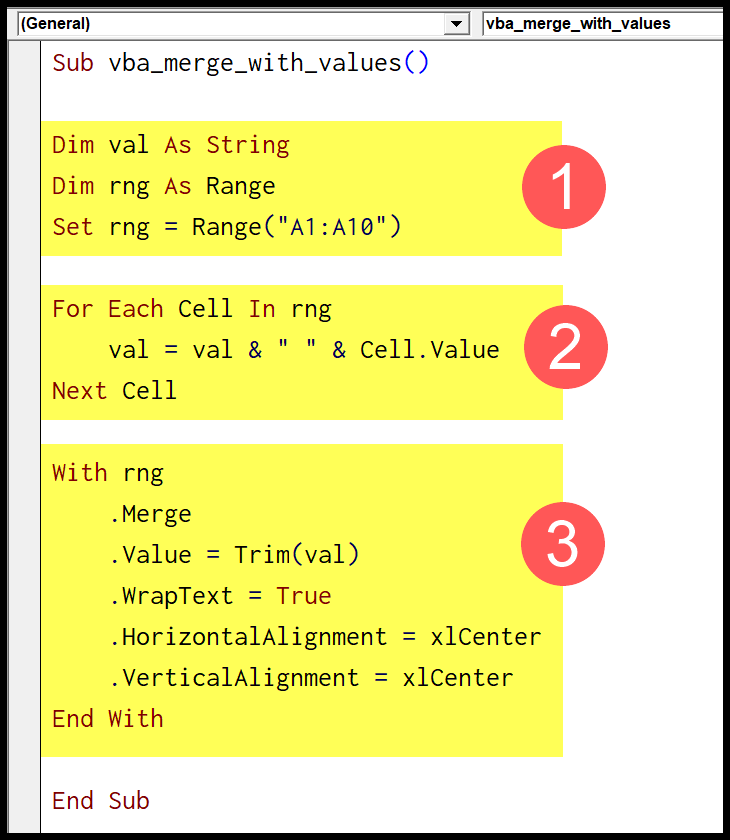
- In the first part, you have variables to use to store the values from the range and the range itself.
- In the second part, you have a LOOP to combine values from each cell to create a new string with that.
- In the third part, you merge the range, add the combined string, and apply wrap text and alignment to the cell content.
Here’s the full code.
Sub vba_merge_with_values()

Dim val As String
Dim rng As Range
Dim Cell As Range

Set rng = Range("A1:A10")

For Each Cell In rng
    val = val & " " & Cell.Value
Next Cell

Application.DisplayAlerts = False
With rng
    .Merge
    .Value = Trim(val)
    .WrapText = True
    .HorizontalAlignment = xlCenter
    .VerticalAlignment = xlCenter
End With
Application.DisplayAlerts = True

End Sub
When you merge cells that have more than one value, Excel shows a warning that only the upper-left value will be kept. That’s why the code turns off DisplayAlerts before Merge and turns it back on in the end. As the code then puts the combined text into the merged cell, nothing is lost. The code also declares the Cell variable, so it works with Option Explicit too.
Unmerge Cells
To split merged cells back into single cells, use the UnMerge method. The value stays in the upper-left cell. The following code unmerges all the merged cells on the active sheet:
Sub unmerge_all_cells()
    ActiveSheet.Cells.UnMerge
End Sub
Check IF a Cell Is Merged
The MergeCells property returns TRUE when a cell is part of a merged range, and MergeArea gives you the whole merged range that the cell belongs to:
Sub check_merged_cell()
    If Range("A1").MergeCells Then
        MsgBox "A1 is merged with " & Range("A1").MergeArea.Address
    Else
        MsgBox "A1 is not merged."
    End If
End Sub
Center Across Selection Instead of Merging
Merged cells can get in the way when you sort, filter, or copy and paste data. If you only want a heading to look centered across a few columns, use Center Across Selection instead. It looks the same, but the cells stay separate:
Sub center_across_selection()
    Range("A1:D1").HorizontalAlignment = xlCenterAcrossSelection
End Sub
Frequently Asked Questions
Why does Excel show a warning when I merge with VBA?
Because more than one cell in the range has a value, and merging keeps only the upper-left one. Set Application.DisplayAlerts = False before Merge to skip the warning, but combine the values first if you need them.
Can I merge cells in an Excel table?
No. Excel doesn’t allow merged cells inside a table (ListObject). Convert the table to a normal range first, or use Center Across Selection for the look you want.
How do I merge cells without losing data?
Combine the values into one string before you merge, and then put that string into the merged cell, as the “Combine the Text and then Merge” code above does.

Written by
Puneet Gogia
Microsoft MVP — Excel · Founder, Excel Champs
Twelve years of teaching Excel, and a decade before that using it as a data analyst. Every tutorial here is written from a file I actually built.