

VBA has two families of loops. For loops run a set number of times or once per item, and Do loops run until a condition changes:
Dim i As Long, r As Long, ws As Worksheet

' A set number of times
For i = 1 To 10
    Cells(i, 1).Value = i
Next i

' Once for every item in a collection
For Each ws In ThisWorkbook.Worksheets
    ws.Range("A1").Value = "Checked"
Next ws

' As long as a condition stays true
r = 2
Do While Cells(r, 1).Value <> ""
    r = r + 1
Loop
Use For when you know the count, For Each for every sheet, workbook or cell in a range, and Do While or Do Until when the loop should stop on a condition, such as the first blank cell.
Do Until is the reverse of Do While: it runs until the condition becomes true. Put the test at the end, as in Do … Loop While or Loop Until, when the code must run at least once.
Leave a loop early with Exit For or Exit Do. While … Wend is an older form of Do While that still works but has no exit statement, so use Do While in new code.
Two faults catch people out. A Do loop never ends if nothing inside it changes the condition, so press Esc or Ctrl + Break to stop it. And a For loop that deletes rows or sheets must count down with Step -1, or it skips the item that moves into the deleted one’s place.
Important Points
- Using Loops in VBA can be helpful when you want to perform a repetitive task.
- You can also use a loop inside another loop (nesting).
- Make sure you don’t create an infinite loop by mistake (a loop whose condition never lets it stop).
What is a LOOP in VBA?
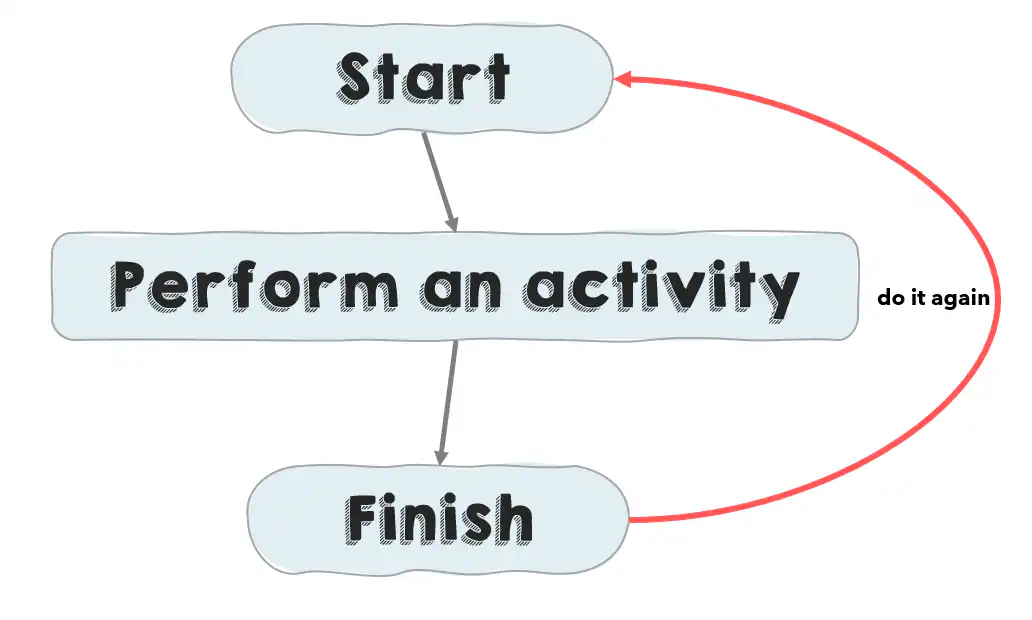
In VBA, a LOOP is a structure that can repeat a statement. In simple words, a loop can perform an activity or multiple activities and go back to the start to do it again a number of times or until a condition is met. This cycle of execution of a loop is called an iteration.
Types of LOOPS in VBA
In VBA, there are six different types of loops that you can use, but you can also describe them in two basic categories: fixed loops (For Next and For Each), which run a set number of times, and conditional loops (the four Do loops), which run based on a condition.
- For Next: To use the FOR NEXT LOOP, you need to define a counter that sets the number of times the loop runs. If you want to run a loop 10 times, then you need to define that value for the counter.
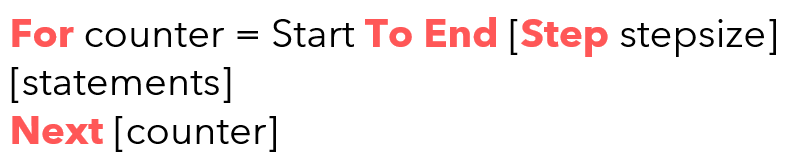
- For Each: With FOR EACH, you can loop through all the objects in a collection of objects. As every collection has a defined number of objects, that makes it a fixed loop.
- Do While Loop: It tests a condition and then keeps performing the activity while that condition is TRUE. In simple words, it will first test a condition and only execute the statement if that condition is met.
- Do Loop While: It works the same as “Do While”, but it performs one iteration of the activity first, then tests the condition, and if that condition is TRUE, keeps performing that activity.
- Do Until Loop: It tests a condition and then keeps executing the statement you have defined until that condition is FALSE and the moment that condition turns TRUE it will stop. Basically, it’s the opposite of “Do While”.
- Do Loop Until: It works the same as “Do Until”, but it performs one iteration of the activity first, then tests the condition, and if that condition is FALSE, keeps performing that activity.
VBA also has an older While…Wend loop, which works like Do While. You can still use it, but Do While is more flexible, as you can leave it early with Exit Do.
Examples of Each Loop
Here’s a short example of each loop, so you can see how they look in code. The first one uses For Next to enter the numbers 1 to 10 in A1:A10. For more examples, see the For Loop tutorial.
Sub for_next_example()
    Dim i As Long
    For i = 1 To 10
        Cells(i, 1).Value = i
    Next i
End Sub
The following code uses For Each to go through every worksheet in the workbook and print its name in the Immediate Window. You can also loop through sheets or loop through a range in the same way.
Sub for_each_example()
    Dim ws As Worksheet
    For Each ws In ThisWorkbook.Worksheets
        Debug.Print ws.Name
    Next ws
End Sub
And here are the Do loops. The first one goes down column A while the cells have values, and the second one does the same with Do Until. See the Do While tutorial for more.
Sub do_loops_example()
    Dim i As Long
    i = 1
    Do While Cells(i, 1).Value <> ""
        i = i + 1
    Loop
    MsgBox "First blank cell (Do While): row " & i

    i = 1
    Do Until Cells(i, 1).Value = ""
        i = i + 1
    Loop
    MsgBox "First blank cell (Do Until): row " & i
End Sub
Exit a Loop Early
You can leave a loop before it finishes with Exit For (in For Next and For Each) or Exit Do (in all the Do loops). It’s useful when you have found what you were looking for and don’t need to check the rest:
Sub exit_for_example()
    Dim c As Range
    For Each c In Range("A1:A100")
        If c.Value = "Total" Then
            MsgBox "Found in " & c.Address
            Exit For
        End If
    Next c
End Sub
Which Loop to Use
- For Next: when you know how many times the loop should run, or need the counter (like a row number).
- For Each: when you want to go through every item in a collection, like cells, sheets or workbooks.
- Do While or Do Until: when the number of times depends on a condition, like “until the next blank cell”.
- Do Loop While or Do Loop Until: when the code inside the loop must run at least once, like asking for a password.
Frequently Asked Questions
How do I stop a loop that keeps running?
Press Esc or Ctrl + Break, and click End in the message that appears. Then check the loop’s condition or counter, so the loop can end on its own.
Can I put a loop inside another loop?
Yes, that’s called nesting. For example, an outer loop can go through the rows and an inner loop through the columns. Use a different counter variable for each loop.
Why is my loop slow?
Loops that read and write cells one by one take time with large data. Turn off screen updating while the loop runs (Application.ScreenUpdating = False), and avoid selecting cells inside the loop.

Written by
Puneet Gogia
Microsoft MVP — Excel · Founder, Excel Champs
Twelve years of teaching Excel, and a decade before that using it as a data analyst. Every tutorial here is written from a file I actually built.