

Join the text with a line-break constant. In a message box, vbNewLine starts a new line:
MsgBox "Total: $12,450" & vbNewLine & "Region: West"In a cell, use vbLf, which is the same character that Alt + Enter inserts. Turn on Wrap Text if the cell still shows the text on one line:
With Range("A1")
    .Value = "Total: $12,450" & vbLf & "Region: West"
    .WrapText = True
End With
vbNewLine and vbCrLf are both Chr(13) & Chr(10) on Windows, and vbLf is Chr(10) on its own. All three work in a message box. Use two in a row, such as vbNewLine & vbNewLine, for a blank line between paragraphs.
Without VBA, a formula does the same with CHAR(10): =A2 & CHAR(10) & B2, with Wrap Text on.
Avoid vbNewLine and vbCrLf in cells. They leave an invisible Chr(13) in the value, so LEN counts an extra character and exact matches and lookups fail. vbCr on its own does not create a line break in a cell at all.
In VBA, there are three different constants to add a line break.
- vbNewLine
- vbCrLf
- vbLf
vbNewLine
vbNewLine inserts a new line character that starts a new line. In the below line of code, you have two strings combined by using it.
Range("A1") = "Line1" & vbNewLine & "Line2"
When you run this macro, it returns the string in two lines.
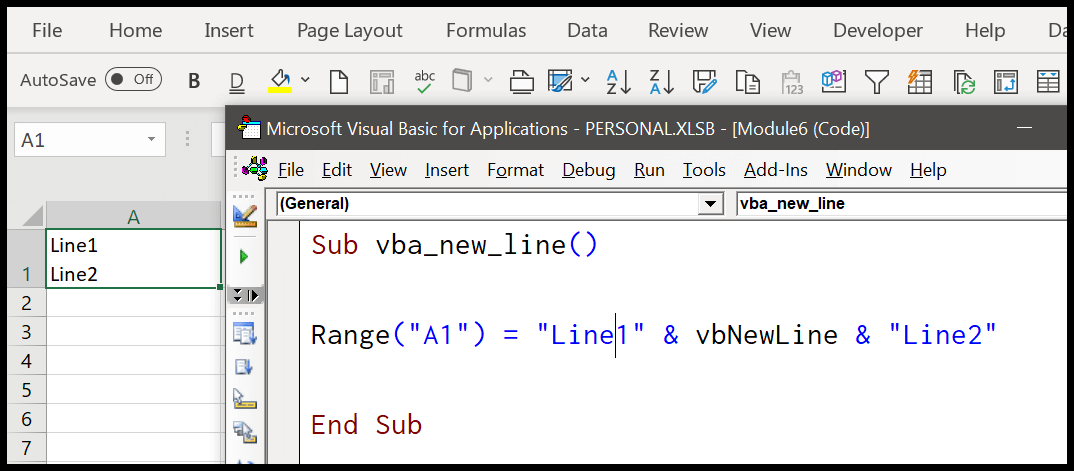
On Windows, it returns the characters 13 and 10 (Chr(13) + Chr(10)). You can use a code in the following way as well to get the same result.
Range("A1") = "Line1" & Chr(13) & Chr(10) & "Line2"
But when you use vbNewLine, you don’t need to use the Chr function.
vbCrLf
vbCrLf constant stands for Carriage Return and Line feed, which means Cr moves the cursor to the start of the line, and Lf moves the cursor down to the next line.
When you use vbCrLf between two strings or values, like you have in the following code, it inserts a new line.
Range("A1") = "Line1" & vbCrLf & "Line2"

vbLf
vbLf constant stands for line feed character, and when you use it within two strings, it returns a line feed character that adds a new line for the second string.
Range("A1") = "Line1" & vbLf & "Line2"

For a cell, vbLf is the best choice. When you press Alt + Enter in a cell, Excel adds the same line feed character (Chr(10)). vbNewLine and vbCrLf add an extra carriage return character (Chr(13)) as well, which you can’t see but which counts in LEN and can cause problems when you split or compare the text later. If the text still shows on one line, turn on Wrap Text for the cell:
Sub new_line_in_cell()
    Range("A1").Value = "Line1" & vbLf & "Line2"
    Range("A1").WrapText = True
End Sub
Add a New Line in VBA MsgBox
If you want to add a new line while using the VBA MsgBox, you can use any of the above three constants that we have discussed.
MsgBox "Line1" & vbNewLine & "Line2"
MsgBox "Line1" & vbCrLf & "Line2"
MsgBox "Line1" & vbLf & "Line2"
There’s also a constant vbCr that returns a carriage return character that you can use to insert a new line in a message box.
MsgBox "Line1" & vbCr & "Line2"
vbCr won’t work if you want to enter a cell value: a carriage return alone doesn’t start a new line in a cell, even when you apply wrap text to it. Use vbLf for cells.
Add a New Line with a Formula
If you want to do the same with a worksheet formula instead of VBA, use CHAR(10) between the values, and turn on Wrap Text for the cell:
=A1&CHAR(10)&B1
And from VBA, you can write the same formula into a cell with Range(“C1”).Formula = “=A1&CHAR(10)&B1”.
Remove New Lines from a Text
To do the opposite and put the text back on one line, replace the line feed with a space using the Replace function. Replace vbCr as well, in case the text has vbCrLf in it:
Sub remove_new_lines()
    Dim txt As String
    txt = Range("A1").Value
    txt = Replace(txt, vbCr, "")
    txt = Replace(txt, vbLf, " ")
    Range("A1").Value = txt
End Sub
Frequently Asked Questions
What is the difference between vbNewLine and vbCrLf?
On Windows, there’s none: both are Chr(13) + Chr(10). vbNewLine uses the new line character of the platform the code runs on, while vbCrLf is always Chr(13) + Chr(10).
Why does my cell show the text on one line?
Wrap Text is off for the cell, or the text has only vbCr in it. Turn on Wrap Text and use vbLf (Chr(10)) for the line break.
How do I add a blank line between two lines?
Use the constant twice, like “Line1” & vbNewLine & vbNewLine & “Line2”. This works in a message box and in a cell.

Written by
Puneet Gogia
Microsoft MVP — Excel · Founder, Excel Champs
Twelve years of teaching Excel, and a decade before that using it as a data analyst. Every tutorial here is written from a file I actually built.