

Type Option Explicit as the first line of a module, above every procedure. VBA then refuses to run code that uses a variable you haven’t declared with Dim, and highlights it with “Variable not defined”.
To add it to every new module automatically, open the Visual Basic Editor (Alt + F11), go to Tools → Options → Editor, tick Require Variable Declaration and click OK. Existing modules don’t change, so add the line to those yourself.
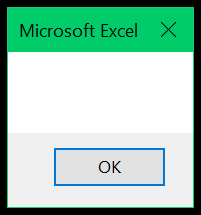
The point is catching typos. Without it, MsgBox MyTxt after myText = "Puneet" shows an empty box with no error, because VBA quietly creates a new, empty variable called MyTxt.
It applies only to the module it’s in, and it must appear once, before any Sub or Function. Run Debug → Compile VBAProject to check every module for undeclared variables at once, instead of finding them one procedure at a time.
Key Points
- Option Explicit forces you to declare all the variables.
- It’s a statement that you can use at the start of a module.
- You can enter it manually or activate it from the options.
- You need to use Option Explicit only once in each module.
- It also helps you to identify typing errors while using variables.
What is VBA Option Explicit
Option Explicit is a statement that you can use at the beginning of a module to force yourself to declare all the variables. When you add this statement, VBA shows you a compile error (“Variable not defined”) when you execute the code and also highlights the variable in the code that you need to declare.

When you add Option Explicit at the beginning of a module, VBA adds a separator line below it, and then you can start writing a procedure.
And when you have the Option Explicit statement and you run a procedure, VBA checks if there is a variable that is not declared and shows you an error message. In the following code, the variable a is not declared:
Option Explicit
Sub myMacro()
a = 50
MsgBox a
End Sub

Above is the message that you get when a variable is not declared: “Compile error: Variable not defined”.
Activate Option Explicit in VBA
To activate the option explicit statement in a module, use the following steps.
- First, open the Visual Basic Editor, and in the Tools menu, click Options.

- After that, in the Options dialog box, go to the Editor tab and tick “Require Variable Declaration”.
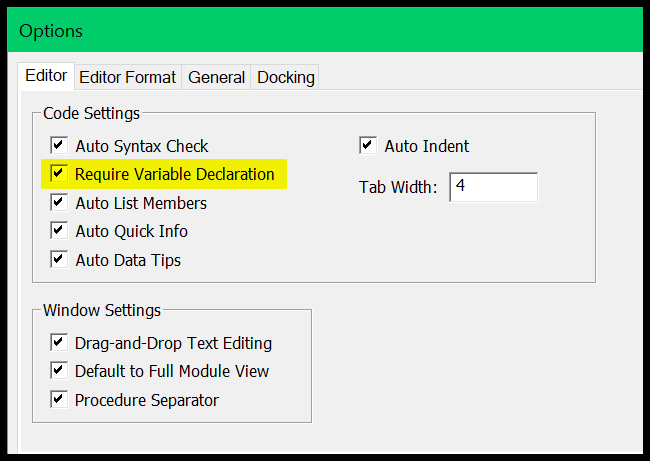
- In the end, click OK.
- Once you do that, VBA will add Option Explicit whenever you add a new module.
But it doesn’t add this statement to your existing modules, so you need to add it manually to each of the existing modules one by one.
How to Add it Manually?
As I mentioned, the Option Explicit statement must go before the first procedure in the module (Sub or Function).
So, you need to add this statement above the first procedure (General Declarations area) and make sure to add it only once.
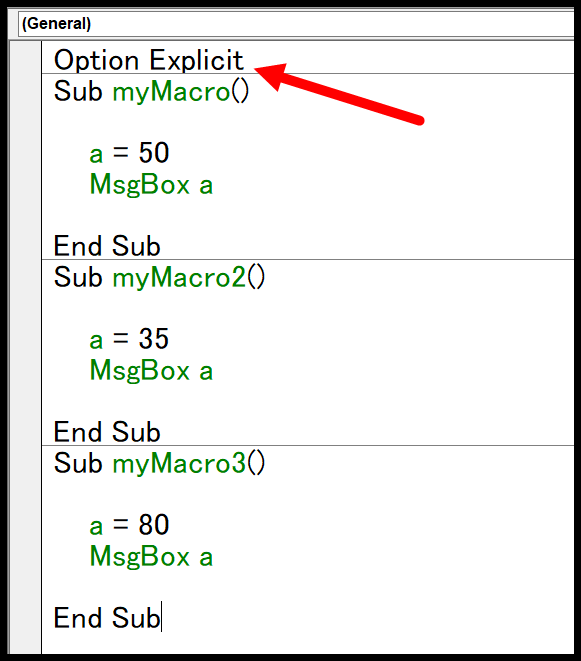
If you add it within a procedure, or between two procedures, VBA will show you an error when you try to execute any of the code in the module.

Examples (Why using Option Explicit Statement is a Good Habit)
Let me show you an example to make you understand why the Option Explicit statement is highly recommended to use.
Look at the following code.
Sub myMacro()
  Dim myText As String
  myText = "Puneet"
  MsgBox   MyTxt
End Sub
In this code, I have declared a variable “myText” as a string and then defined the value of this variable.
And in the end, I used a message box that shows the value of the variable, but if you look carefully, I have misspelled that variable as “MyTxt” instead of “myText” (typo error).
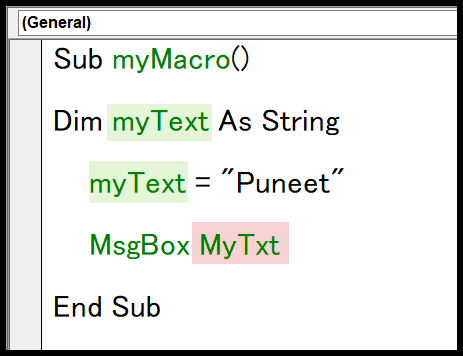
Now when I run this code, it shows me a blank message box.
I need your 2 minutes to help you understand the real problem here.
When I mistyped the variable name, VBA took it as a separate variable, and as I am not using the Option Explicit statement, it doesn’t show me an error to notify me.
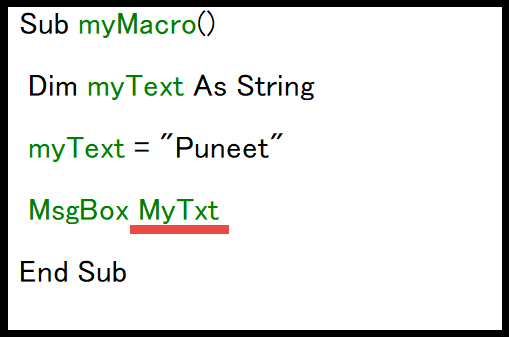
That is why the message box uses the second variable (mistyped) which has no value assigned to it.
Now think for a second: if you are writing a lengthy code and not using the Option Explicit statement, it will be hard for you to trace down this error until you reread the entire code.
But with the Option Explicit statement ON, when I run this code, it shows an error and highlights MyTxt.

Option Explicit
Sub myMacro()
Dim myText As String
myText = "Puneet"
MsgBox MyTxt
End Sub
There’s one more problem: Undeclared variables are automatically assigned the Variant data type, which can hold any data type.
While Variant types are flexible, they consume more memory and processing power than specific data types like Integer or String.
This can negatively impact the performance of your VBA application, especially in loops or large-scale data processing.
Other Benefits of Using Option Explicit
- Improves Code Readability and Maintenance: Option Explicit makes it easier for you or others to understand which variables are being used by requiring all variables to be declared.
- Enhances Performance: Declaring the type of variables (e.g., Integer, String) can lead to more efficient memory use and can sometimes improve the performance of the VBA code.
- Encourages Good Programming Practices: Using Option Explicit encourages the development of good programming habits, such as thinking ahead about the data types and names of variables, which can lead to more robust and error-free code.
Wrap Up
Option Explicit is considered a best practice in VBA programming, as it can significantly reduce the number of runtime errors and make your code more manageable and maintainable.
Check All Modules at Once
Option Explicit shows the error only when you run a procedure in that module. To check every module in the project in one go, go to Debug ➜ Compile VBAProject in the Visual Basic Editor. It stops at the first variable that isn’t declared, so you can fix it and compile again until there are no errors.
Also note that Option Explicit forces you to declare variables, not their data types. A line like the following is allowed, and myValue becomes a Variant:
Sub myMacro2()
    Dim myValue  ' declared, but as a Variant
    myValue = 100
    MsgBox myValue
End Sub
Frequently Asked Questions
Does Option Explicit apply to all modules?
No. It only applies to the module where you add it. Add it at the top of each module, including sheet modules, ThisWorkbook and UserForms, or turn on Require Variable Declaration so new modules get it on their own.
How do I fix the “Variable not defined” error?
Declare the highlighted variable with a Dim statement at the top of the procedure, like Dim a As Long. If the name is a typo of a variable you already declared, correct the spelling instead.
Can I turn Option Explicit off?
Yes. Delete the Option Explicit line from the module. Unticking Require Variable Declaration only stops VBA from adding it to new modules; it doesn’t remove it from existing ones.

Written by
Puneet Gogia
Microsoft MVP — Excel · Founder, Excel Champs
Twelve years of teaching Excel, and a decade before that using it as a data analyst. Every tutorial here is written from a file I actually built.